How to edit, disable, or delete a location
Last updated: September 16, 2026
Update a location, hide it from bookings, or remove it.
After you add locations, you manage them from the Locations page in the app sidebar.
Open the Locations list
1
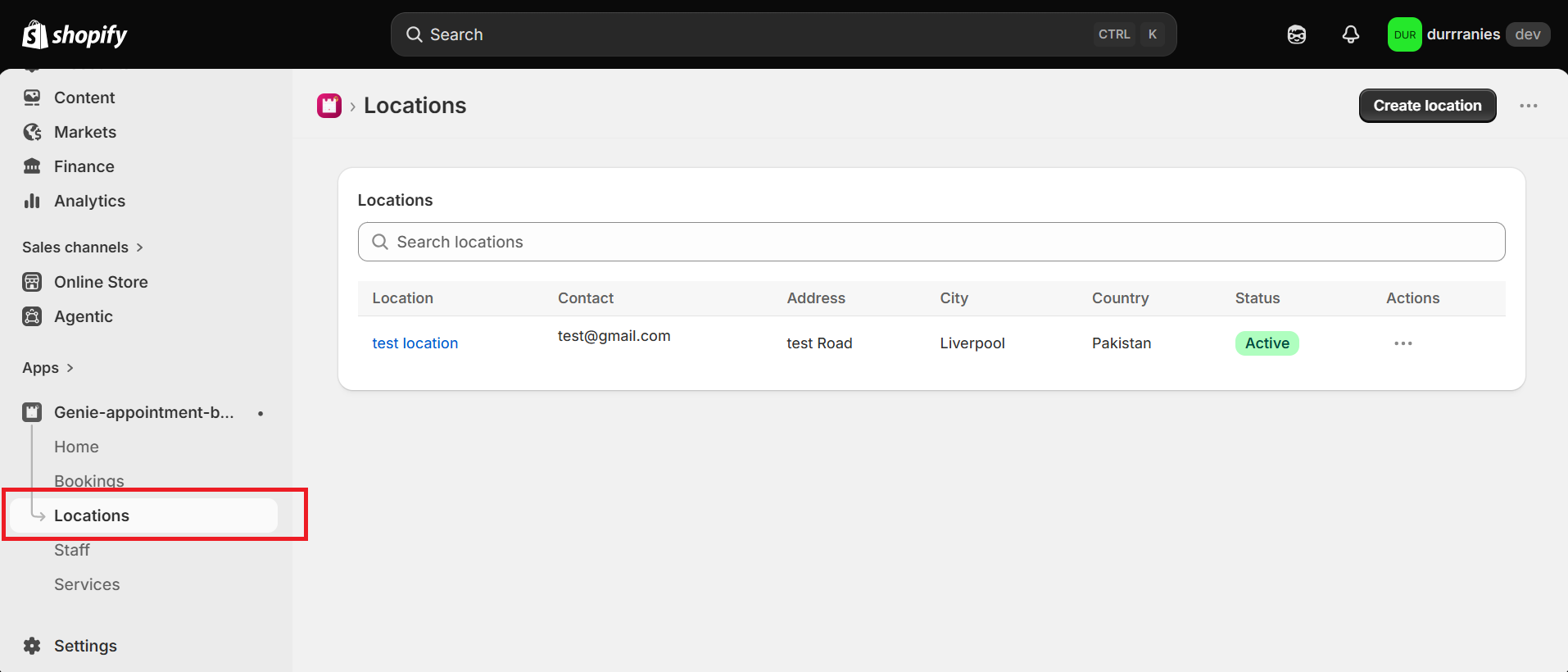
From the app sidebar, click "Locations".
2
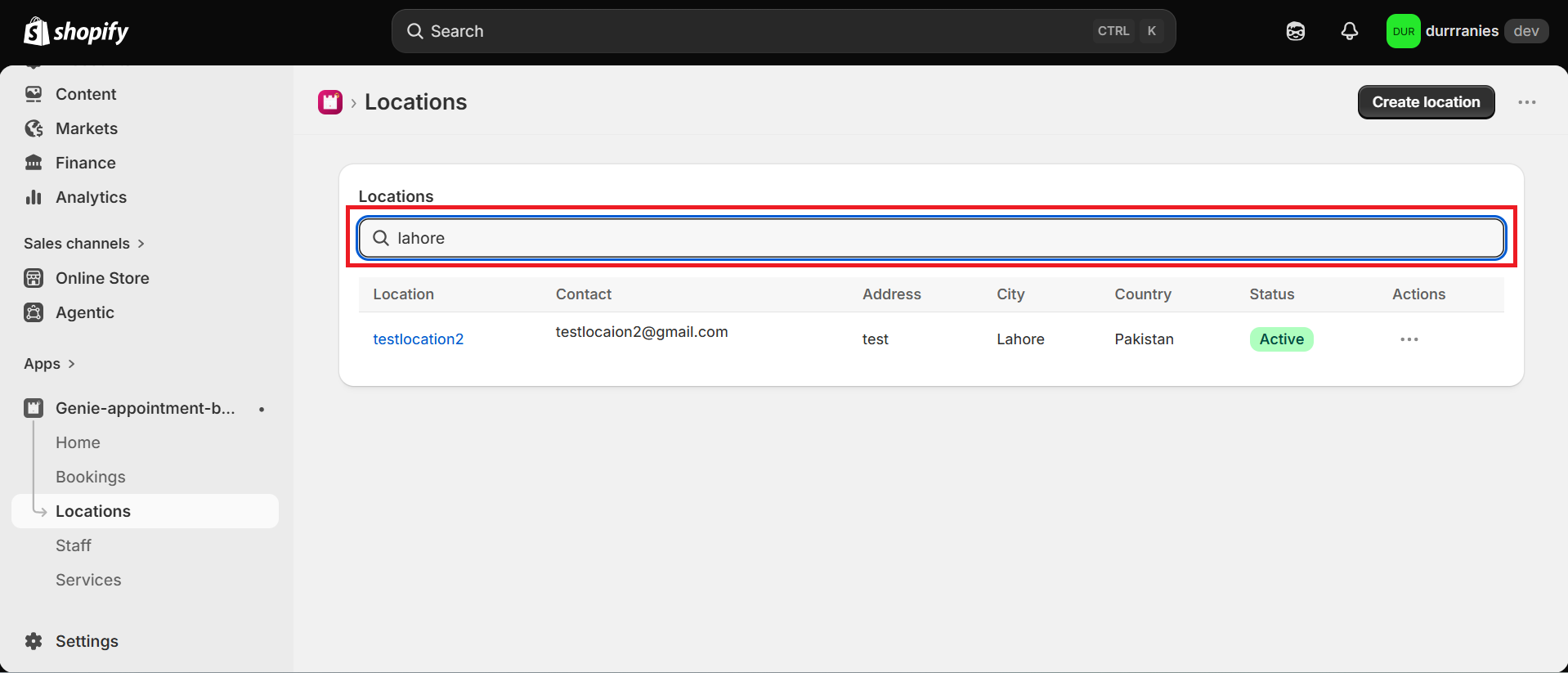
Use the search box if you need to find a location by name, email, phone, city, or country.
Edit
3
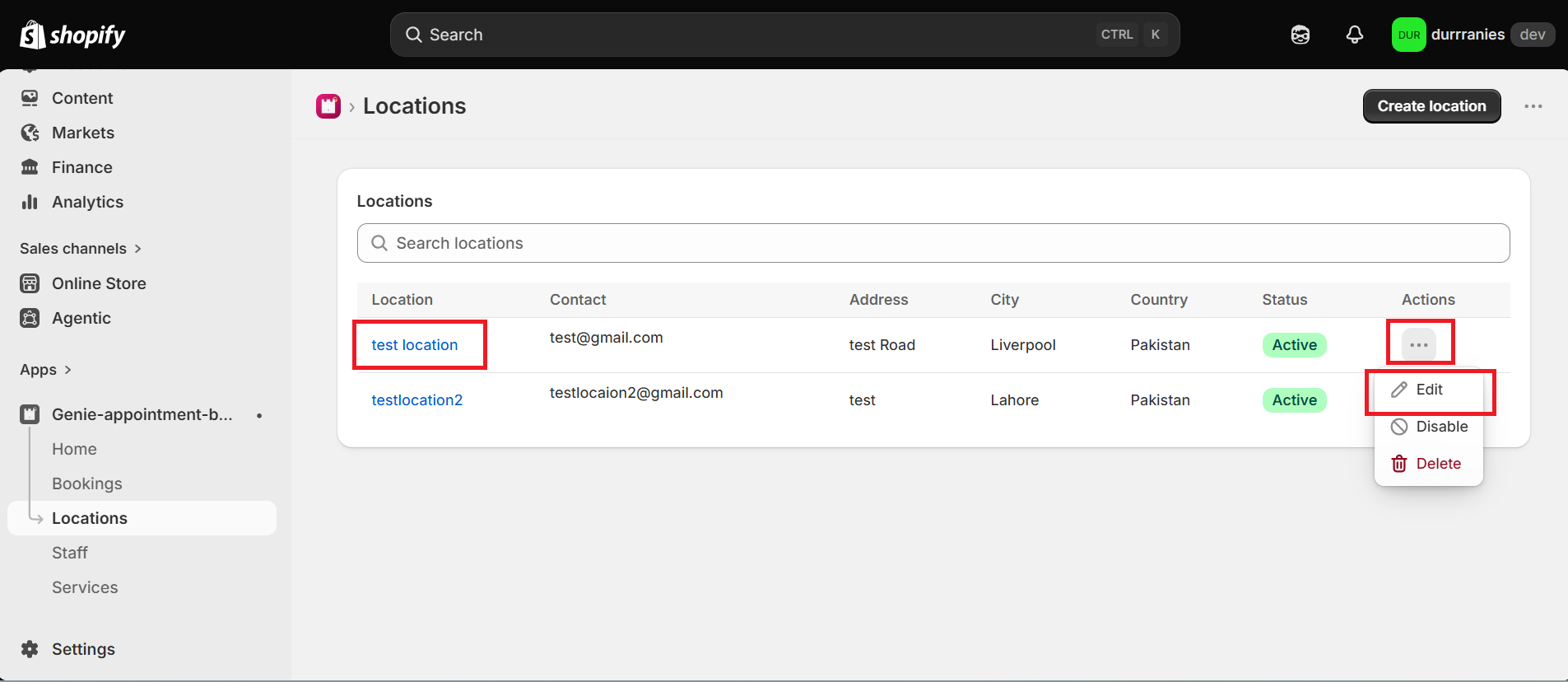
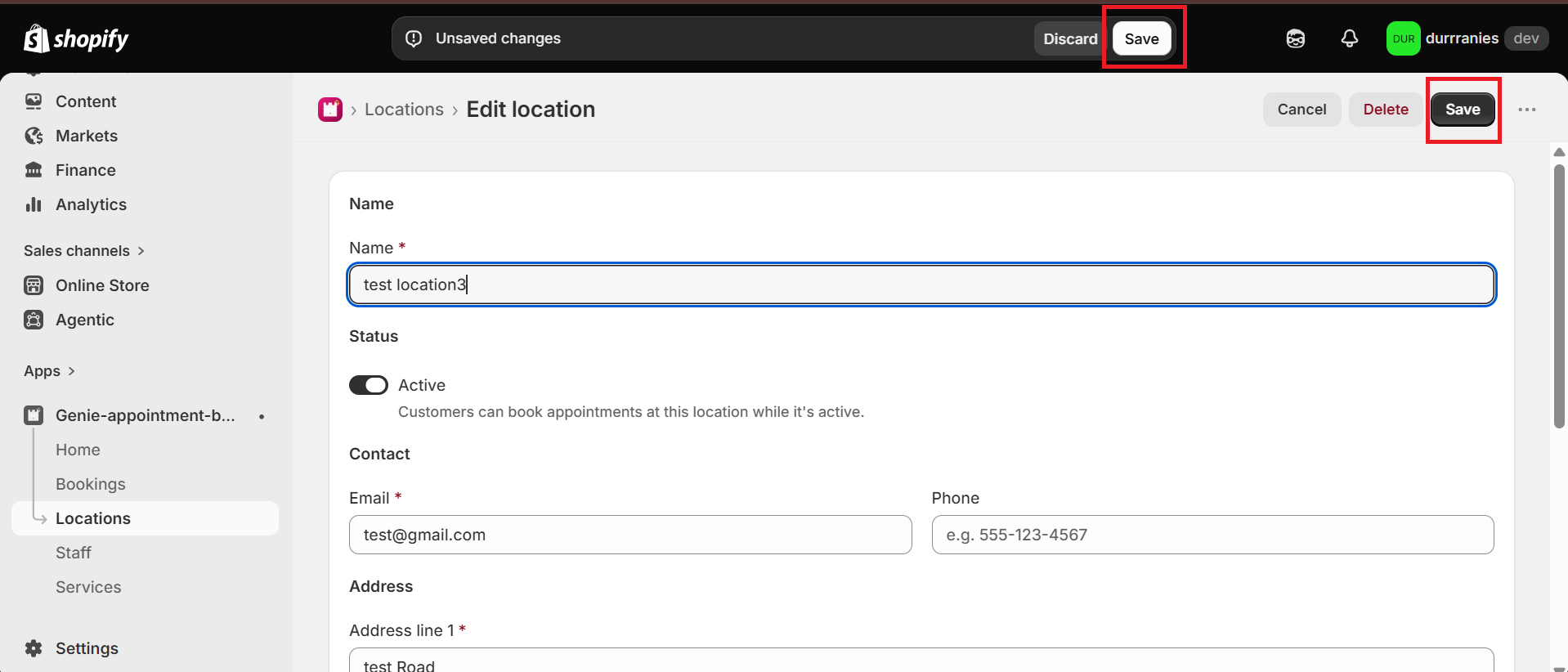
Click the location name, or open the actions menu and click "Edit".
4
Change the name, status, contact, address, or coordinates, then click Save.
Disable or enable
5
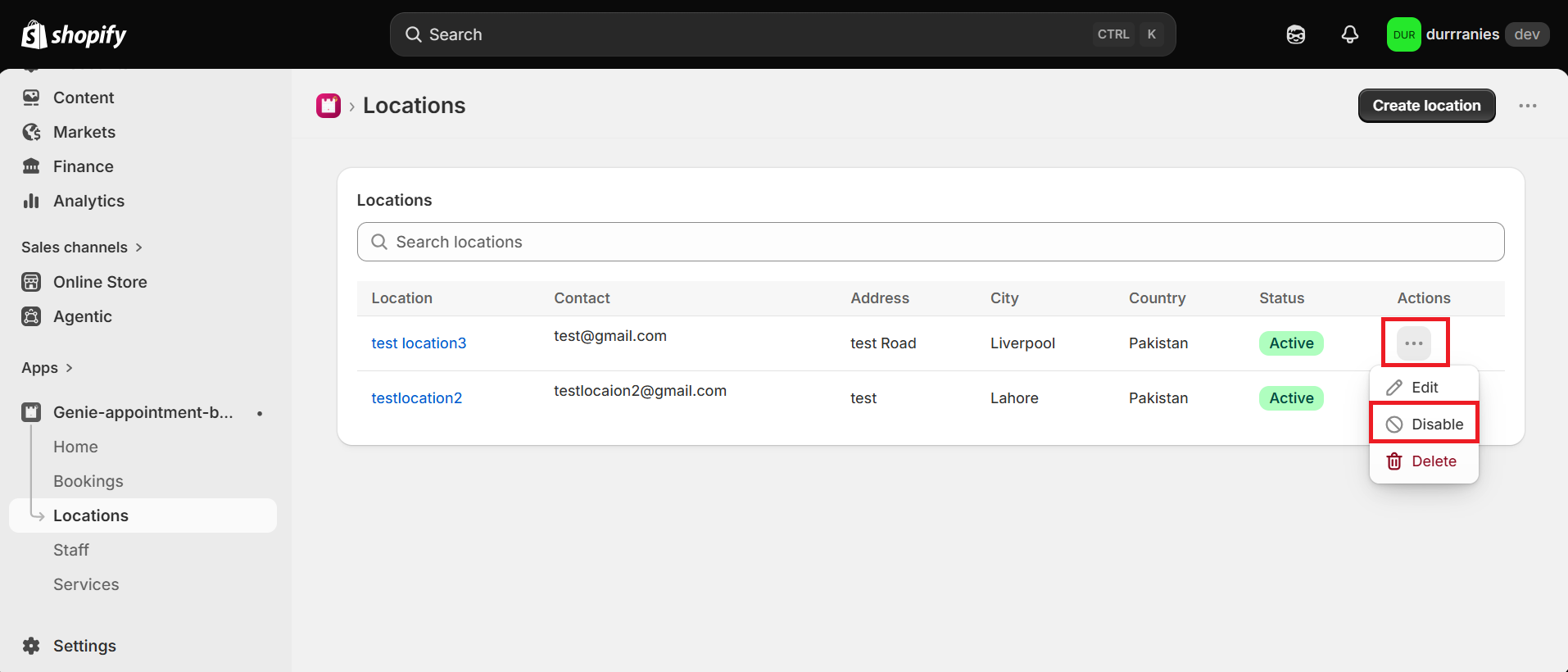
Open the actions menu and click "Disable" to hide the location from bookings without deleting it. Status changes to Disabled.
6
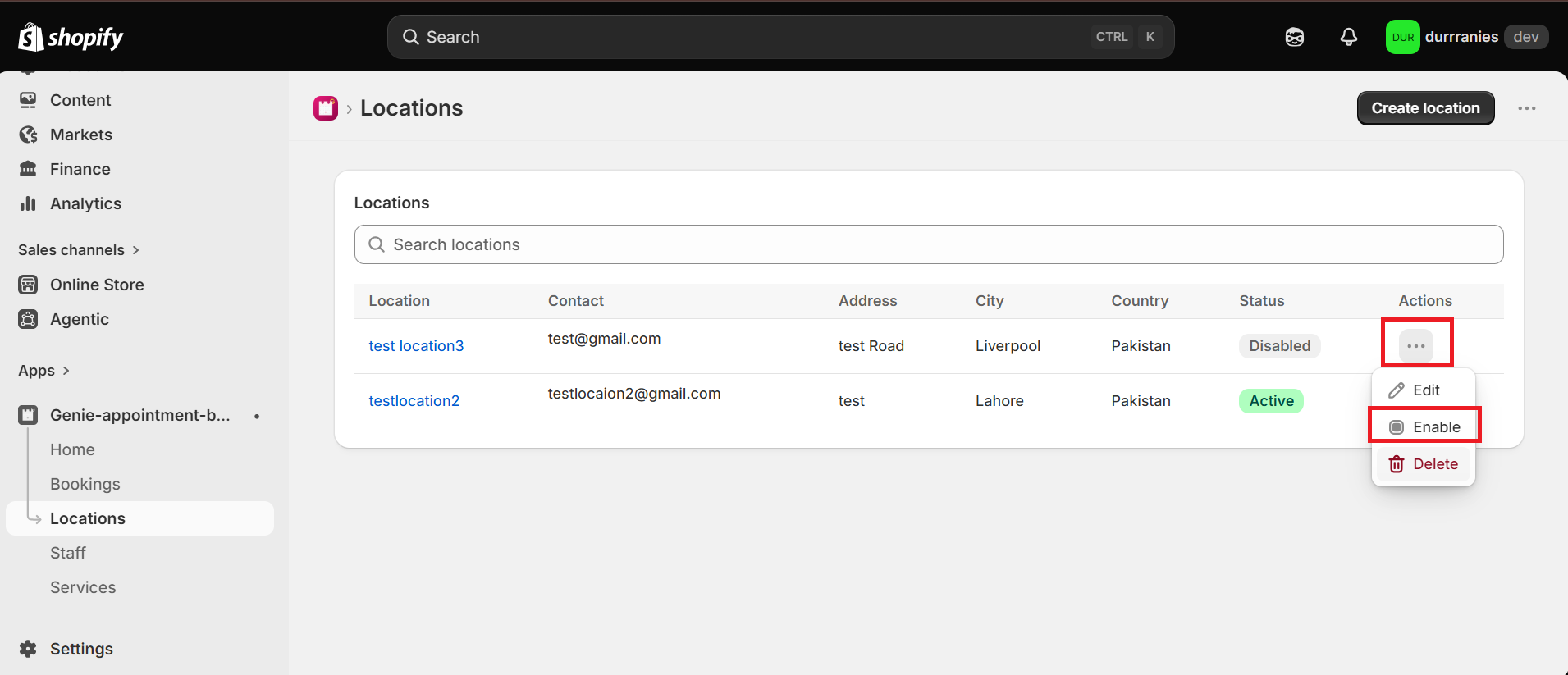
Click "Enable" later to make it Active again.
Delete
7
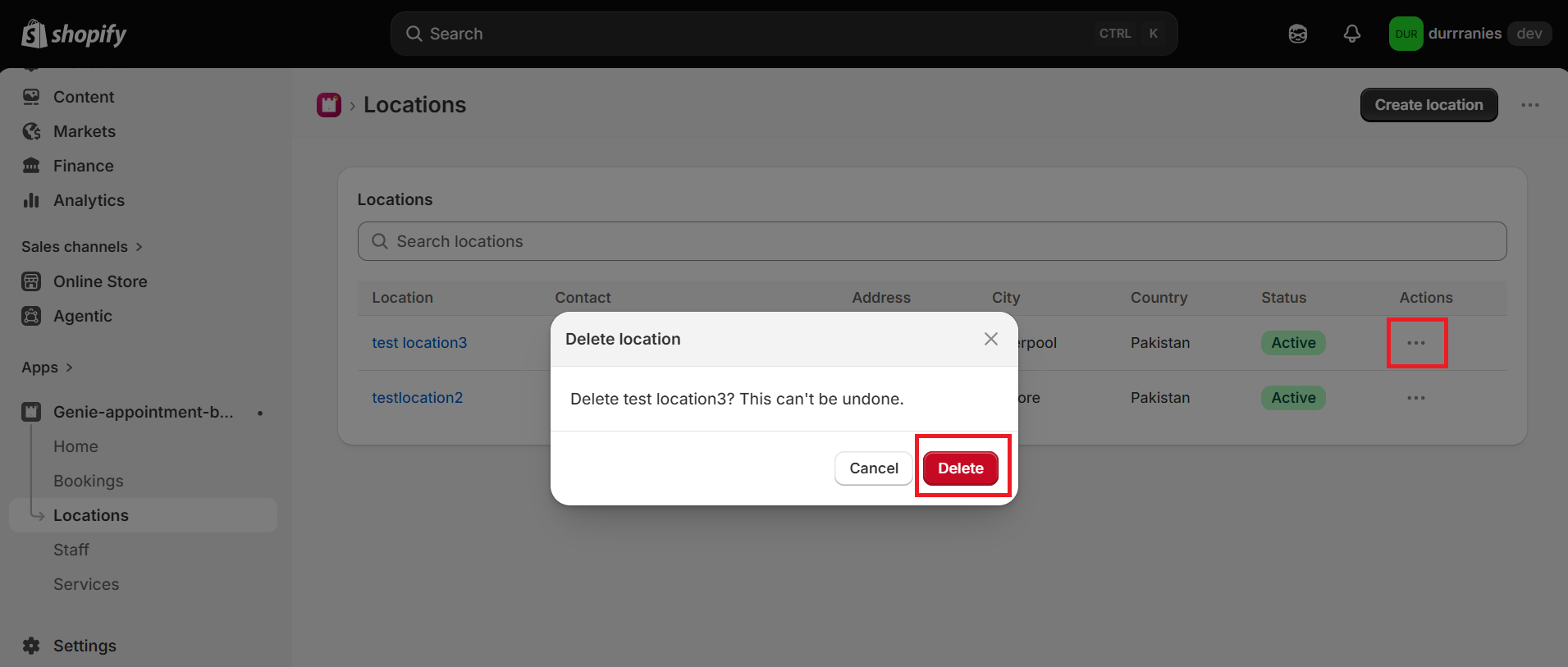
Open the actions menu and click "Delete". Confirm in the dialog. This cannot be undone.