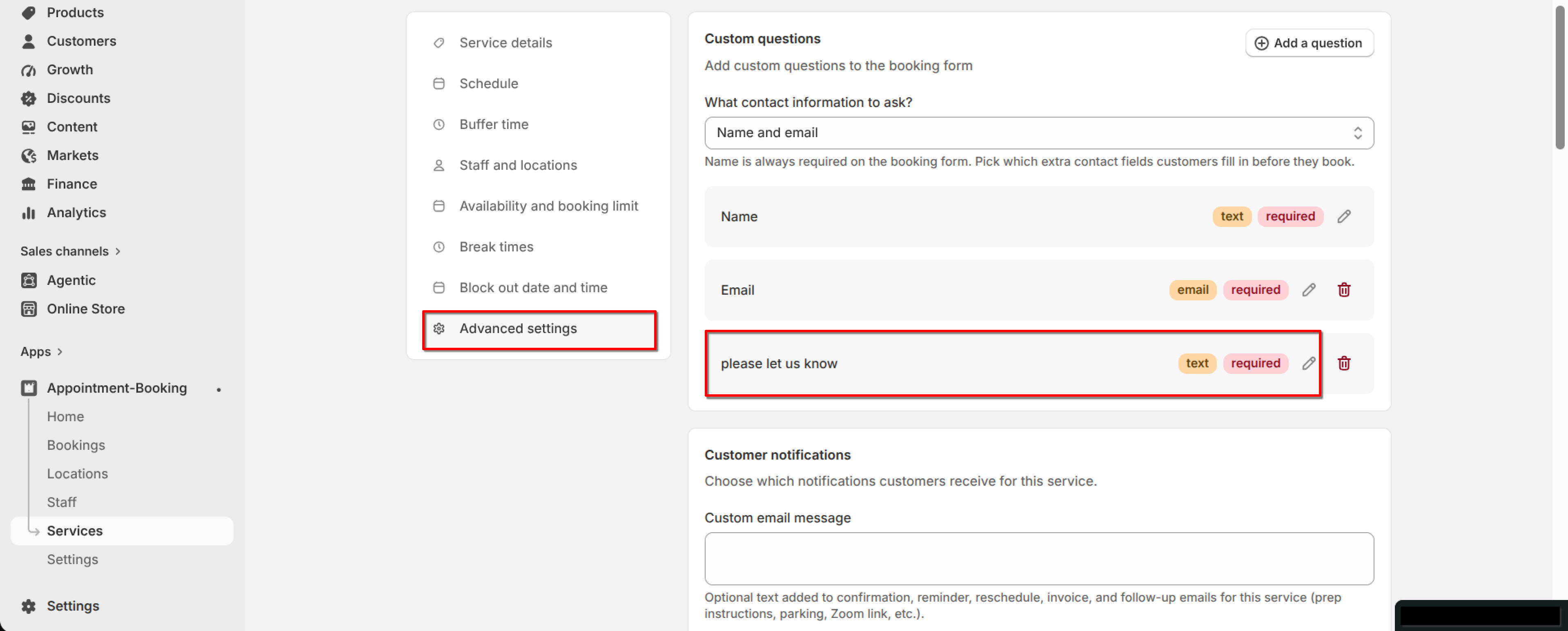
How to use Advanced settings
Last updated: September 15, 2026
Add custom questions customers answer when they book this service.
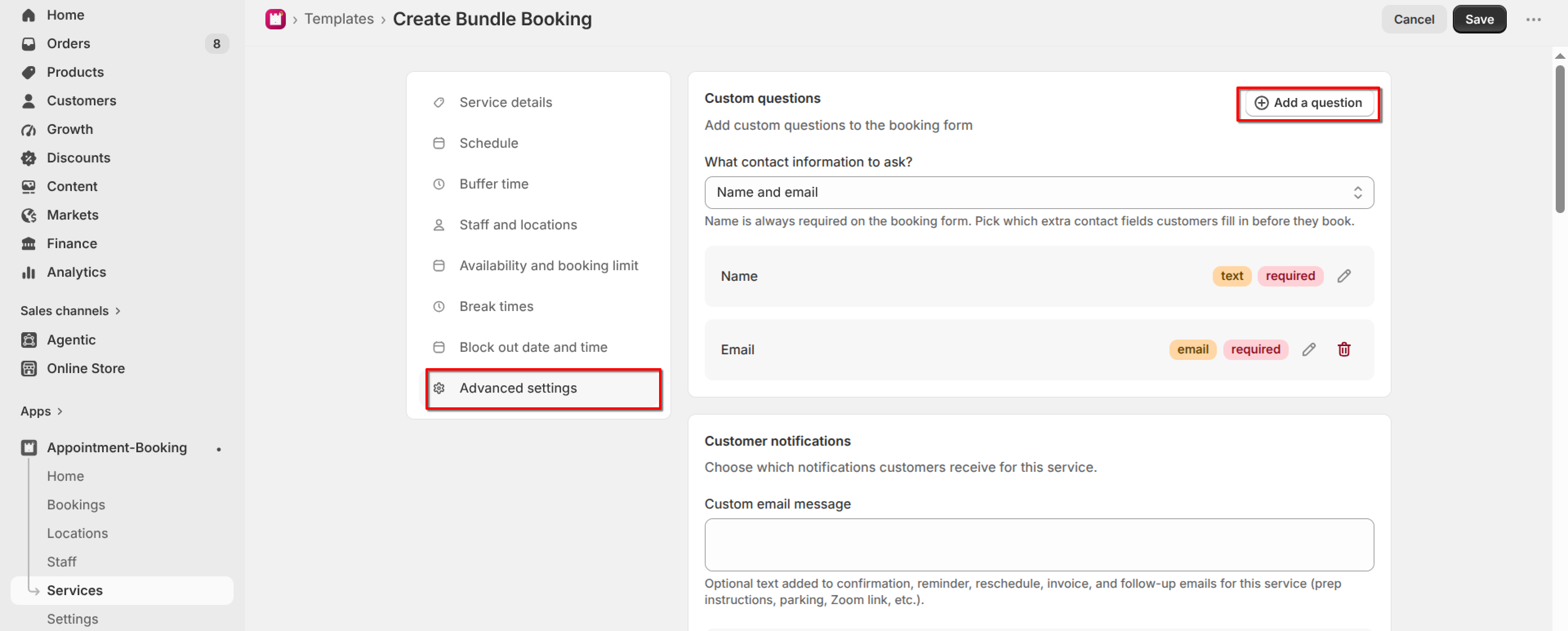
Open the service and click "Advanced settings" in the left menu. Name, email, and phone are collected separately. Use this for extra questions such as "Do you have any allergies?"
1
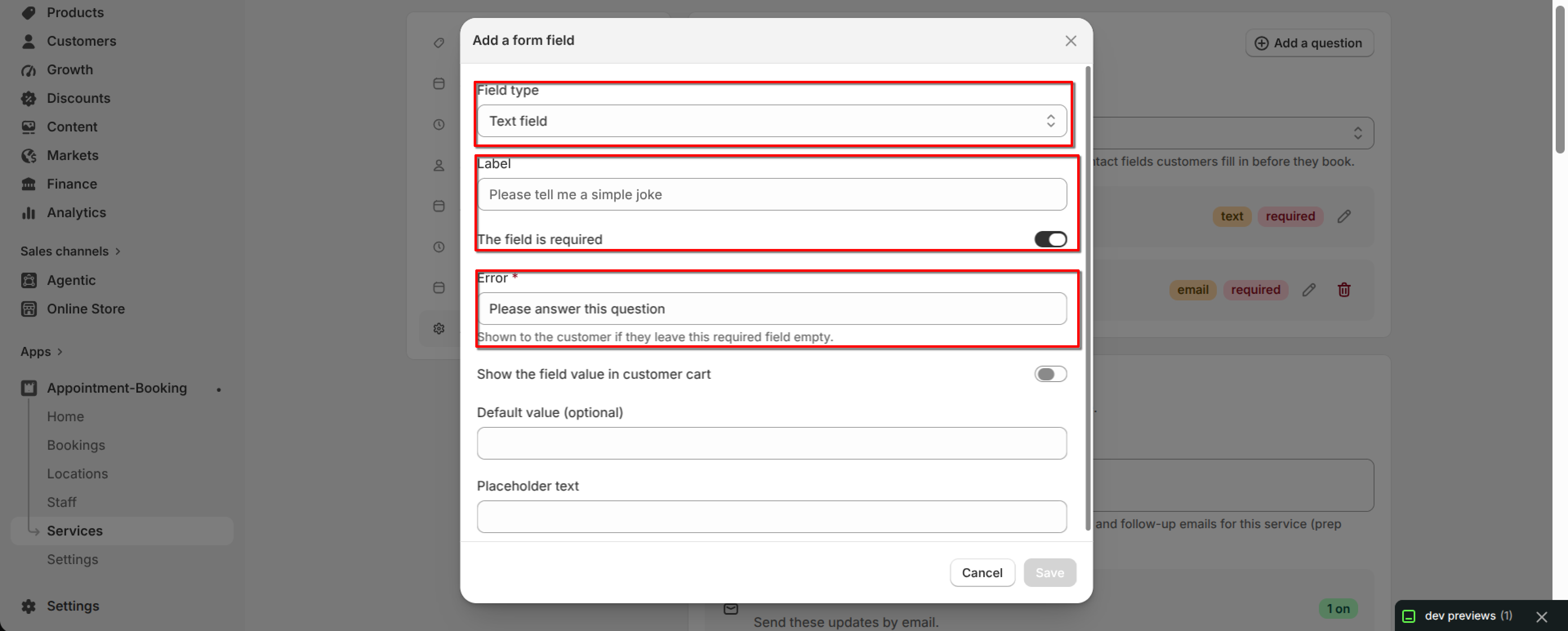
Enter the Question text customers will see.
2
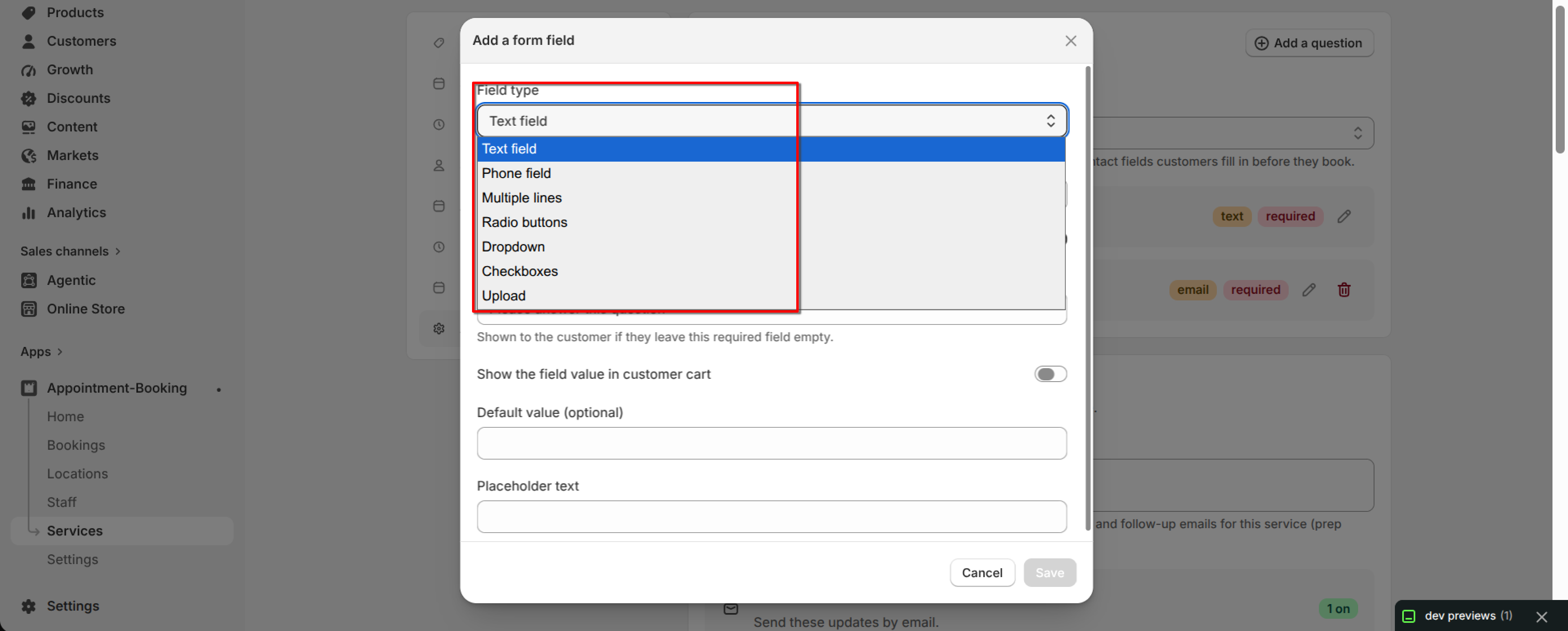
Choose an Answer type: Yes / No, Short text, Long text, Dropdown, Checkboxes, or Number.
3
Turn on "Customer must answer this question" if booking cannot continue without an answer. Enter the Error text shown if they skip a required question.
4
Optionally add Help text and Placeholder text. For Dropdown or Checkboxes, enter at least 2 choices separated by commas.
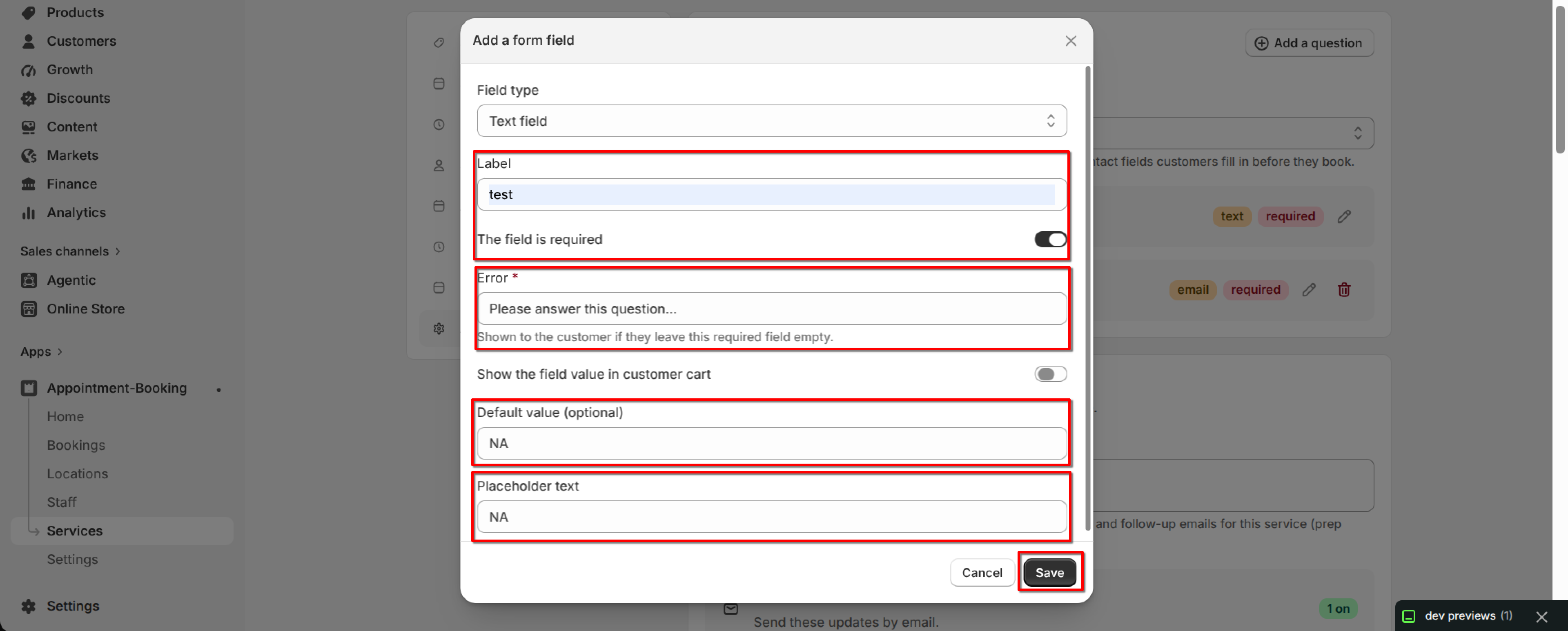
5
Click "Add question", then click Save on the service.