
How to enable QR check-in and OTP verification
Last updated: September 15, 2026
Ask customers to verify with a QR code or one-time code before checkout continues.
These options are in Settings → General → Check-in and verification. If they are on, the customer must complete them before checkout can continue.
1
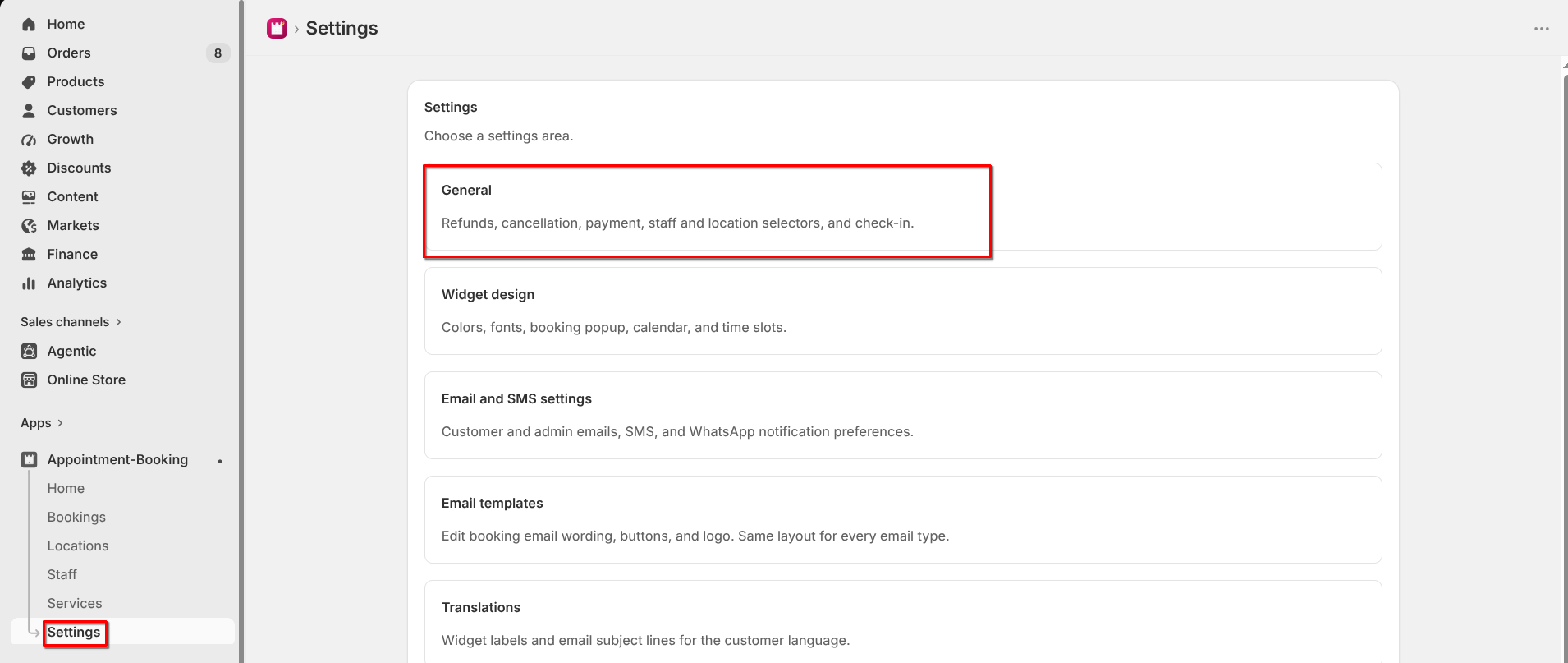
From the app sidebar, click Settings → General.
2
Turn on "Enable QR code for check-in" if customers should verify with a QR code.
3
Turn on "Enable OTP verification" if customers should verify with a one-time code.
4
Optionally turn on "Send generated slip when the customer places an order" if you want a slip with a QR code sent with the order.
5
Click Save.
What's Next