
Blocking specific dates
Last updated: March 1, 2026
Block holidays or closure days so customers cannot schedule pickup or delivery on those dates.
Blocked dates are specific calendar dates where pickup or delivery is not available. Customers will not see these dates as options in the widget.
How to block a date
Go to Locations and open a location.
Under the Pickup or Delivery tab, find the "Blocked Dates" or "Disable Dates" section.
Click "Add Date" and select the date from the calendar picker.
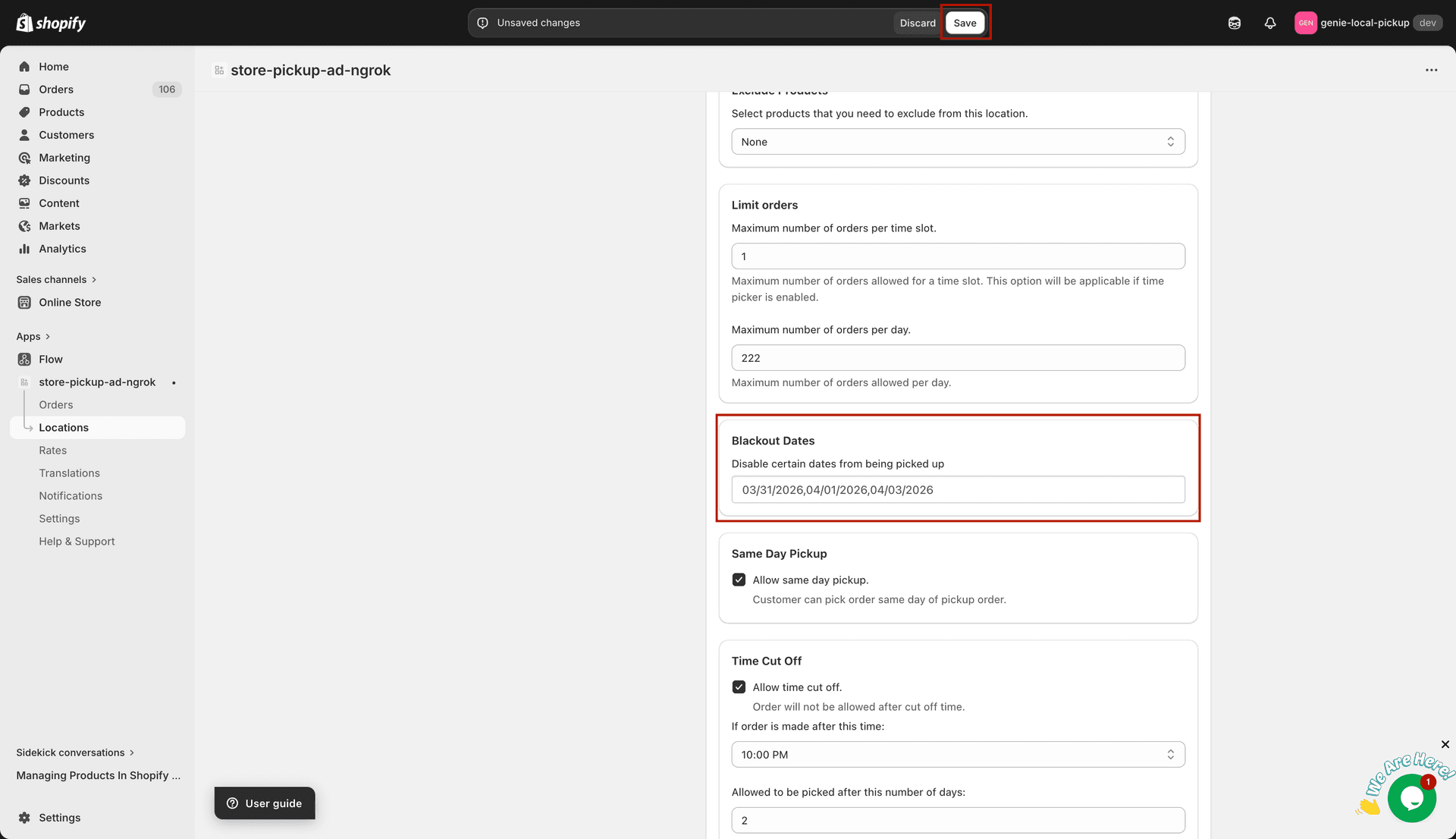
Select dates to block from the calendar
Click Save.
How it appears to customers
On the storefront date picker, blocked dates appear greyed out and cannot be selected. Customers automatically see the next available date.
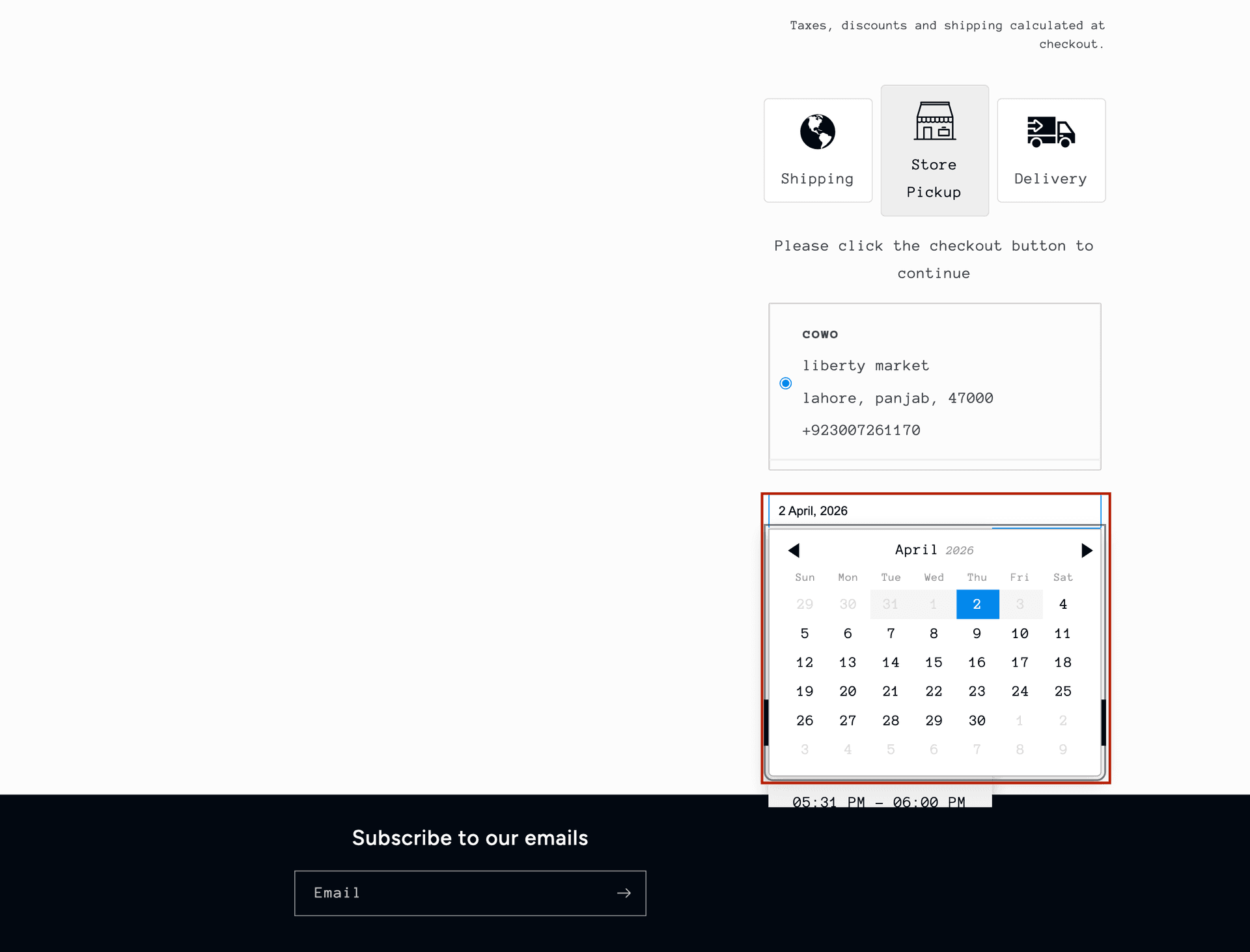
Blocked dates are greyed out on the customer-facing calendar
To block recurring days (e.g. every Sunday), simply leave that day untoggled in the pickup/delivery days section instead of adding individual blocked dates.