
Per-product preparation time
Last updated: March 1, 2026
Set individual prep times for products that need more time to prepare before pickup or delivery.
Some products take longer to prepare than others. Instead of setting a long global prep time that affects all products, you can set a custom prep time per product.
How to set per-product prep time
Go to Settings from the app sidebar.
Click "Edit" on the Product Preparation Time card.
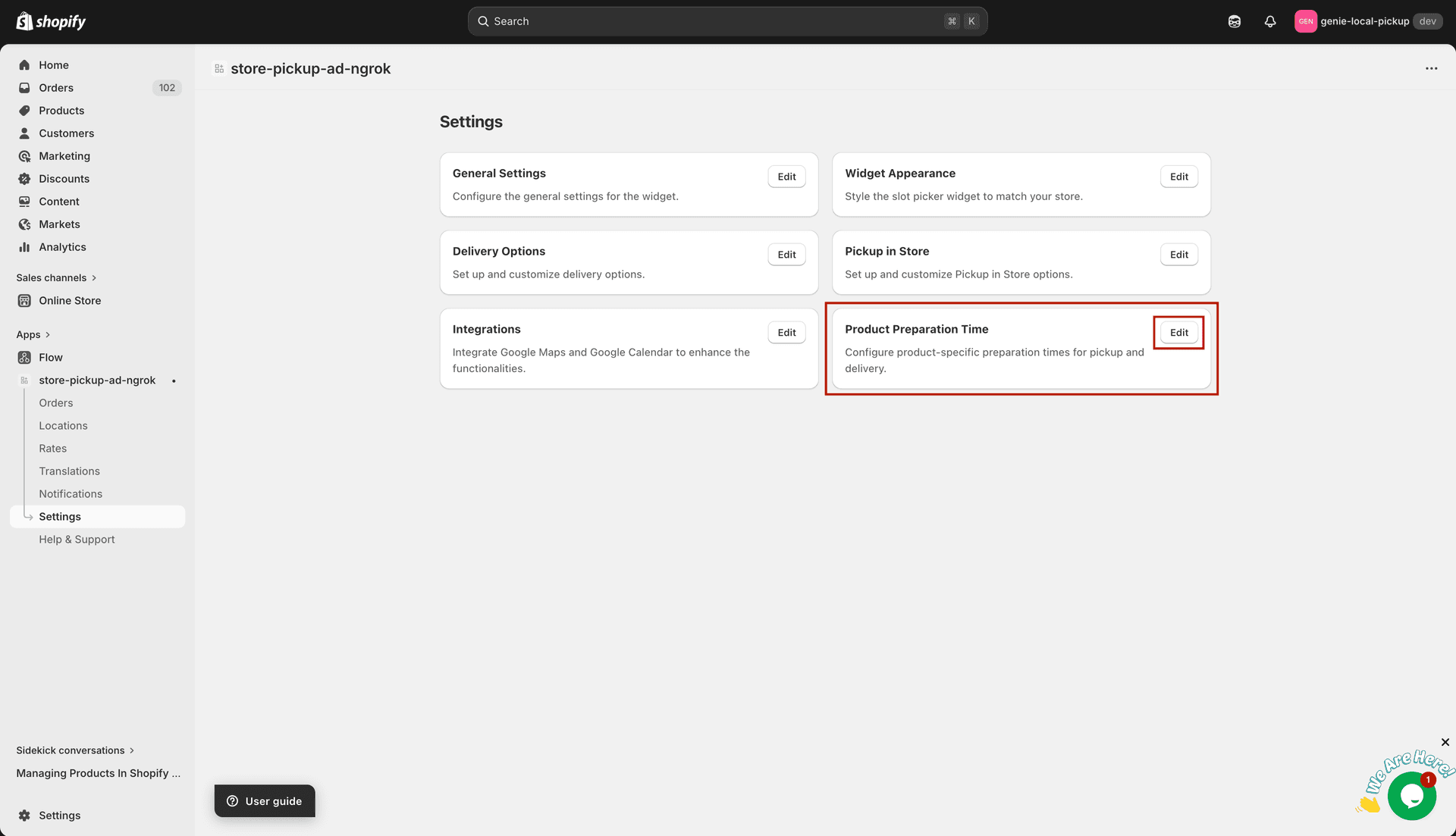
Click Edit on the Product Preparation Time card
Click "Create Preparation Time" in the top right.
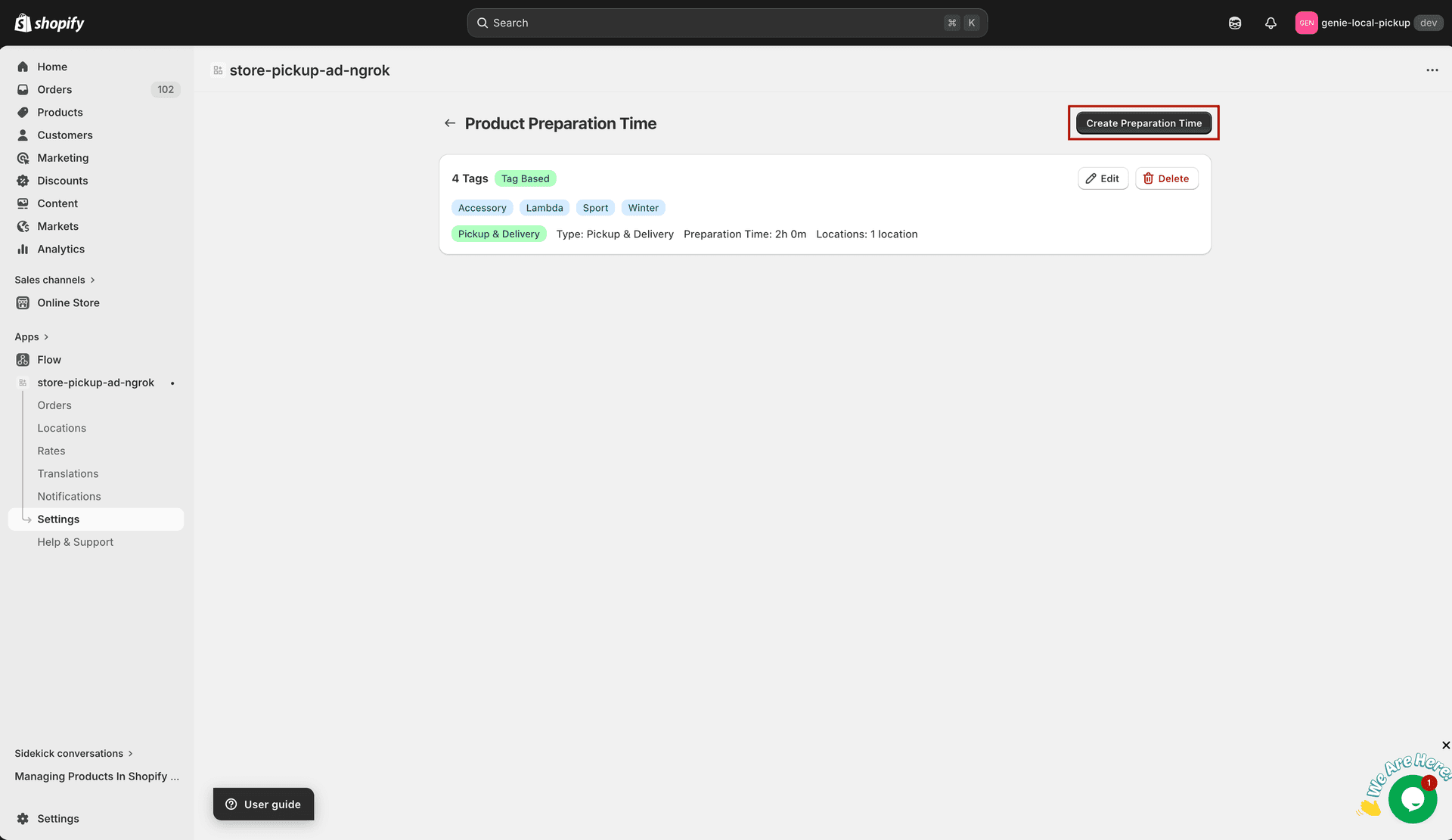
Click Create Preparation Time to add a new rule
Choose a Selection Type — "Product Based" to select individual products, or "Tag Based" to target products by tag.
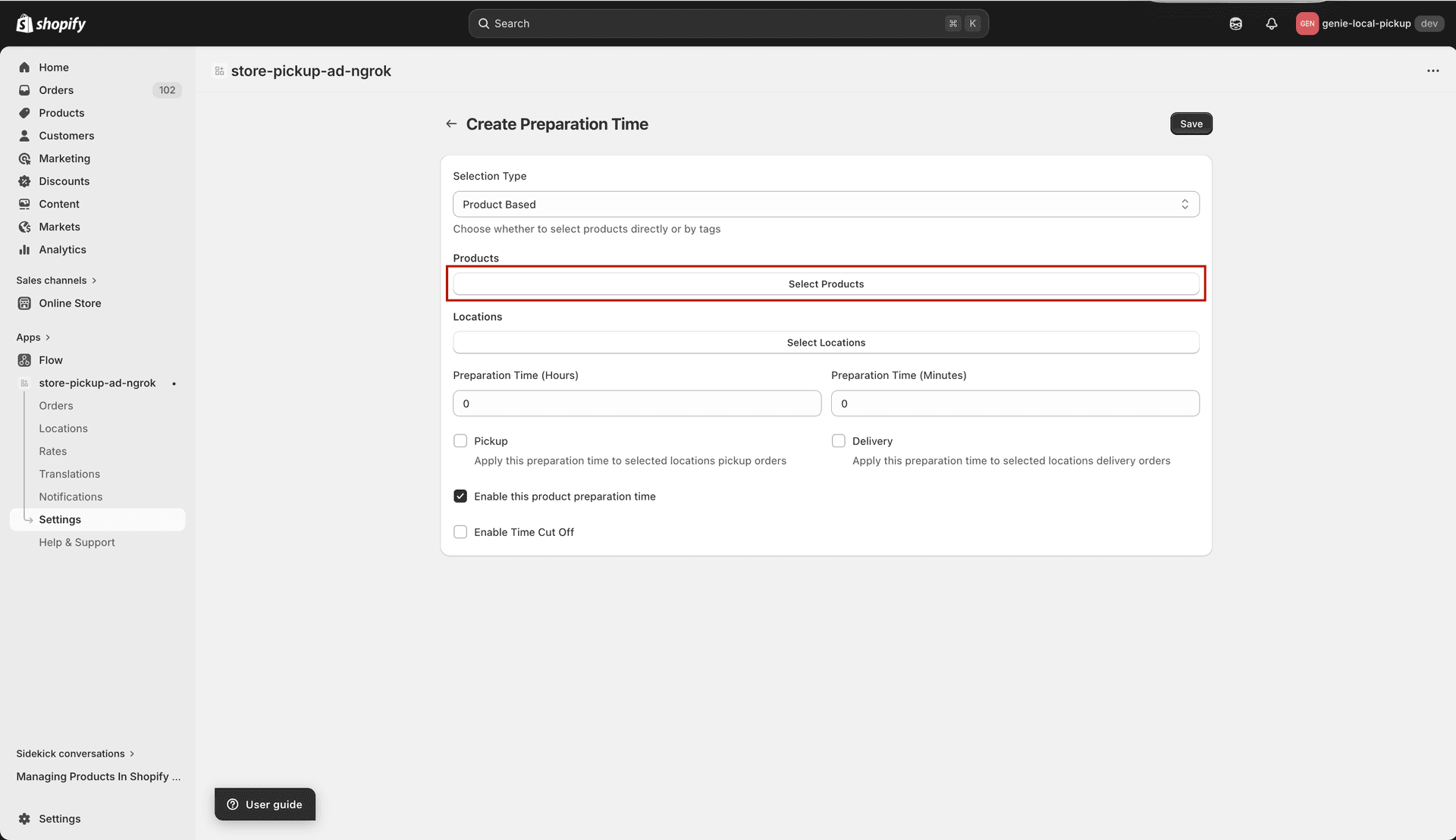
Choose Product Based or Tag Based
Click "Select Products" (or select tags) to choose which products this rule applies to.
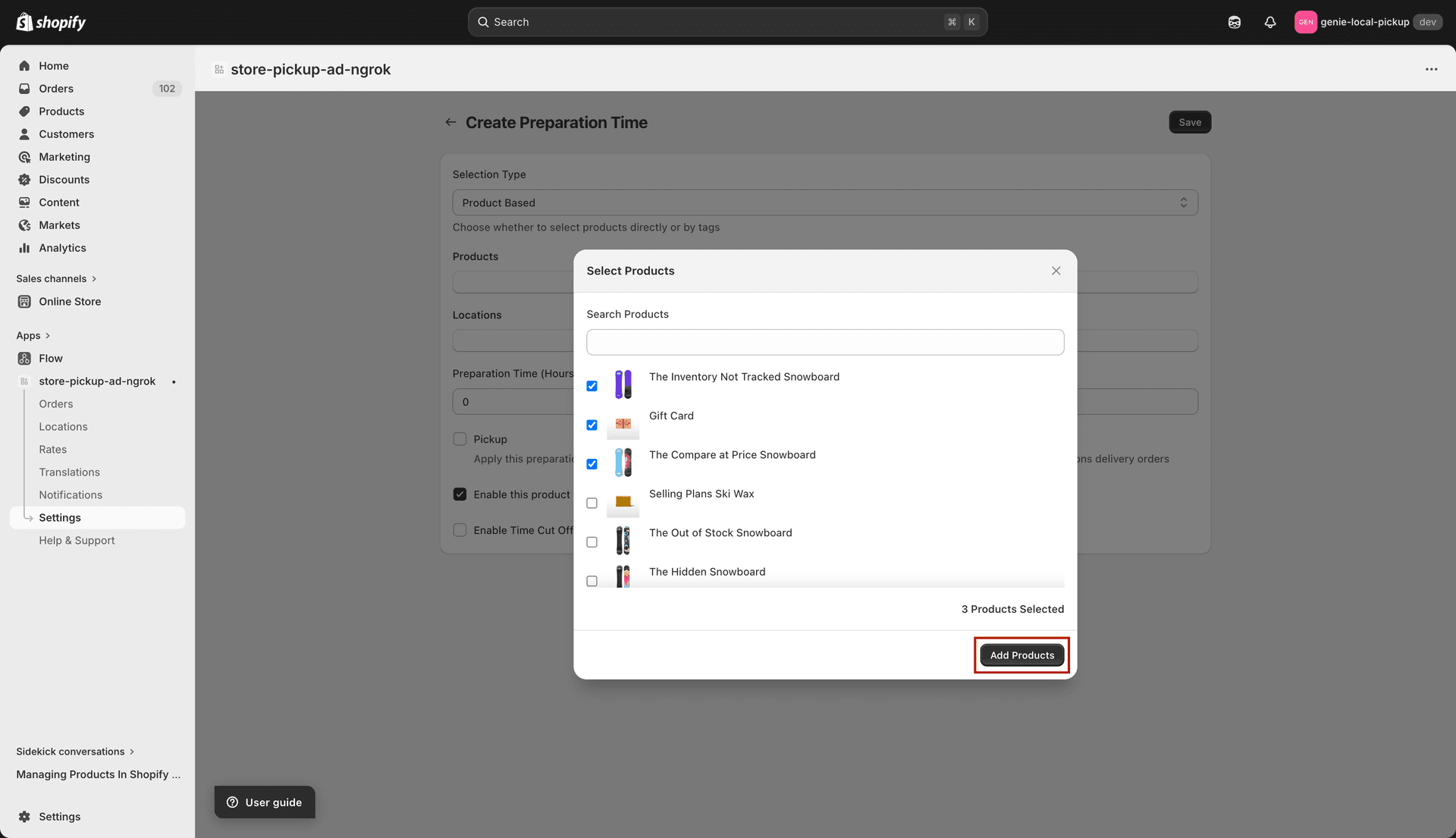
Select the products this prep time rule applies to
Click "Select Locations" to choose which locations this prep time applies to.
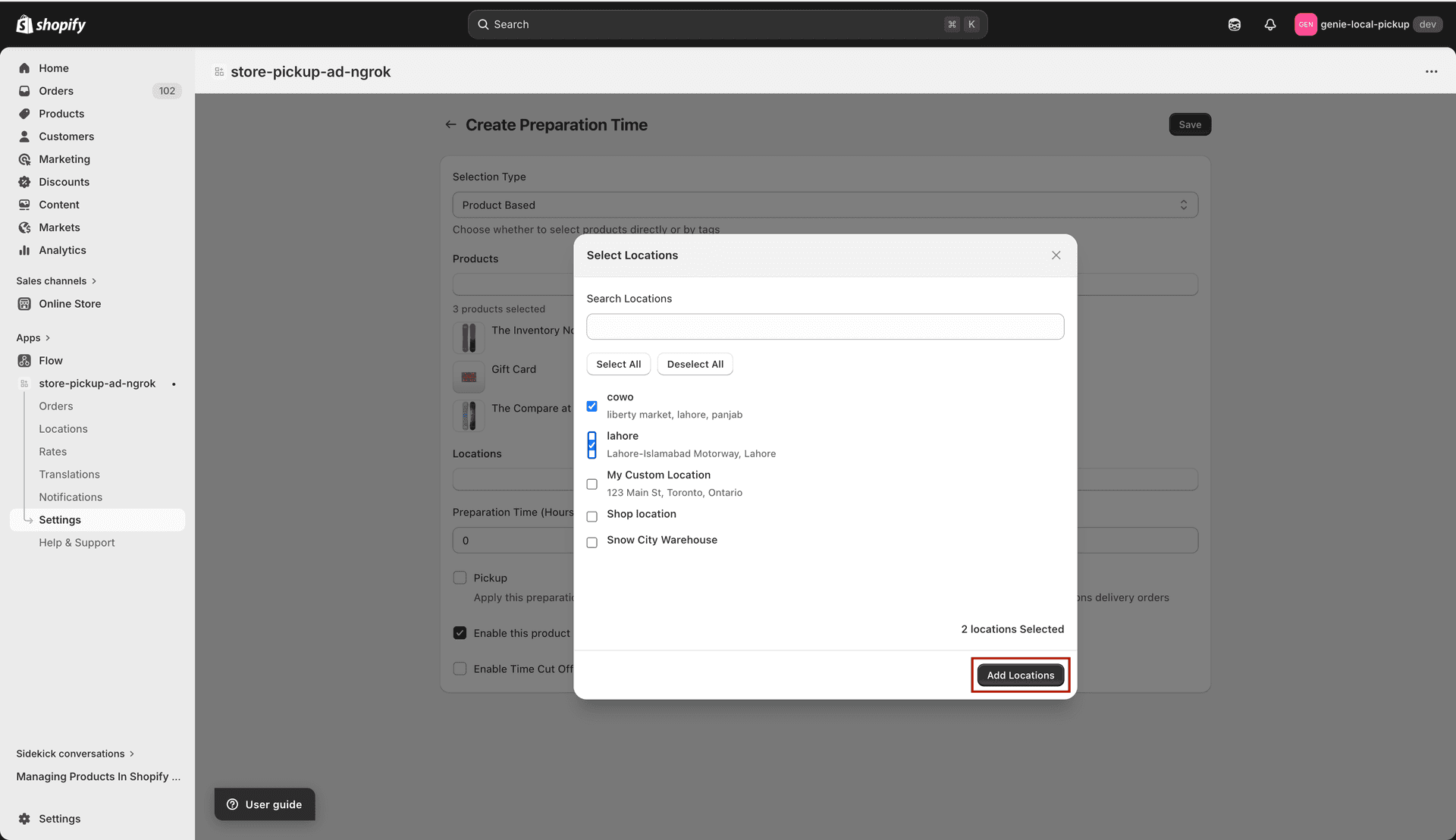
Select the locations this prep time rule applies to
Enter the Preparation Time in hours and minutes.
Check "Pickup", "Delivery", or both to apply this prep time to the relevant order types.
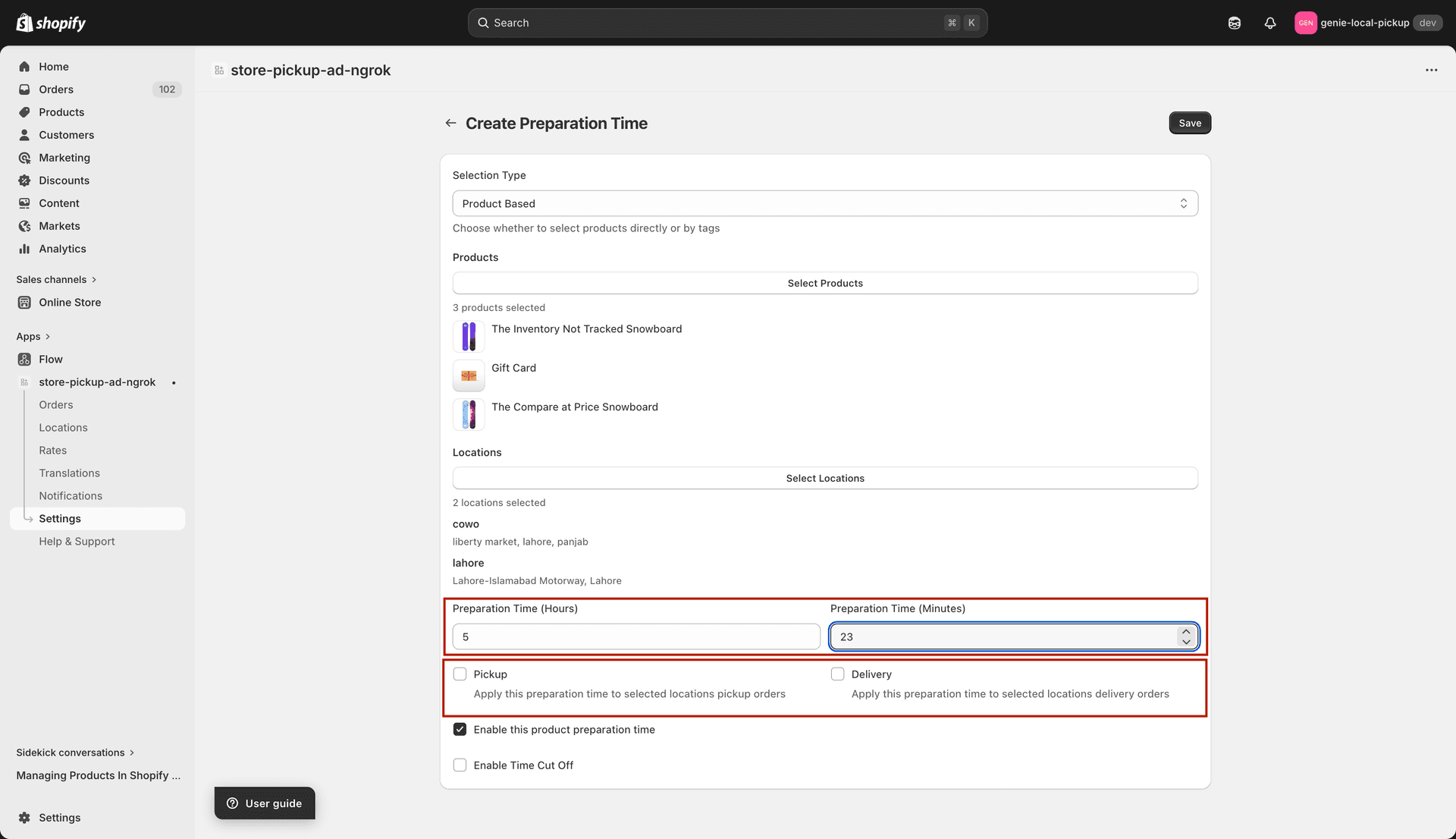
Set the prep time and choose which order types it applies to
Make sure "Enable this product preparation time" is checked.
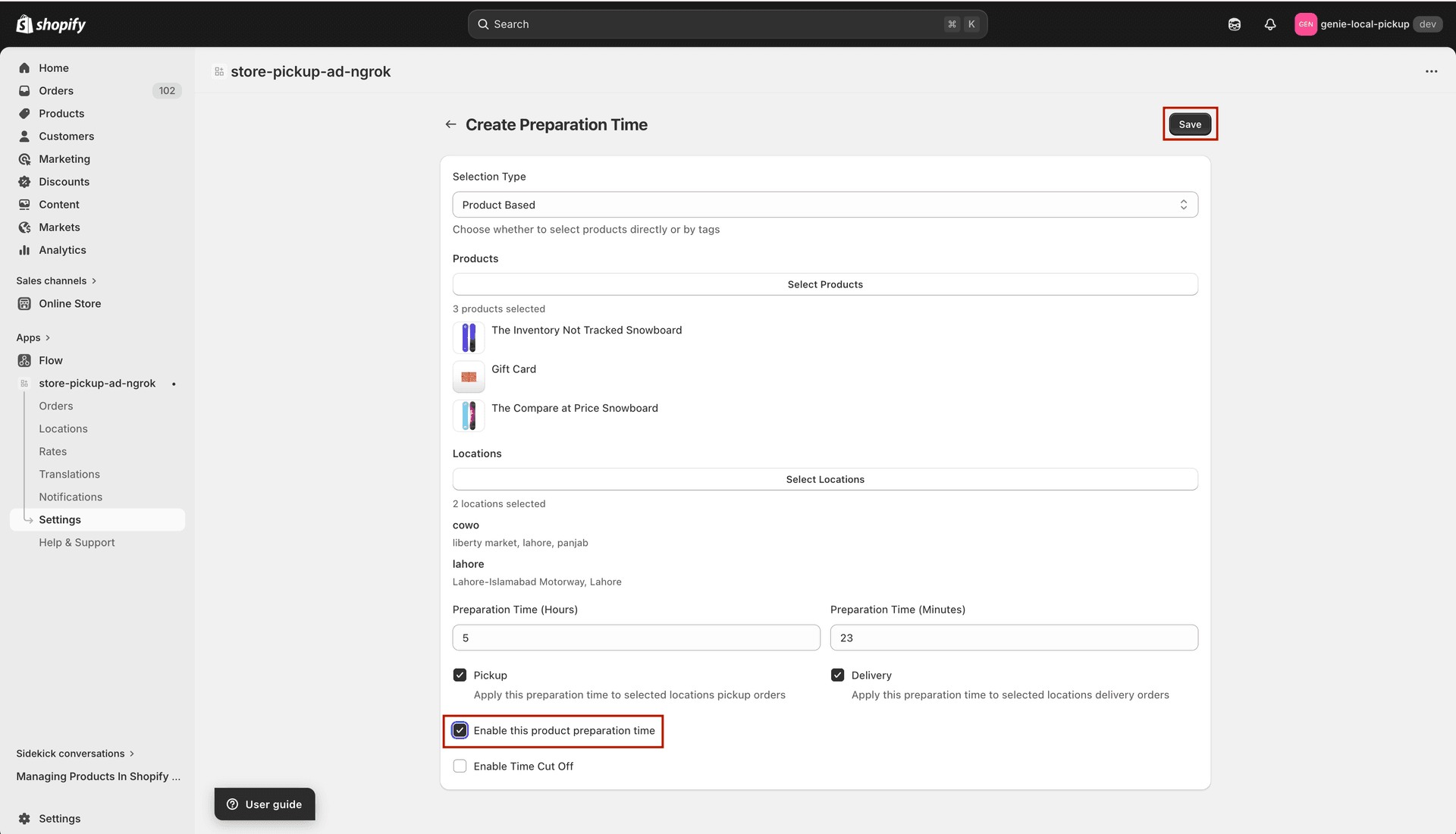
Ensure the rule is enabled before saving
Click Save.
How it works with multiple products
When a customer has multiple products in their cart with different prep times, the app uses the longest prep time. This ensures every item is ready before the scheduled slot.
Per-product prep time overrides the location-level prep time if it is longer.