
How to create a manual booking
Last updated: September 15, 2026
Book a customer from live availability and send a Shopify invoice. The booking stays Pending payment until they pay.
Use Manual Booking when you take a booking over the phone or in person. The app uses the service’s real calendar, then emails a Shopify invoice. Regular, Fullday, Multiday, and Bundle are supported.
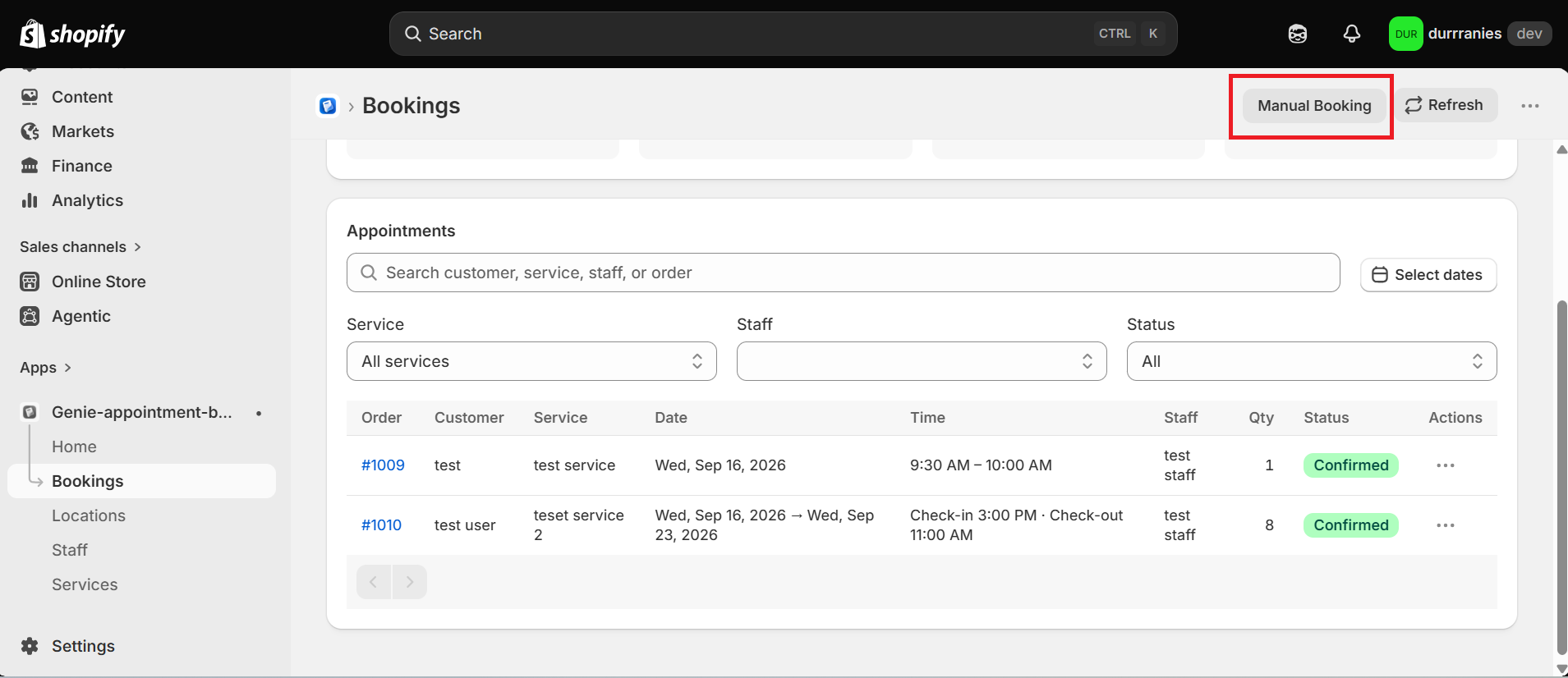
From the app sidebar, click "Bookings".
Click "Manual Booking".
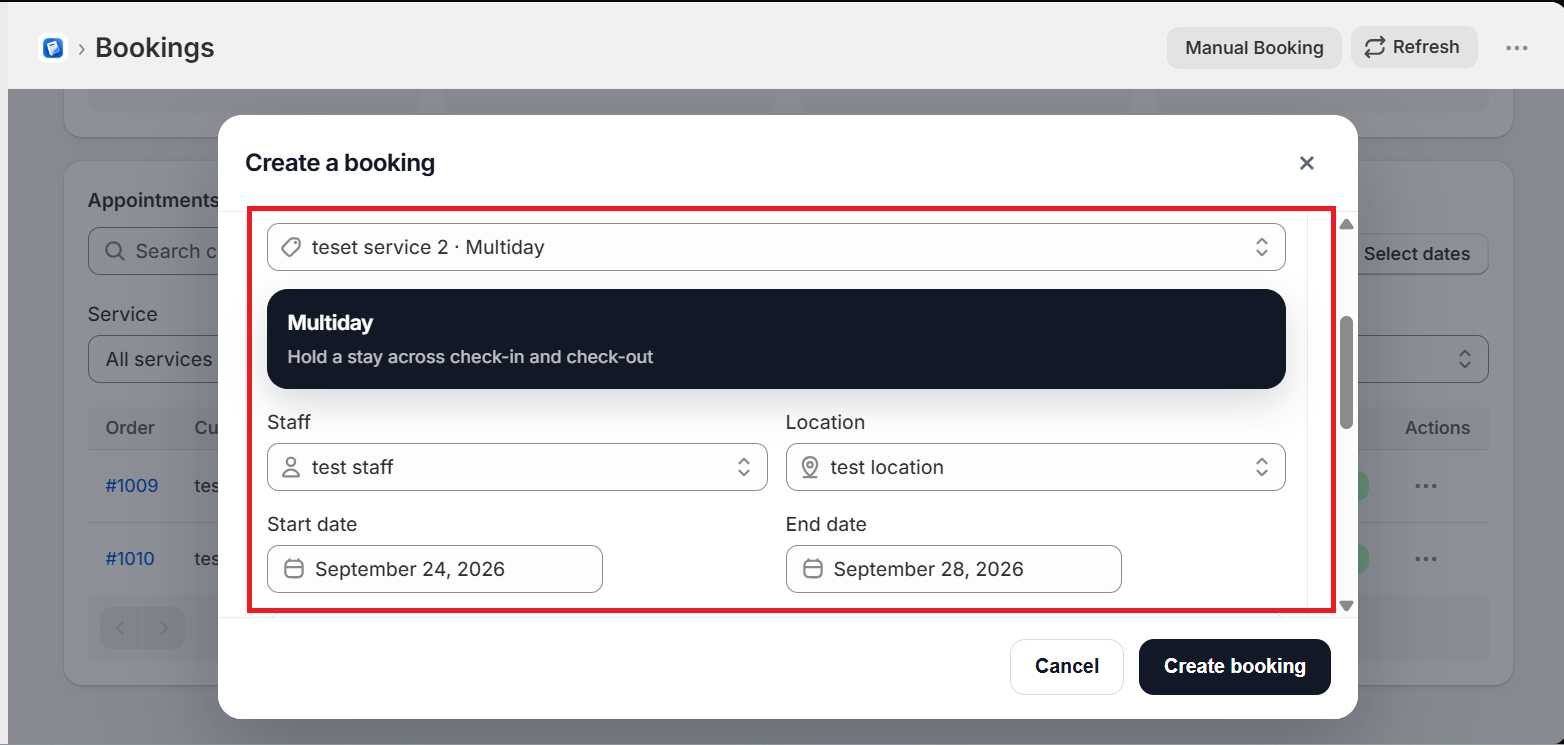
Choose the service, staff, and location. Then pick the date and time (or date range / extra sessions for Multiday, Fullday, or Bundle).
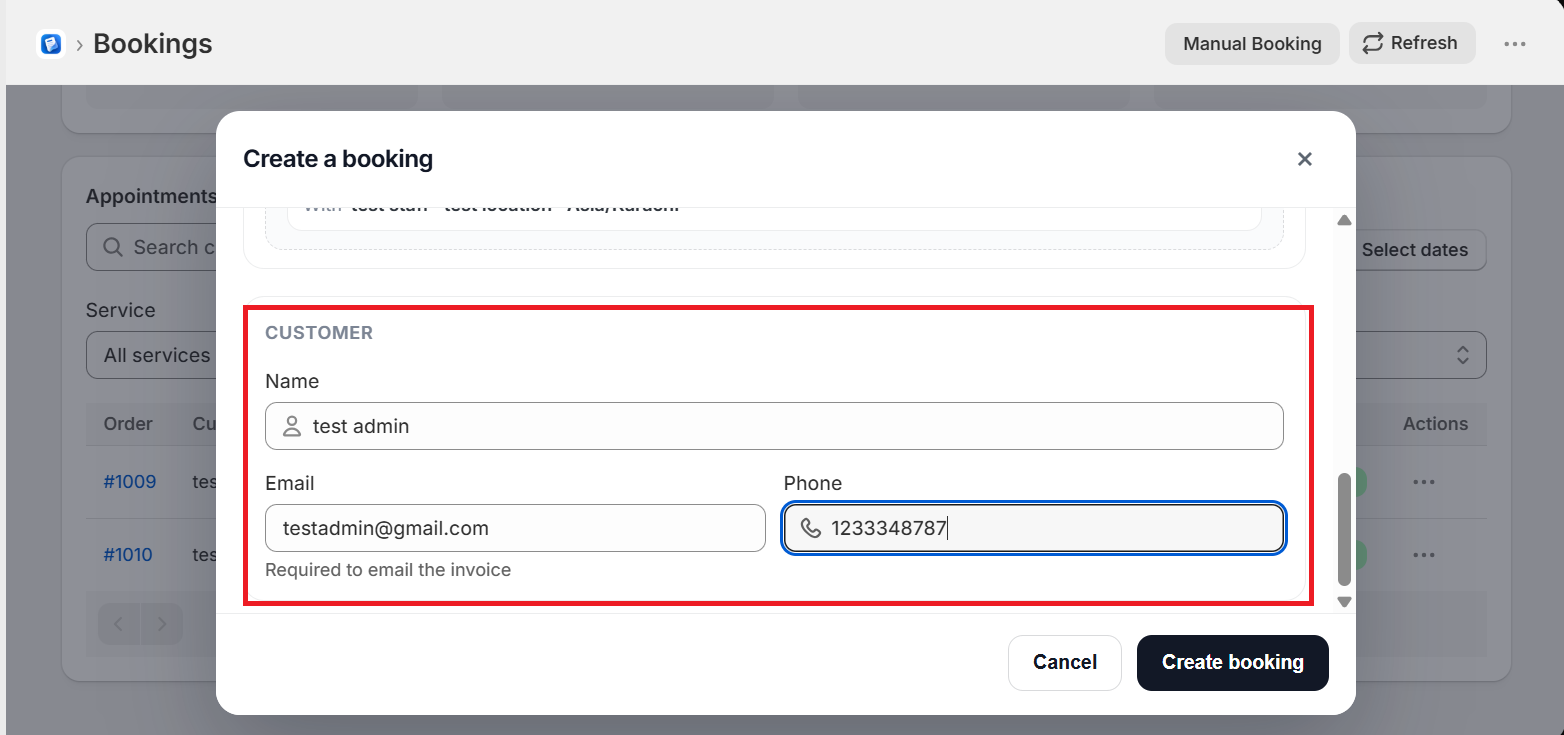
Enter the customer name, email (required so the invoice can be sent), and phone.
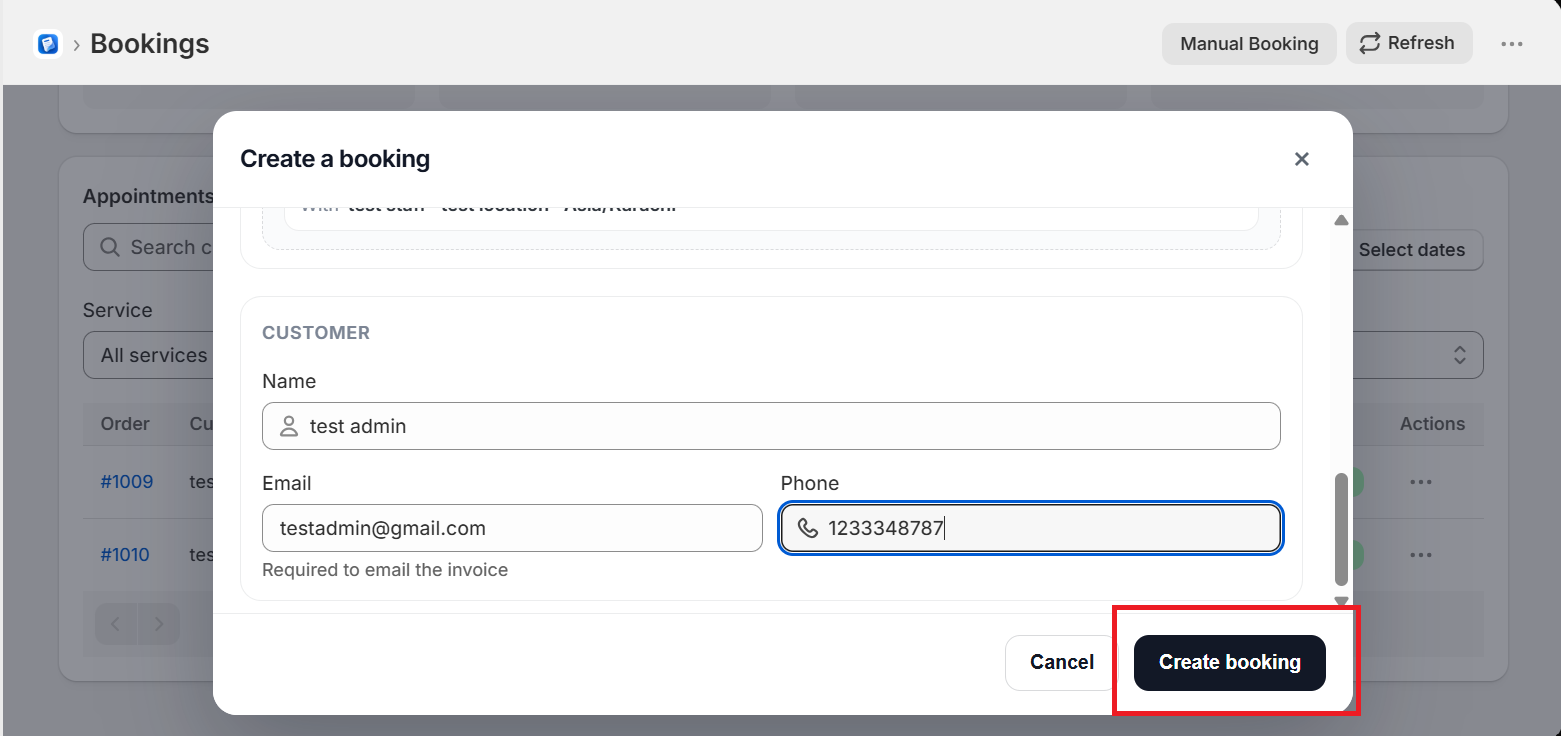
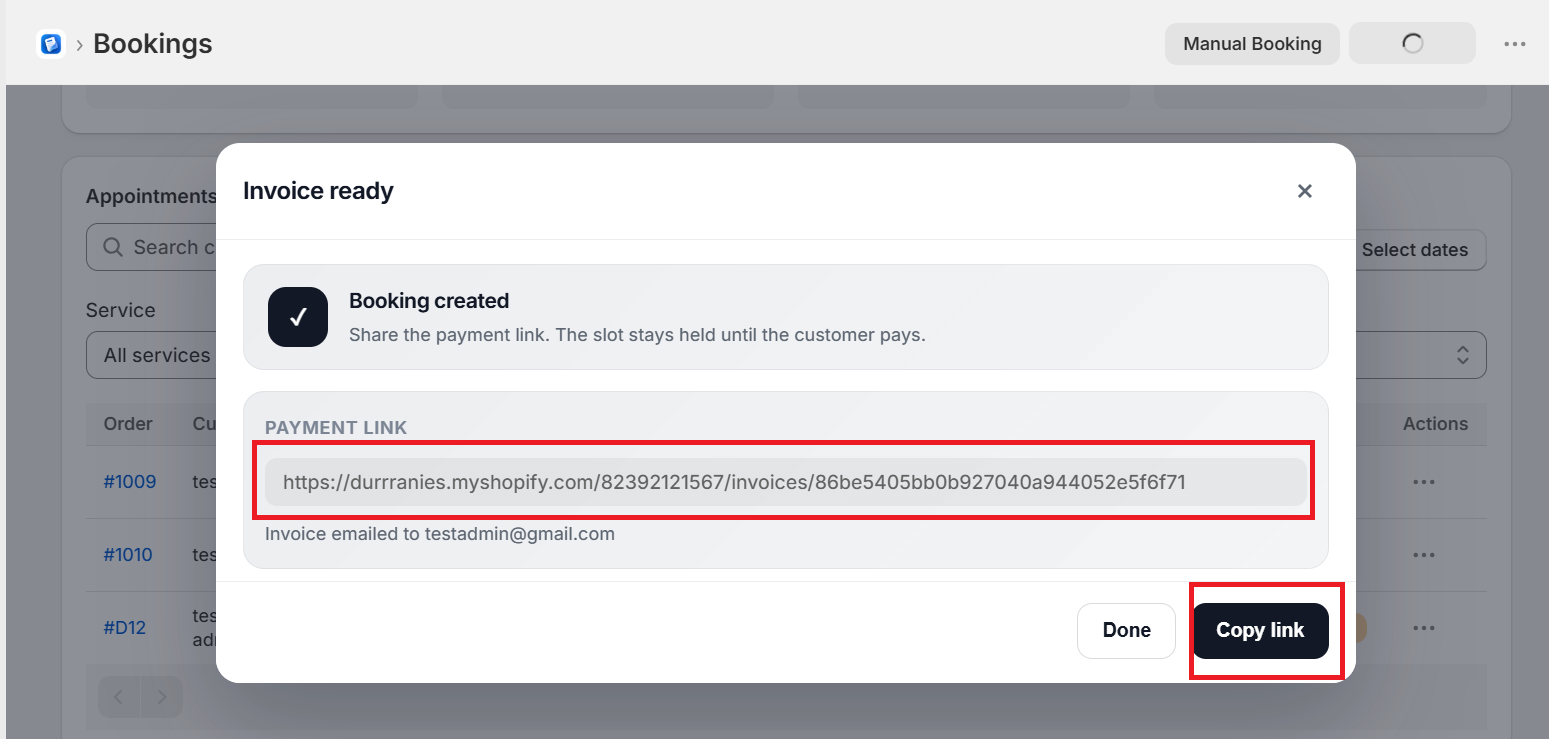
Click "Create booking". The app creates a Shopify draft order invoice and emails the customer a payment link.
The booking appears as Pending payment until the customer pays. After payment, it becomes Confirmed. You can copy or open the payment link from the success screen or from the booking detail page (Open payment link).
You need a published (Active) service with a Shopify product. If no services appear, publish a service first.
Unpaid manual bookings cannot be rescheduled until the invoice is paid. You can still cancel them.