
How to add a booking location
Last updated: September 16, 2026
Add a location where appointments happen. At least one location is required before you can finish setup.
Locations are the places customers can choose for their appointment. You can add as many as you need.
During setup
On the Setup guide, expand "Add a location" and click "Add a location".
After setup
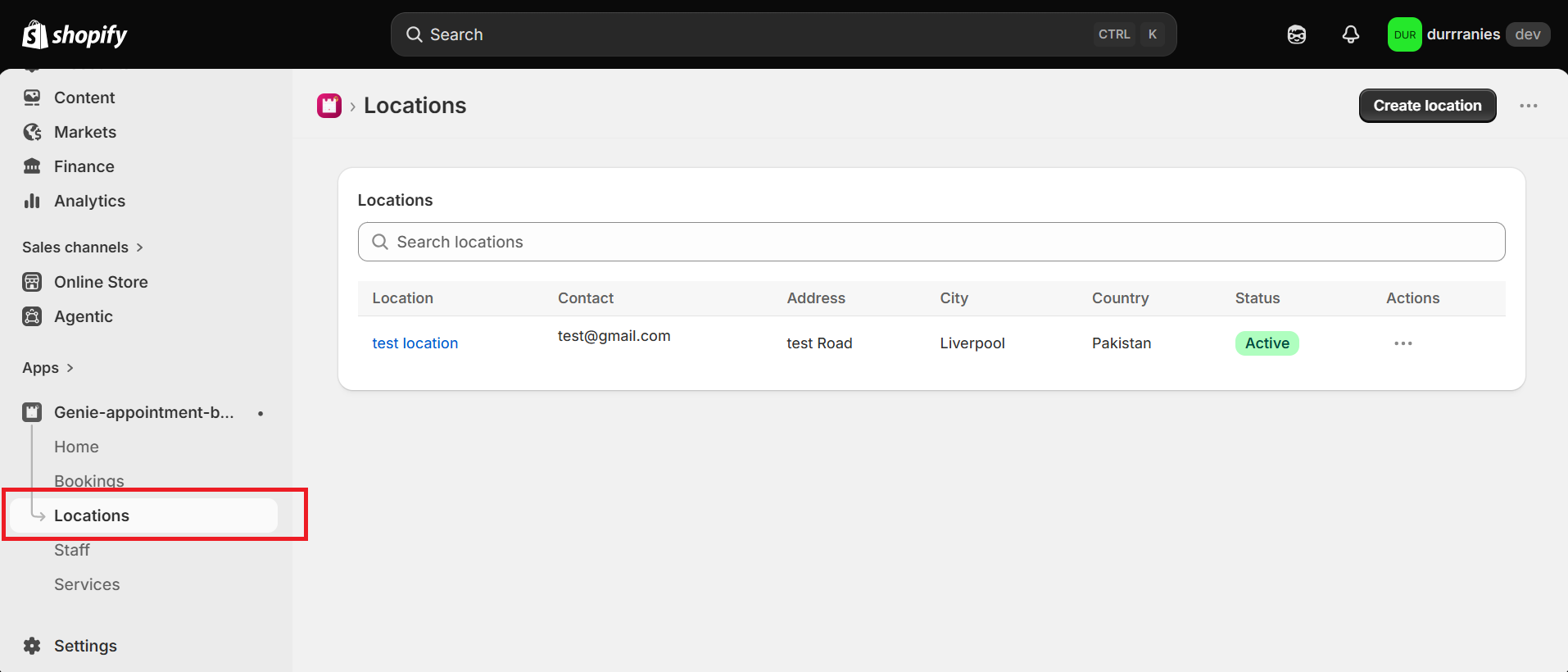
From the app sidebar, click "Locations".
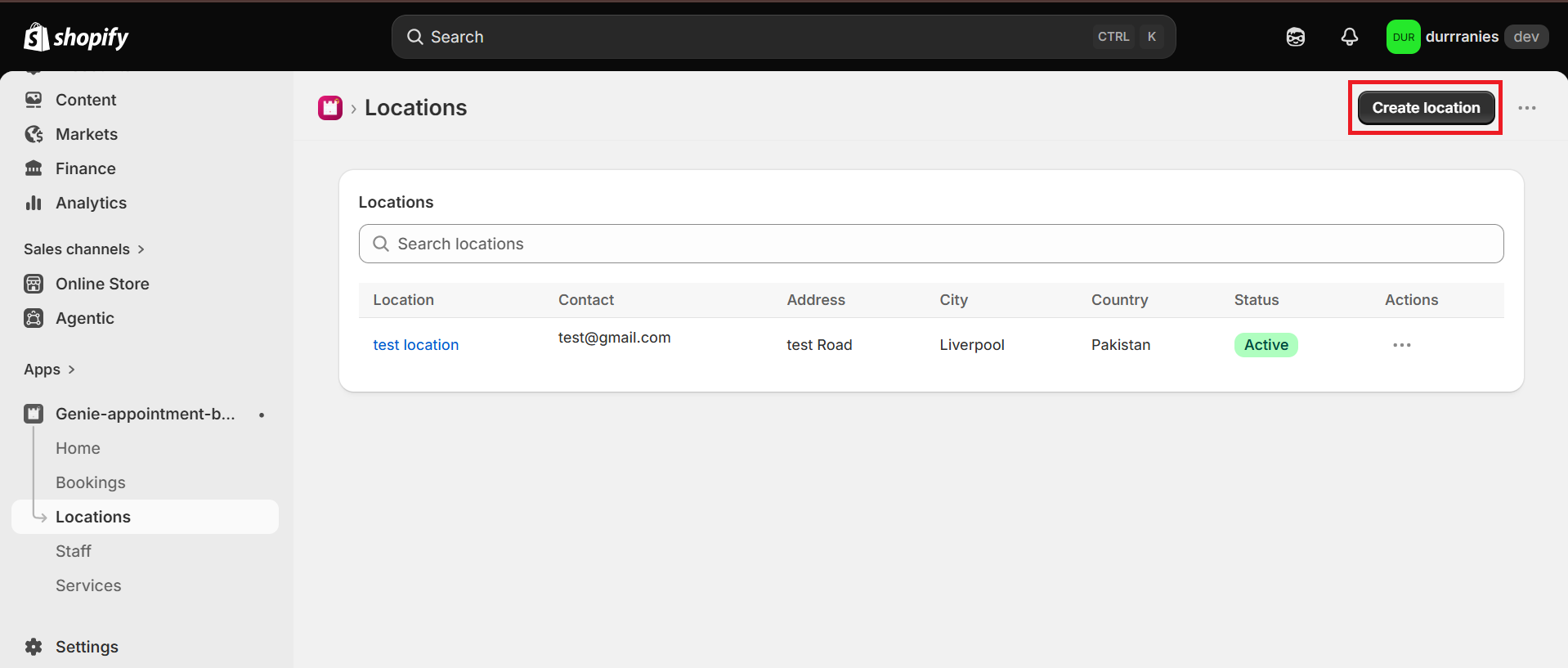
Click "Create location".
Fill in the location form
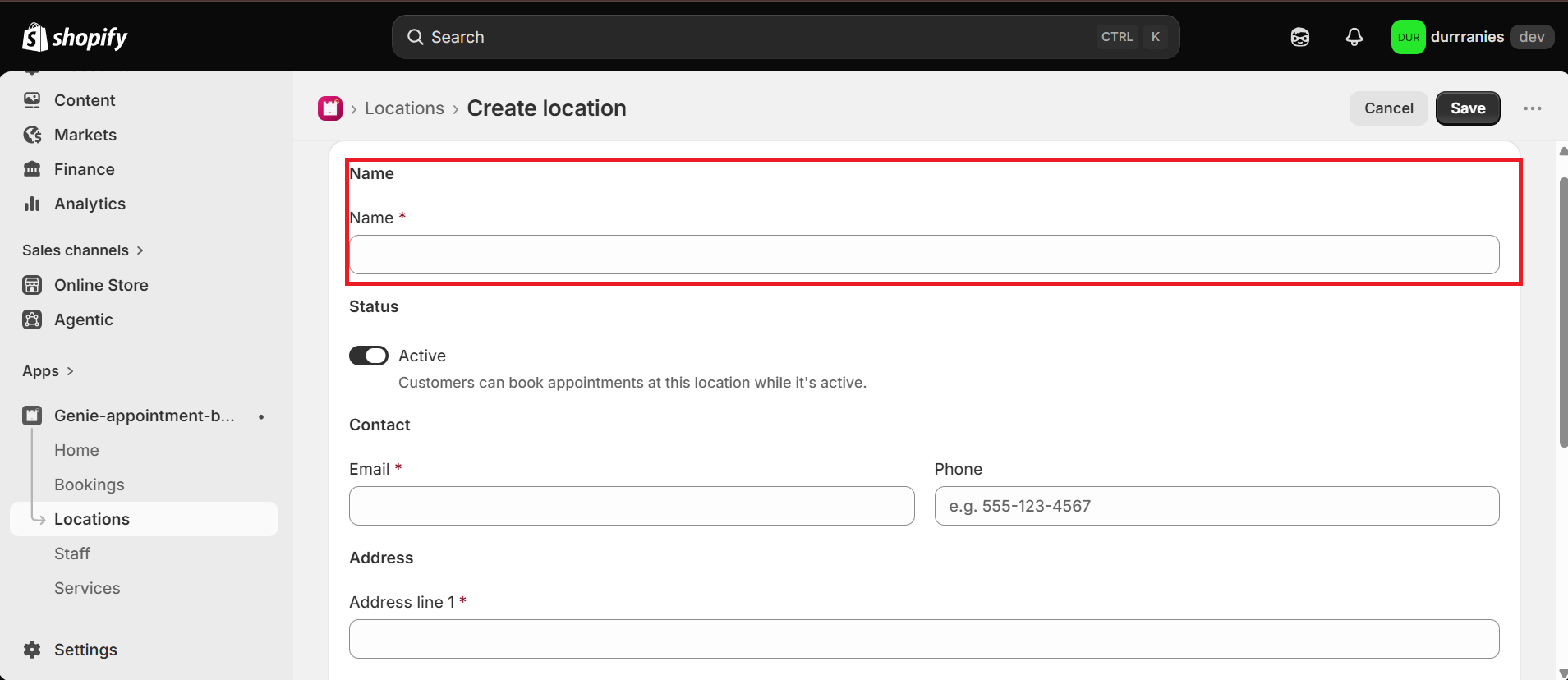
Name — enter a name customers will see (required). The name must be unique.
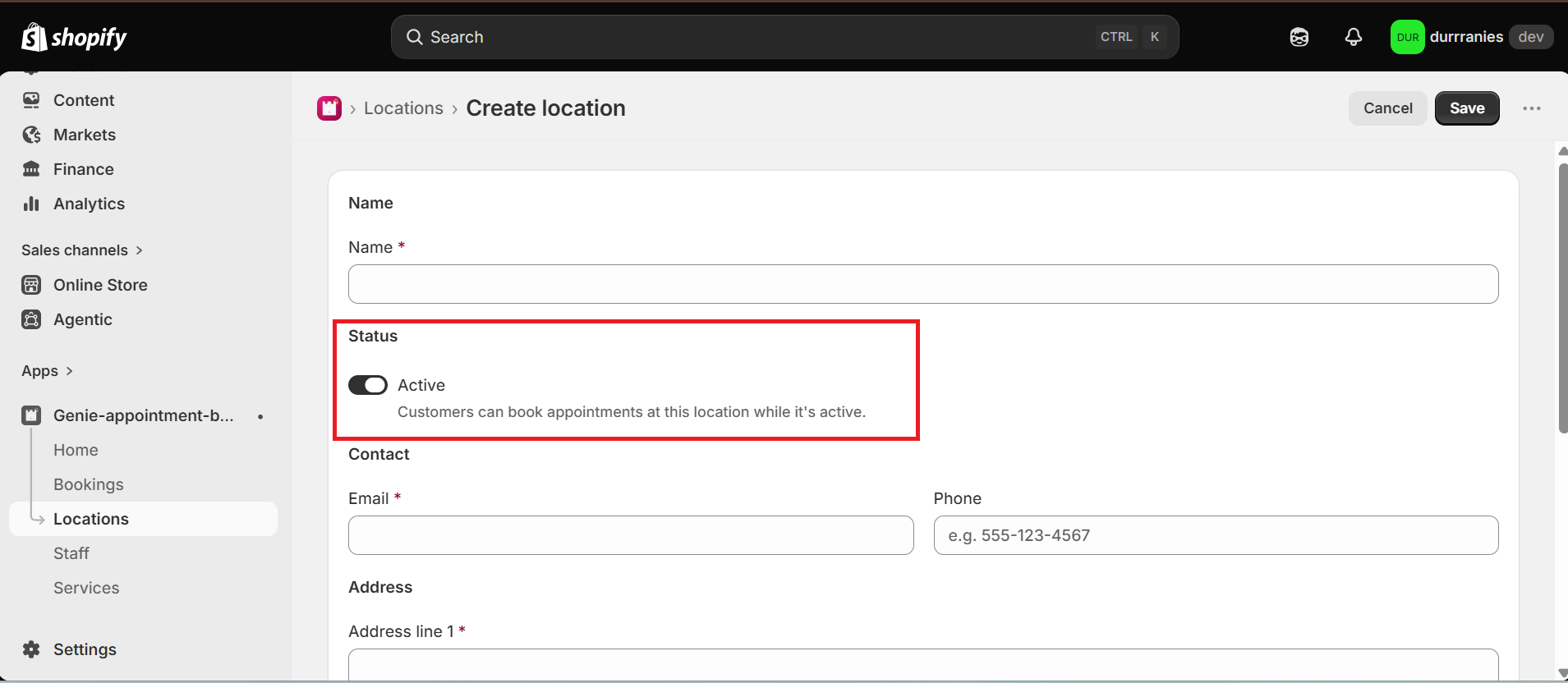
Status — leave Active on if customers should be able to book at this location. Turn it off to hide it without deleting it.
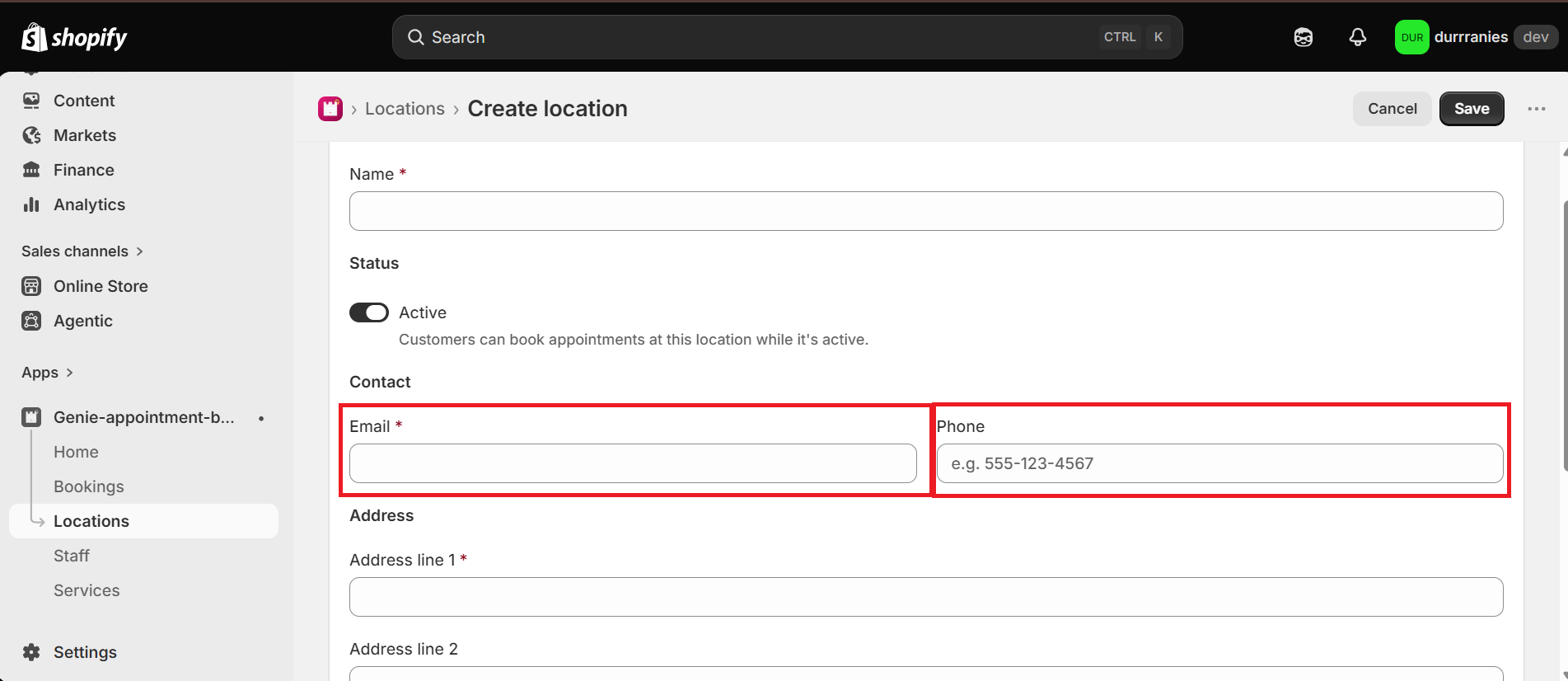
Contact — enter Email (required). Phone is optional.
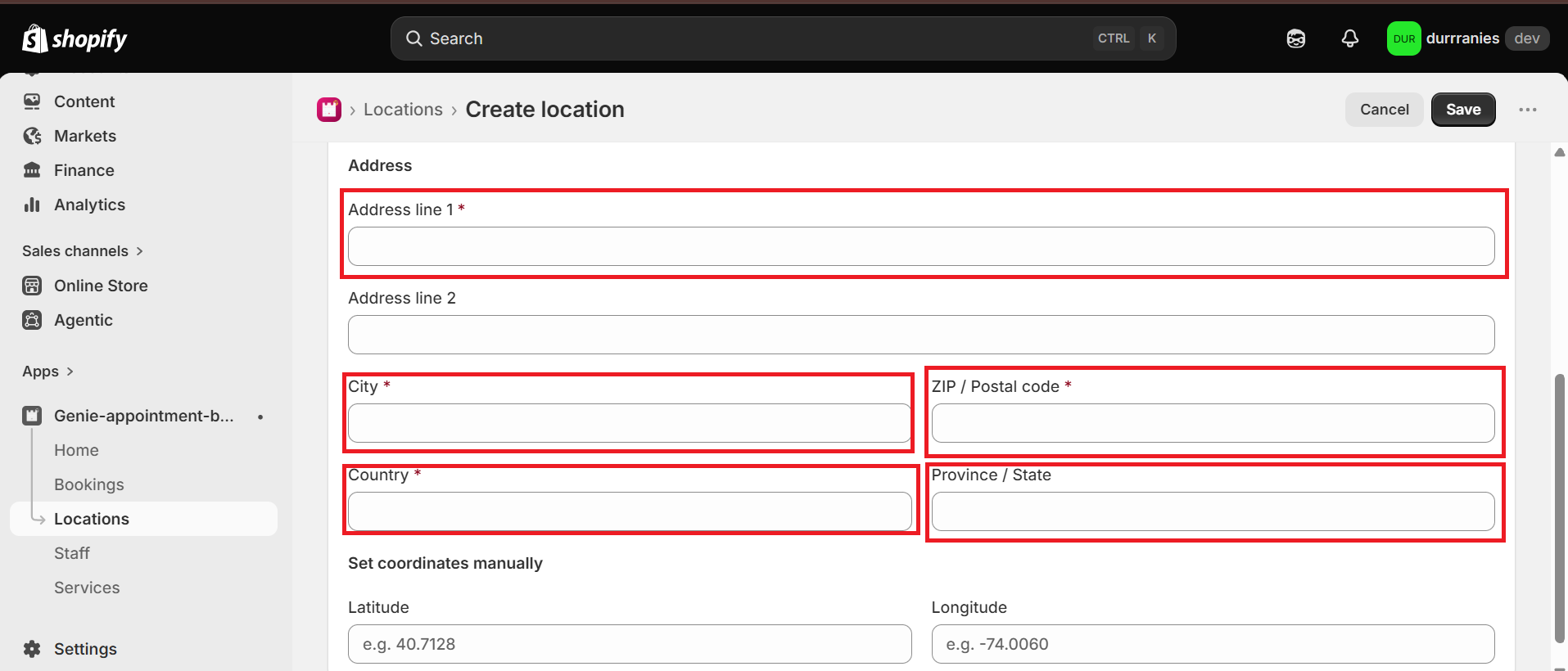
Address — enter Address line 1, City, ZIP / Postal code, and Country (all required). Address line 2 and Province / State are optional.
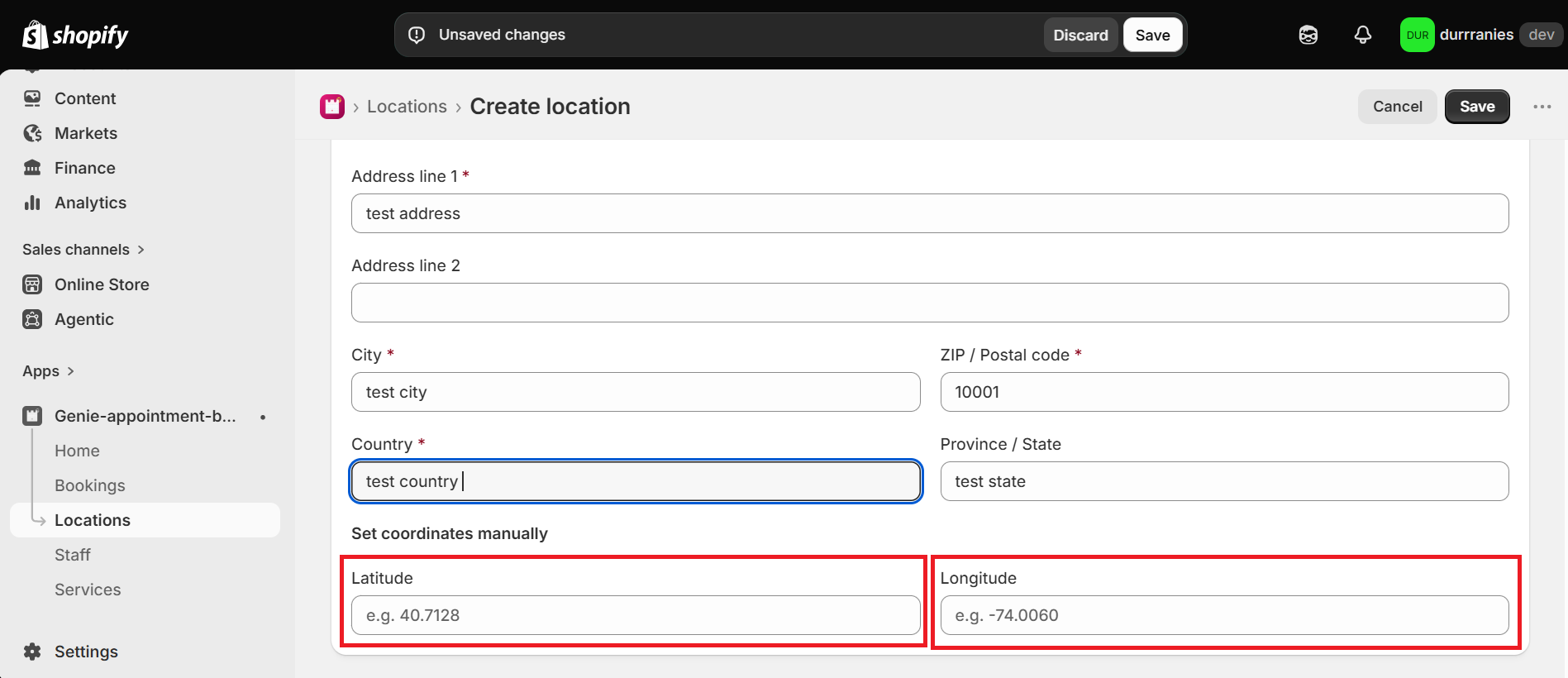
Set coordinates manually — Latitude and Longitude are optional. Use them if you need a precise map position.
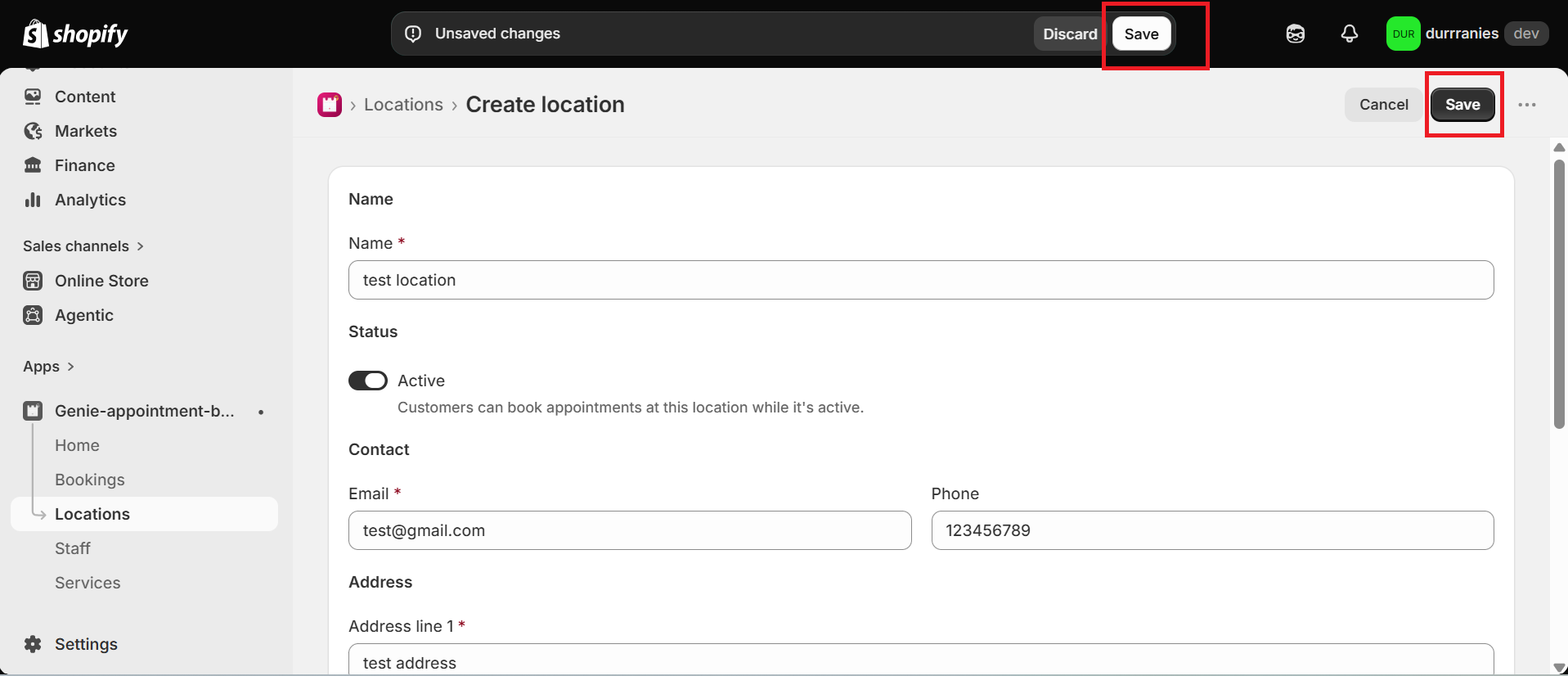
Click Save in the save bar at the top of the page.
Country should be letters only (for example "United States"). Latitude must be between -90 and 90; longitude between -180 and 180.
What's Next