
How to Block out date and time
Last updated: September 15, 2026
Close whole days or block a time range when this service should not be bookable. Existing bookings are not changed.
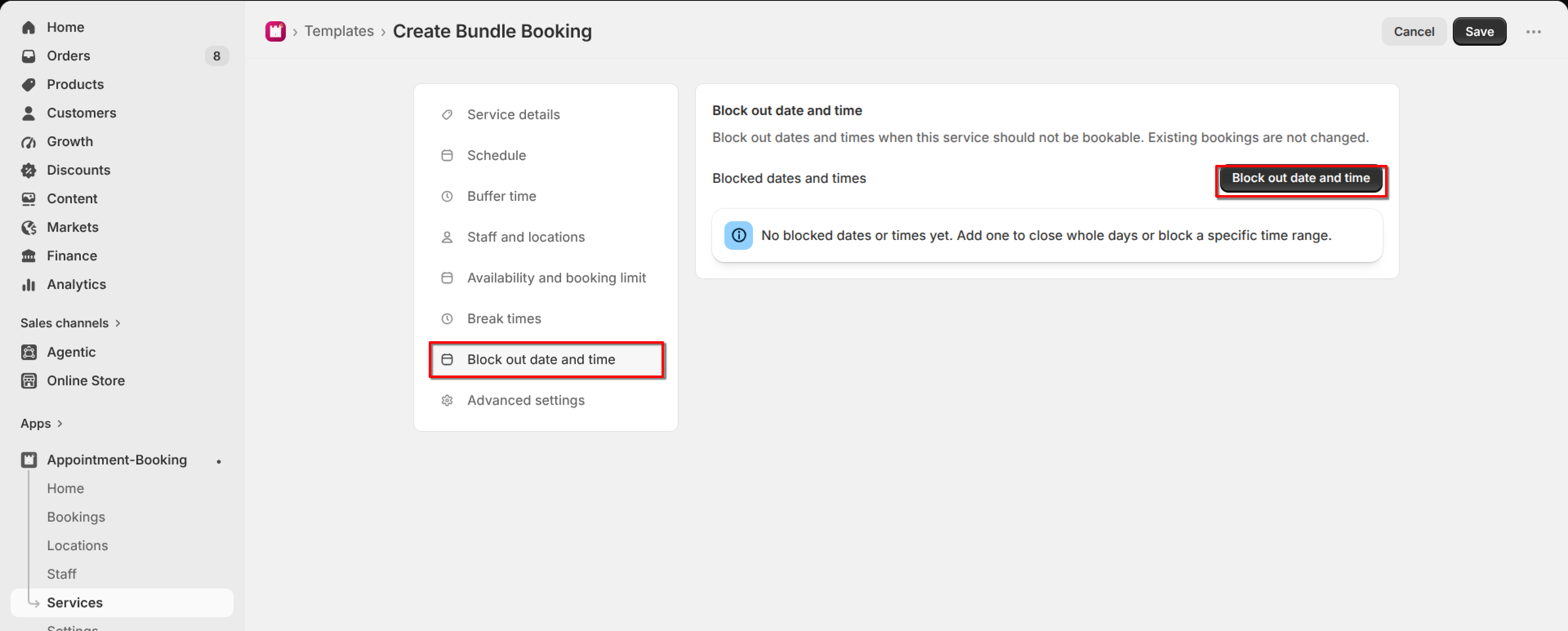
Open the service and click "Block out date and time" in the left menu.
1
Click "Block out date and time".
2
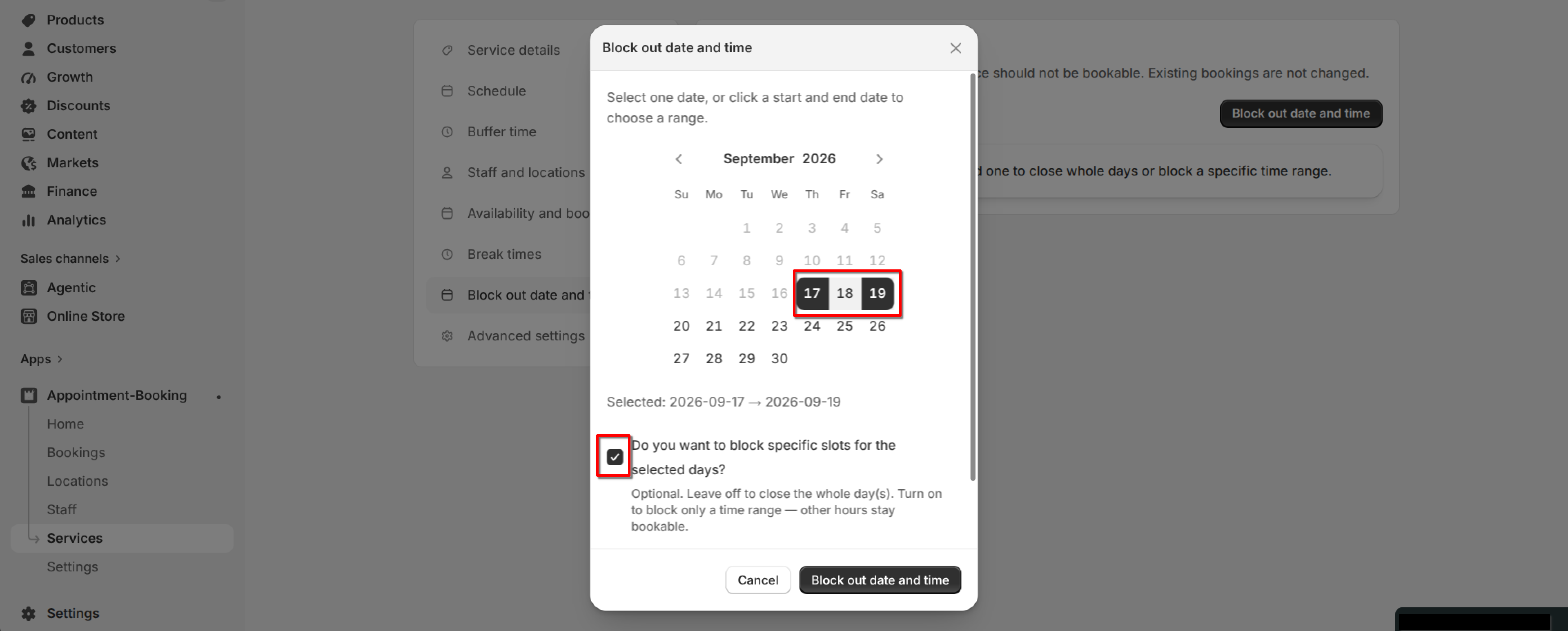
Select one date, or click a start and end date to choose a range. Dates must be today or in the future.
3
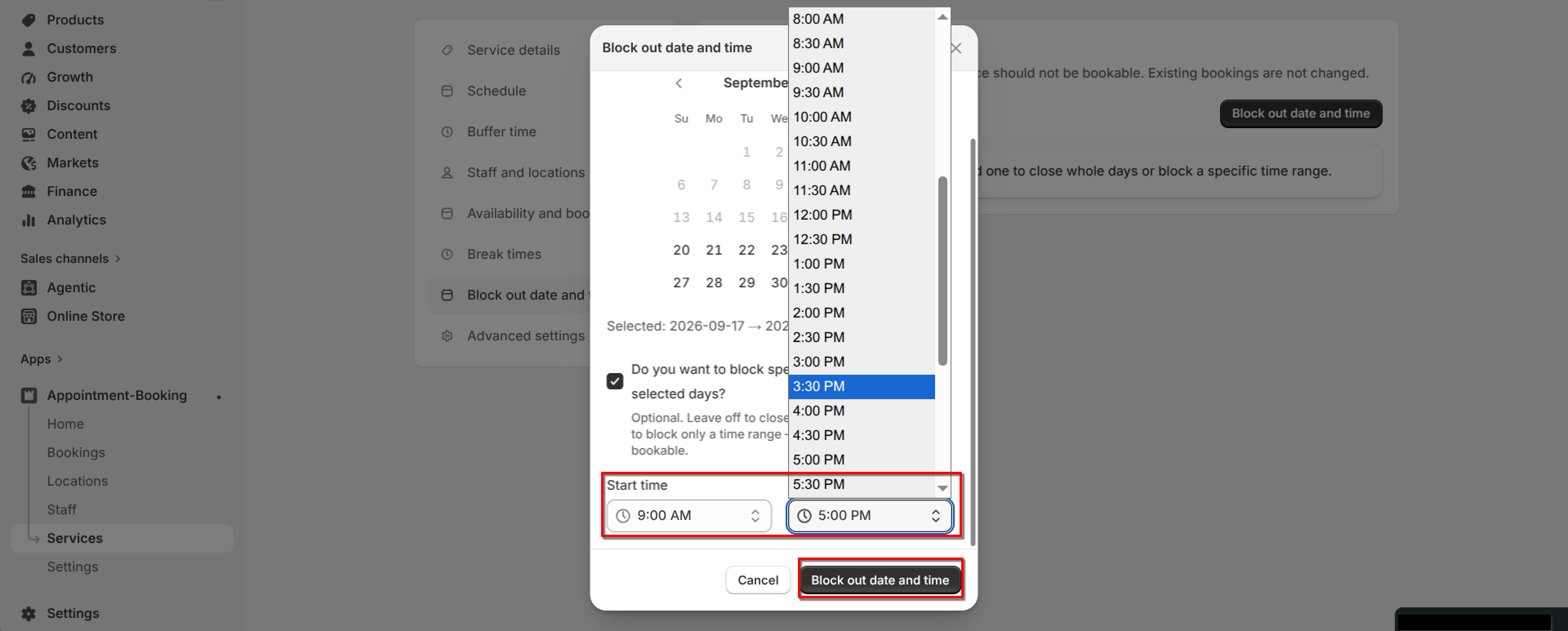
Leave the time option off to close the whole day, or turn it on and set a start and end time to block only that range.
4
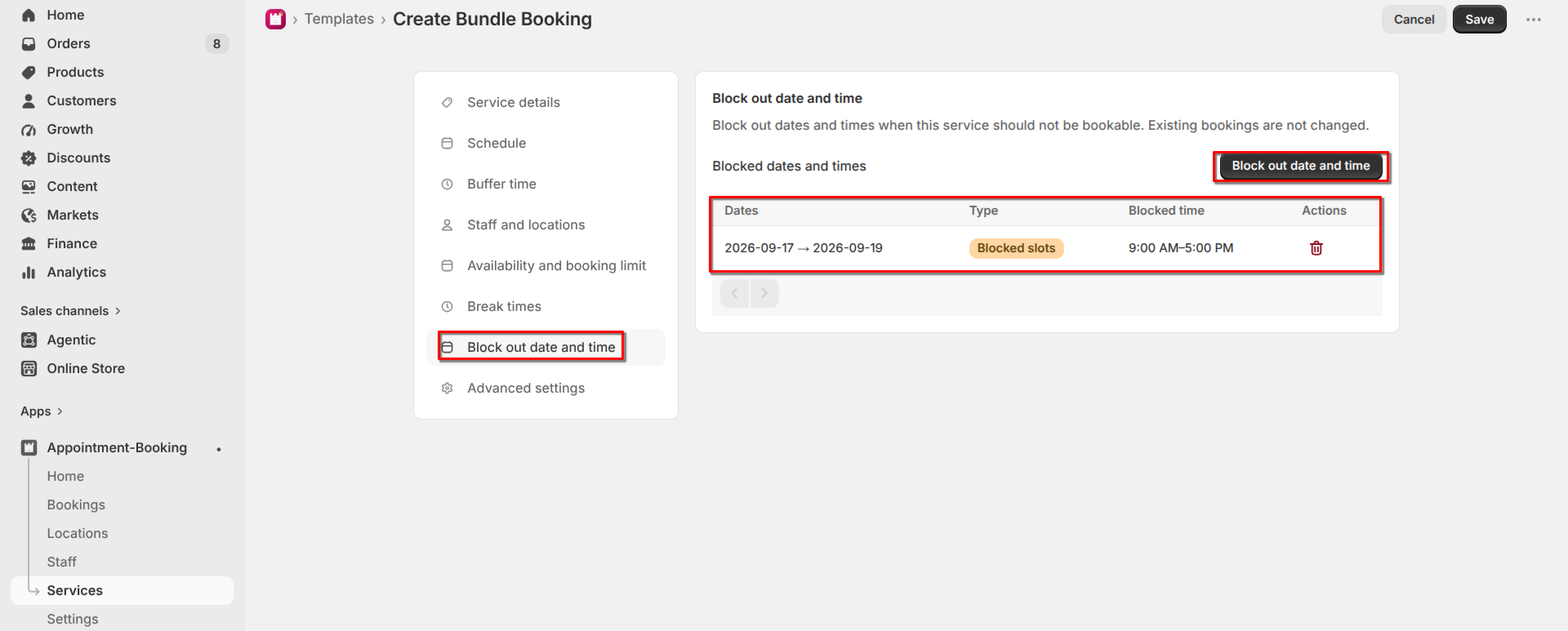
Add the block. It appears in the list as "Closed all day" or "Blocked slots".
5
Click Save on the service. You can delete a block later from the list.
What's Next