
How to set Buffer time
Last updated: September 15, 2026
Add prep or cleanup time around appointments so the next booking cannot start too soon.
Buffer time is not part of the customer appointment. It only blocks the next booking from starting too soon.
1
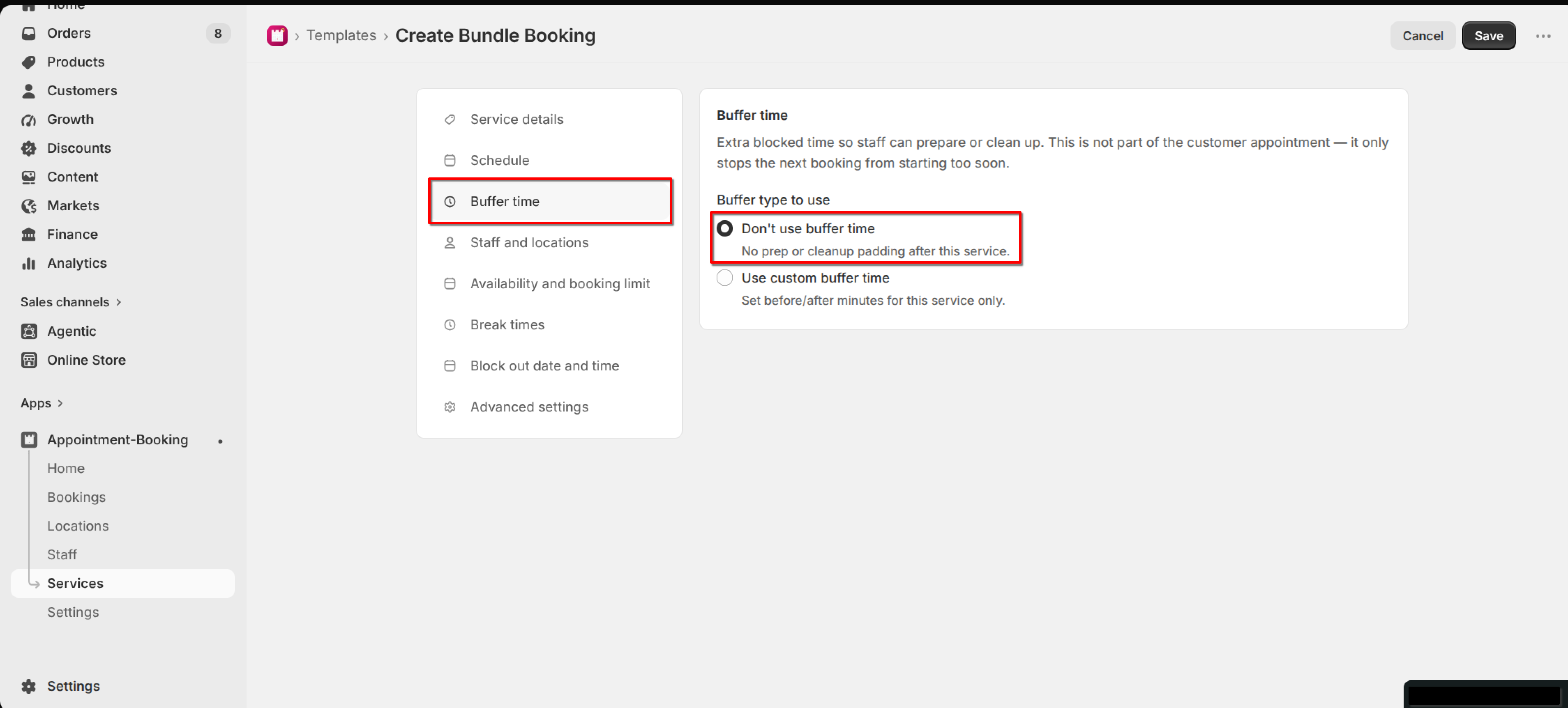
Open the service and click "Buffer time" in the left menu.
2
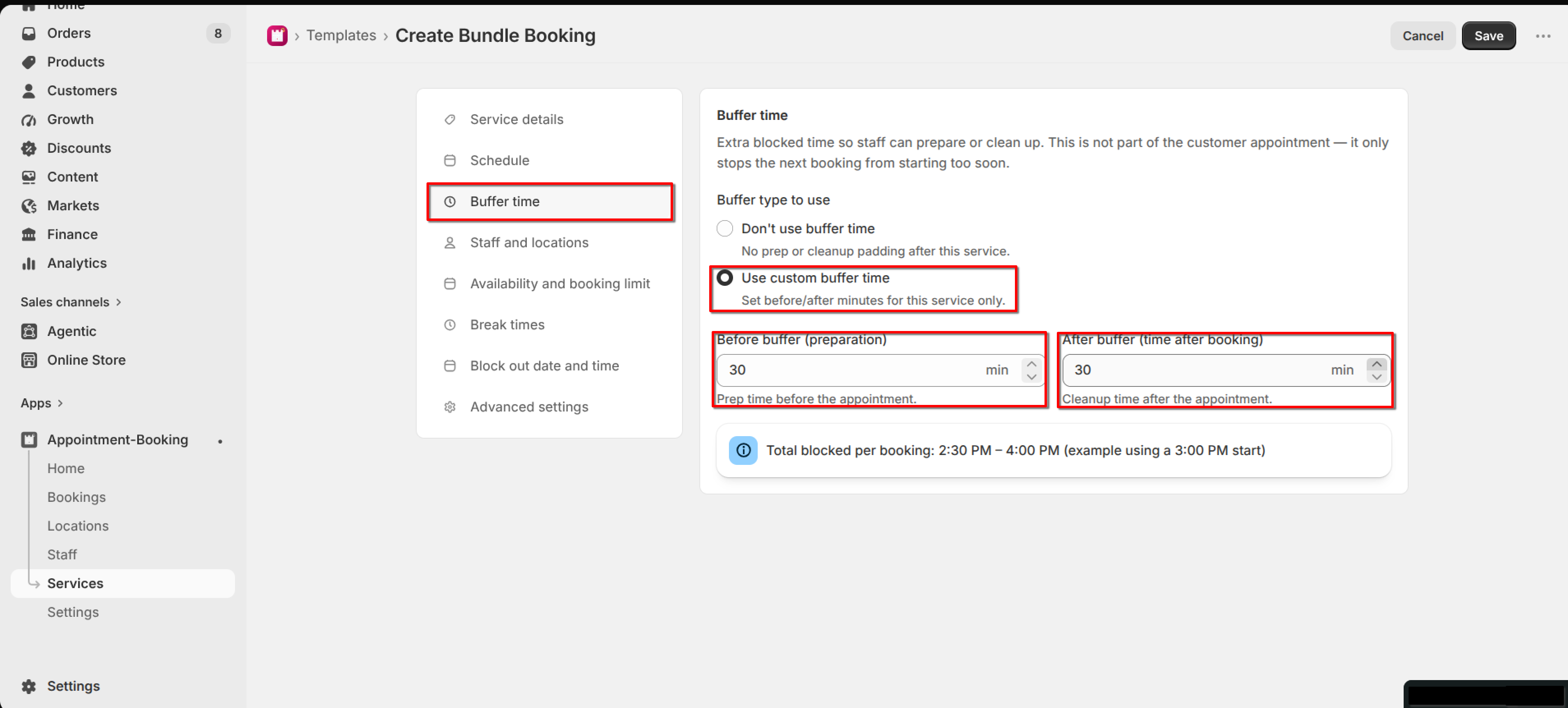
Choose "Don't use buffer time", or "Use custom buffer time".
3
If you use custom buffers, set Before buffer (preparation) and After buffer (cleanup) in minutes, then click Save.
What's Next