Genie AppsGenie Apps Help Center

How to fill in Service details

Last updated: September 15, 2026

Set the product source, name, description, price, and image for the service.

Open the service and click "Service details" in the left menu.

1

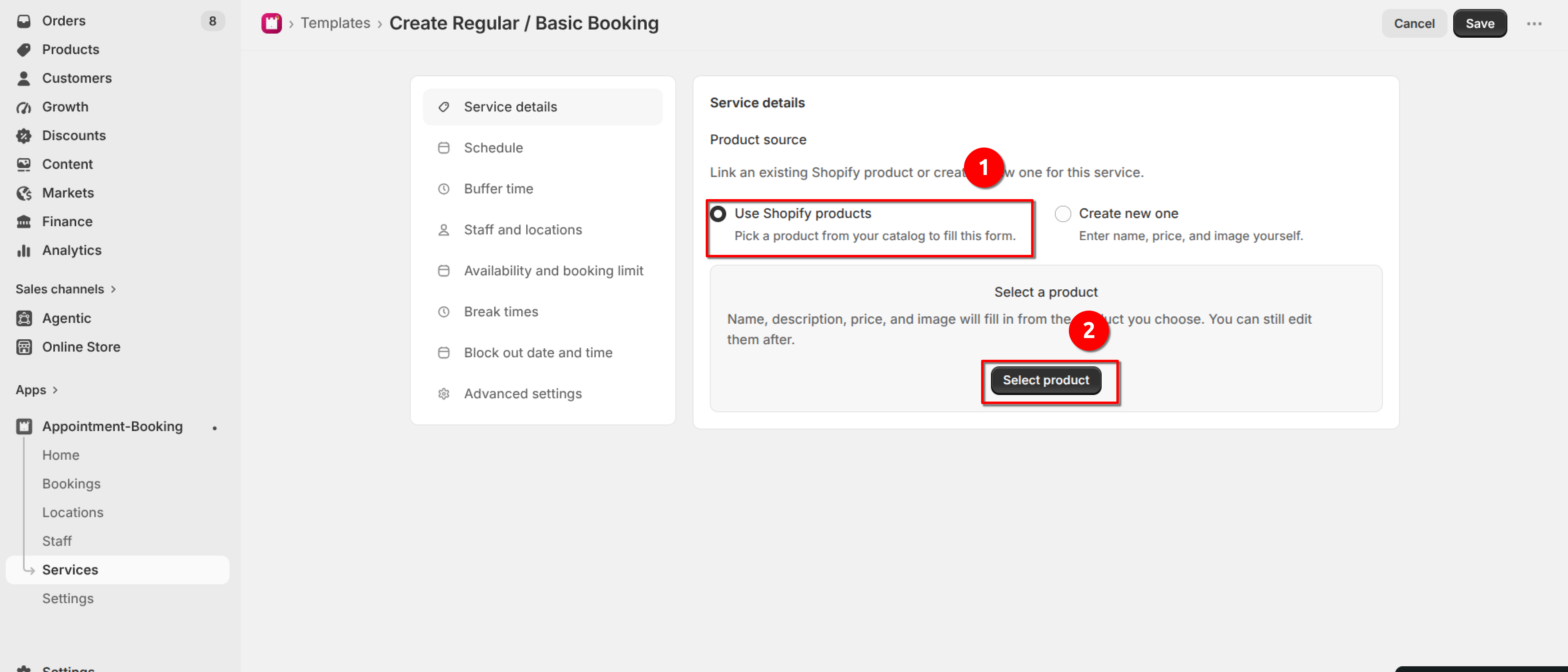
Choose Product source: "Create new one" to enter the details yourself, or "Use Shopify products" to pick a product from your catalog.
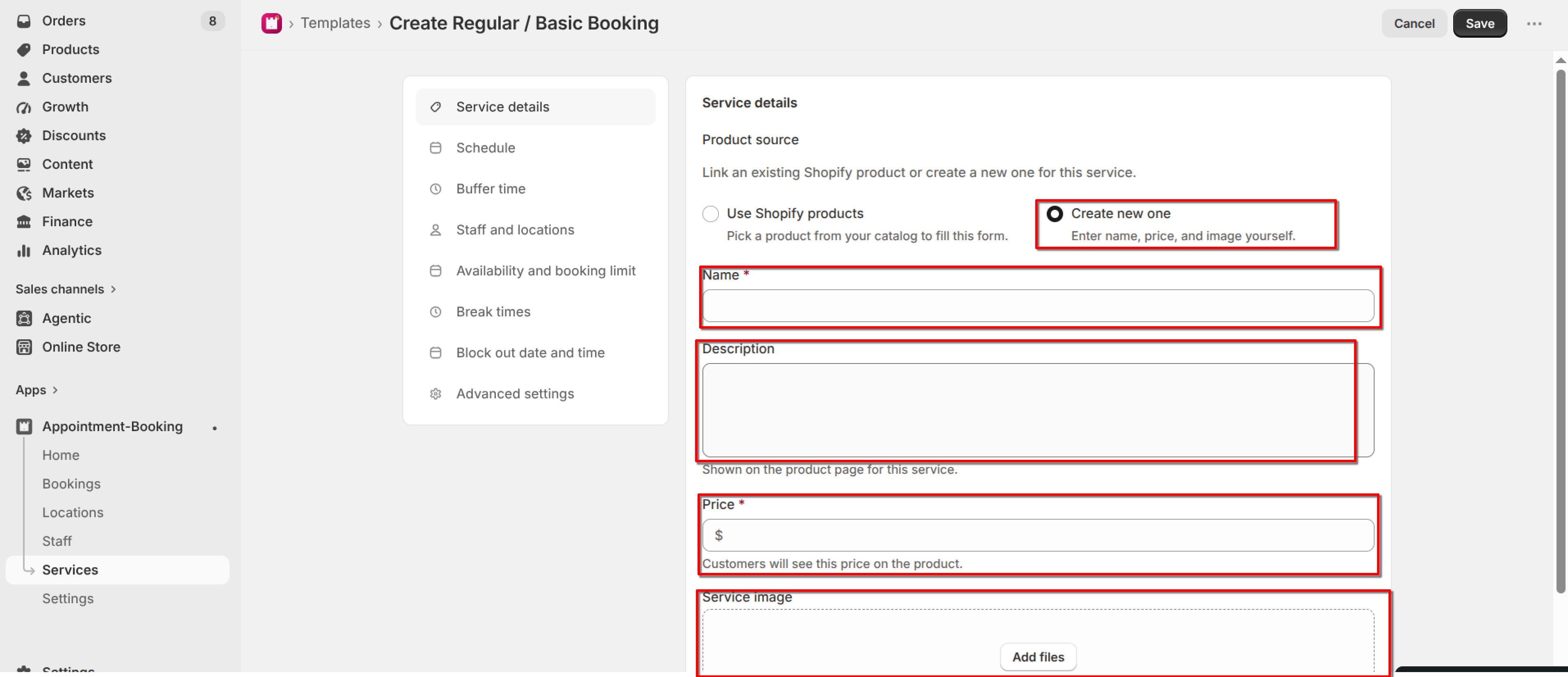
Service details with "Create new one" selected under Product source, showing Name, Description, Price, and Service image fields
Product source — "Create new one" lets you enter name, price, and image yourself
Service details with "Use Shopify products" selected under Product source and the "Select product" button highlighted
Product source — "Use Shopify products" lets you pick a product from your catalog
2

If you use a Shopify product, click "Select product". Name, description, price, and image fill in from that product. You can still edit them after, or click Change / Reset product selection.
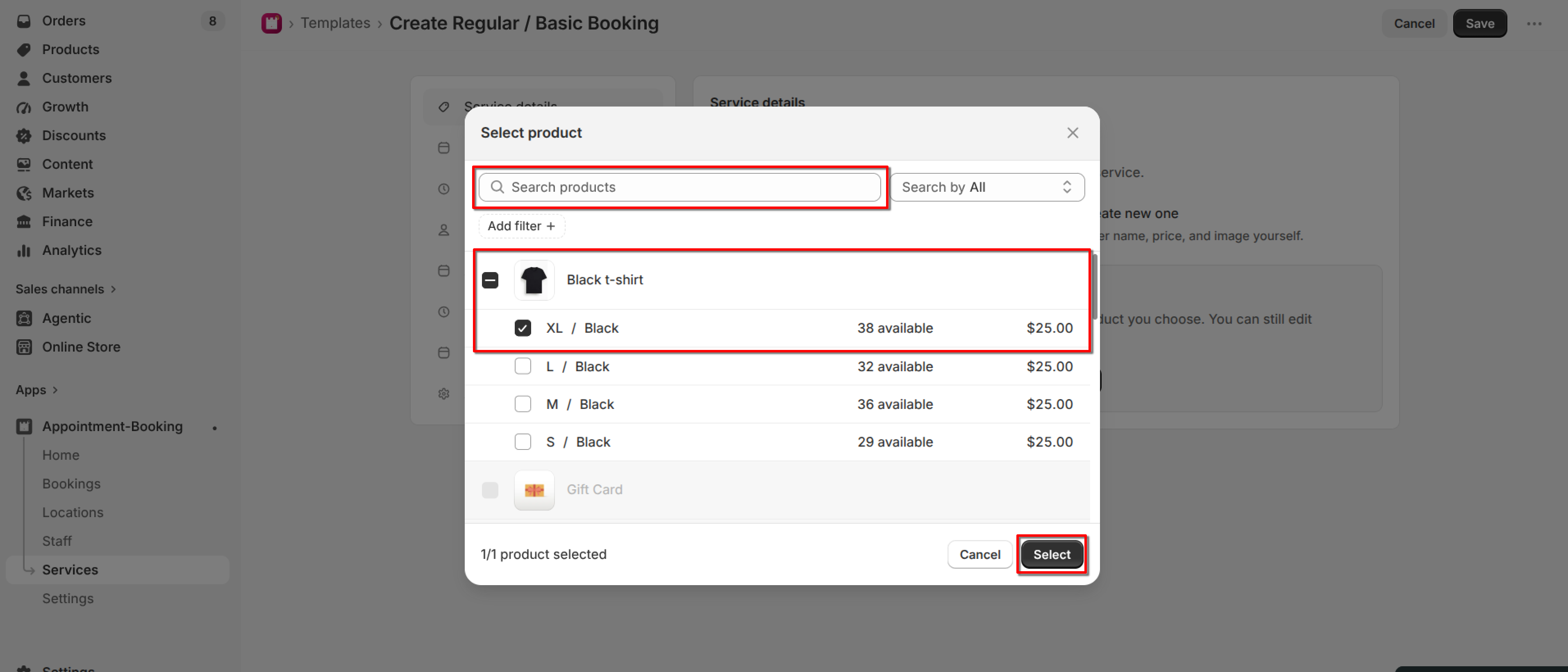
Select product dialog with a product variant checked and the "Select" button highlighted
Select a product from your catalog
3

Enter Name and Price (required). Description is optional and is shown on the product page.
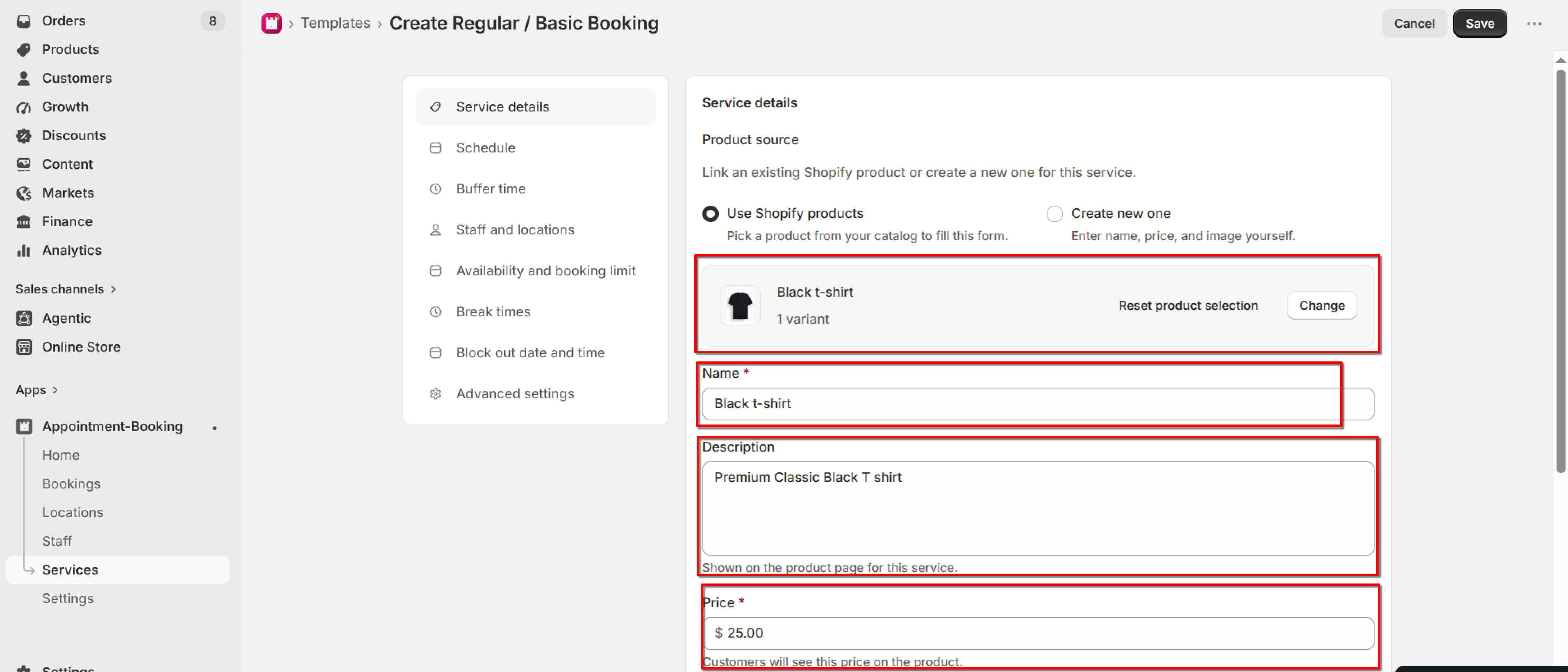
Service details form with Name, Description, and Price fields filled in from the selected Shopify product, and the Change / Reset product selection controls highlighted
Name, description, and price fill in automatically from the selected product
4

Upload a Service image if you want (JPG, PNG, or WEBP, maximum 2 MB).

5

Click Save.
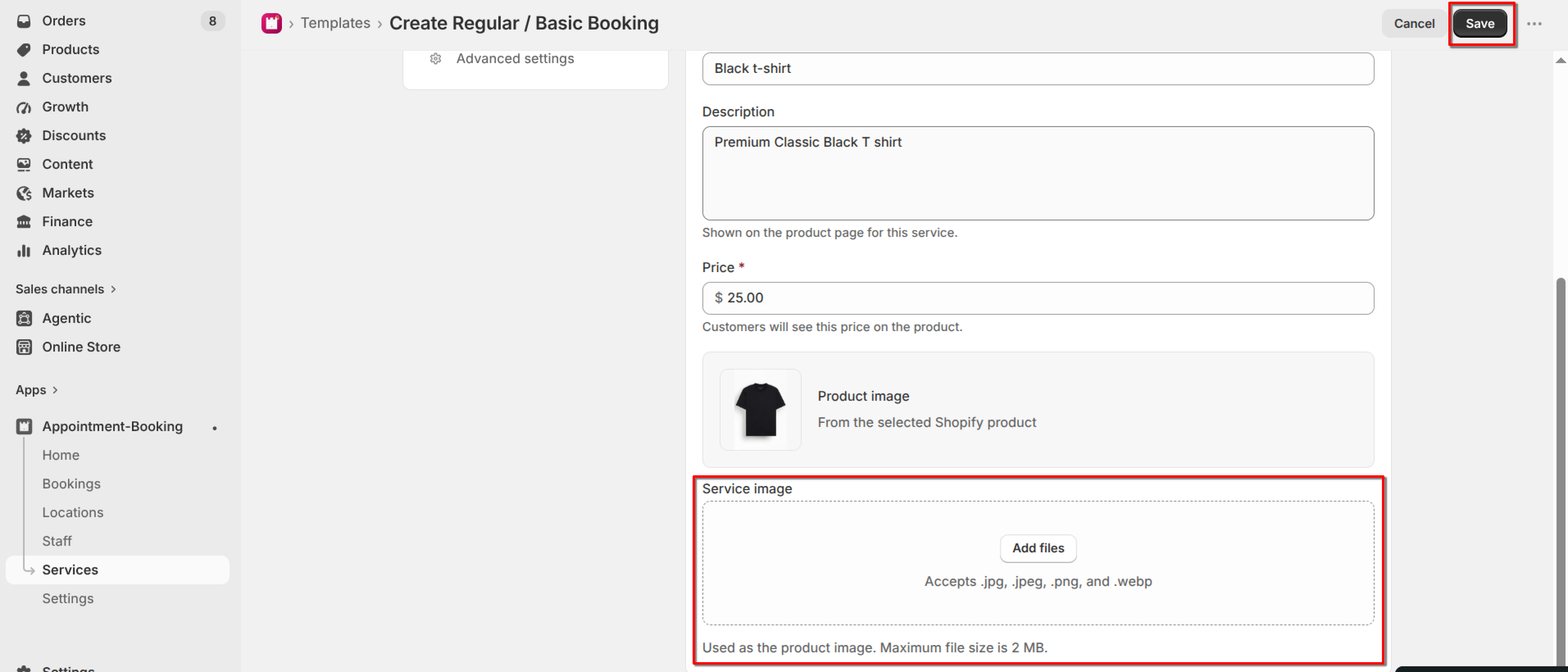
Service details with the Service image upload area and the "Save" button highlighted
Add a Service image if you want, then click Save