Genie AppsGenie Apps Help Center

How to set the Schedule

Last updated: September 15, 2026

Set duration, time zone, slot interval, minimum notice, cutoff time, and how far ahead customers can book.

Open the service and click "Schedule" in the left menu. What you see depends on the service type.

1

For Regular or Bundle, set Duration in minutes (5 to 480). Make sure availability blocks are long enough to fit it.
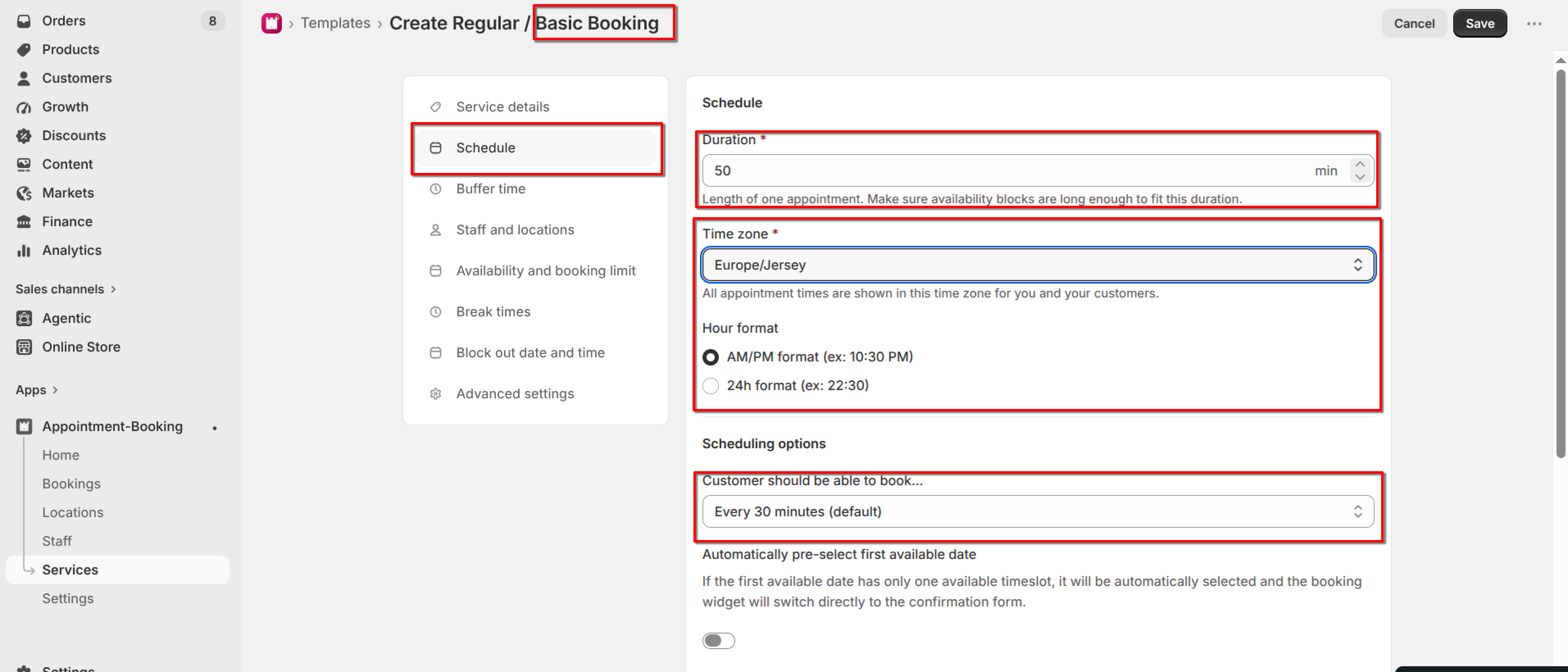
Schedule tab for a Regular / Basic Booking service with Duration, Time zone, Hour format, and "Customer should be able to book" fields highlighted
Regular / Basic Booking — set the appointment Duration
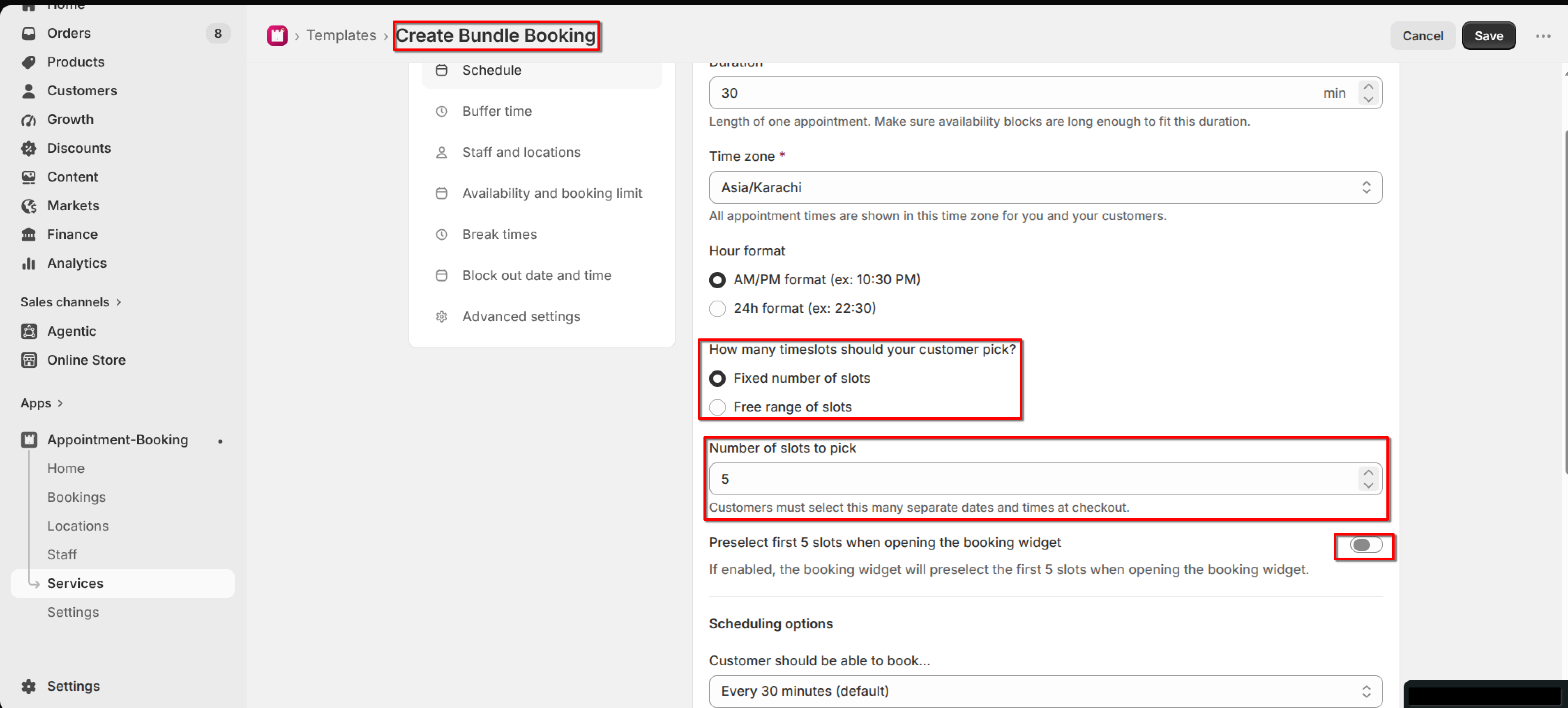
Schedule tab for a Bundle Booking service with "How many timeslots should your customer pick?" and "Number of slots to pick" fields highlighted
Bundle Booking — set the appointment Duration
2

For Multiday, set minimum and maximum bookable days, plus check-in / pickup and check-out / drop-off times.
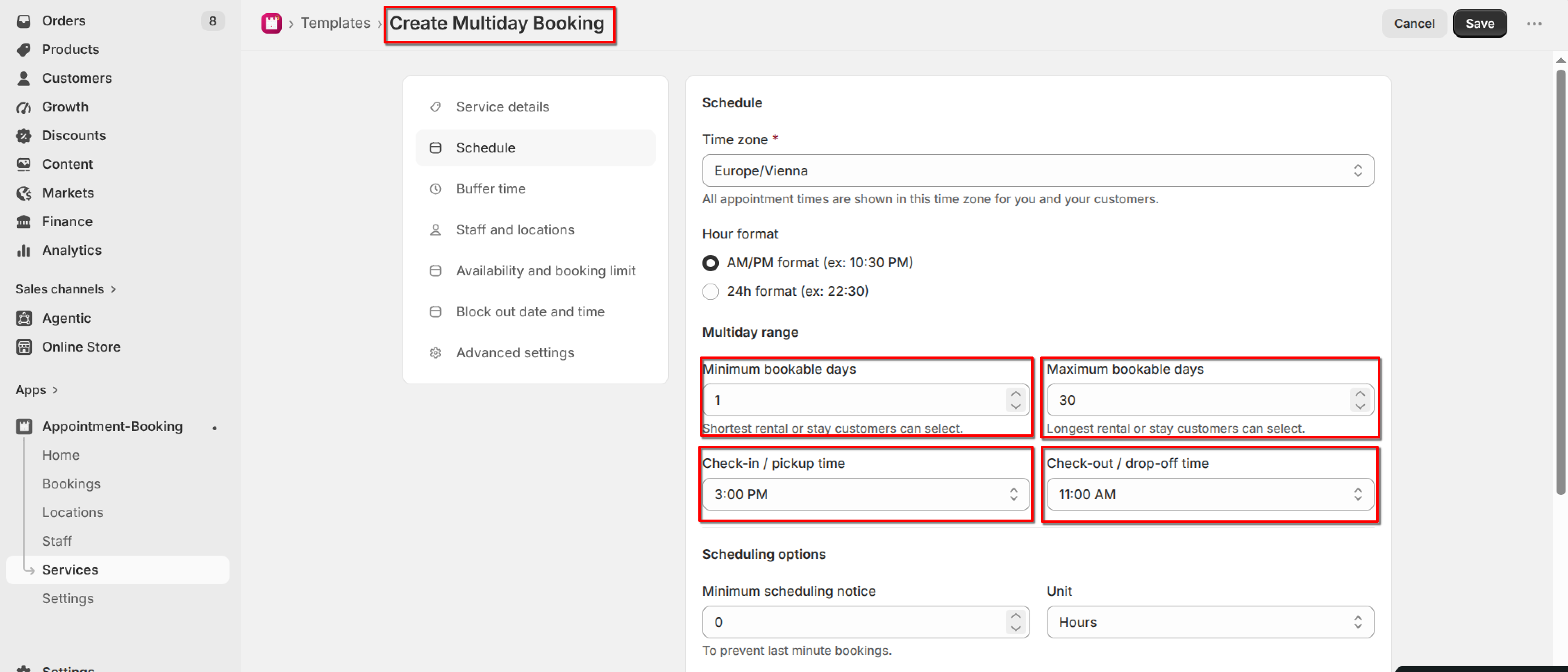
Schedule tab for a Multiday Booking service with Minimum bookable days, Maximum bookable days, Check-in / pickup time, and Check-out / drop-off time fields highlighted
Multiday Booking — set the bookable day range and check-in / check-out times
3

For Fullday, set when the day opens and closes. Optionally turn on "Event start time only".
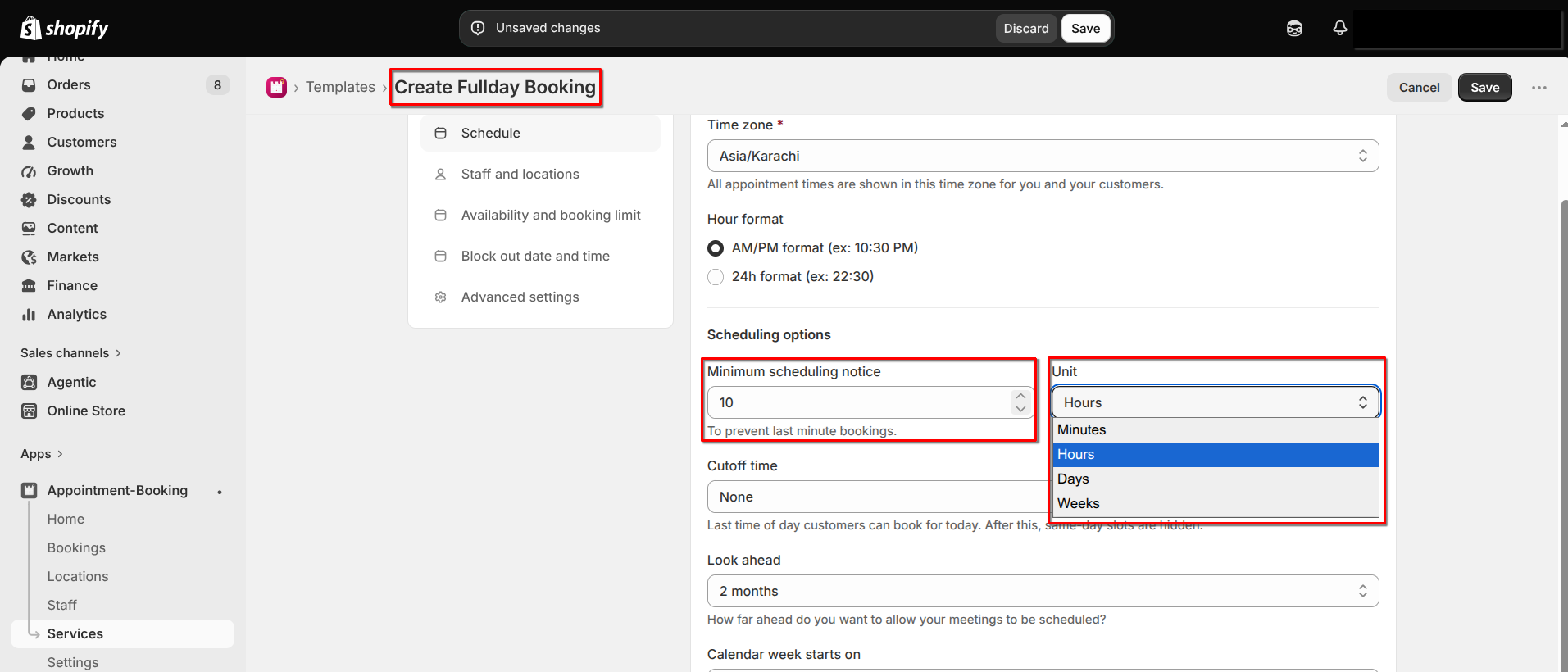
Schedule tab for a Fullday Booking service with Time zone, Hour format, Minimum scheduling notice, and Unit fields highlighted
Fullday Booking — Schedule settings
4

For Bundle, set Sessions in pack (how many separate slots the customer must pick).

Schedule tab for a Bundle Booking service with "How many timeslots should your customer pick?" and "Number of slots to pick" fields highlighted
Bundle Booking — set Sessions in pack
5

Set Time zone and Hour format (AM/PM or 24h).

6

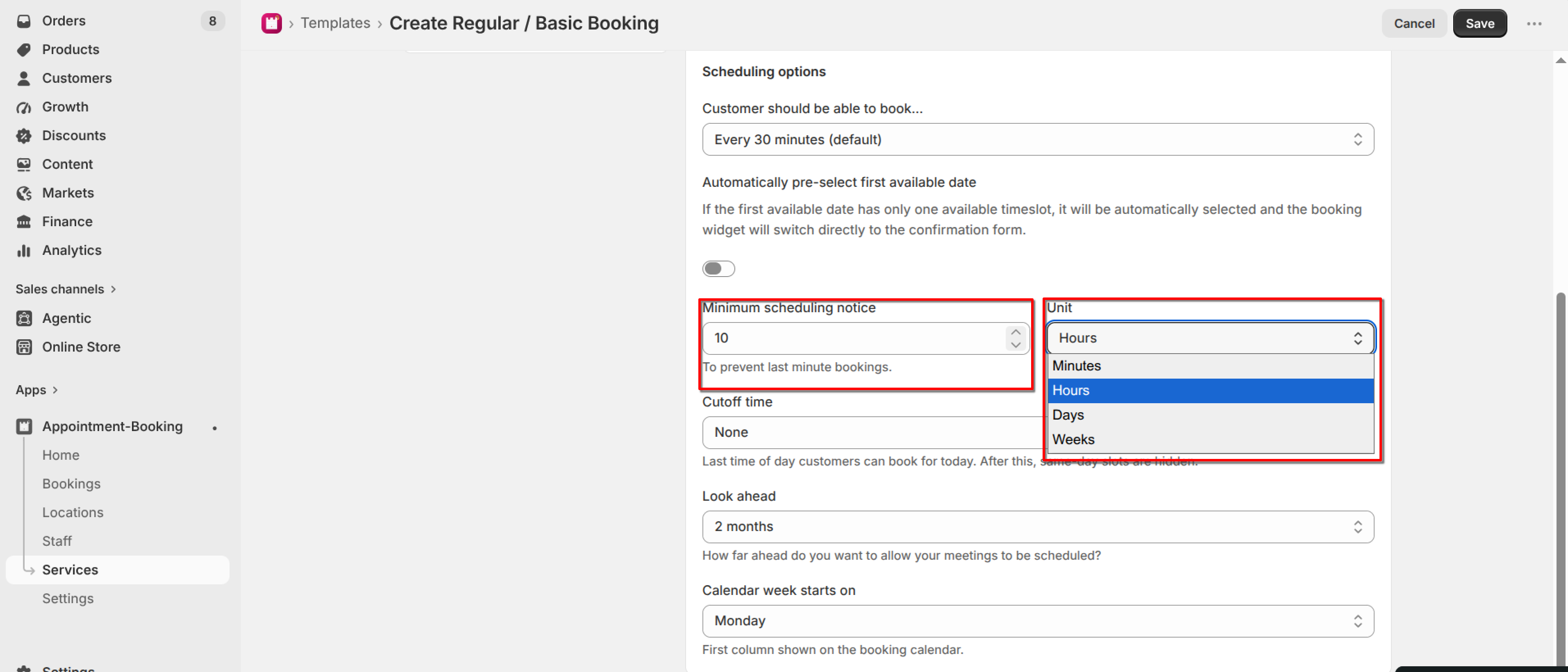
Under Scheduling options, set how often slots are offered (every 15, 30, 45, or 60 minutes), Minimum scheduling notice, Cutoff time, Look ahead, and which day the calendar week starts on.
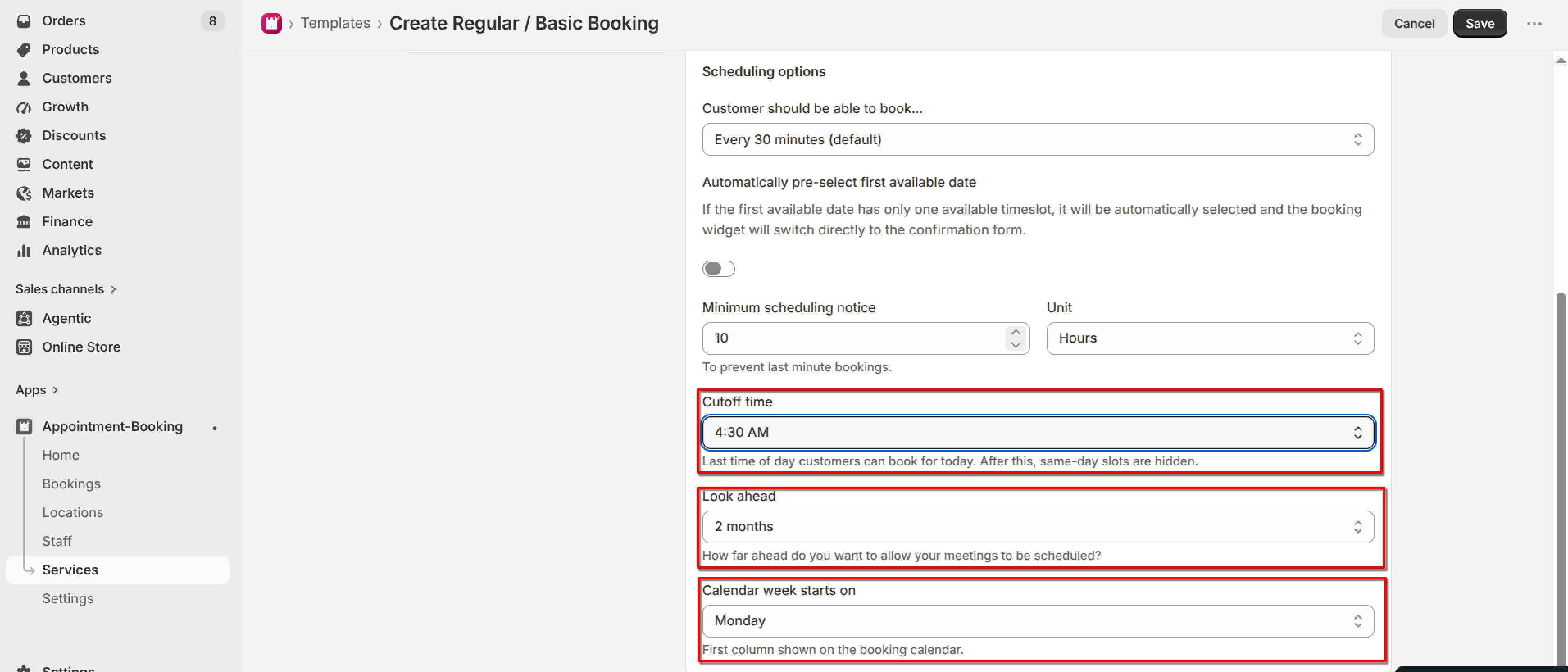
Scheduling options with Cutoff time, Look ahead, and Calendar week starts on fields highlighted
Scheduling options — Cutoff time, Look ahead, and calendar week start
7

Click Save.

Scheduling options with Minimum scheduling notice and the Unit dropdown (Minutes, Hours, Days, Weeks) expanded and highlighted
Scheduling options — Minimum scheduling notice and unit