
How to edit email templates
Last updated: September 15, 2026
Change wording, buttons, colors, and logo for confirmation, reminder, reschedule, cancellation, invoice, follow-up, and admin emails.
Open Settings → Email templates. Pick an email type, edit the wording and design, then save. Use Send test on the preview to try an email.
1
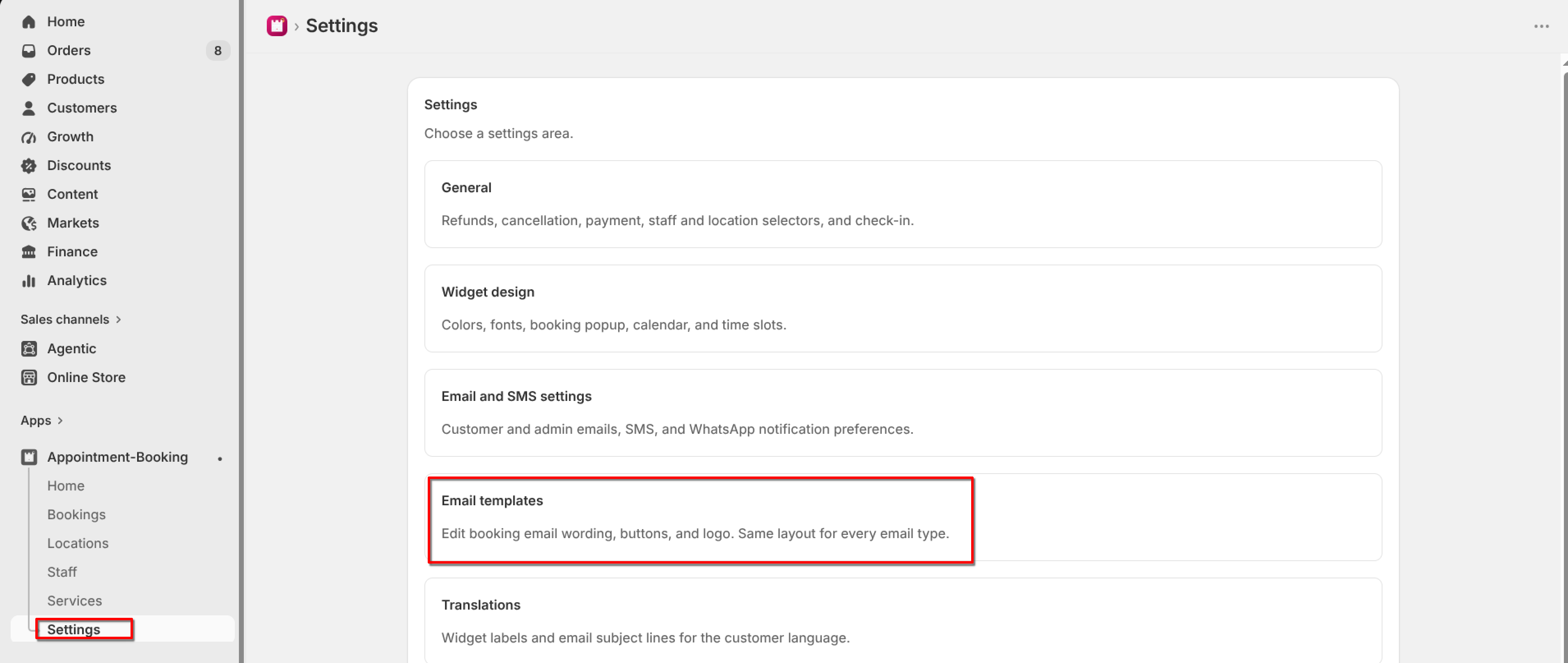
From the app sidebar, click Settings → Email templates.
2
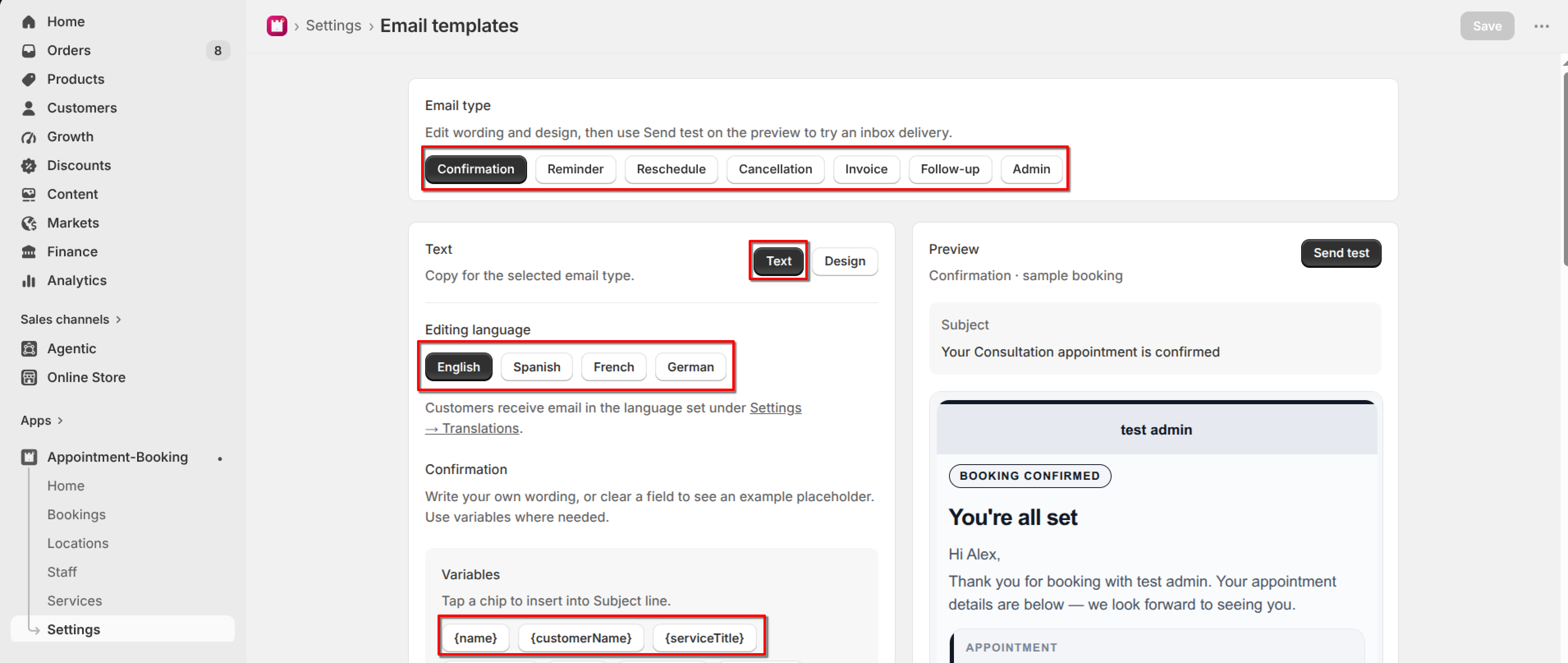
Choose an email type: Confirmation, Reminder, Reschedule, Cancellation, Invoice, Follow-up, or Admin.
3
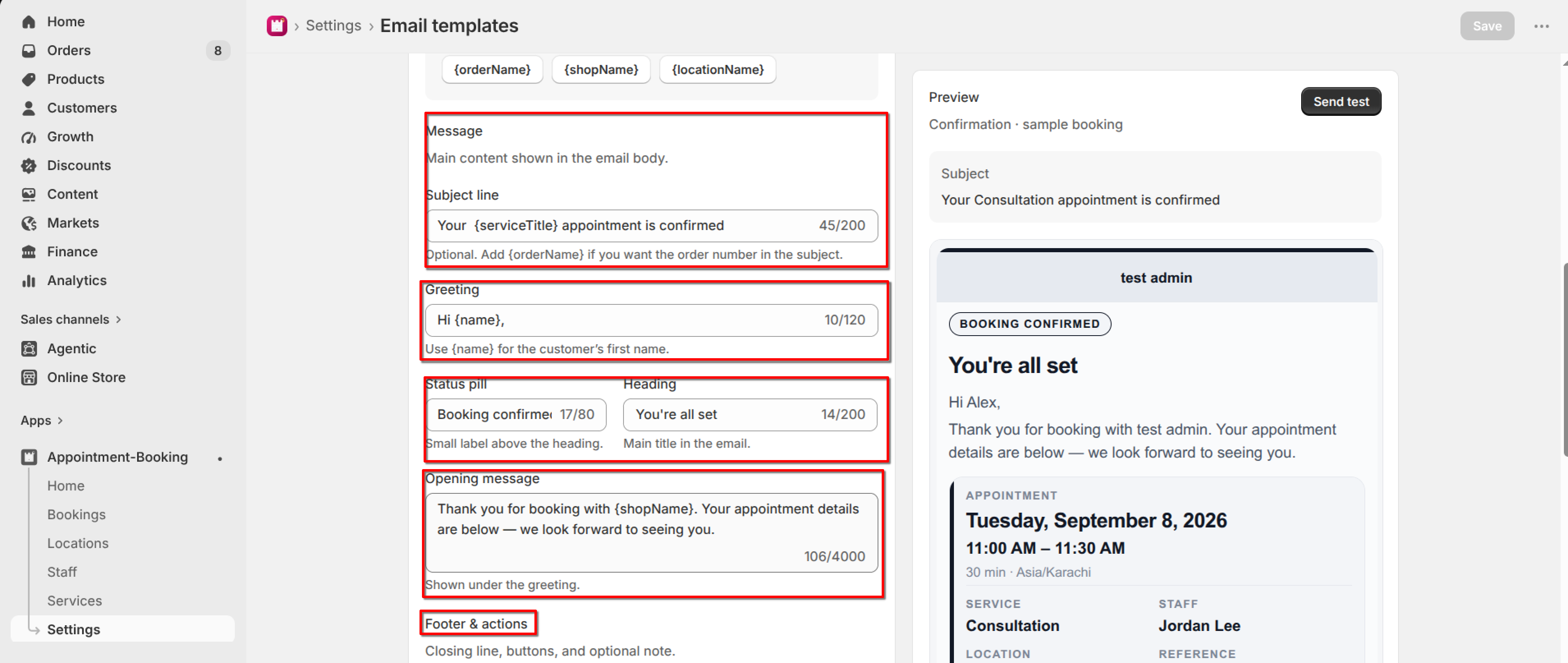
Edit the subject, intro, note, buttons, colors, and logo as needed.
4
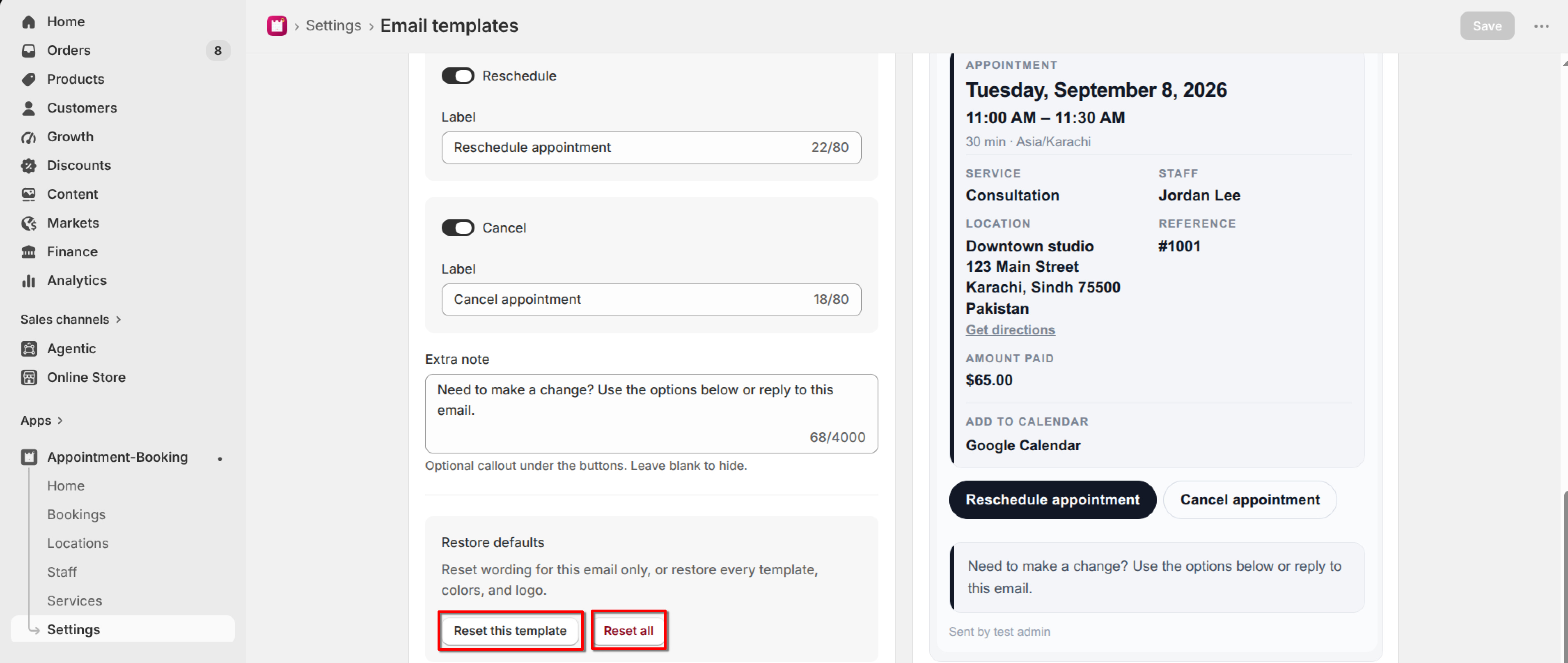
Optionally send a test from the preview, then click Save.
You can reset the current template wording to defaults, or reset all templates (wording, colors, and logo). You can still Discard before saving.