
How to enable the booking widget on your theme
Last updated: September 17, 2026
Turn on the Booking widget App Embed so customers can book from product and cart pages.
The booking widget is a Shopify App Embed named "Booking widget". It appears on product and cart pages. Your theme files are not edited.
During setup
On the Setup guide, expand "Activate the storefront widget" and click "Open theme editor".
In the Theme Editor, open App embeds and turn on "Booking widget".
Click Save in the Theme Editor.
Return to the app and click "Verify". The app checks that the widget is enabled on your published theme.
After setup
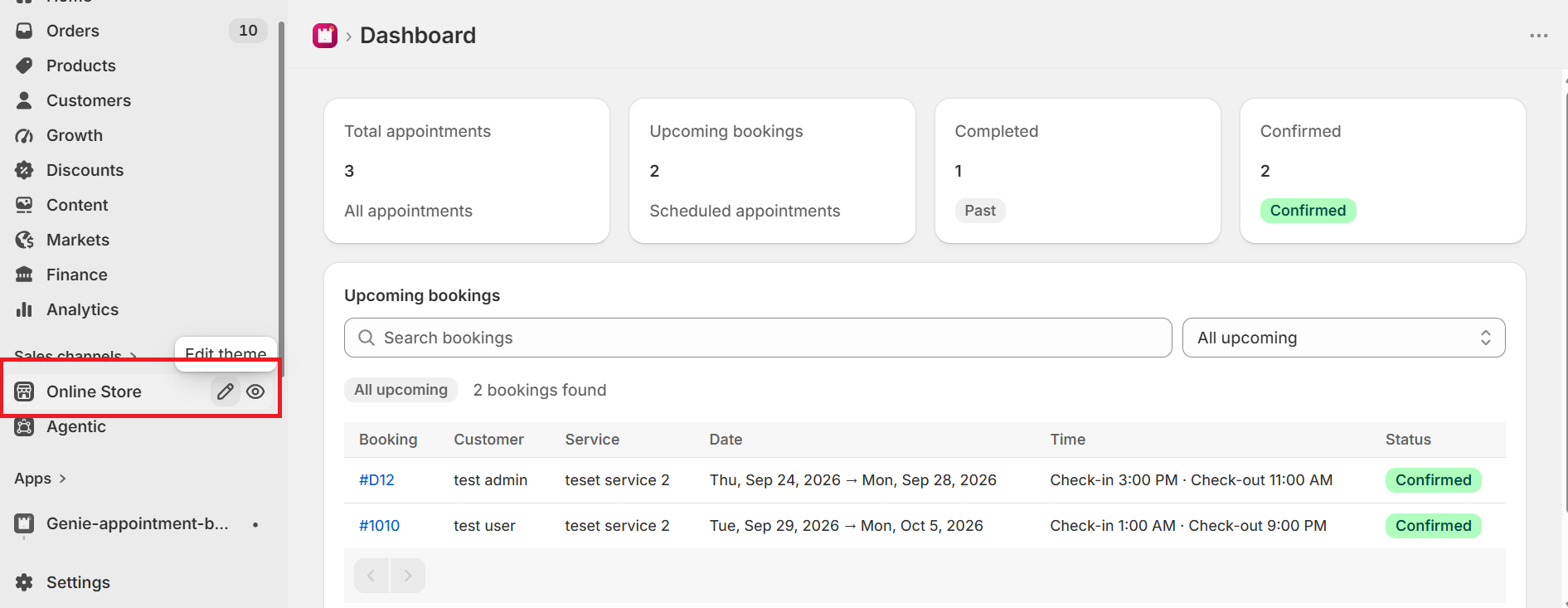
In Shopify Admin, open Online Store and click Edit theme (the pencil icon). You can also go to Online Store → Themes → Customize.
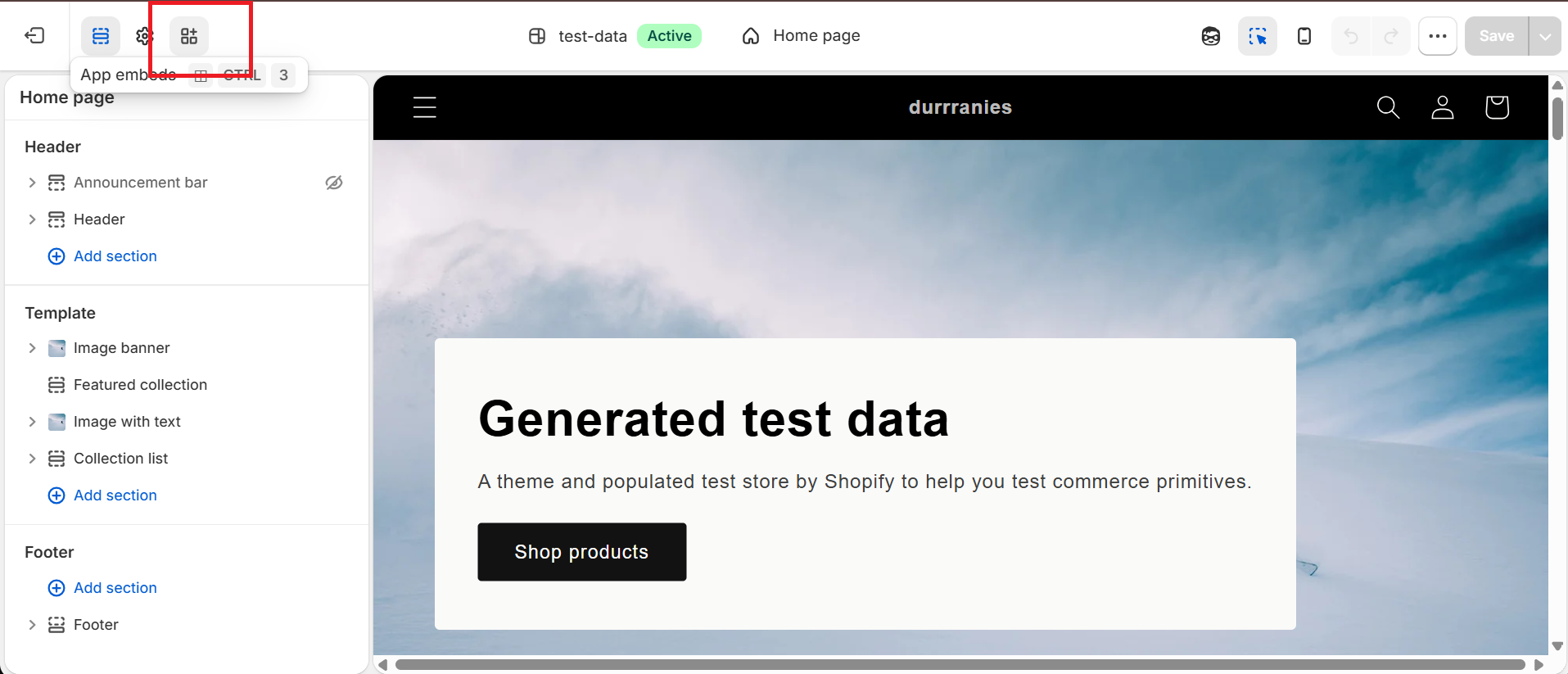
In the Theme Editor, open App embeds.
Turn on "Booking widget", then click Save.
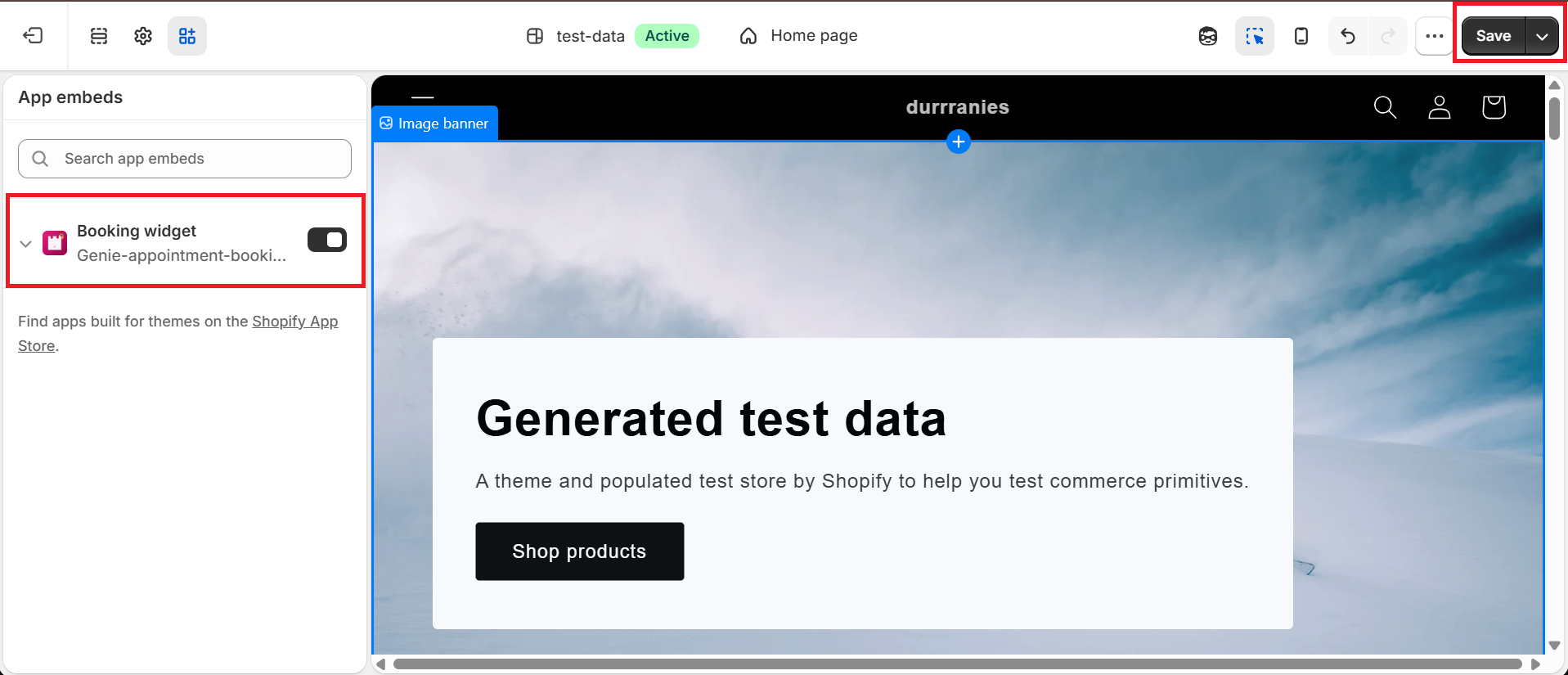
Save the live (published) theme. If you only save a draft or unpublished theme, Verify will fail and customers on the live store will not see the widget.
You also need at least one Active service with staff and a location assigned. The widget replaces Add to cart on that product with "Book an appointment".