
Override: Day-wise product limits
Last updated: April 22, 2026
Cap how many units of matching products can be scheduled per calendar day — per weekday — for delivery or pickup.
Use this to protect capacity for high-labor or limited-stock items. You set a maximum quantity per day of the week for products that match your tags or SKUs.
When you would pick this in the app
In "Product-based override by", select Day-wise product limits.
Steps
Create the override, Enable it, choose Day-wise product limits, and add tags or SKUs.
On the Local Delivery tab, use the day selector to pick a weekday.
Under "Set product limit", enter a number. The field shows a Quantity suffix — that is the max quantity of matching line items (or units, per your workflow) allowed for that weekday.
Repeat for each weekday that needs a cap. Leave a day unset or empty if that day should not use this cap.
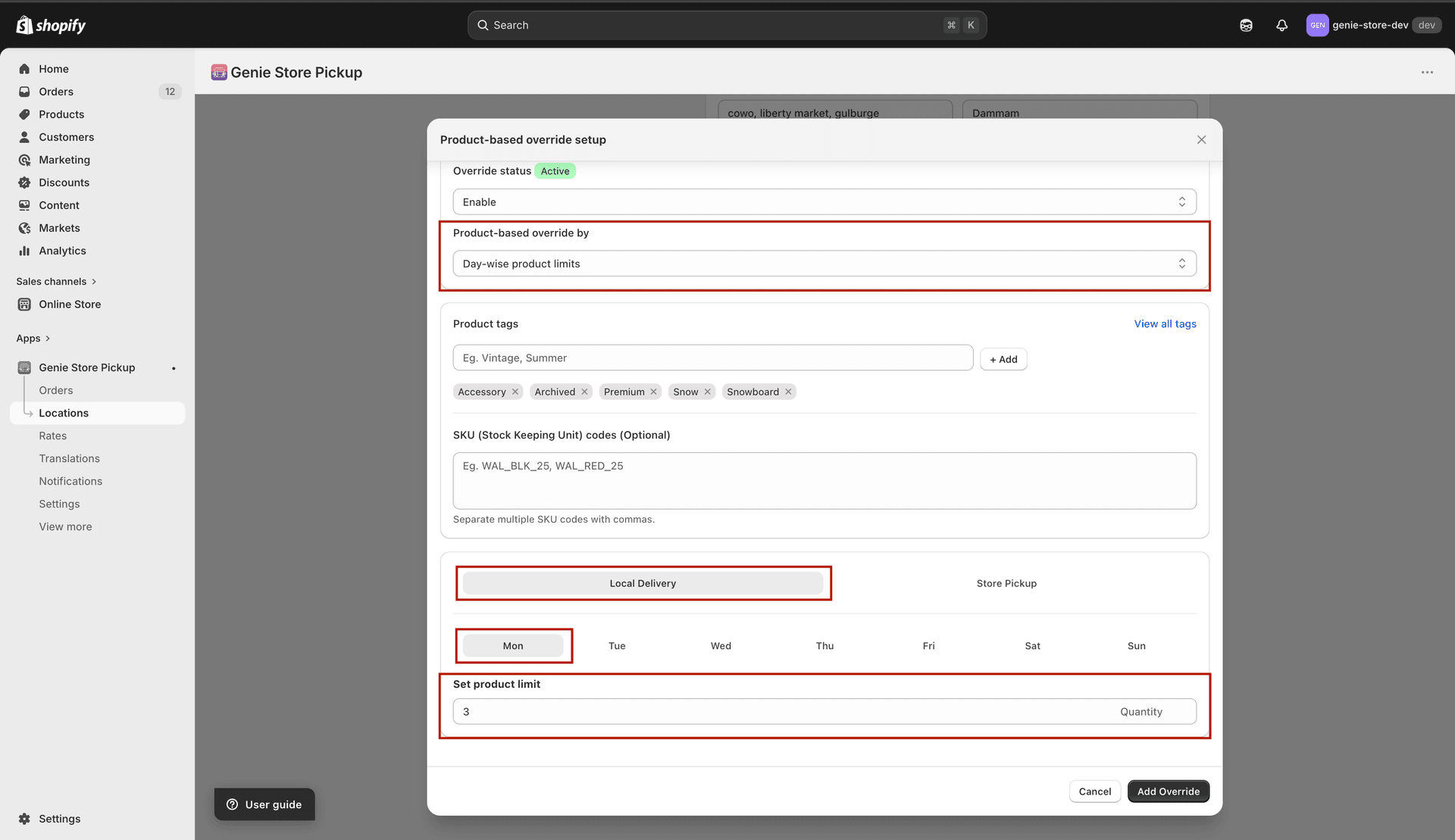
Adjust each weekday one at a time
Open the Store Pickup tab. Check "Same as local delivery" if pickup should share the same limits, or configure Store Pickup separately.
Save the location.
If you also use "Limit orders per slot" on the main location delivery settings, think of this override as an extra cap that only applies when the tagged or SKU-matched products are in the cart.
What's Next