
Product-based overrides — start here
Last updated: April 22, 2026
Understand what product overrides are, when to use them, and how to pick the right override type for your situation.
Product-based overrides are extra rules you attach to a location. They only run when a customer’s cart includes at least one product that matches the tags or SKUs you list. Everyone else keeps using your normal pickup and delivery settings on the same page.
Do I need this?
Use overrides when a small group of products needs different behavior — not your whole store. Examples: fresh items that need a longer prep time, bulky items that should not offer pickup, or a tag that should not be delivered on Sundays.
Where to set them up
Open the app and click "Locations".
Click the location you want to change.
Scroll to the bottom of the page to the section named "Product-based overrides".
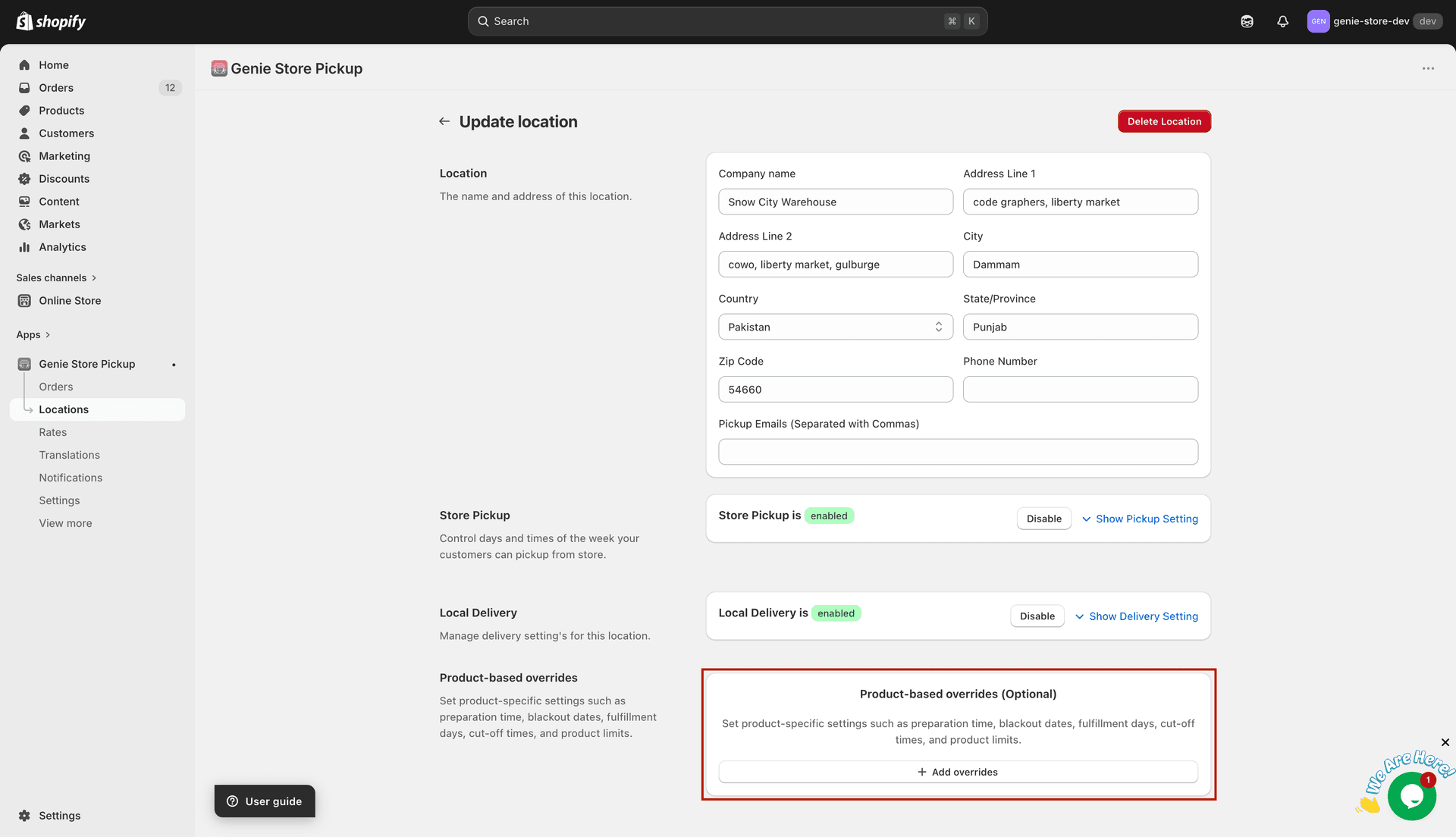
This is separate from your default Store Pickup and Local Delivery settings above
Every new rule follows the same first steps
Click the button to add a product-based override.
Set "Override status" to Enable (you can switch to Disable later to pause a rule without deleting it).
Open the "Product-based override by" dropdown and choose the type that matches your goal — each type has its own guide below.
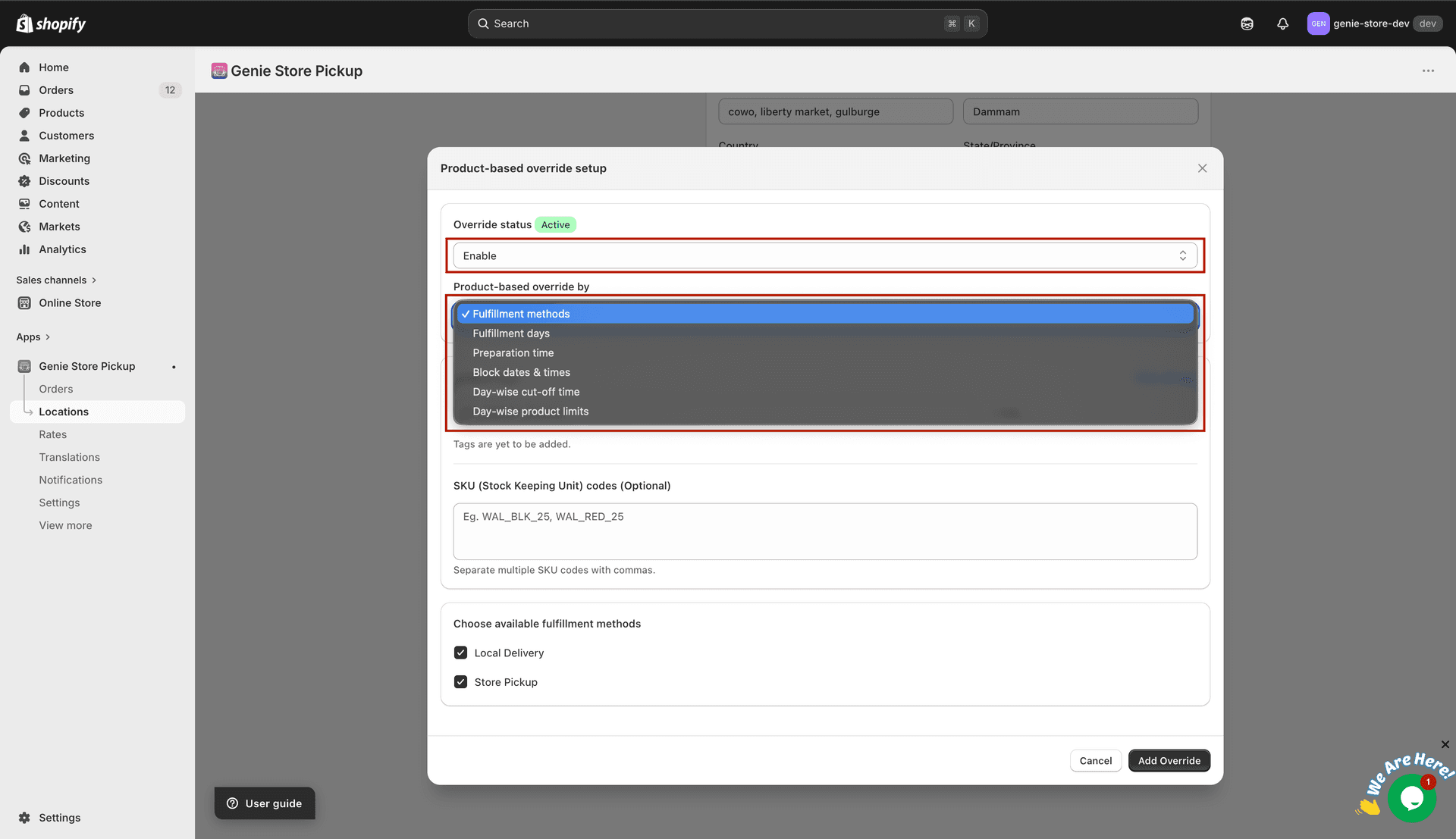
Pick one type per rule. Need more than one kind of change? Create another override.
Add product tags (and optional SKU codes) so the app knows which products this rule applies to.
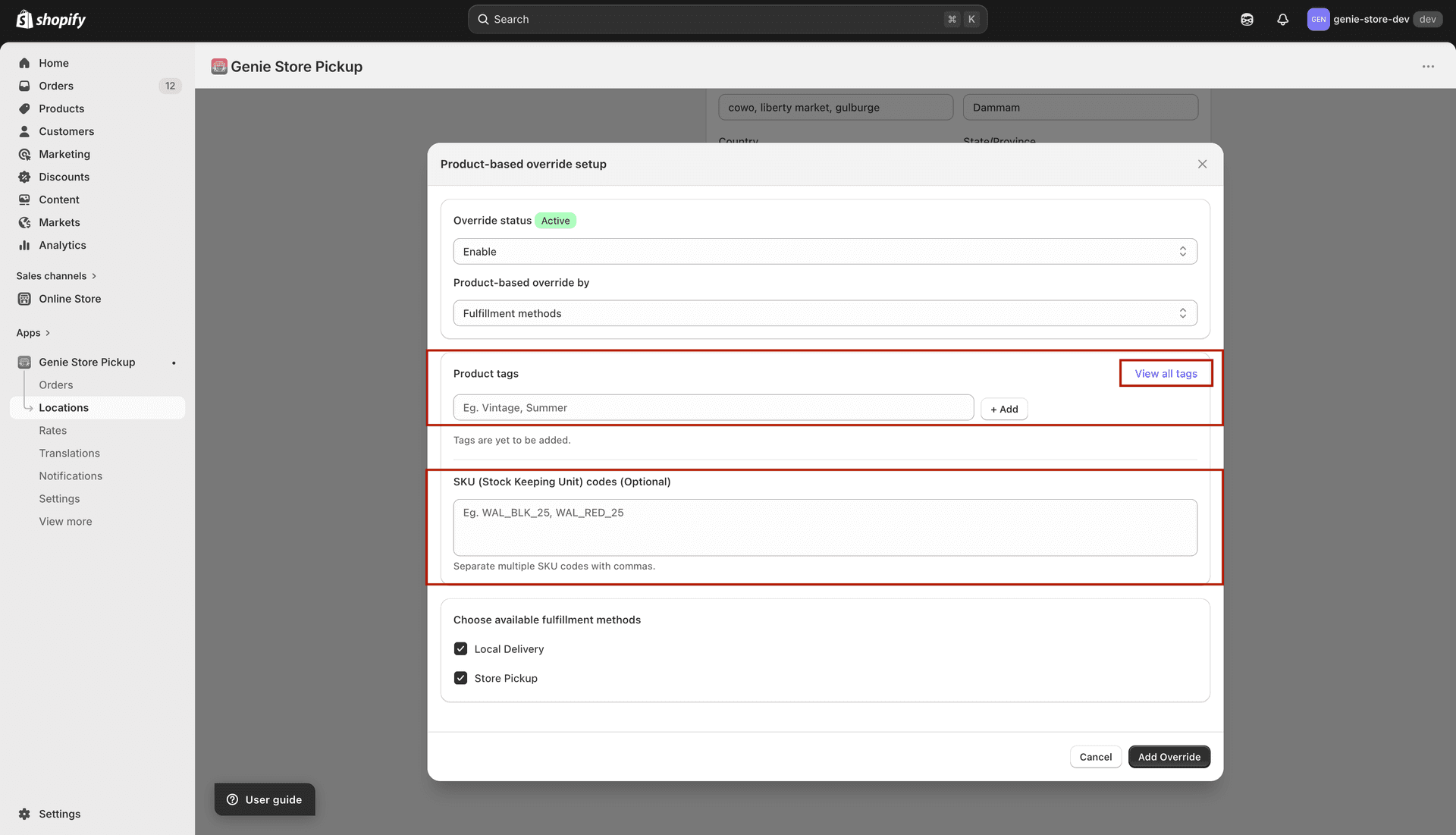
Tags must match Shopify exactly. SKUs are optional and comma-separated.
When you see two tabs — "Local Delivery" and "Store Pickup" — work on the tab that matches what you are changing. Use "Same as local delivery" on the Store Pickup side if pickup should copy your delivery values for this rule.
Save the location when you are finished.
Rules that often surprise merchants
The same product tag cannot appear on two different rules of the same override type. The same SKU cannot be used twice across two rules of the same type. If the app shows an error, remove the duplicate tag or SKU from one of the rules, or use a different override type.
If the cart has no matching products, customers never see the override — your regular location schedule applies.
Which guide should I open next?
Use the "What's Next" links below, or open Locations → Product overrides in the help menu and choose the article title that matches what you want to do.
What's Next