
Override: Day-wise cut-off time
Last updated: April 22, 2026
Set when the business day starts and ends for slots, per weekday, for matching products — useful when prep-heavy items need a shorter effective window.
For each weekday you can set a "Work starts time" and "Work ends time (Cut-off time)". This shapes which time slots are treated as valid for carts that match your override.
When you would pick this in the app
In "Product-based override by", select Day-wise cut-off time.
Steps
Create the override, Enable it, choose Day-wise cut-off time, and add tags or SKUs.
On the Local Delivery tab, use the day selector (Monday, Tuesday, etc.) to pick one weekday at a time.
For that day, set "Work starts time" and "Work ends time (Cut-off time)" from the dropdowns.
Switch to another weekday with the day selector and repeat until every day you need is configured.
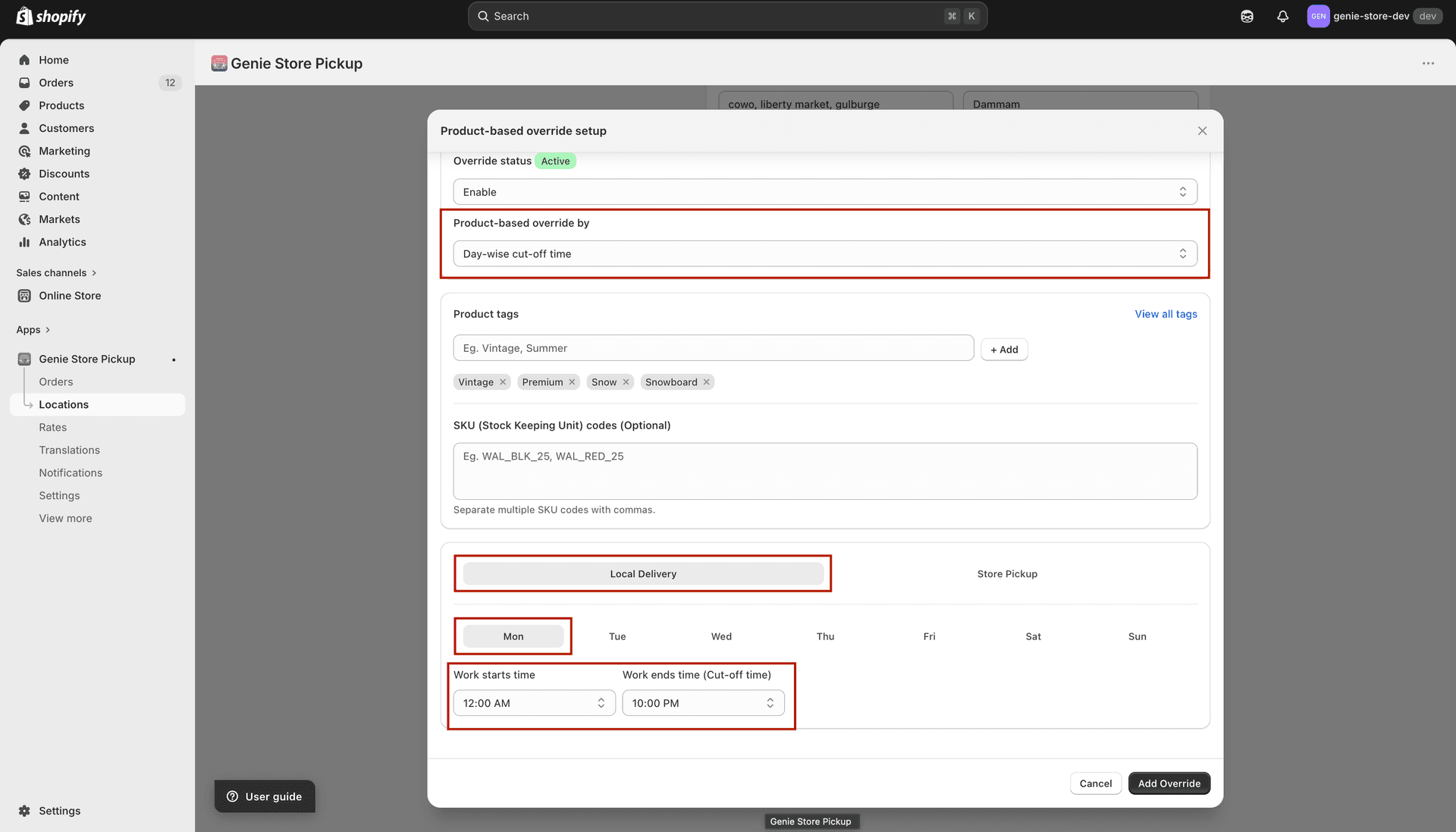
Configure each weekday separately using the day selector
Open the Store Pickup tab. Use "Same as local delivery" if pickup should follow the same cut-off pattern, or turn it off and set pickup times per weekday.
Save the location.
This is an advanced override. If results at checkout confuse you, double-check your main location hours first, then adjust one weekday at a time and test with a matching product in the cart.