
Override: Block dates & times
Last updated: April 22, 2026
Block specific dates or time ranges for matching products — for example a holiday afternoon for catering SKUs only.
This adds blackout rules on top of your normal calendar, but only when the cart matches your tags or SKUs. You can block a full day or a slice of the day.
When you would pick this in the app
In "Product-based override by", select Block dates & times.
Steps — Local Delivery
Create the override, set Enable, choose Block dates & times, and add your tags or SKUs.
Stay on the Local Delivery tab.
Click "+ Add blackout slots". Select a date or date range on the calendar.
For a full-day block, leave "Block specific time range only" unchecked, then click Add.
For part of the day only, check "Block specific time range only", choose From and Until times, then click Add.
Repeat to add more rows. Use the trash/delete control on a row to remove a block.
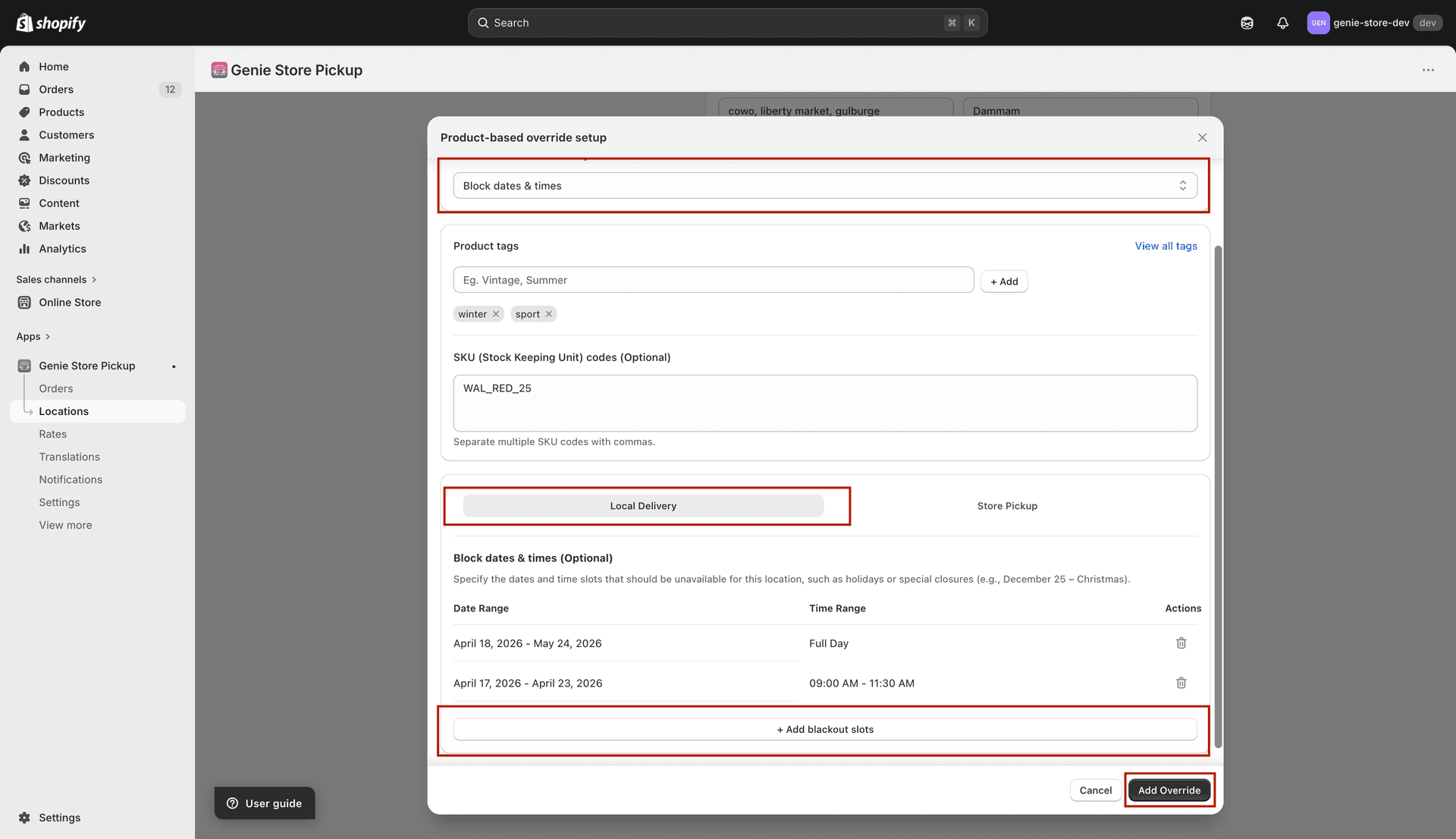
Each line is one blackout; time can show "Full Day" or a from–until range
Steps — Store Pickup
Open the Store Pickup tab. Check "Same as local delivery" if pickup should use the same blackout list.
If you turn off "Same as local delivery", use "+ Add blackout slots" on this tab the same way. On Store Pickup the checkbox is labeled "Date range with time slots" for partial-day blocks.
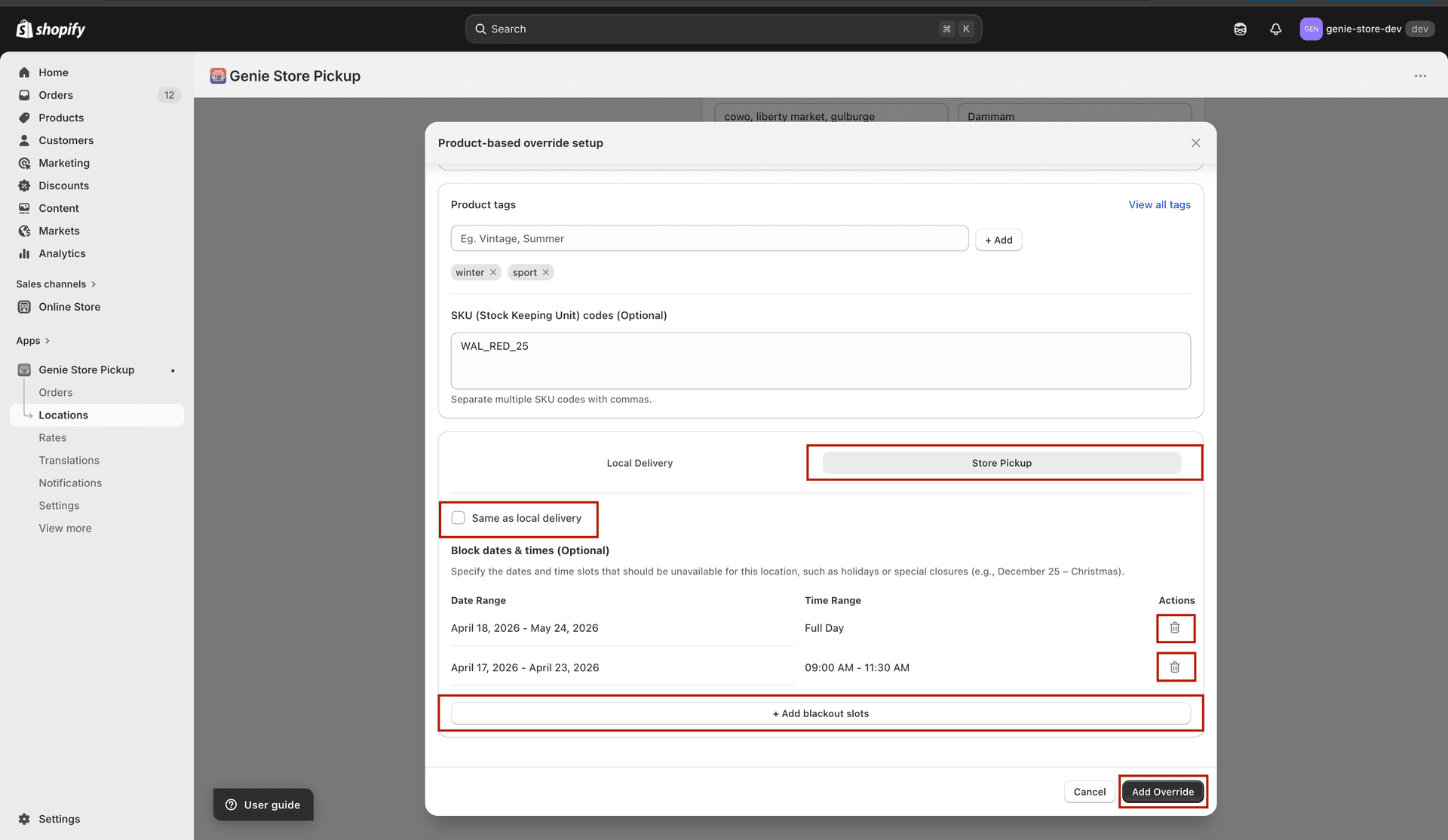
Each line is one blackout; time can show "Full Day" or a from–until range
Save the location.
These blackouts are in addition to your location’s normal blackout dates — they only tighten the calendar for matching products.