
Override: Preparation time
Last updated: April 22, 2026
Require more hours or days before matching products can get a delivery or pickup slot.
Use this for made-to-order, custom, or slow-prep items. The app pushes the first available slot later in time only when a matching product is in the cart.
When you would pick this in the app
In "Product-based override by", select Preparation time.
Steps
Add a product-based override, Enable it, and choose Preparation time.
Add the tags or SKUs for products that need extra lead time.
Open the Local Delivery tab. Enter a number and choose hours or days — this is how long you need before a delivery slot can be offered for these products.
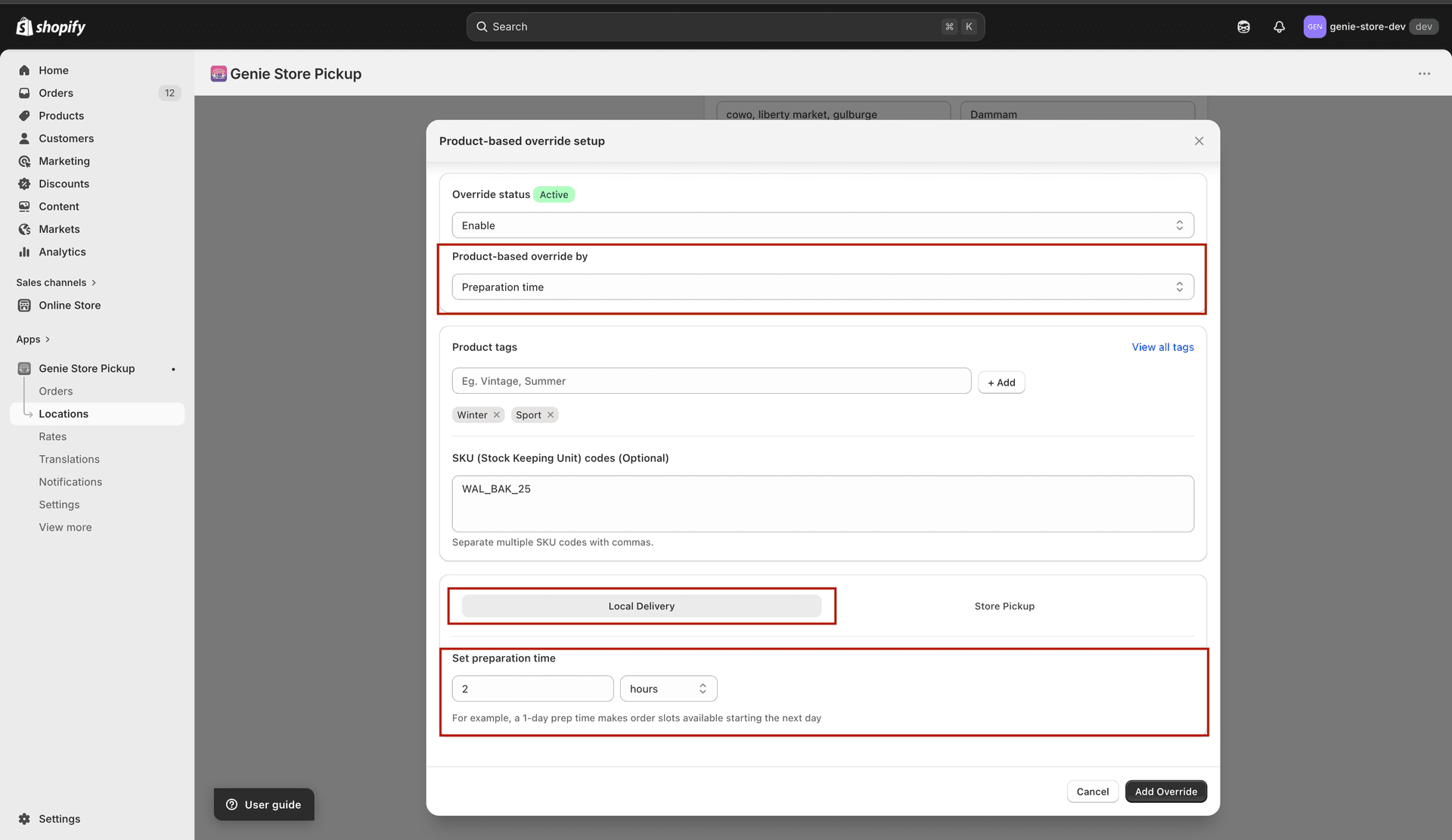
Example: 1 day means the first bookable day shifts forward by one day for matching carts
Open the Store Pickup tab. Use "Same as local delivery" if pickup should use the same prep time, or set pickup time separately.
Save the location.
This is per location. For store-wide product prep rules, you may also use Settings → Product Preparation Time — overrides here apply only at this location and only when tags or SKUs match.