
General configurations & keywords
Last updated: April 14, 2026
Set global preferences and choose between CCS API and Delivery Customization.
The General Configurations tab has two cards: General Configurations (global preferences) and Rate Calculation Setup (how the app calculates rates at checkout).
General Configurations tab — two cards
General Configurations card
Go to Rates → General Configurations tab.
Shop Currency is read-only — it is automatically synced from your Shopify store.
Set Zip Matching Type to "Partial" (matches any zip code that starts with the entered value) or "Exact" (requires a full match).
Select your Weight Format: Gram, Kilogram, Ounce, or Pound. This must match the unit you use when entering weight-based rate conditions.
Set Display Preference: Show All Rates, Cheapest Only, or Most Expensive Only. This controls how many rates the customer sees when multiple conditions match.
Rate Calculation Setup — choosing a method
There are two ways the app can calculate rates at checkout:
CCS API (Carrier-Calculated Shipping) — Recommended. The app calculates and returns rates directly via Shopify's Carrier Service API. No additional Shopify setup is required for rate names. Requires Shopify to have carrier-calculated shipping enabled on your plan — contact Shopify Support if this is unavailable.
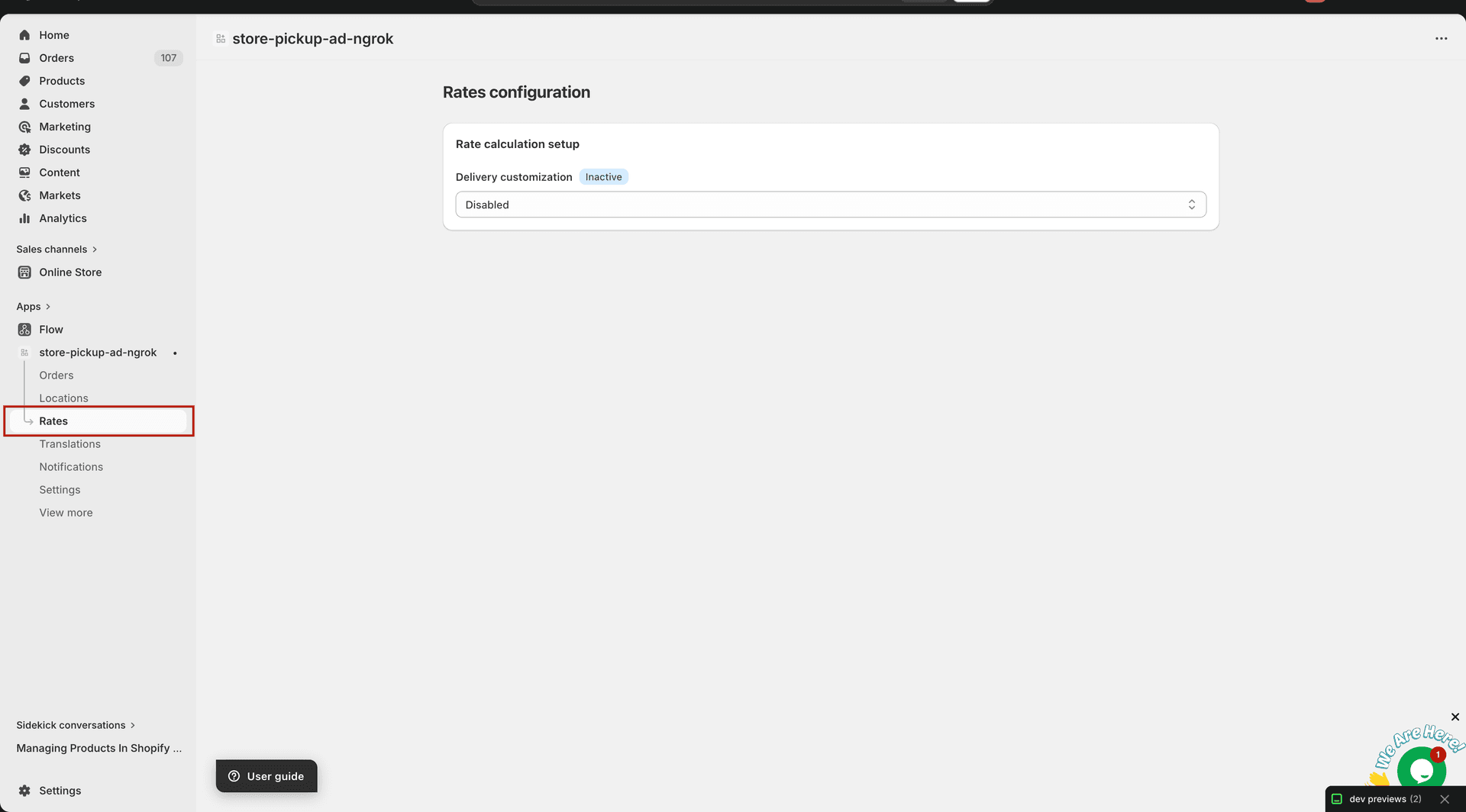
Delivery Customization — the app hides or shows rates you have already created in Shopify's Shipping settings, using keywords to match them. Use this if your plan does not support CCS API.
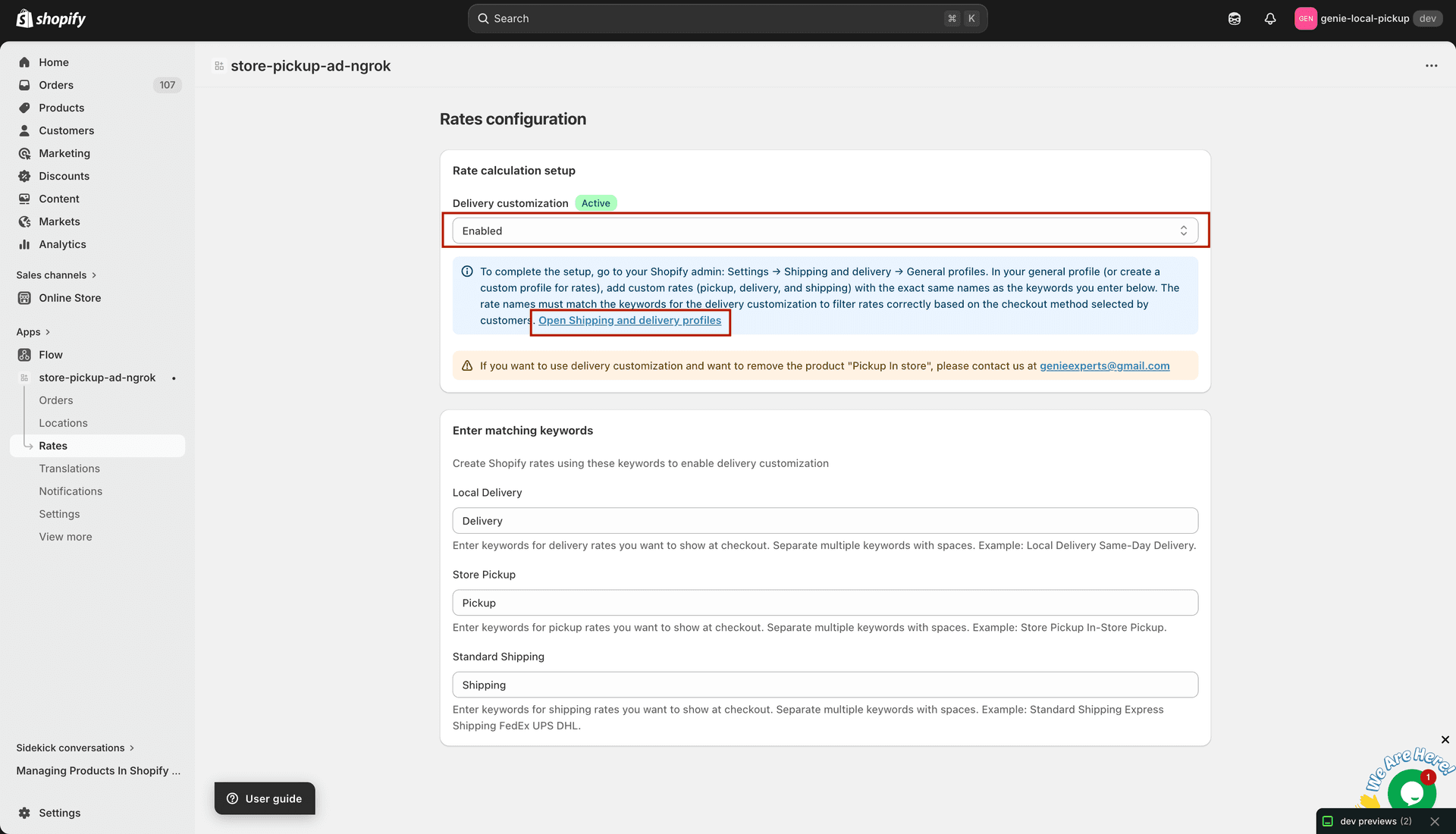
Select CCS API (radio button) or enable Delivery Customization via the dropdown
CCS API is the recommended method. Delivery Customization is the fallback option when CCS API is not available on your Shopify plan.
Enter Matching Keywords (Delivery Customization only)
When Delivery Customization is enabled, a third card appears. Enter keywords that exactly match the shipping rate names you have created in Shopify Shipping settings.
Local Delivery Keyword — enter the exact name of your local delivery rate in Shopify (e.g. "Local Delivery").
Store Pickup Keyword — enter the exact name of your pickup rate (e.g. "Store Pickup").
Standard Shipping Keyword — enter the exact name of your standard shipping rate (e.g. "Shipping").
Click the "Open Shipping and delivery profiles" link in the info banner to go to Shopify Admin and create rates with the exact same names you entered.
Back in the app, click Save.
All three keywords must be unique. Spelling and capitalisation must match exactly what is set in Shopify.
What's Next