
Create and configure zones that define where and how much you charge for local delivery.
The Local Delivery tab lists your delivery zones. Each zone targets a geographical area and can have multiple rate conditions. When a customer checks out, the app finds the zone matching their address and applies the correct rate.
Add a delivery zone
Go to Rates → Local Delivery tab.
Click "Add Delivery Zone". The zone form opens with a left sidebar for navigation.
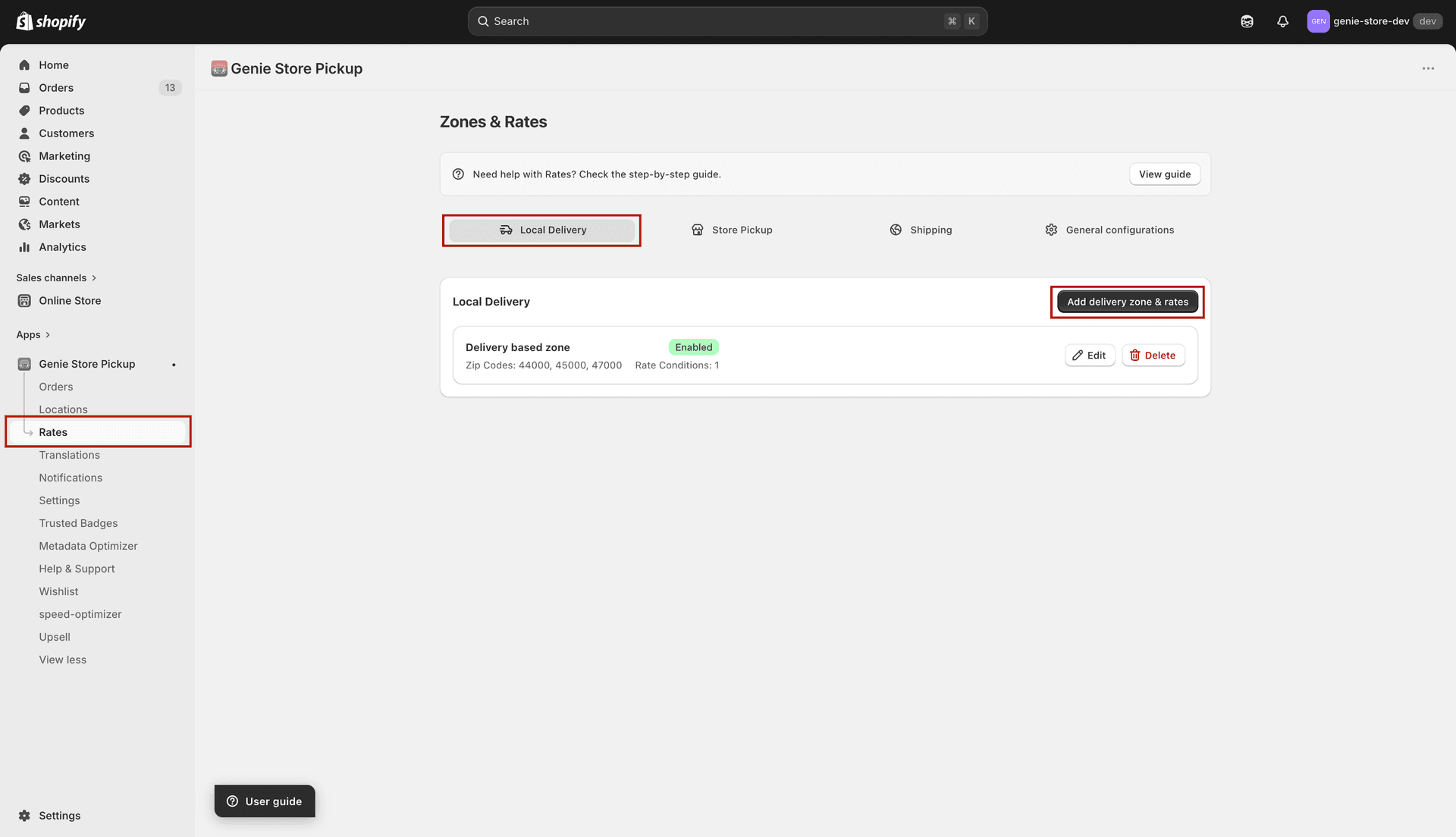
Zone form — sidebar on the left, content on the right
Zone Details
Click "Zone Details" in the sidebar.
Enter a Zone Name (e.g. "Downtown Delivery").
Check "Use as fallback zone" if this zone should apply whenever no other zone matches. Only one fallback zone is recommended.
The Status toggle defaults to Enabled. Change to Disabled to temporarily stop this zone without deleting it.
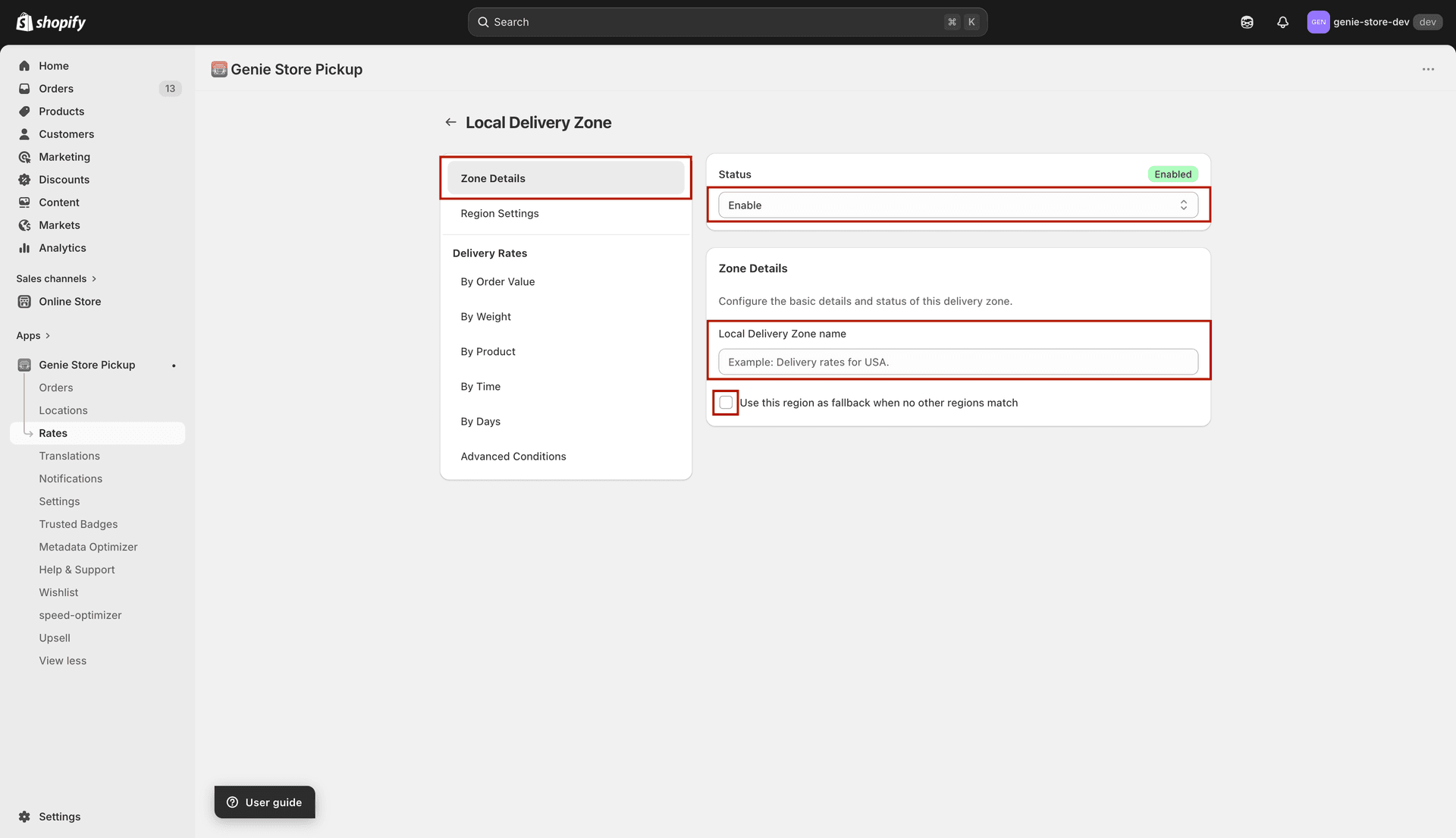
Zone Details — name, fallback checkbox, and status
Region Settings
Click "Region Settings" in the sidebar.
Choose Zone Validation Type: "Zip Code" or "Distance".
If Zip Code — enter the zip/postal codes this zone covers, separated by commas. The Zip Matching Type from General Configurations (partial or exact) controls how they are matched.
If Distance — enter a minimum and maximum distance in km. Distance matching uses the coordinates from your location settings.
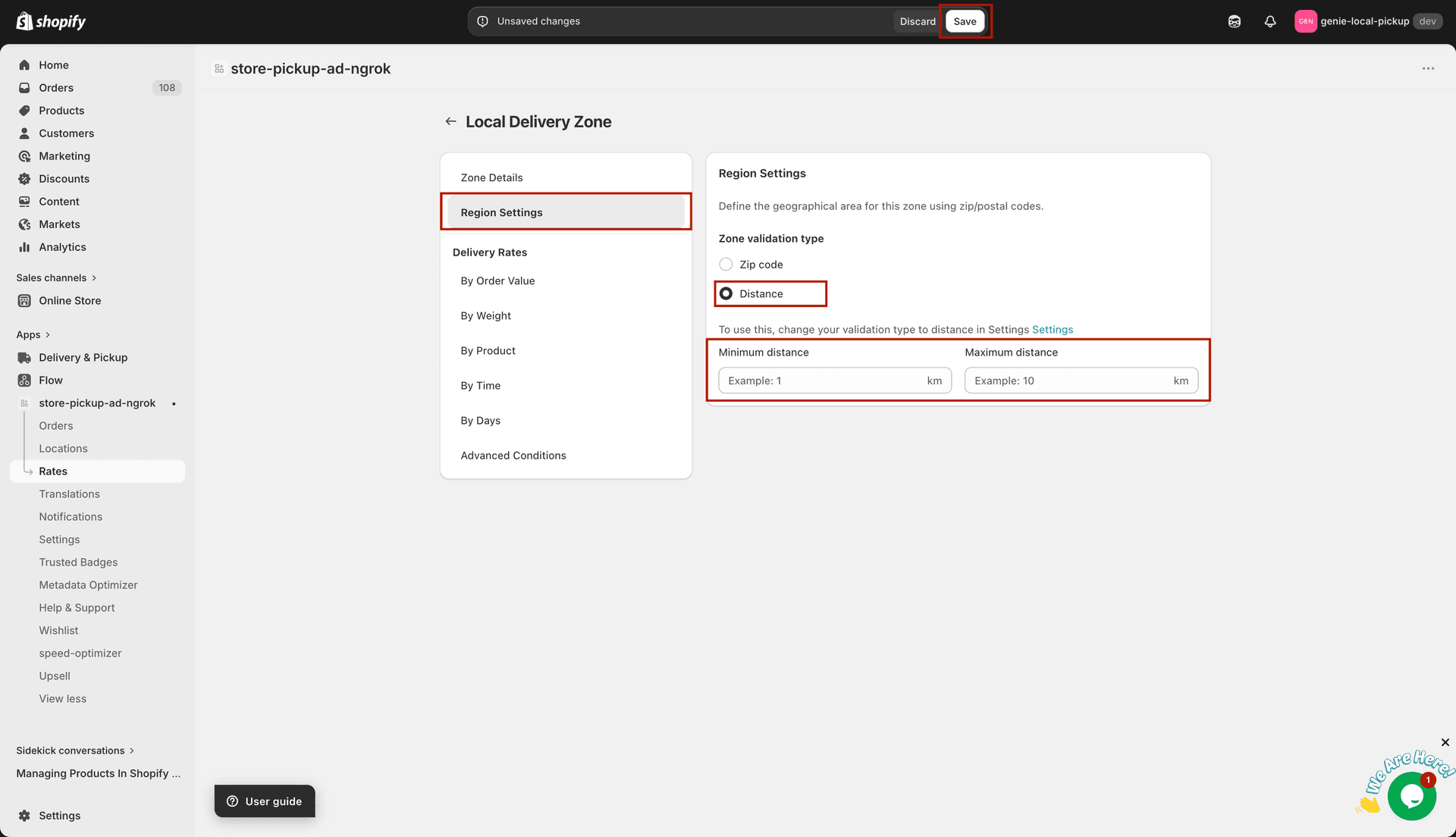
Region Settings — zip code or distance-based targeting
Rate conditions overview
The sidebar has six rate condition sections. Each section opens a modal where you fill in the condition details, rate name, and price. You can add multiple conditions per section — the app applies the first one that matches the customer's cart.
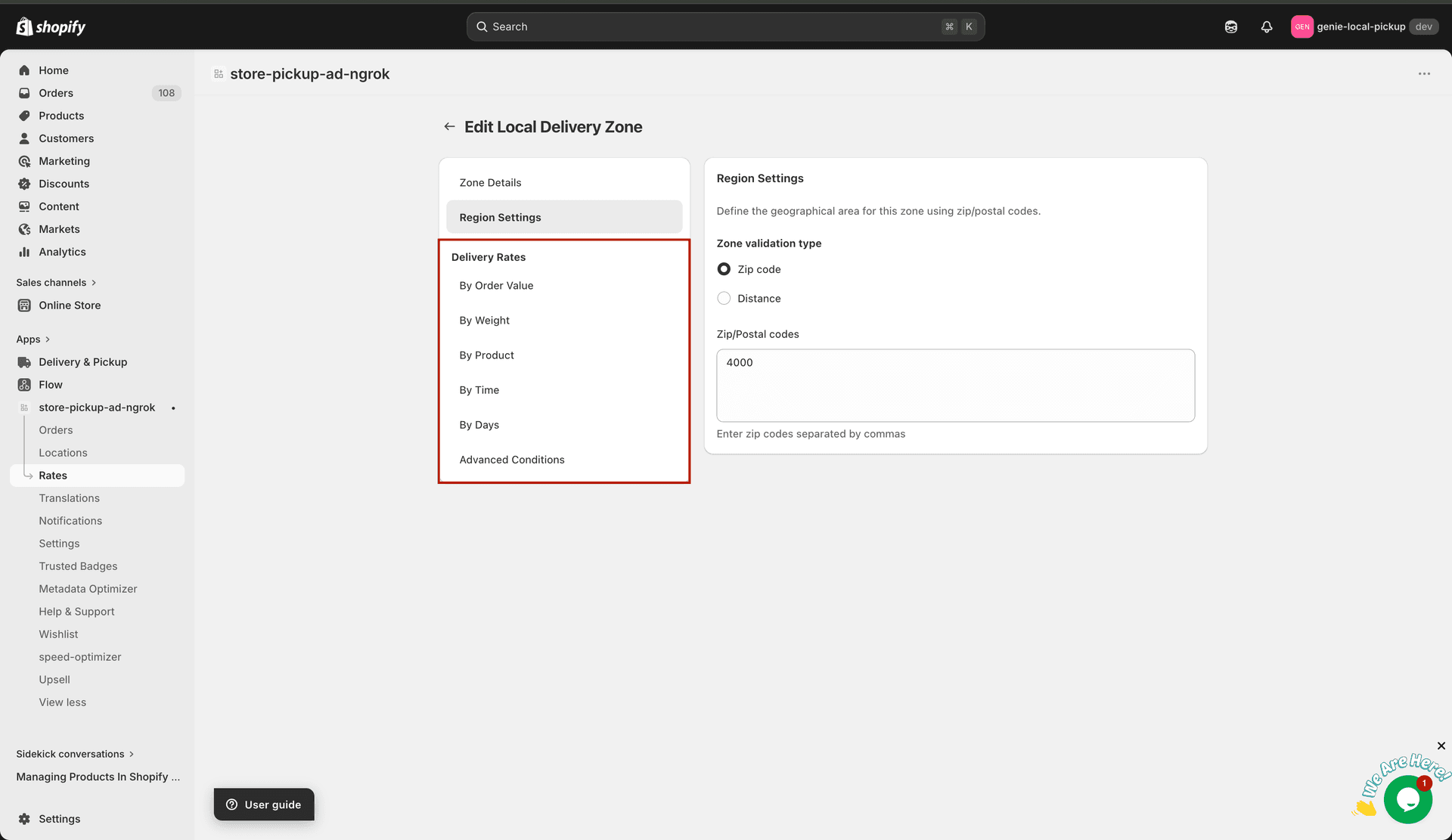
Sidebar — six condition types under "Delivery Rates"
Add a rate by order value
Click "By Order Value" in the sidebar, then click "Add Rates By Order Value".
In the modal: enter a Rate Name (shown to the customer at checkout, e.g. "Free Delivery").
Optionally enter a Rate Description (shown below the rate name at checkout).
Enter the Delivery Rate (price). Set to 0 for free delivery.
Set Minimum Order Value and/or Maximum Order Value. Leave either blank to set no limit on that end.
Click Add to save the condition.
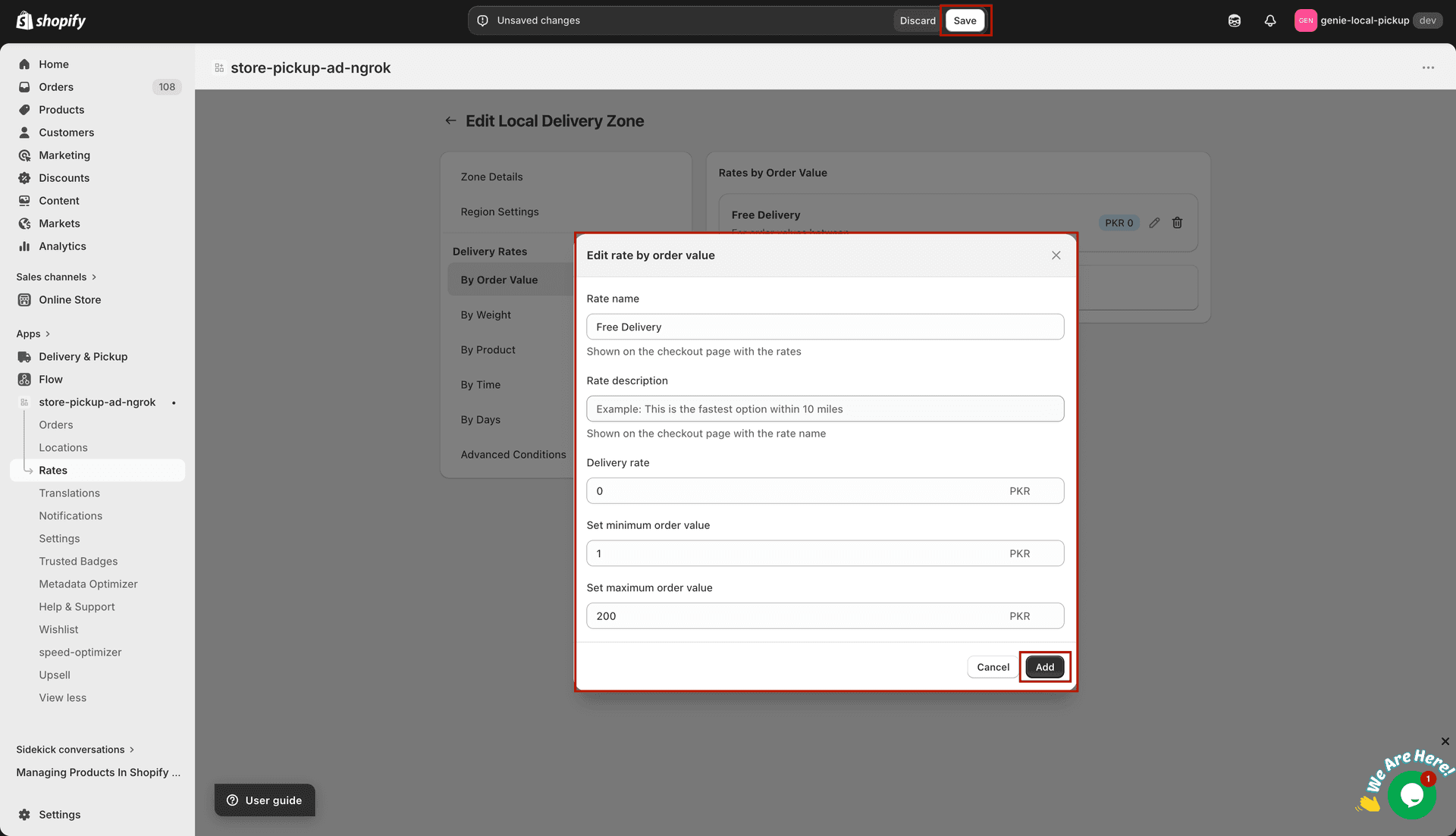
Order Value modal — rate name, price, and min/max order value
Example: Rate Name "Free Delivery", Delivery Rate 0, Minimum Order Value 50 — gives free delivery on orders over 50.
Add a rate by weight
Click "By Weight" in the sidebar, then click "Add Rates By Weight".
Enter a Rate Name, optional Description, and Delivery Rate.
Set Minimum Weight and/or Maximum Weight using the unit set in General Configurations (g, kg, oz, or lb).
Click Add.
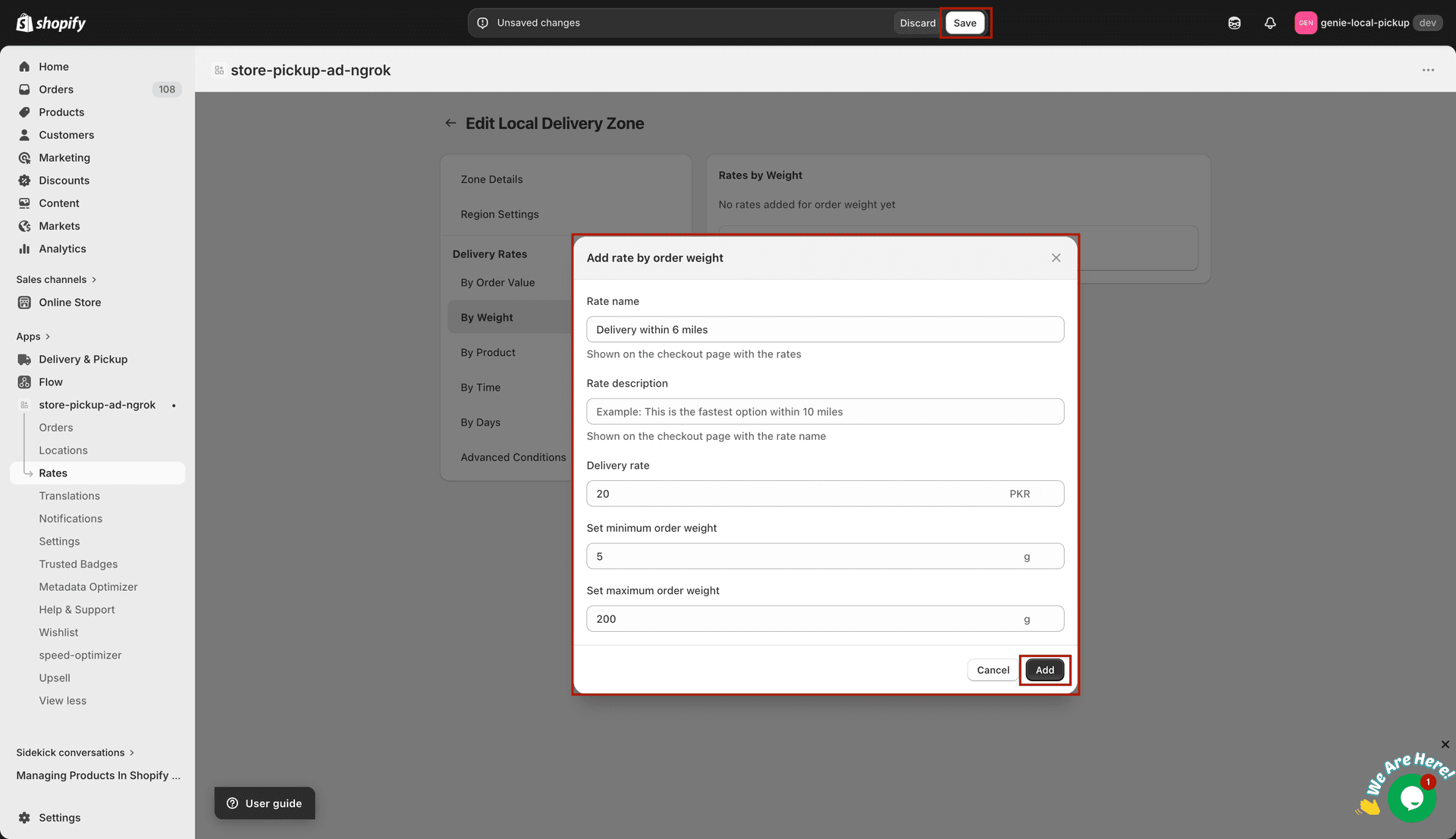
Weight modal — min/max weight with unit suffix from General Configurations
Make sure product weights are set accurately in Shopify, otherwise weight-based rates will not calculate correctly.
Add a rate by product
Click "By Product" in the sidebar, then click "Add Rates By Product".
Enter a Rate Name, optional Description, and Delivery Rate.
Set Condition For Product: "Any product must satisfy" (rate applies if at least one cart item matches) or "All products must satisfy" (all items must match).
Enter SKU codes separated by commas (e.g. "SKU001, SKU002"). These are the product SKUs from your Shopify catalog.
Click Add.
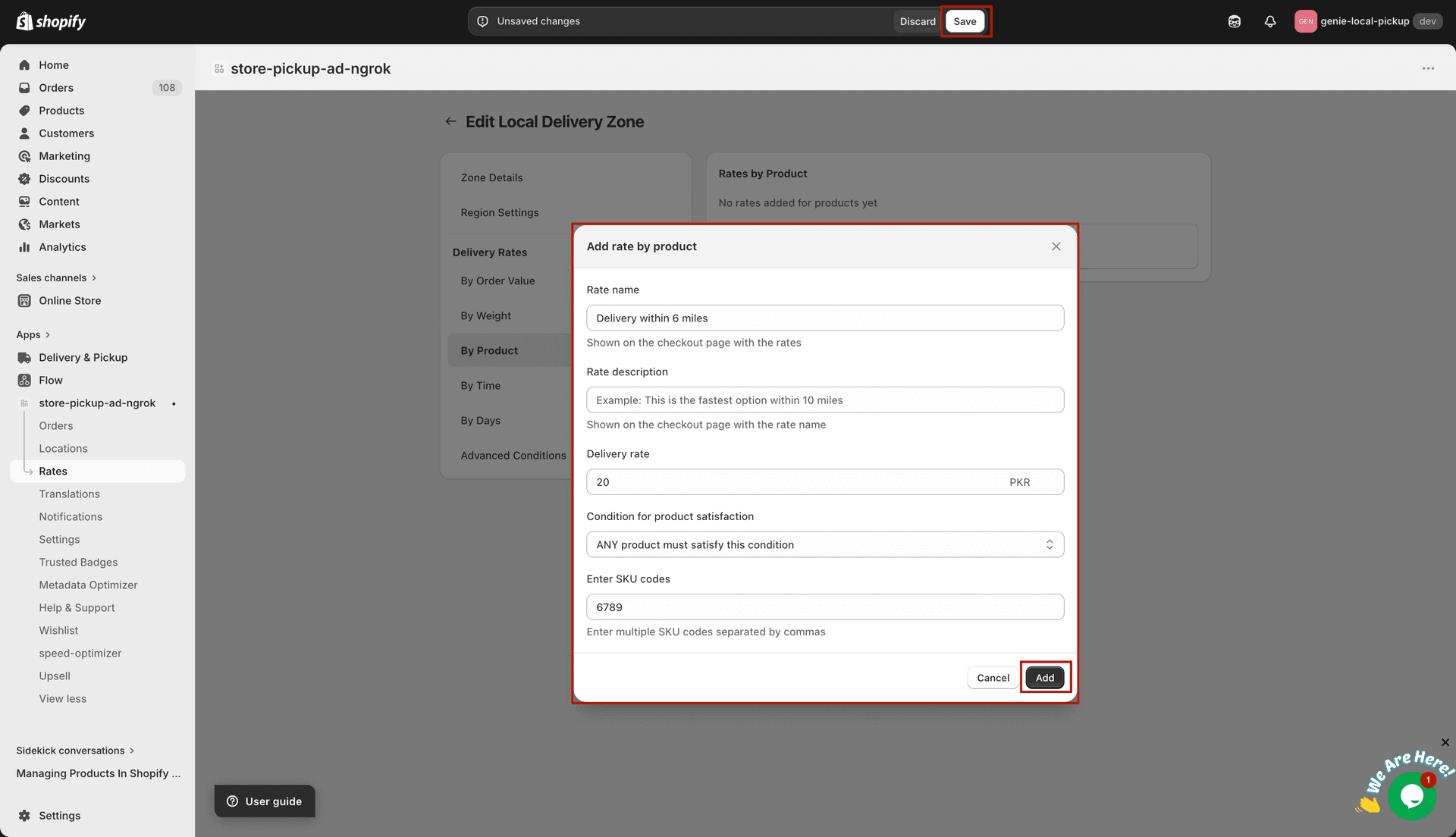
Product modal — condition type and SKU codes
Add a rate by time
Click "By Time" in the sidebar, then click "Add Rates By Time".
Enter a Rate Name, optional Description, and Delivery Rate.
Select a Delivery Starts At time from the dropdown (in 15-minute intervals, 24-hour format).
Select a Delivery Ends At time. The end time dropdown only shows times after the selected start time.
Click Add.
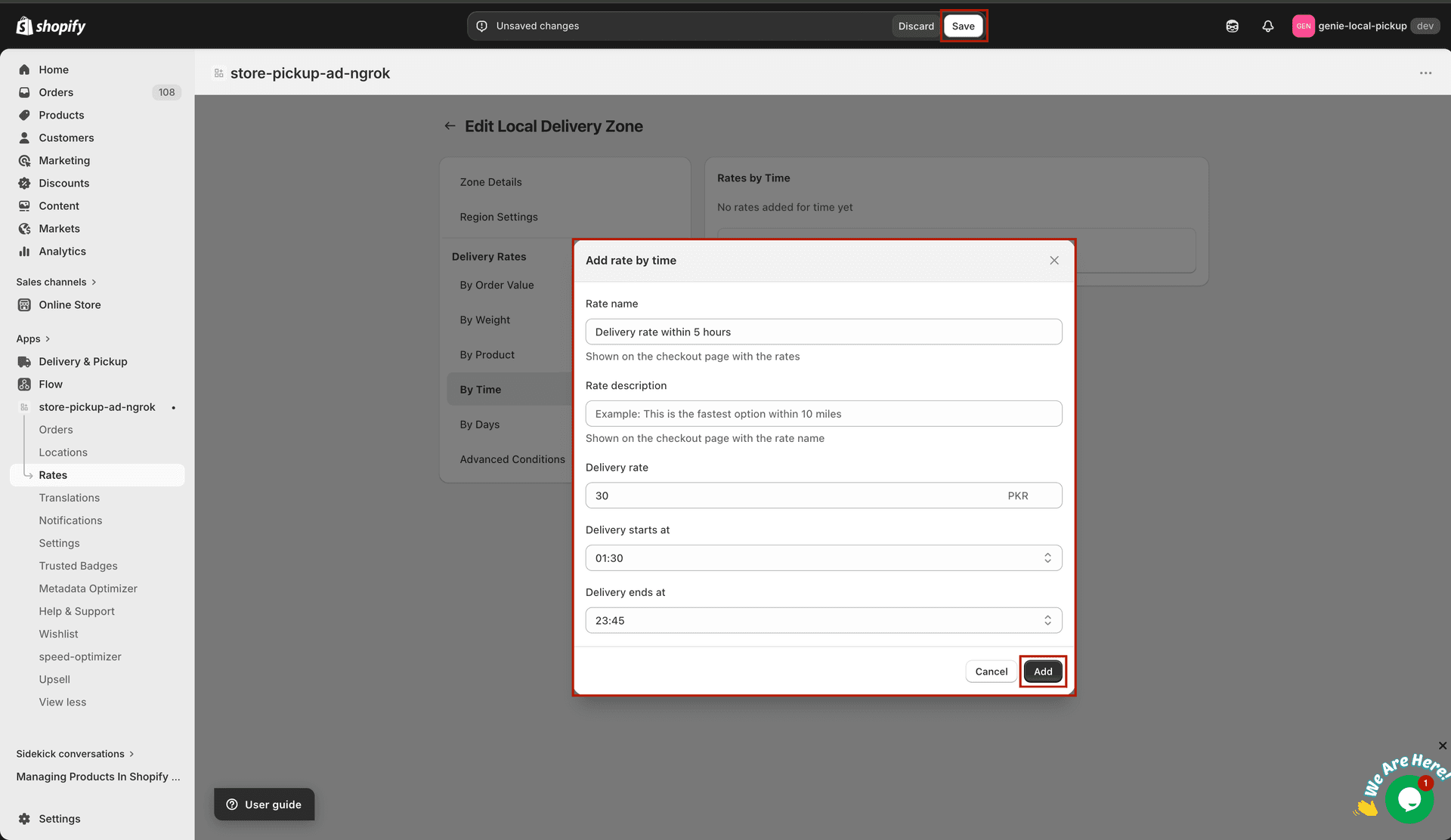
Time modal — start and end time dropdowns (15-minute intervals)
Use time-based rates to offer express delivery during business hours or a discounted rate for off-peak hours.
Add a rate by days
Click "By Days" in the sidebar, then click "Add Rates By Days".
Enter a Rate Name, optional Description, and Delivery Rate.
Choose Same Day Delivery — the rate applies when the customer expects delivery on the same day.
Or choose Custom — enter a Minimum Delivery Days and Maximum Delivery Days (e.g. min 1, max 3 means the rate is offered for 1–3 day delivery).
Click Add.
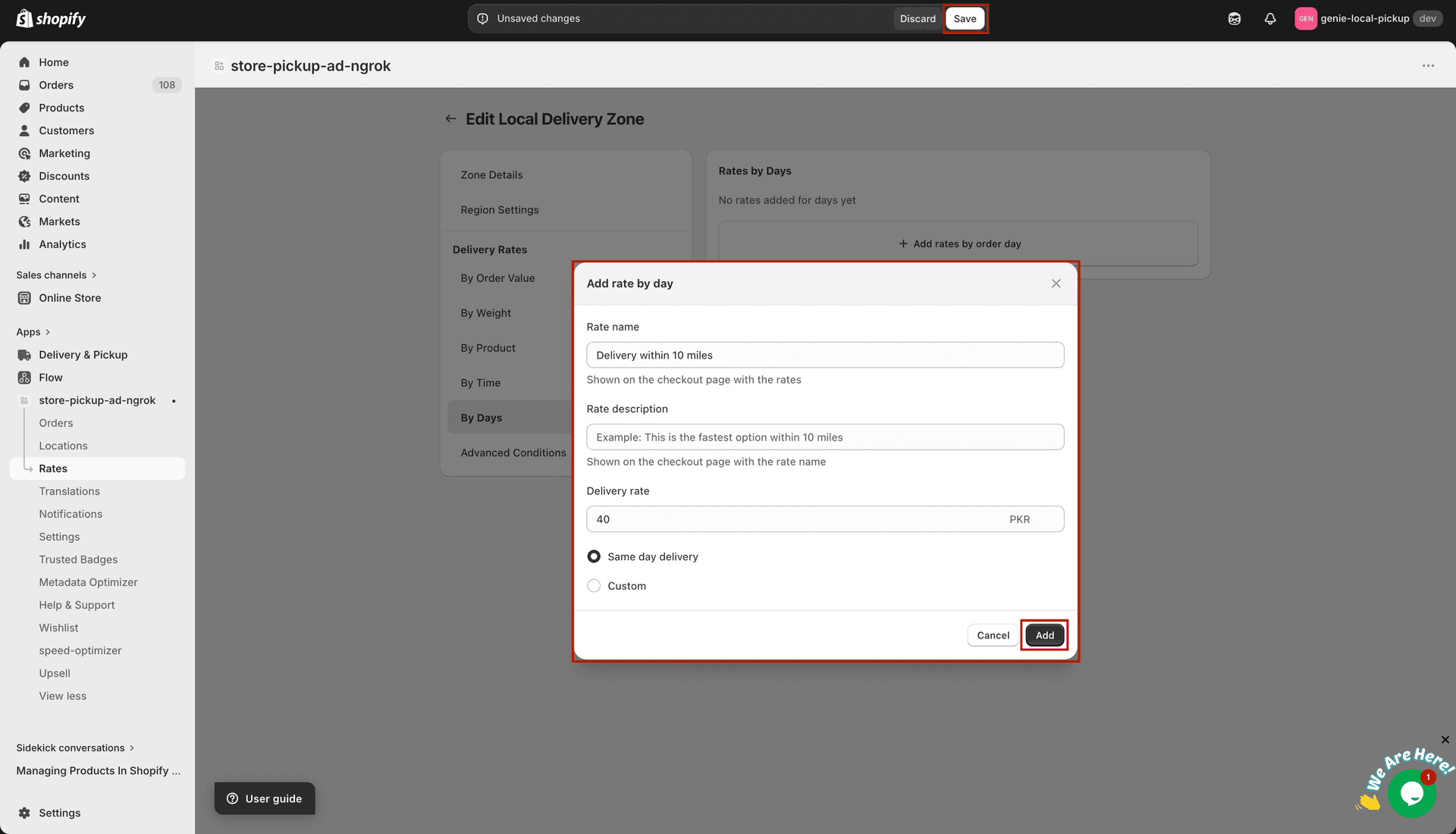
Days modal — same day or custom min/max day range
Add an advanced rate condition
Click "Advanced Conditions" in the sidebar, then click "Add Advanced Conditions".
You are taken to a full-page advanced form. Enter a Rate Name, optional Description, and Delivery Rate.
Optionally fill in any combination of: Order Value (min/max), Weight (min/max), Delivery Day (same day or custom min/max days), Delivery Time (start and end), and Product Condition (with SKU codes).
Only the fields you fill in are used as conditions — leave the rest blank to ignore them.
Click "Add Rate" at the top right to save.
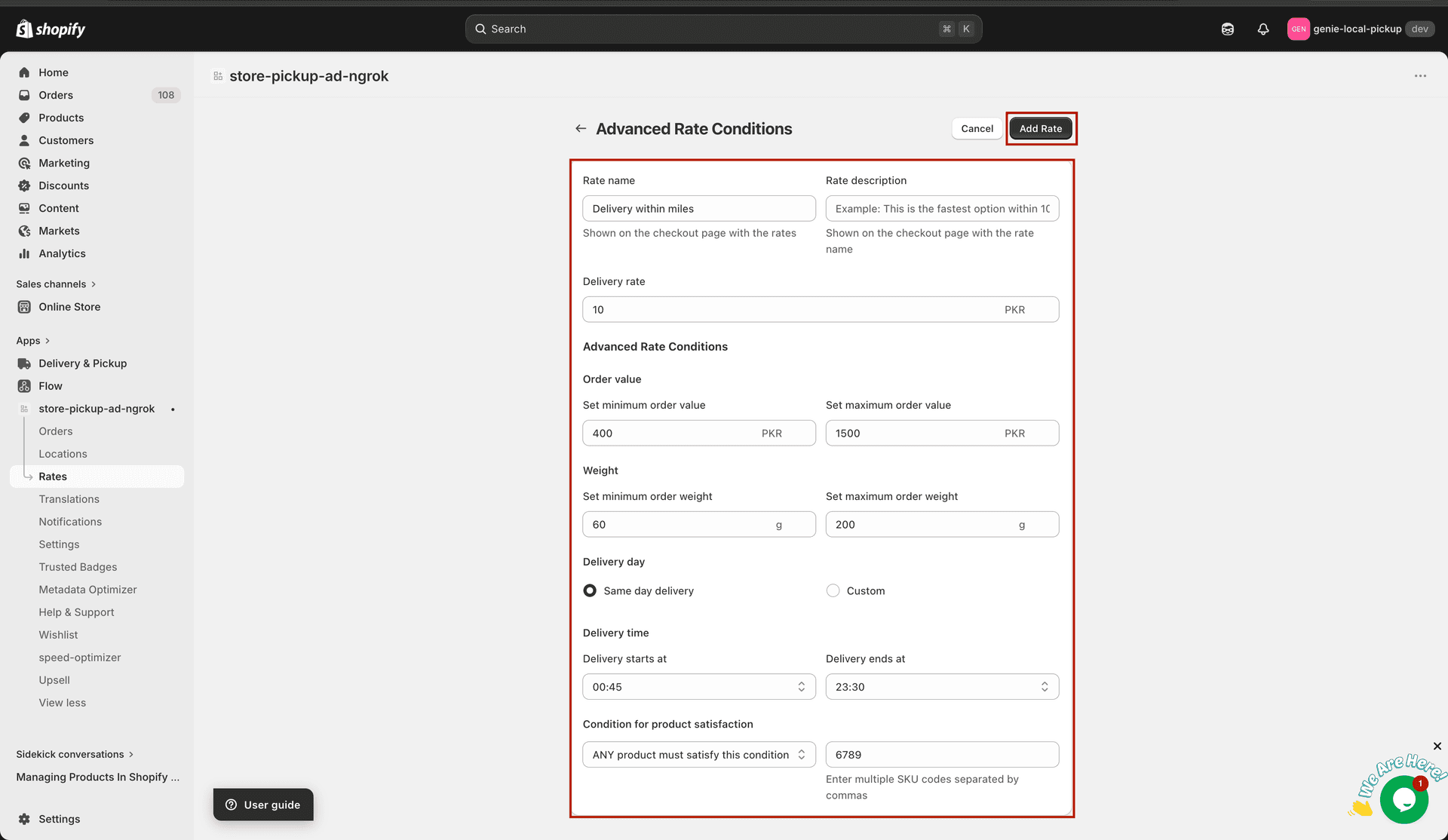
Advanced form — combine order value, weight, day, time, and product in one rule
Advanced conditions are ideal when a single rate depends on multiple factors at once, e.g. "free delivery for orders over 100 placed before 2pm".
Save the zone
When all conditions are added, click Save in the save bar at the top of the page.
Create a fallback zone (check "Use as fallback zone" in Zone Details) with at least one By Order Value condition with no maximum — this ensures every customer gets a rate.