
Create rate groups that control what pickup rate customers see at checkout.
The Store Pickup tab lists your pickup rate groups. A group links one or more store locations to a set of rate conditions. When a customer selects store pickup at checkout, the app finds the matching group and applies the correct rate.
Add a pickup rate group
Go to Rates → Store Pickup tab.
Click "Add Pickup Zone". The group form opens with a left sidebar.
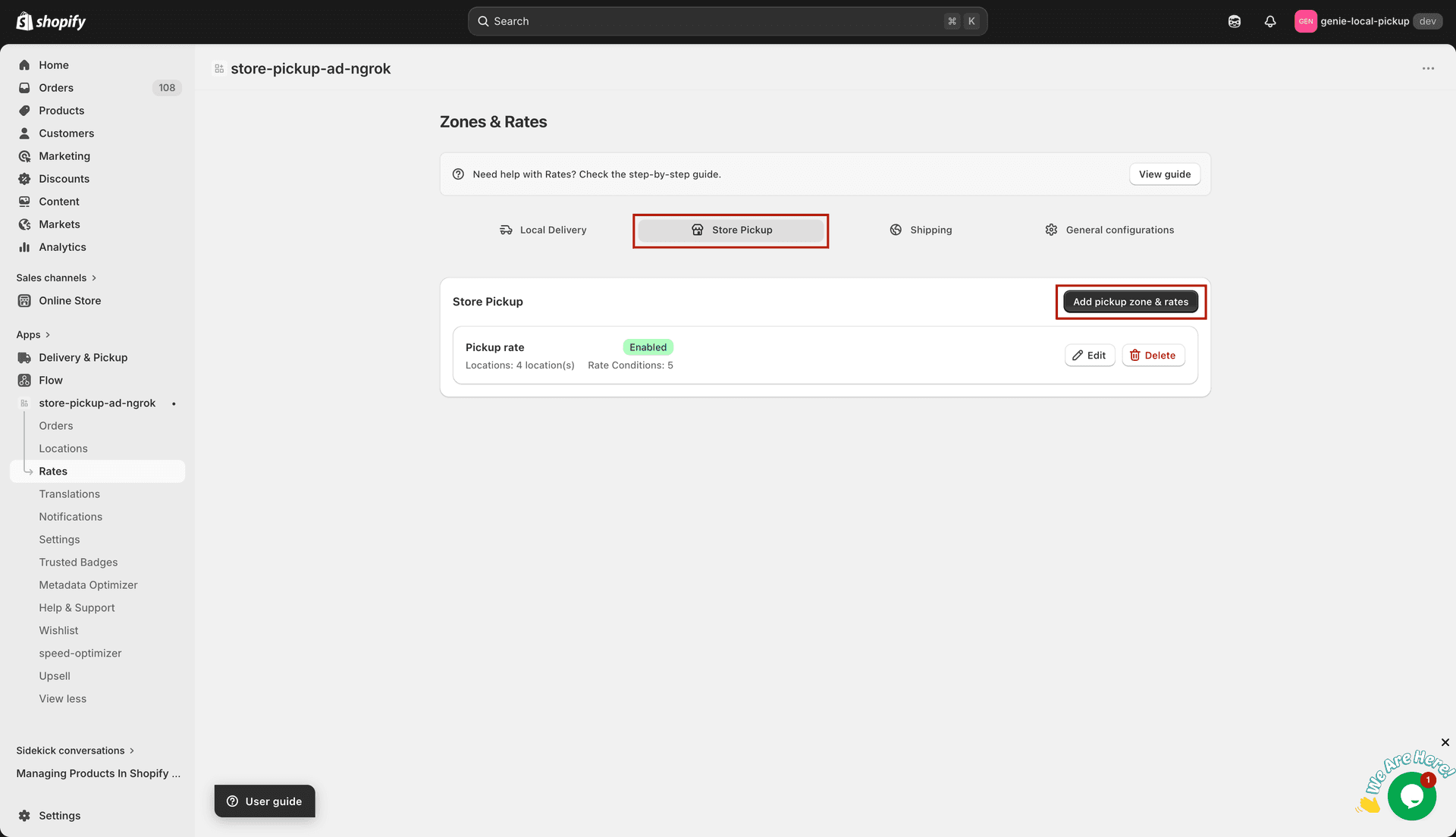
Pickup group form — sidebar navigation on the left
Group Details
Click "Group Details" in the sidebar.
Enter a Group Name (e.g. "Main Store Pickup").
Set Status to Enabled or Disabled.
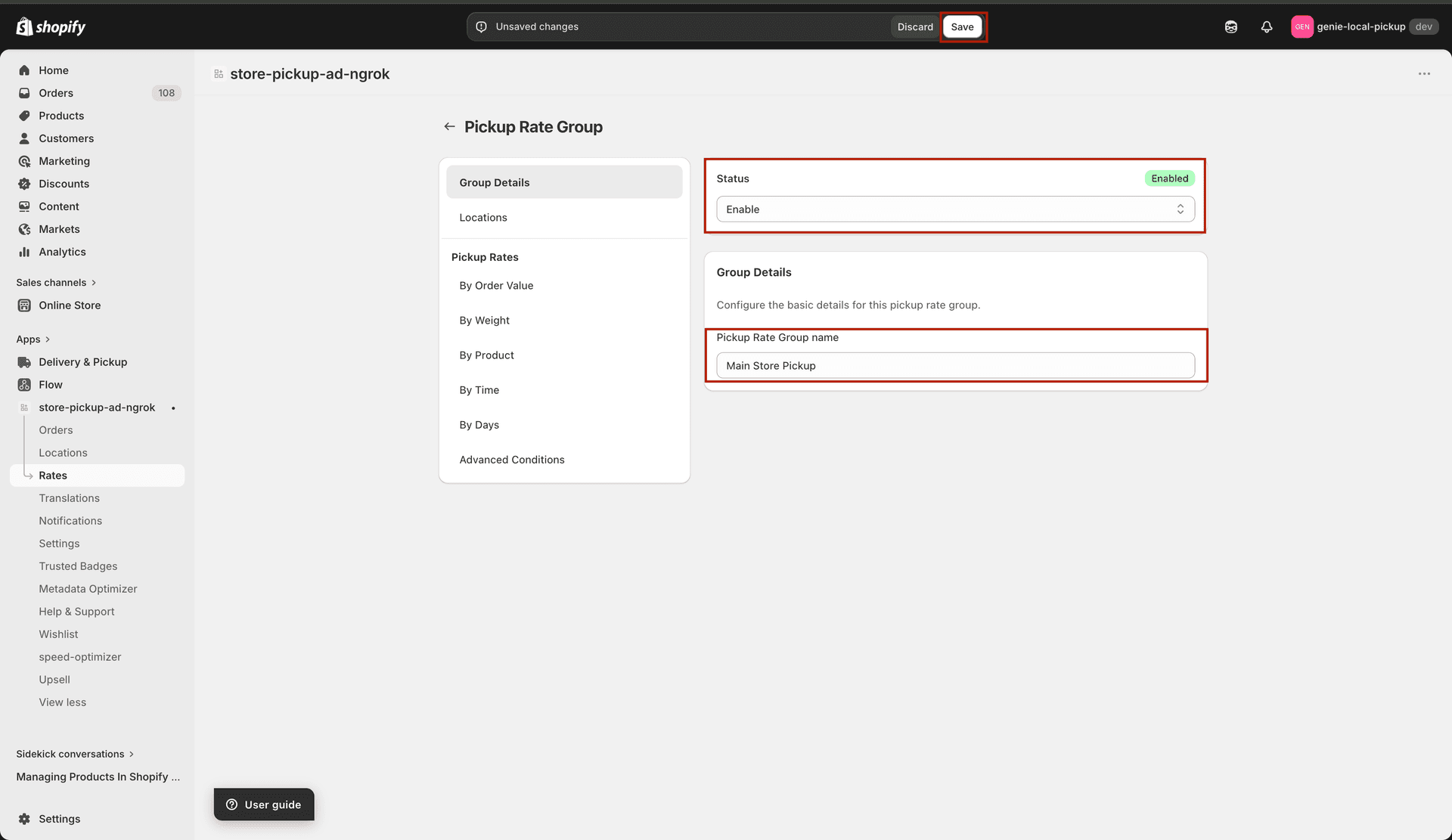
Group Details — entering the pickup group name
Select a location from the dropdown (pulled from your Locations page) and click "Add Location". Repeat to add multiple locations.
To remove a location, click the delete icon next to it.
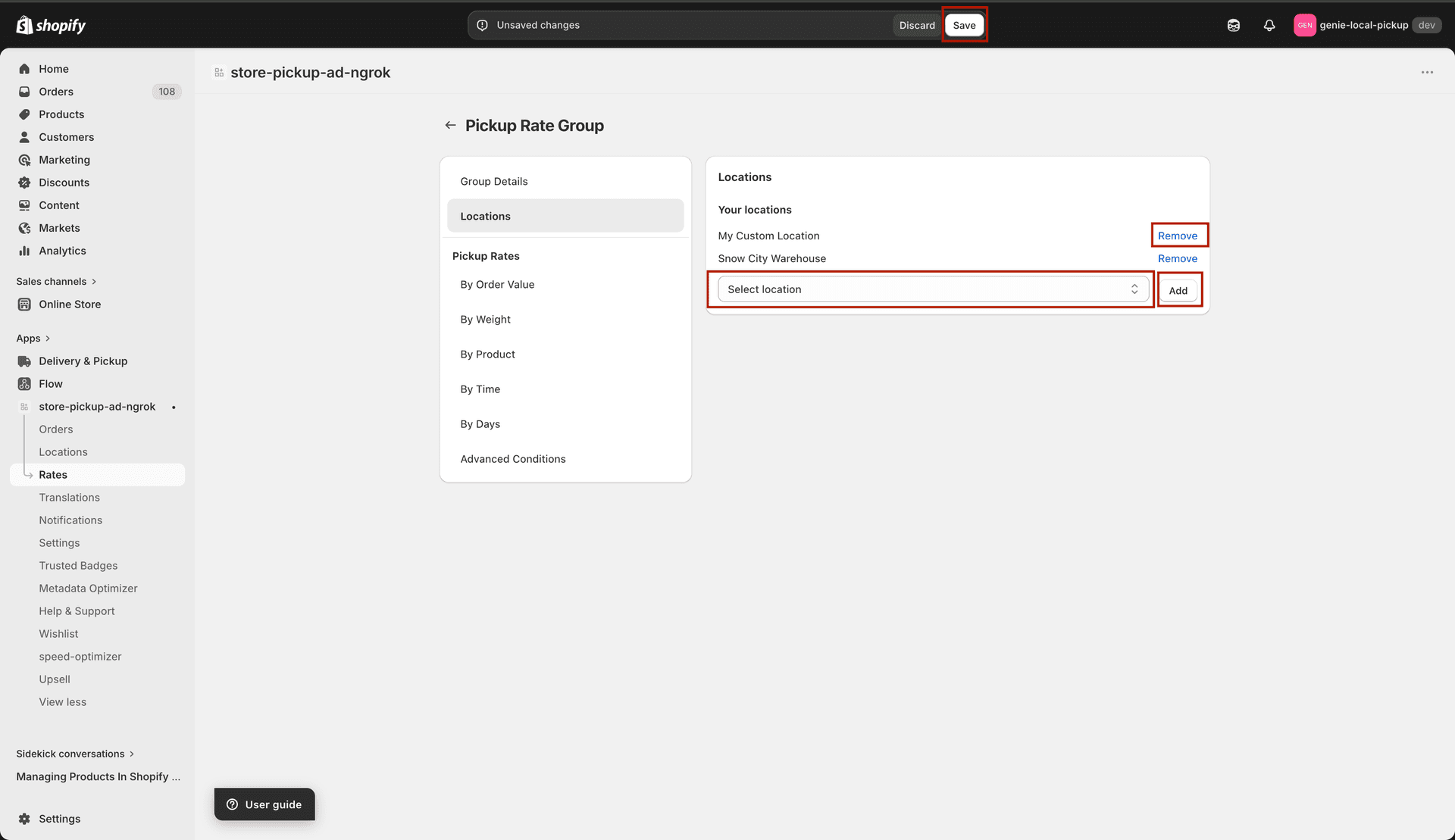
Group Details — name, location picker, and status
Rate conditions
The same six rate condition types are available for pickup groups: By Order Value, By Weight, By Product, By Time, By Days, and Advanced Conditions. The steps for each are identical to Local Delivery zones.
Add a rate by order value
Click "By Order Value" in the sidebar, then "Add Rates By Order Value".
Enter Rate Name, optional Description, and Pickup Rate.
Set Minimum Order Value and/or Maximum Order Value, then click Add.
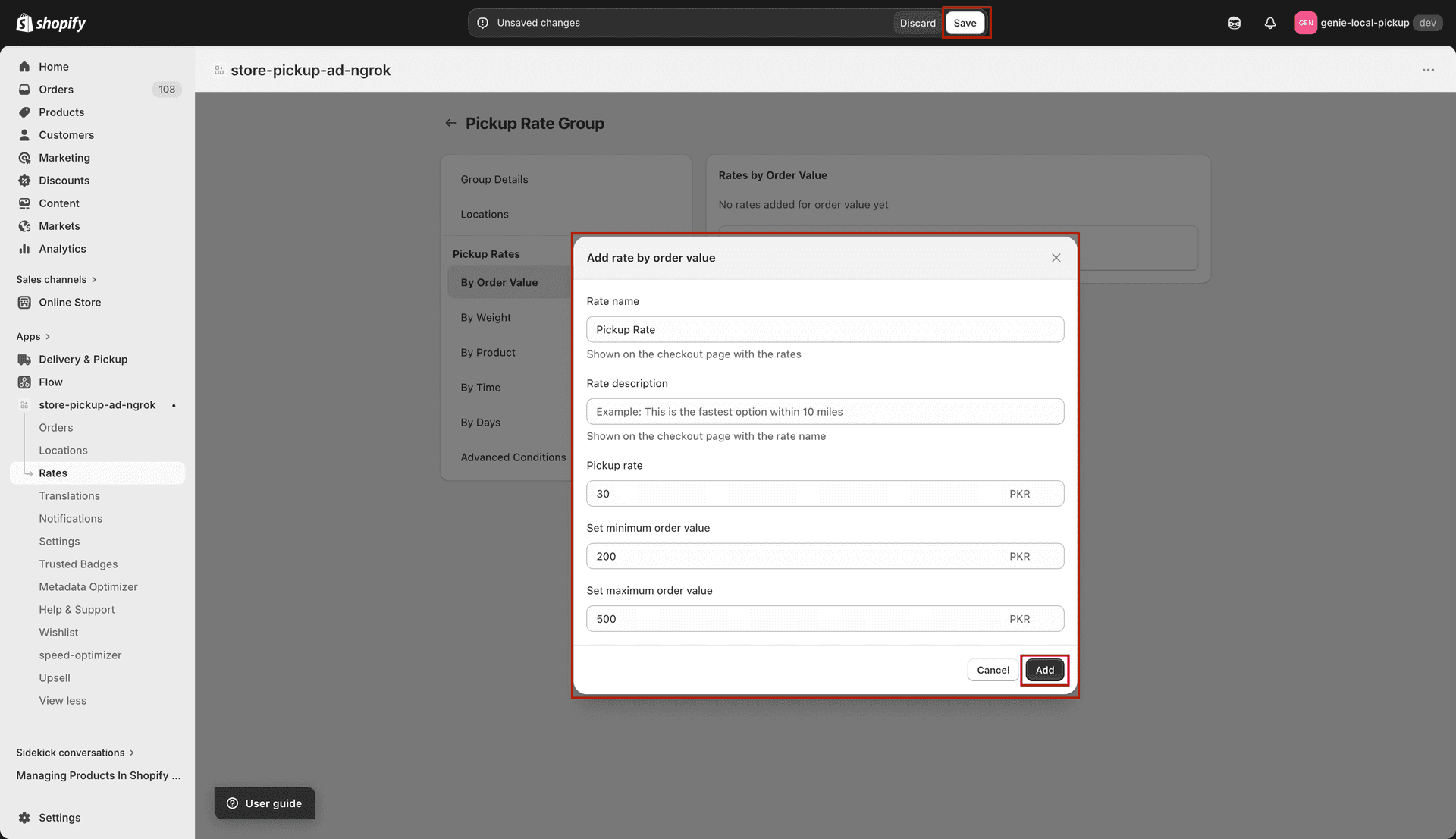
Order Value modal — same fields as delivery, labelled as Pickup Rate
Add a rate by weight
Click "By Weight" in the sidebar, then "Add Rates By Weight".
Enter Rate Name, optional Description, Pickup Rate, and min/max weight, then click Add.
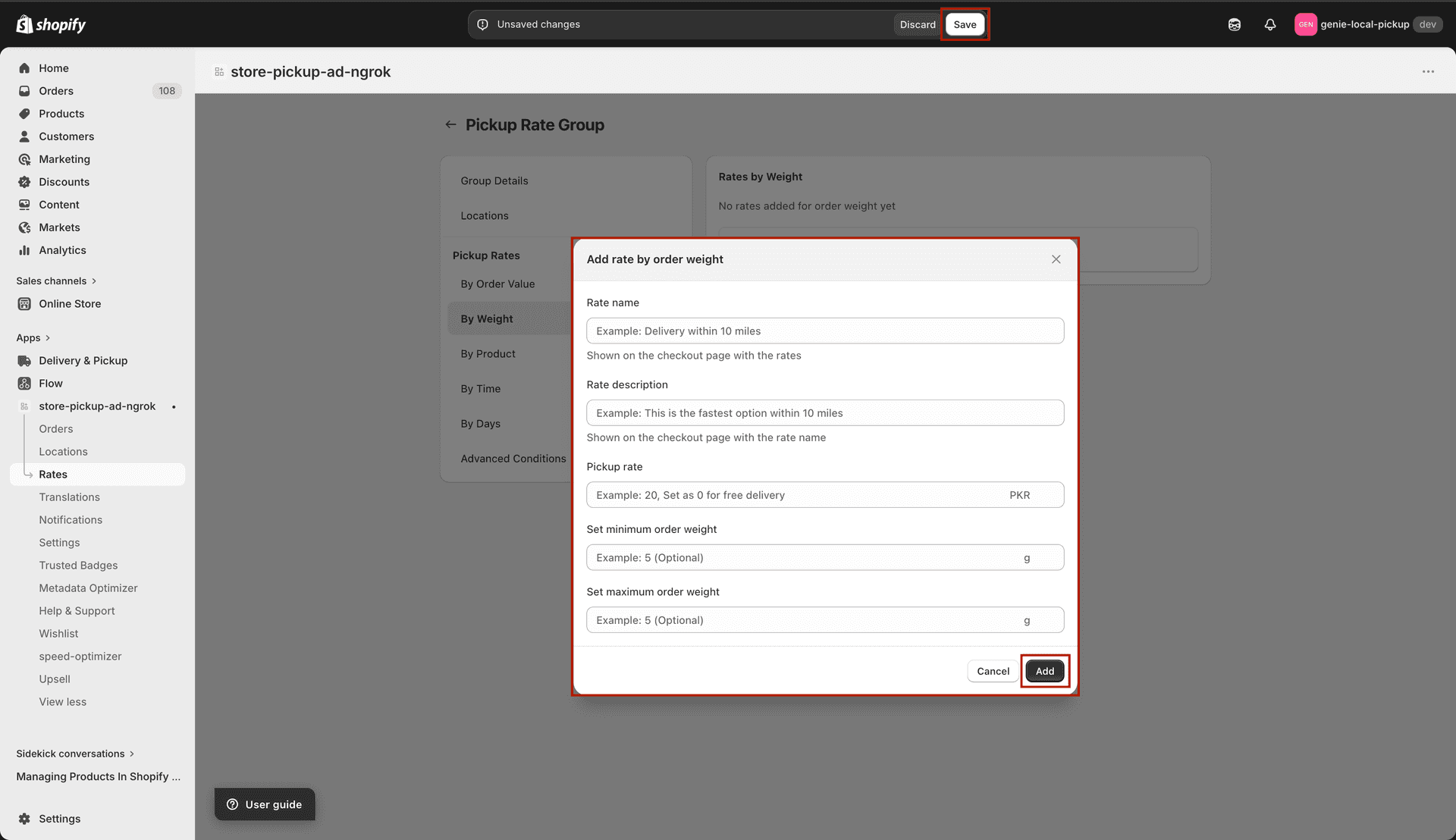
Weight modal — min/max weight with unit from General Configurations
Add a rate by product
Click "By Product" in the sidebar, then "Add Rates By Product".
Enter Rate Name, optional Description, Pickup Rate, set the product condition, and enter SKU codes, then click Add.
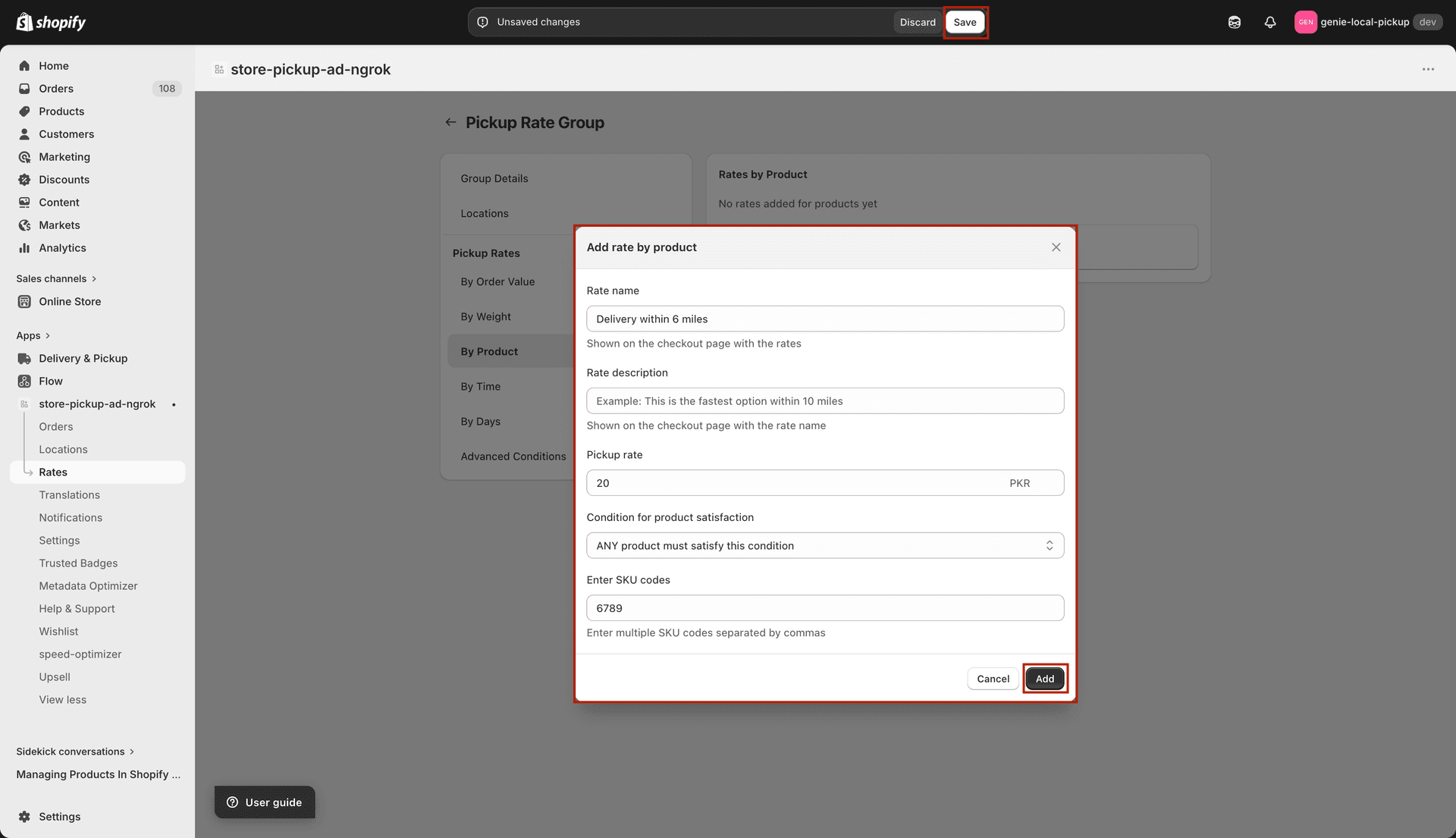
Product modal — condition type and SKU codes
Add a rate by time
Click "By Time" in the sidebar, then "Add Rates By Time".
Enter Rate Name, optional Description, Pickup Rate, then select Pickup Starts At and Pickup Ends At times, then click Add.
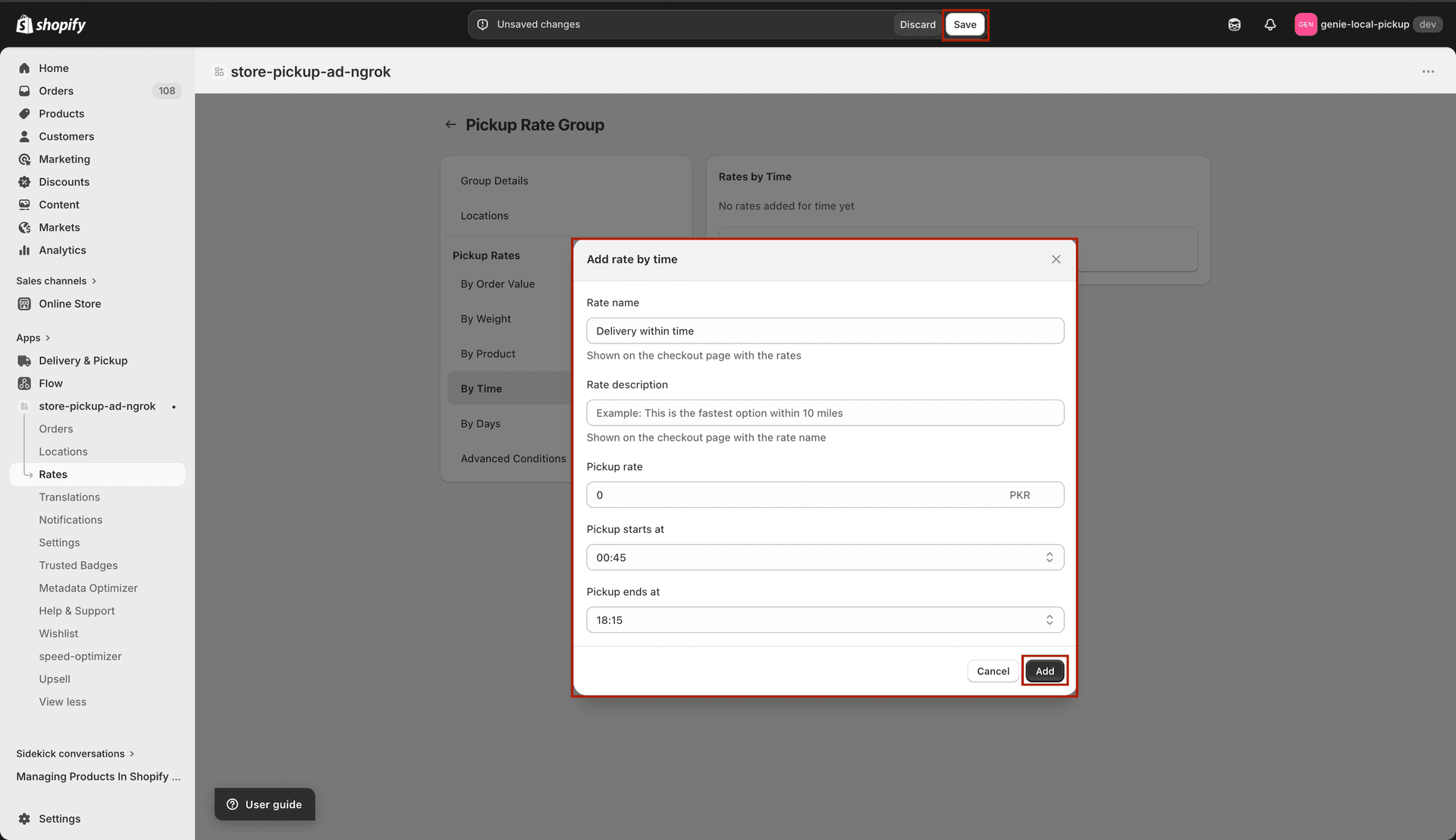
Time modal — start and end time (labeled as Pickup Starts/Ends At)
Add a rate by days
Click "By Days" in the sidebar, then "Add Rates By Days".
Enter Rate Name, optional Description, Pickup Rate, choose Same Day Pickup or Custom (min/max days), then click Add.
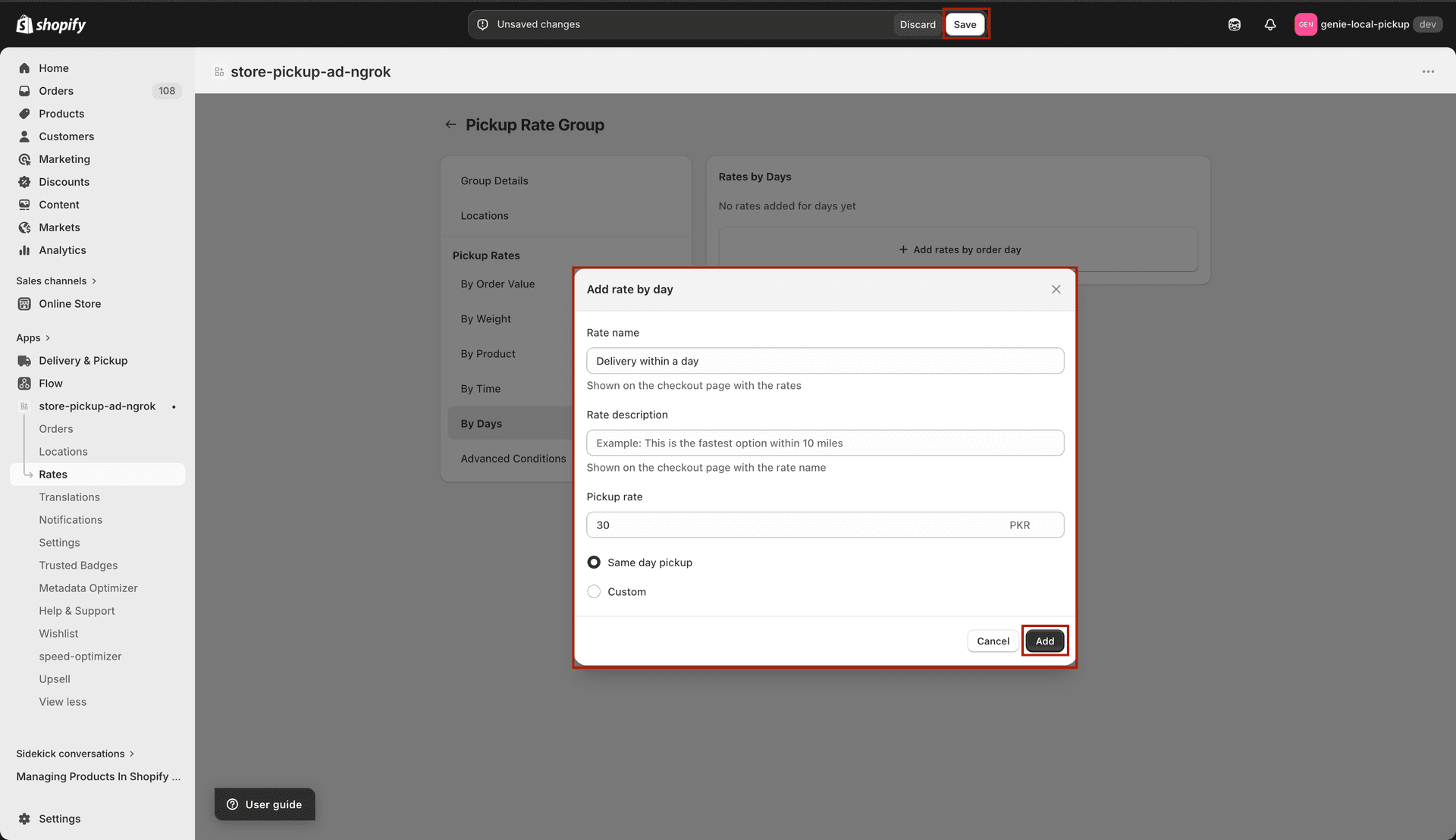
Days modal — Same Day Pickup or custom day range
Add an advanced rate condition
Click "Advanced Conditions" in the sidebar, then "Add Advanced Conditions".
On the advanced form page: enter Rate Name, optional Description, and Pickup Rate.
Fill in any combination of Order Value, Weight, Delivery Day, Delivery Time, and Product Condition. Leave sections blank to skip them.
Click "Add Rate" to save.
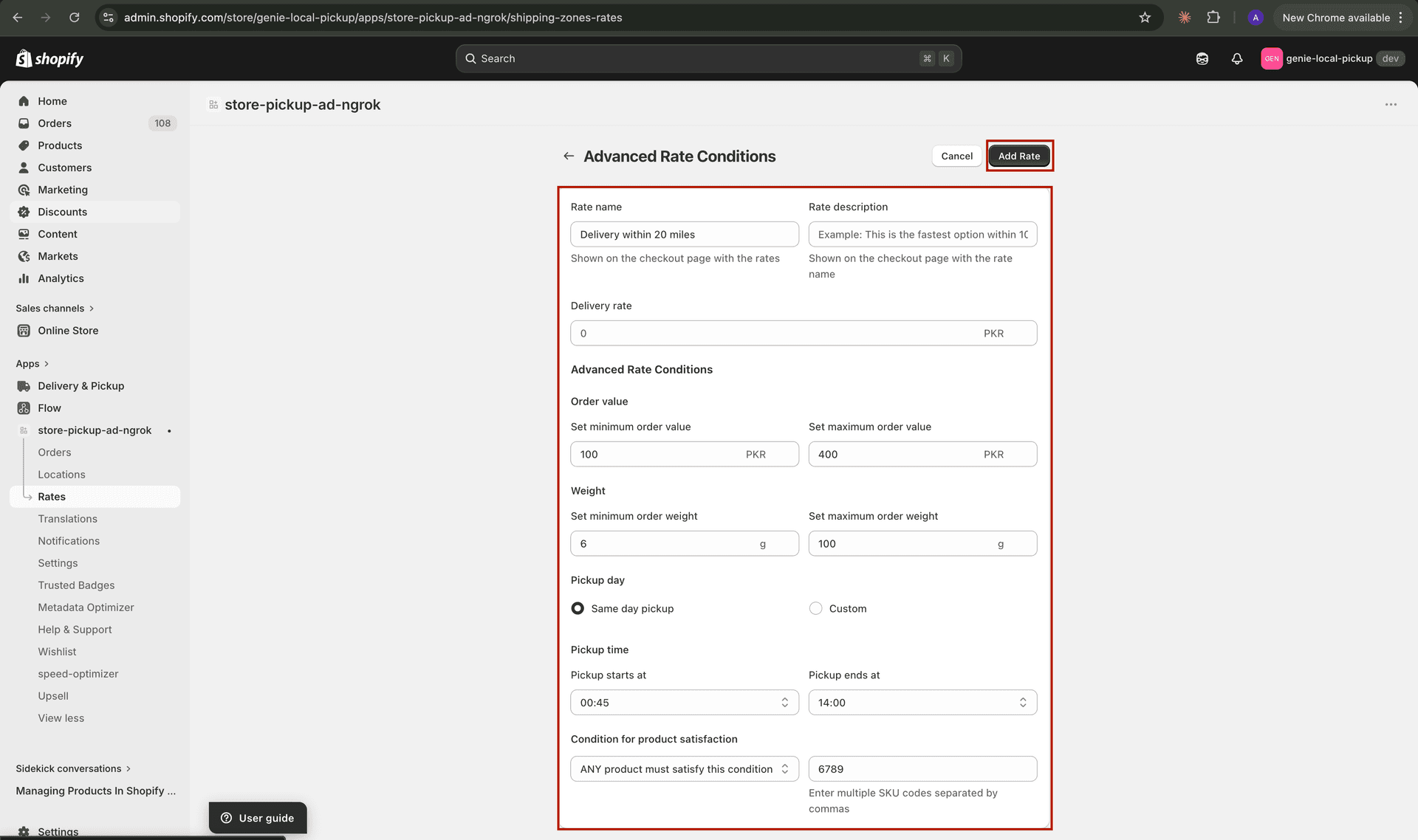
Advanced form — combines all condition types for pickup groups
Save
Click Save in the save bar. The group is active immediately.
If you have multiple locations with different pricing, create a separate pickup rate group for each location.
What's Next