
Create shipping zones targeting specific countries or regions for non-local customers.
The Standard Shipping tab lists your shipping zones. Each zone targets one or more countries (optionally filtered by region/state) and can have rate conditions by order value, weight, product, and advanced rules. Use this for customers who do not qualify for local delivery or pickup.
Add a shipping zone
Go to Rates → Standard Shipping tab.
Click "Add Shipping Zone". The zone form opens with a left sidebar.
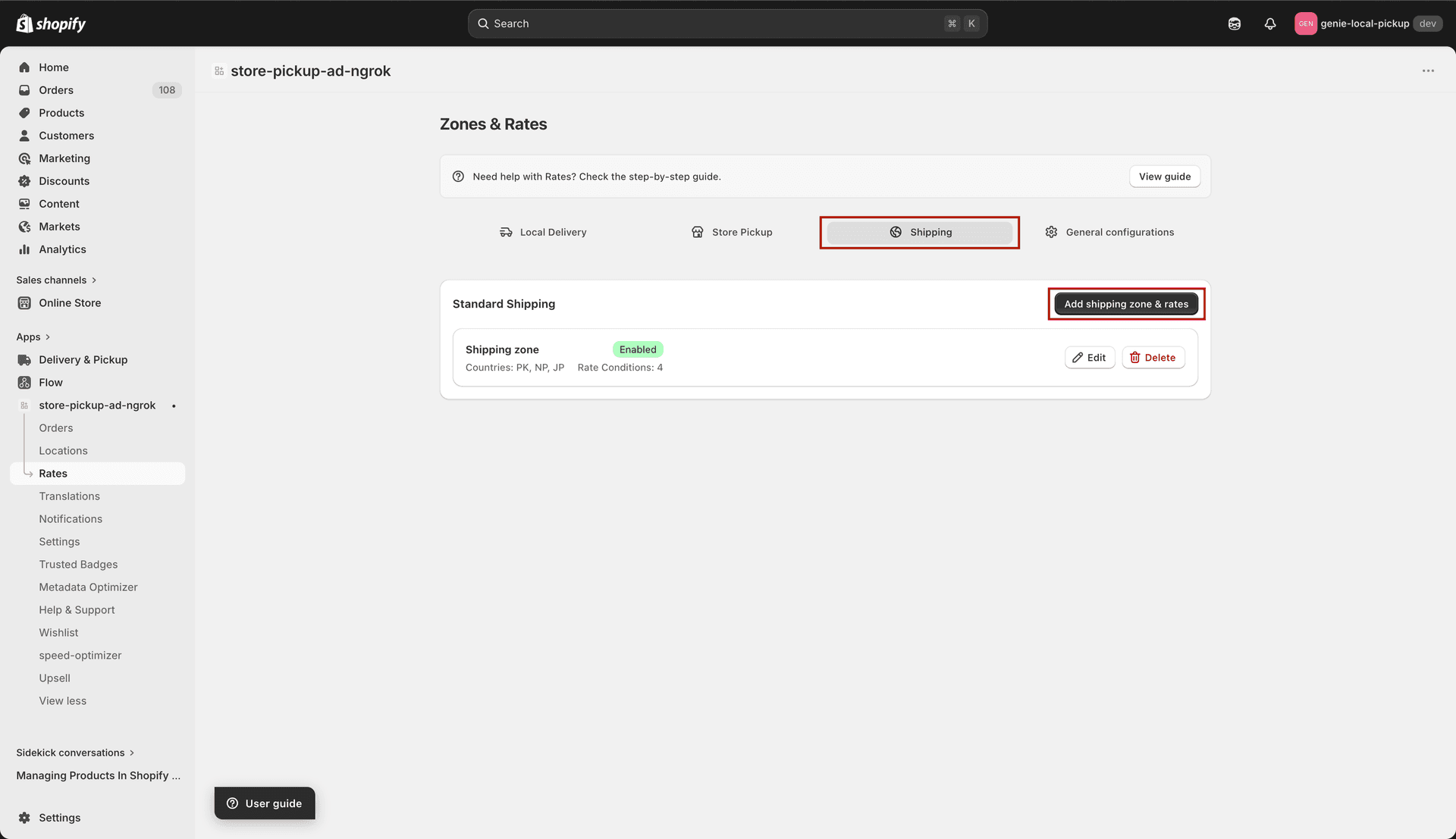
Shipping zone form — sidebar on the left, content on the right
Zone Details
Click "Zone Details" in the sidebar.
Enter a Zone Name (e.g. "US Shipping" or "International").
Set Status to Enabled or Disabled.
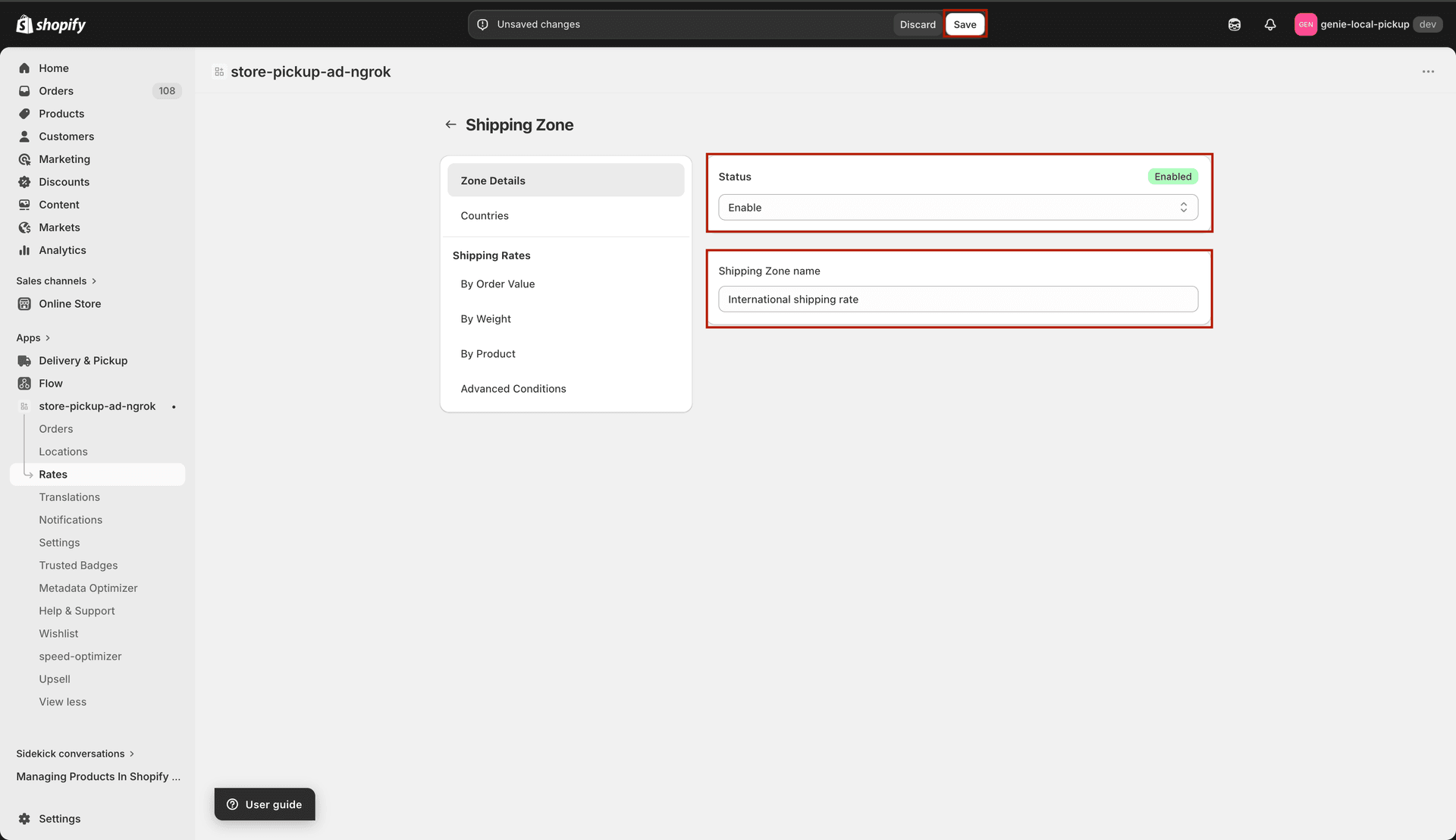
Zone Details — country picker modal and added countries list
Click "Add Countries" to open the country picker modal.
In the modal: search for a country by name, check the checkboxes for the countries you want, then click "Add Selected Countries".
To target specific regions within a country: click the regions icon next to the country name after adding it. Select the states or provinces, then confirm.
To remove a country, click the delete icon next to it.
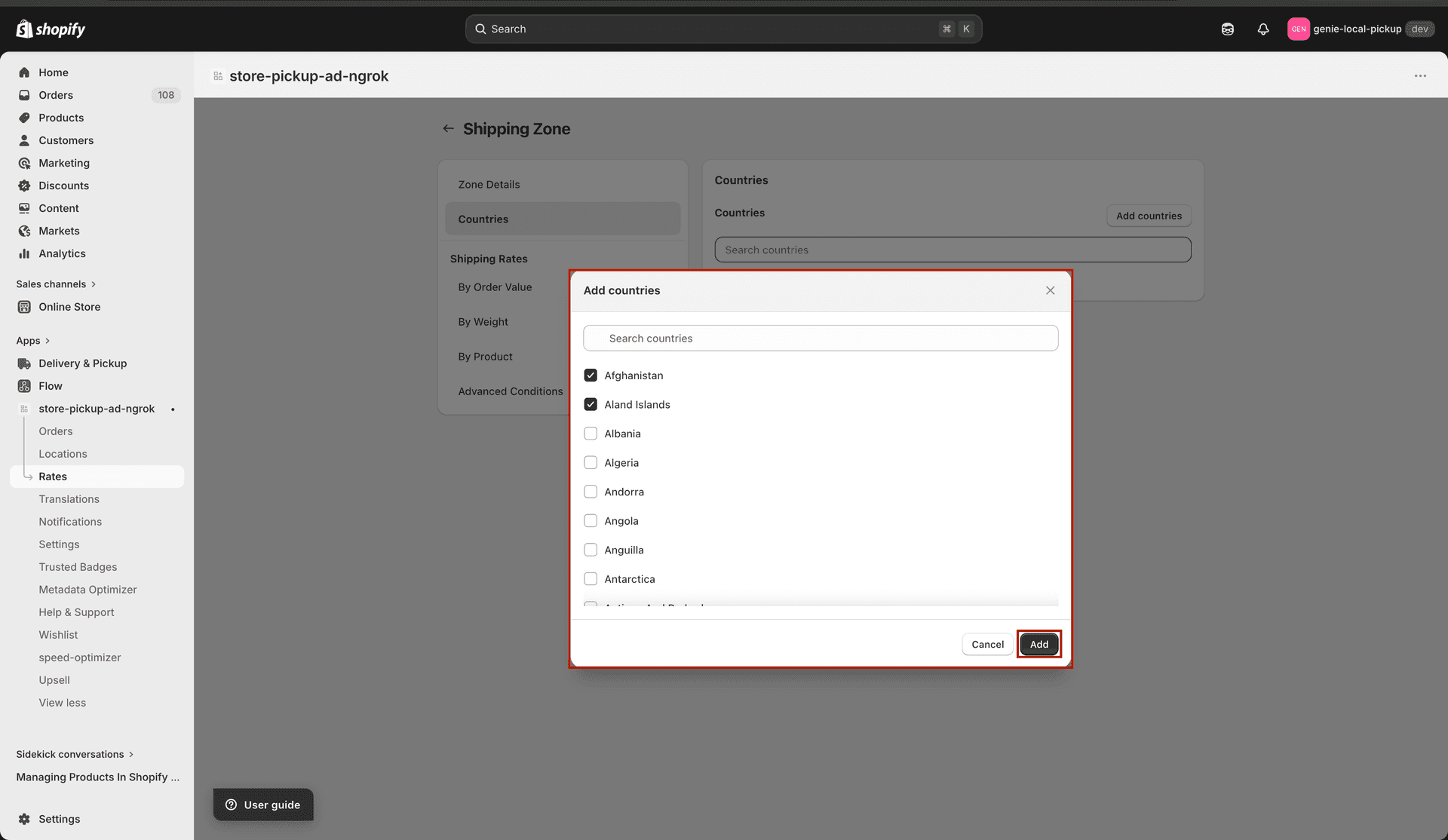
Country picker — search, select, and add multiple countries at once
Rate conditions
Standard Shipping zones support four rate condition types: By Order Value, By Weight, By Product, and Advanced Conditions. Time and Days conditions are not available for shipping zones.
Add a rate by order value
Click "By Order Value" in the sidebar, then "Add Rates By Order Value".
Enter Rate Name, optional Description, and Shipping Rate.
Set Minimum Order Value and/or Maximum Order Value, then click Add.
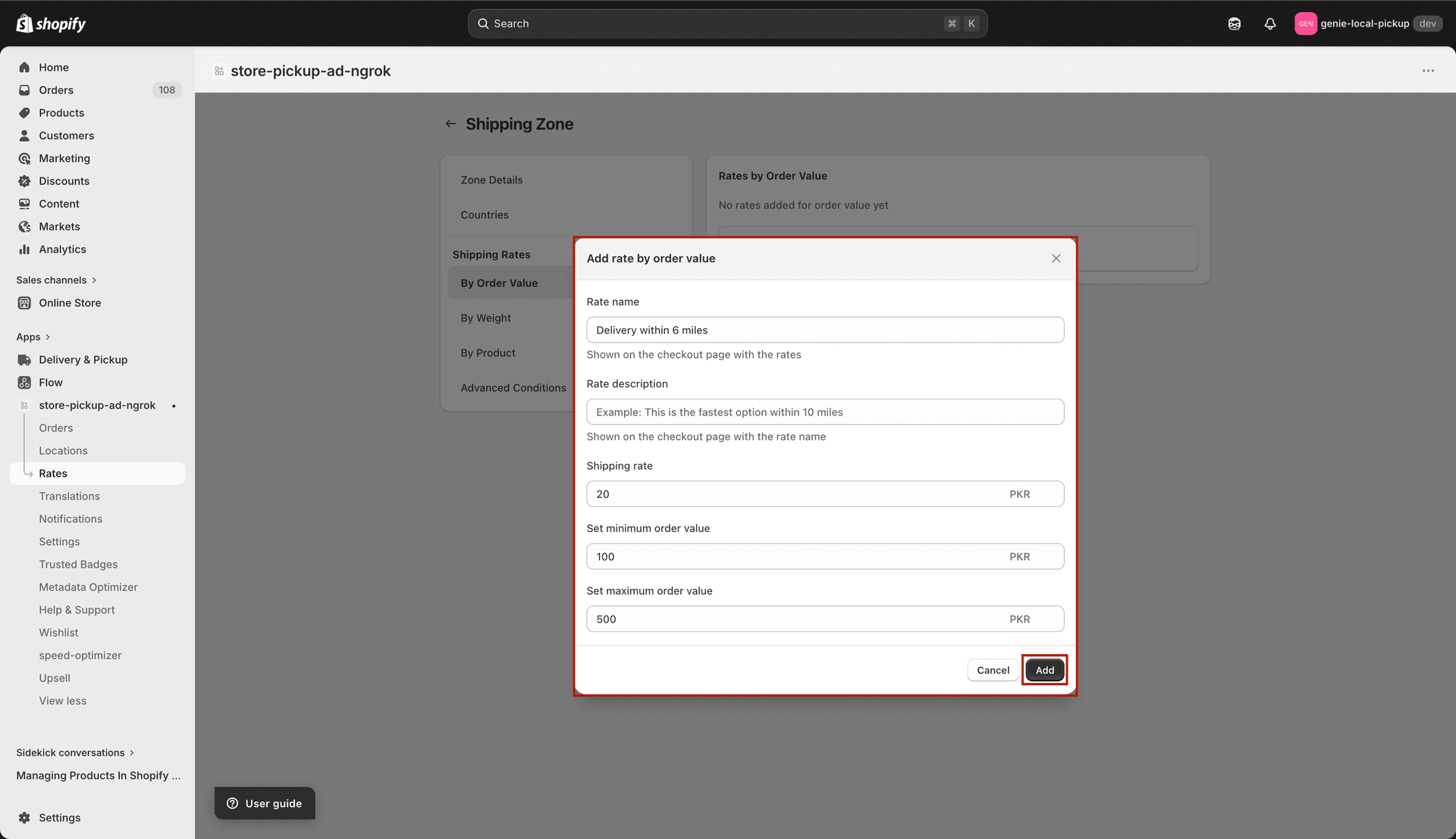
Order Value modal — rate labeled as Shipping Rate
Example: set rate name "Free Shipping", price 0, minimum order value 100 — free shipping on orders over 100.
Add a rate by weight
Click "By Weight" in the sidebar, then "Add Rates By Weight".
Enter Rate Name, optional Description, Shipping Rate, and min/max weight, then click Add.
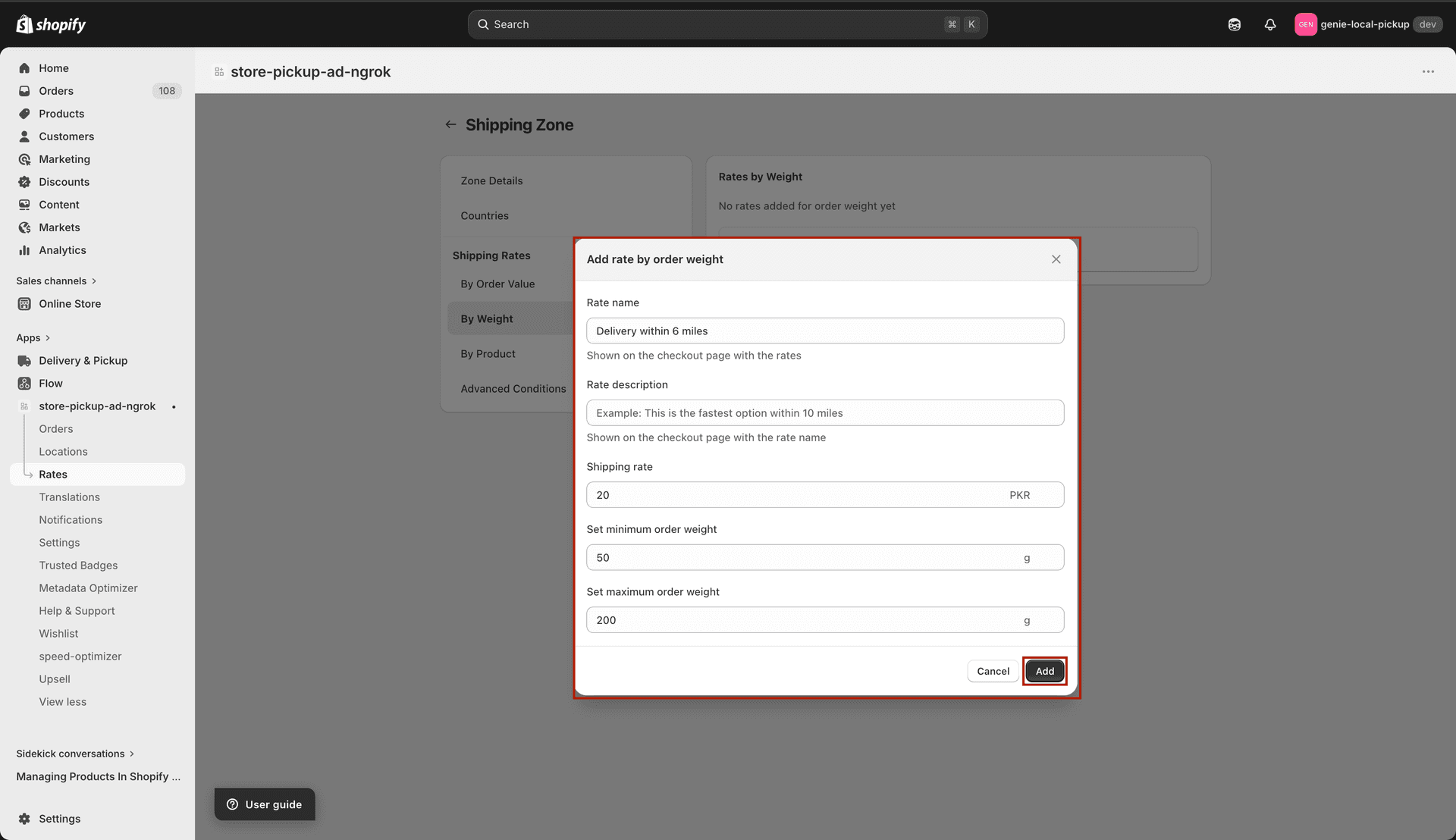
Weight modal — min/max weight for shipping zones
Add a rate by product
Click "By Product" in the sidebar, then "Add Rates By Product".
Enter Rate Name, optional Description, Shipping Rate, product condition, and SKU codes, then click Add.
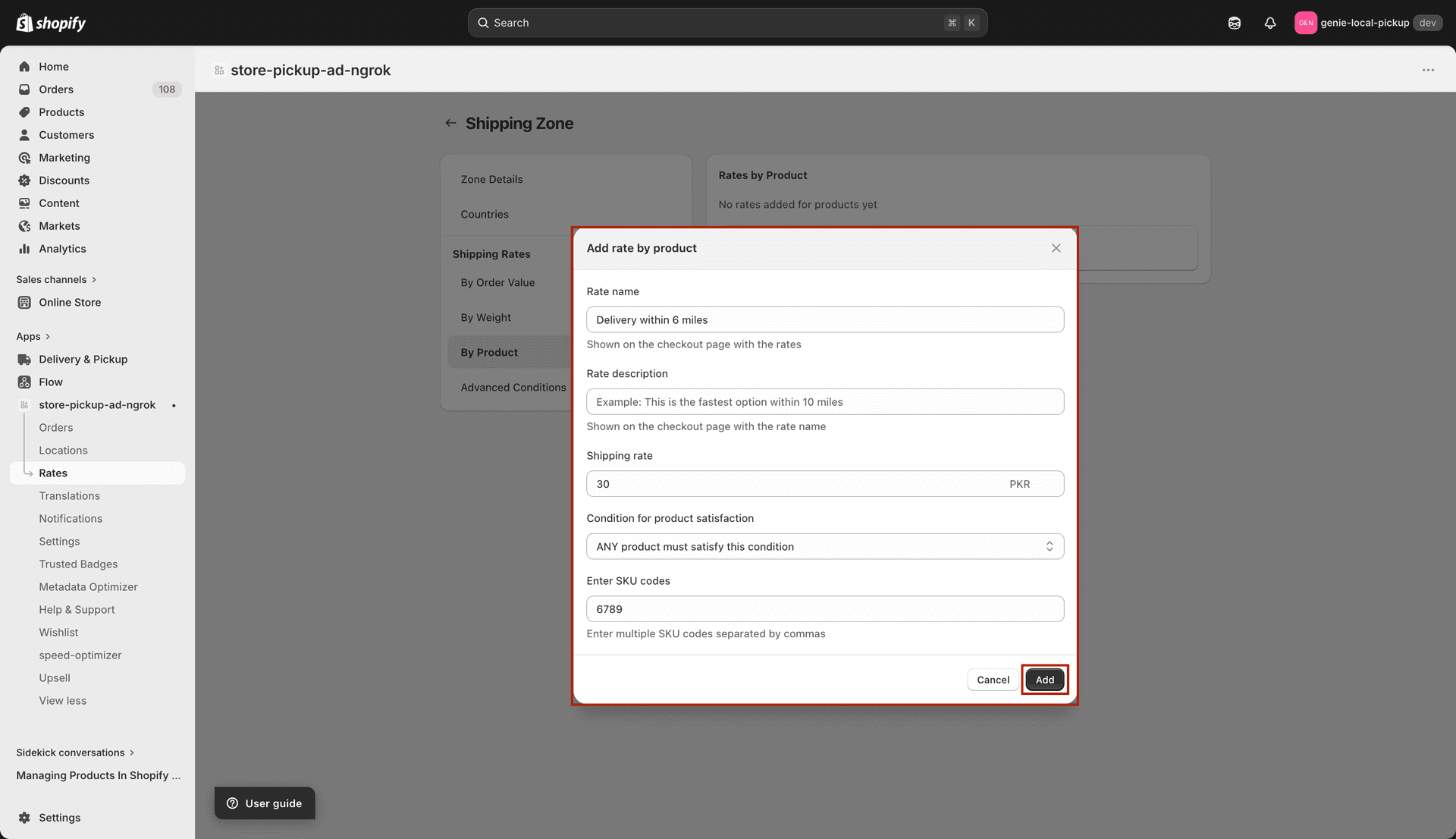
Product modal — condition type and SKU codes
Add an advanced rate condition
Click "Advanced Conditions" in the sidebar, then "Add Advanced Conditions".
Enter Rate Name, optional Description, and Shipping Rate.
Fill in any combination of Order Value, Weight, and Product Condition. Delivery Day and Delivery Time are not available for shipping zones.
Click "Add Rate" to save.
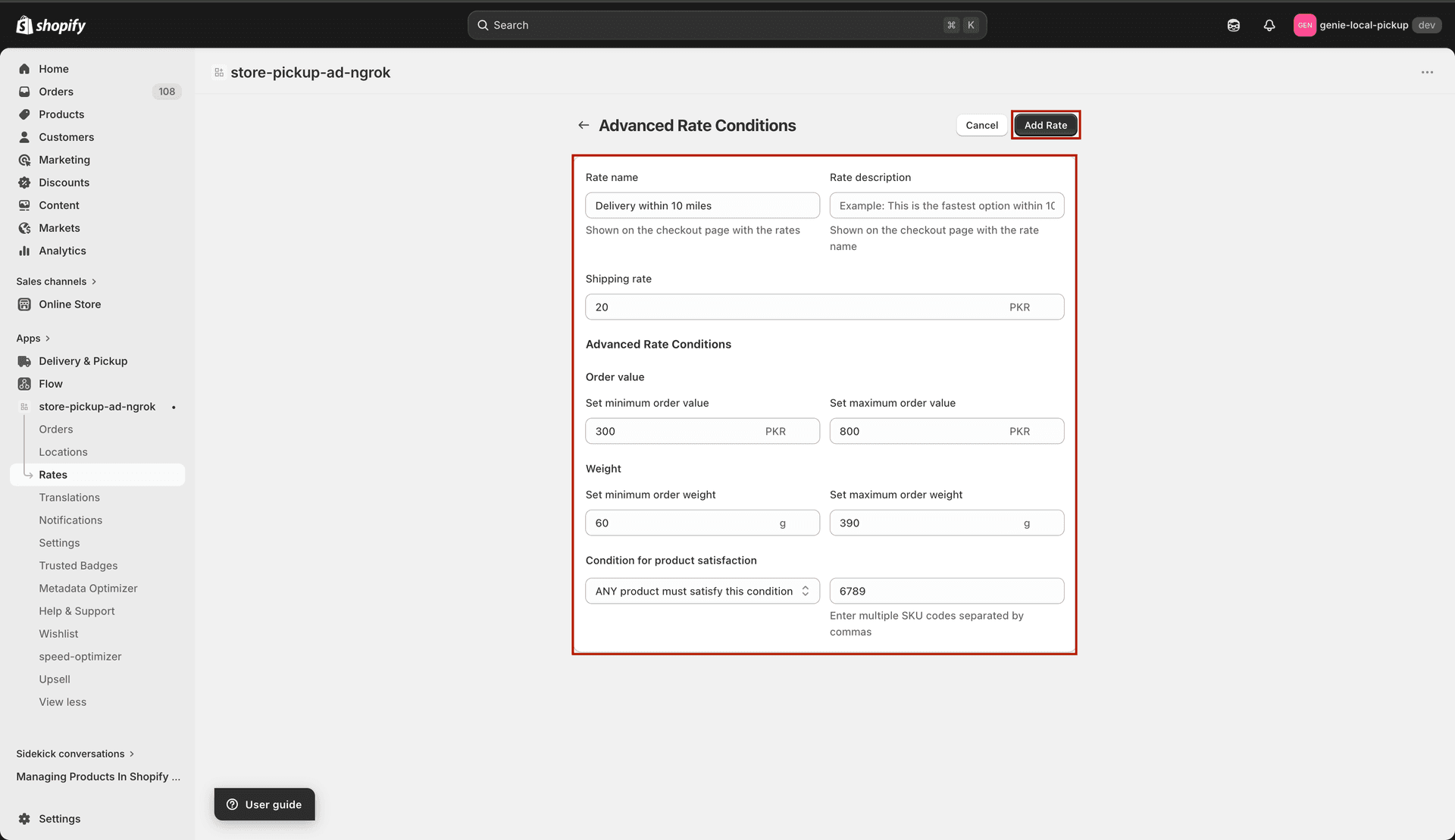
Advanced form for shipping — order value, weight, and product only
Save
Click Save in the save bar. The zone is active immediately.
Create a broad "Rest of World" shipping zone that targets all countries with a default rate — this ensures every international customer always sees a rate at checkout.