
All Pages Zipcode Checker
Last updated: July 11, 2026
Configure the storefront zipcode-checker modal and per-location zipcodes.
All Pages Zipcode Checker shows a modal on every storefront page so customers can check whether you deliver to their zipcode before they shop. You can customize how it opens, how it looks, and which zipcodes each location accepts.
Open All Pages Zipcode Checker
From the app sidebar, click "Settings".
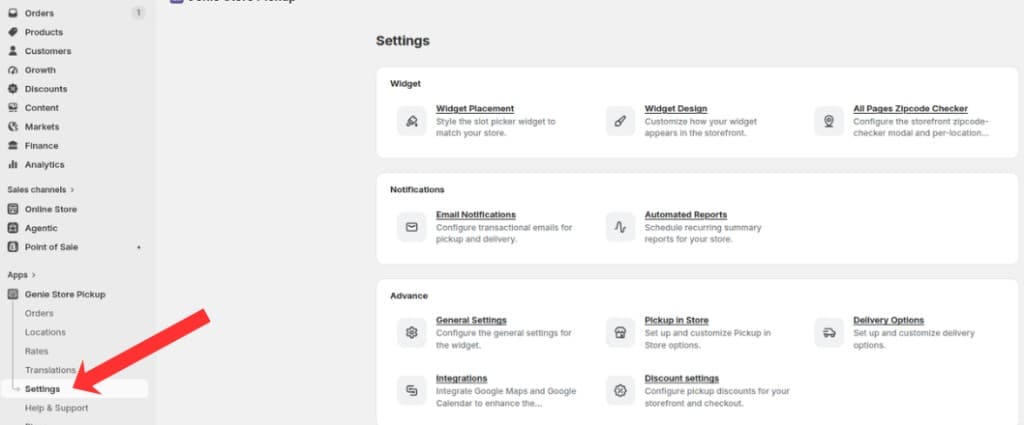
Open Settings from the app sidebar
On the Settings overview, open the Widget group and click "All Pages Zipcode Checker".
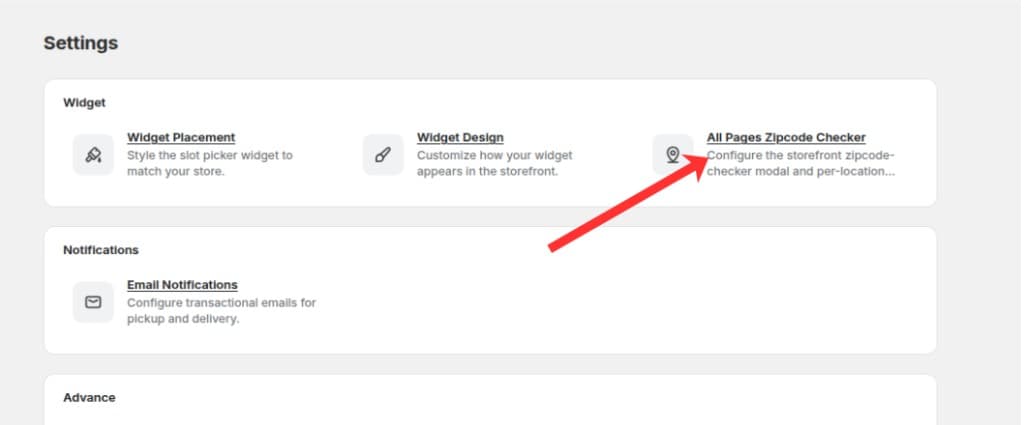
Open the Widget group and click All Pages Zipcode Checker
Enable and placement
Check "Enable the zipcode checker modal on the storefront" to turn the feature on.
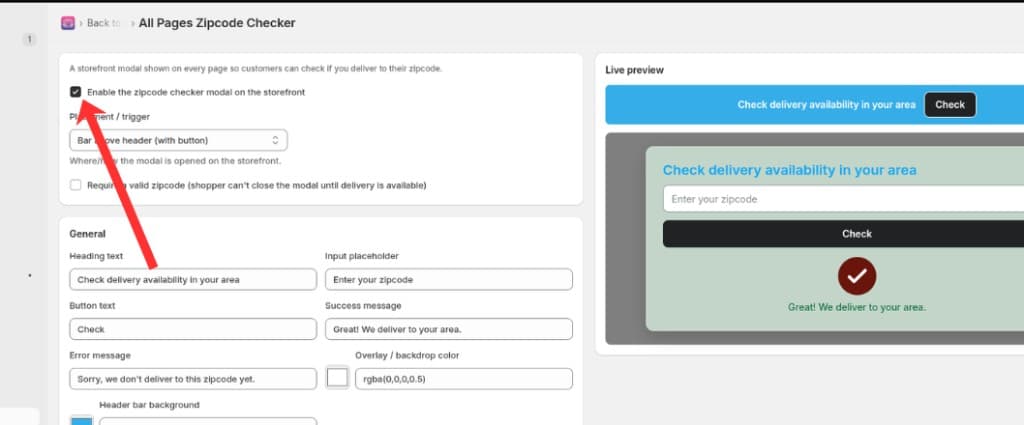
Check Enable the zipcode checker modal on the storefront to turn the feature on
Choose a Placement / trigger option for how customers open the modal.
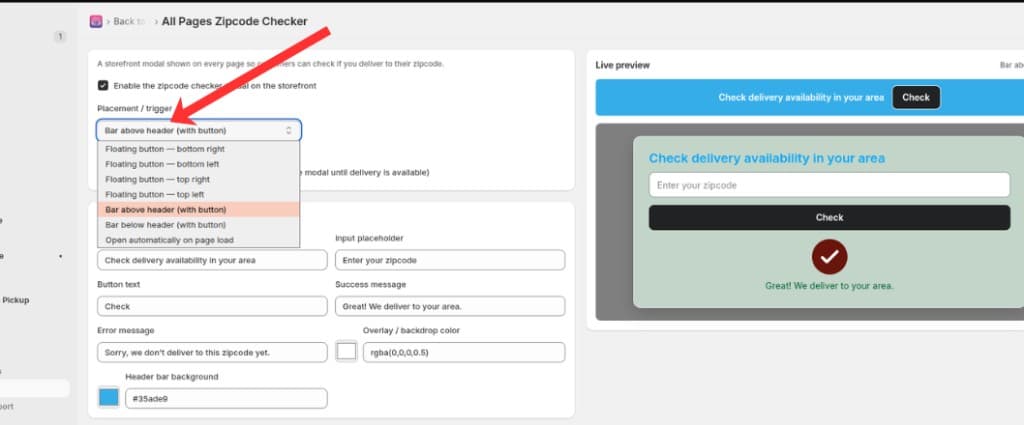
Choose where and how the zipcode checker opens on the storefront
Available placement options: • Floating button — bottom right, bottom left, top right, or top left • Bar above header (with button) • Bar below header (with button) • Open automatically on page load
Optionally check "Require a valid zipcode" so shoppers cannot close the modal until a deliverable zipcode is entered.
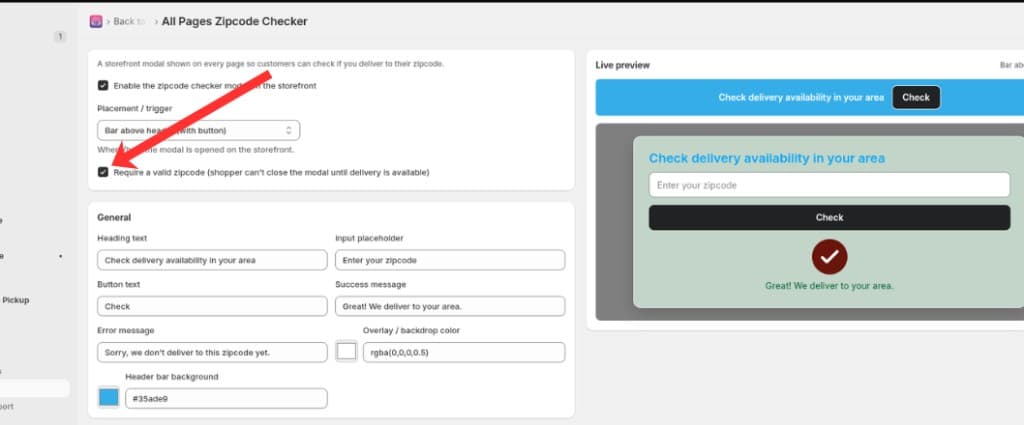
Check Require a valid zipcode so shoppers cannot close the modal until delivery is available
Use "Require a valid zipcode" only when you want to gate browsing until delivery availability is confirmed.
Appearance — General
Set the heading text, input placeholder, button text, success message, and error message shown in the modal.
Choose the overlay / backdrop color and the header bar background color.
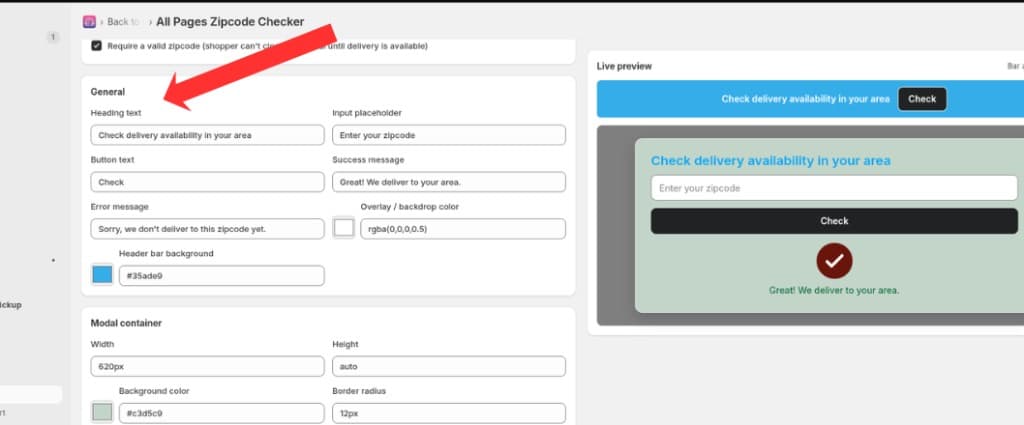
Customize General text labels, messages, overlay color, and header bar background
Appearance — Modal container
Customize the modal width, height, background color, border radius, border color, border width, padding, margin, and box shadow.
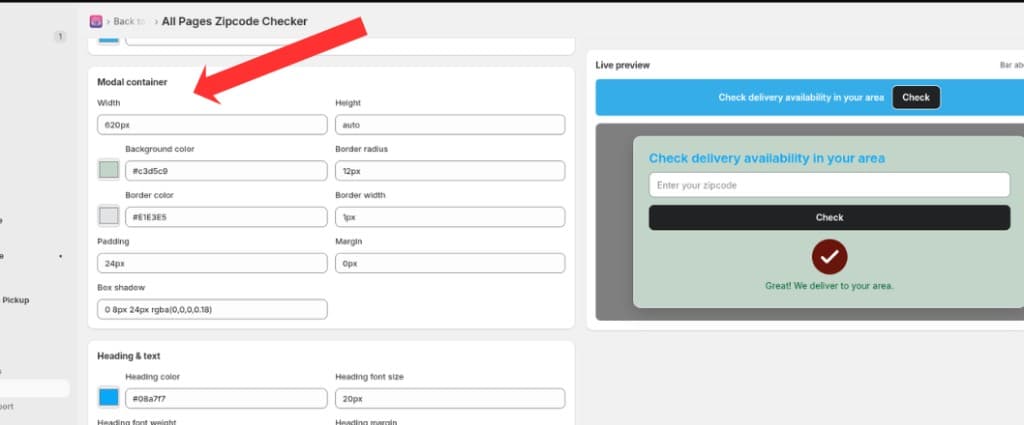
Customize the modal container size, background, border, padding, and box shadow
Appearance — Heading & text
Style the heading and body text colors, font sizes, weights, and spacing. Also set the success and error text colors.
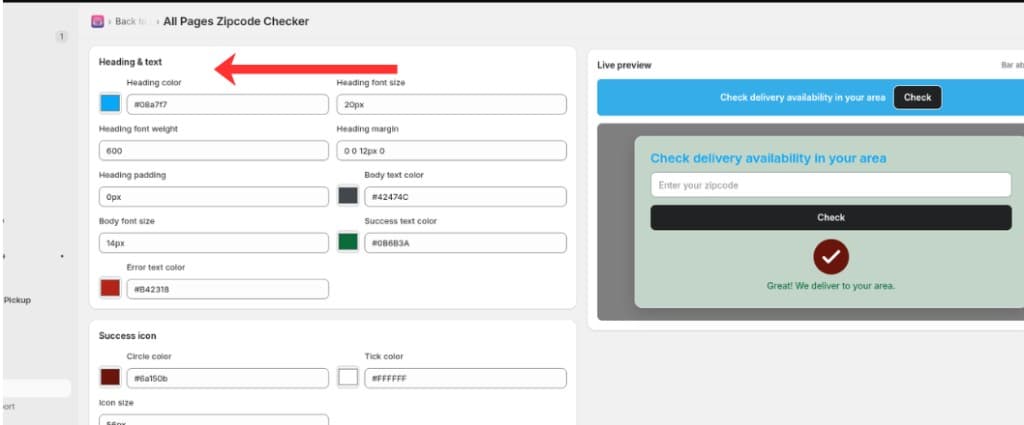
Customize heading, body, success, and error text styles under Heading & text
Appearance — Success icon
Set the Circle color for the success icon background.
Set the Tick color for the checkmark inside the circle.
Set the Icon size (for example, 56px).
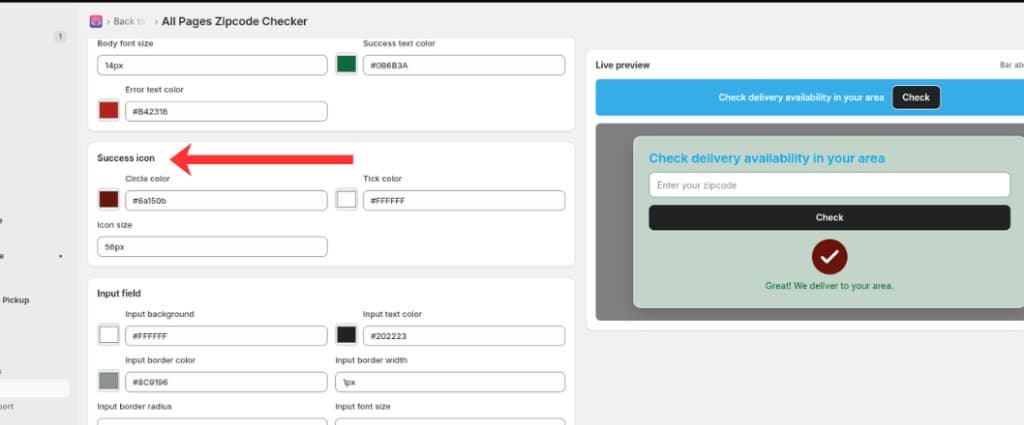
Customize the success icon circle color, tick color, and icon size
The success icon appears in the live preview when a zipcode check succeeds.
Appearance — Input field & button
Style the zipcode input: background, text, border, radius, font size, padding, height, and placeholder color.
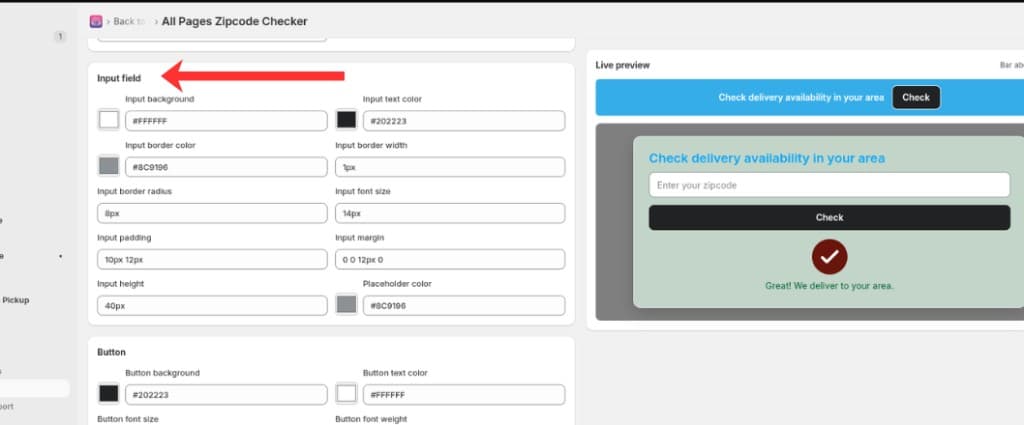
Customize the zipcode input background, text, border, size, and placeholder color
Style the check button: background, text color, font size, weight, border, padding, hover color, and width.
A live preview on the right side of the page updates as you change appearance settings.
Locations & zipcodes
For each location, choose a Matching mode: Partial match or Exact match.
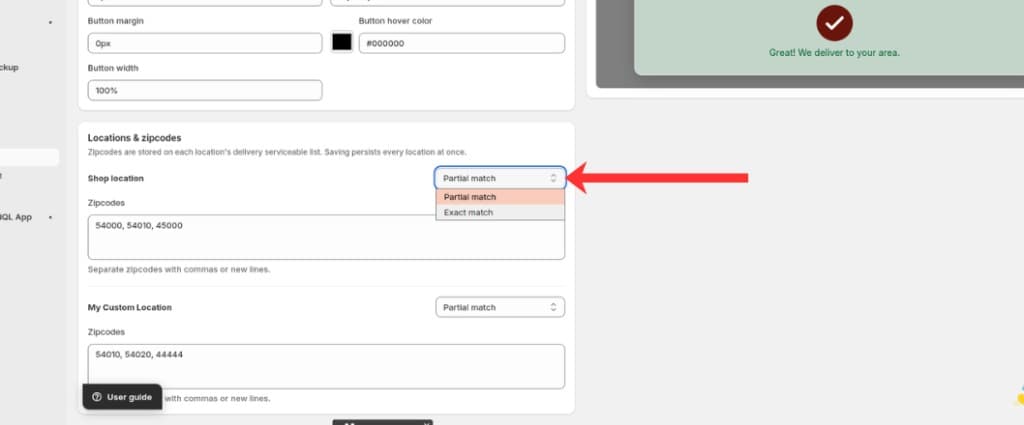
Choose Partial match or Exact match for each location's zipcode matching mode
Partial match accepts zipcodes that start with or contain your stored values. Exact match requires a full match.
Enter the zipcodes for that location. Separate multiple zipcodes with commas or new lines.
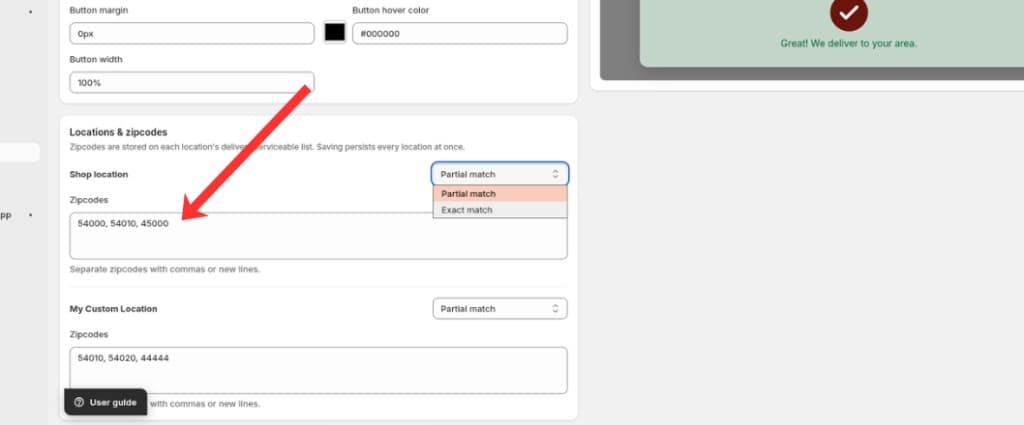
Enter zipcodes separated by commas or new lines for each location
Zipcodes are stored on each location's delivery serviceable list. Saving updates every location at once.
Save your changes
Click Save in the save bar to apply changes to the storefront.
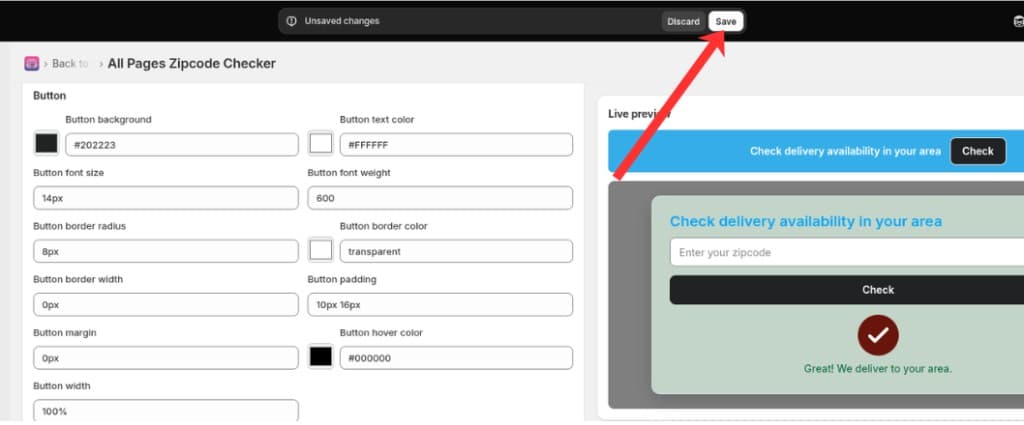
Click Save in the save bar to apply your changes to the storefront
Make sure the All Pages Zipcode Checker app embed is enabled in your Shopify theme editor, or the modal will not appear on the storefront.
What's Next