
Configure delivery display, time slot format, extra checkout fields, and required customer information.
Delivery Options has three tabs: General Settings, Time Settings, and Extra Fields.
Open Delivery Options
From the app sidebar, click "Settings".
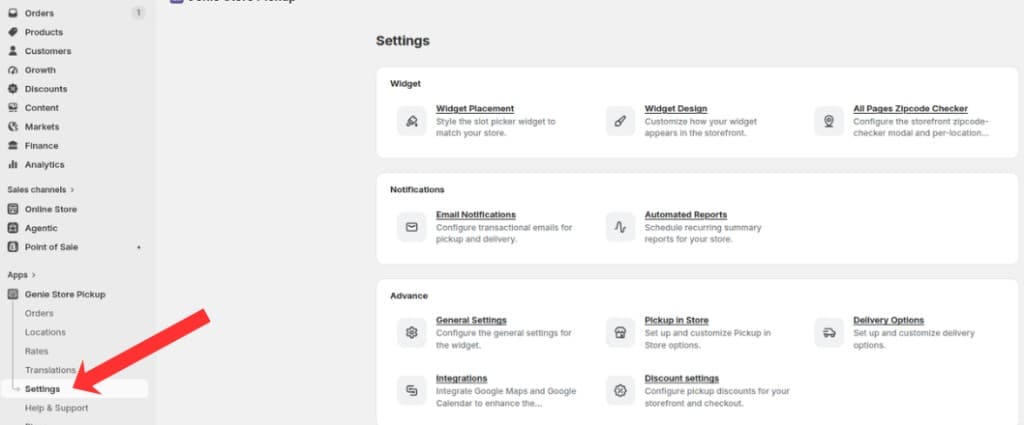
Open Settings from the app sidebar
On the Settings overview, open the Advanced group and click "Delivery Options".
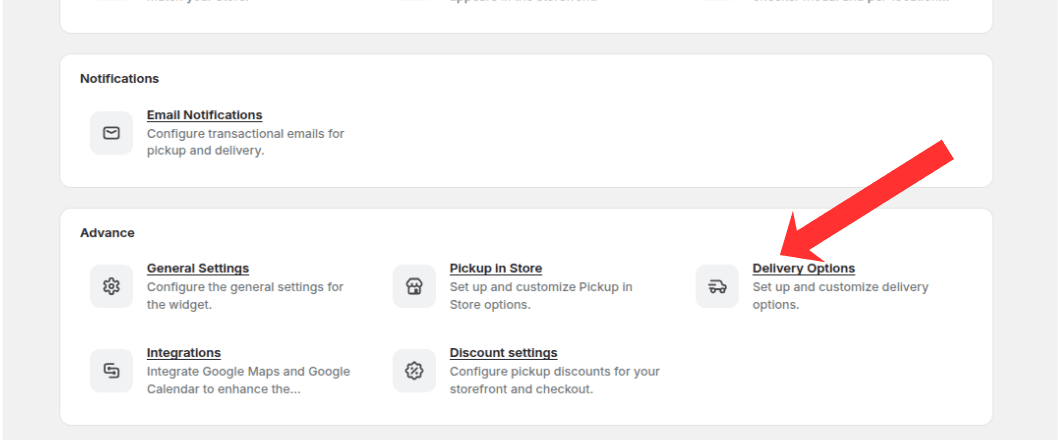
Open the Advanced group and click Delivery Options
General Settings tab
Enable Display Delivery Information to show delivery date and time on order confirmations.
Require email, name, and/or phone for delivery orders.
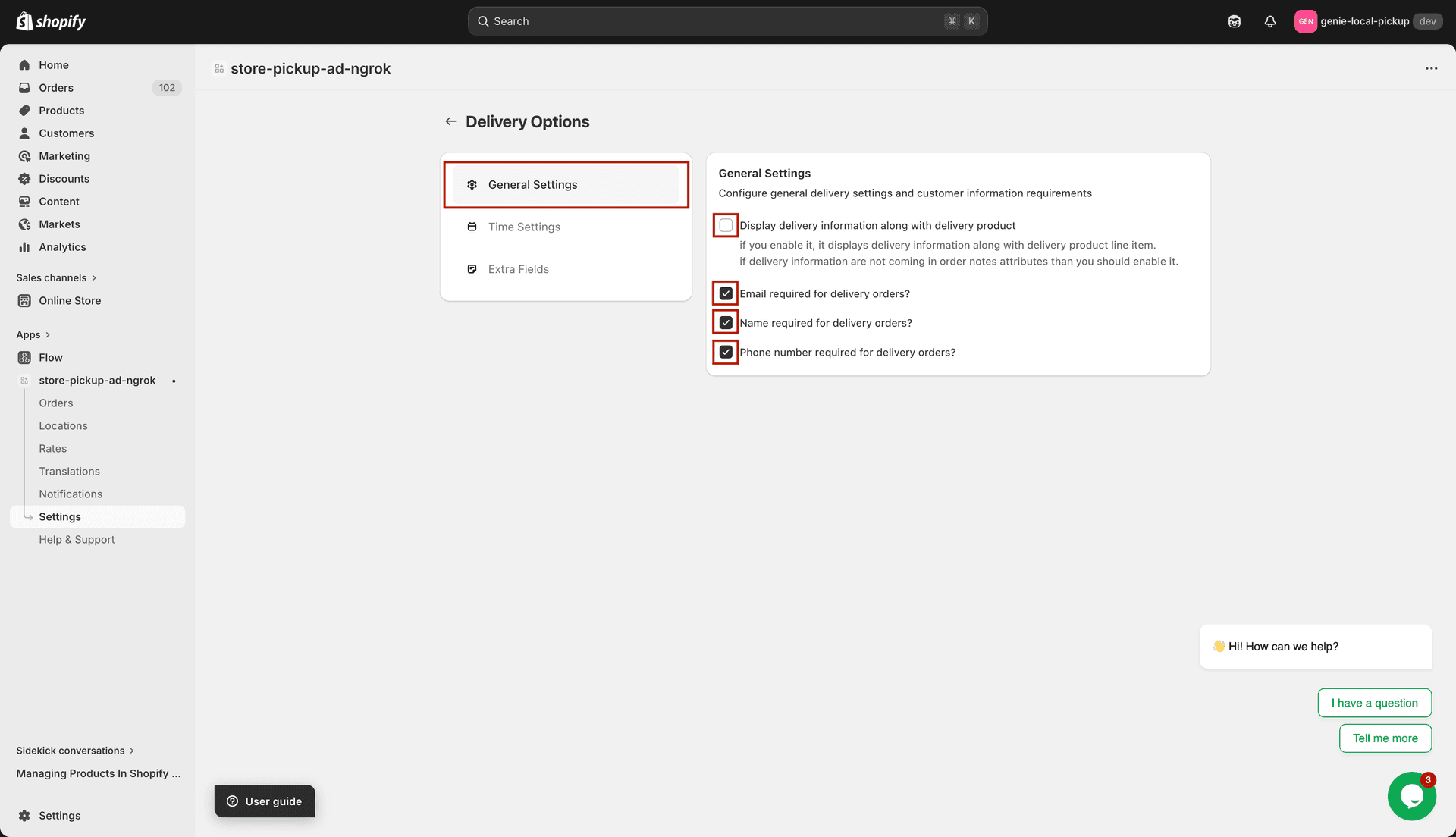
Control what information is displayed and required for delivery orders
Time Settings tab
Choose how delivery time slots are formatted in the widget (range or individual times).
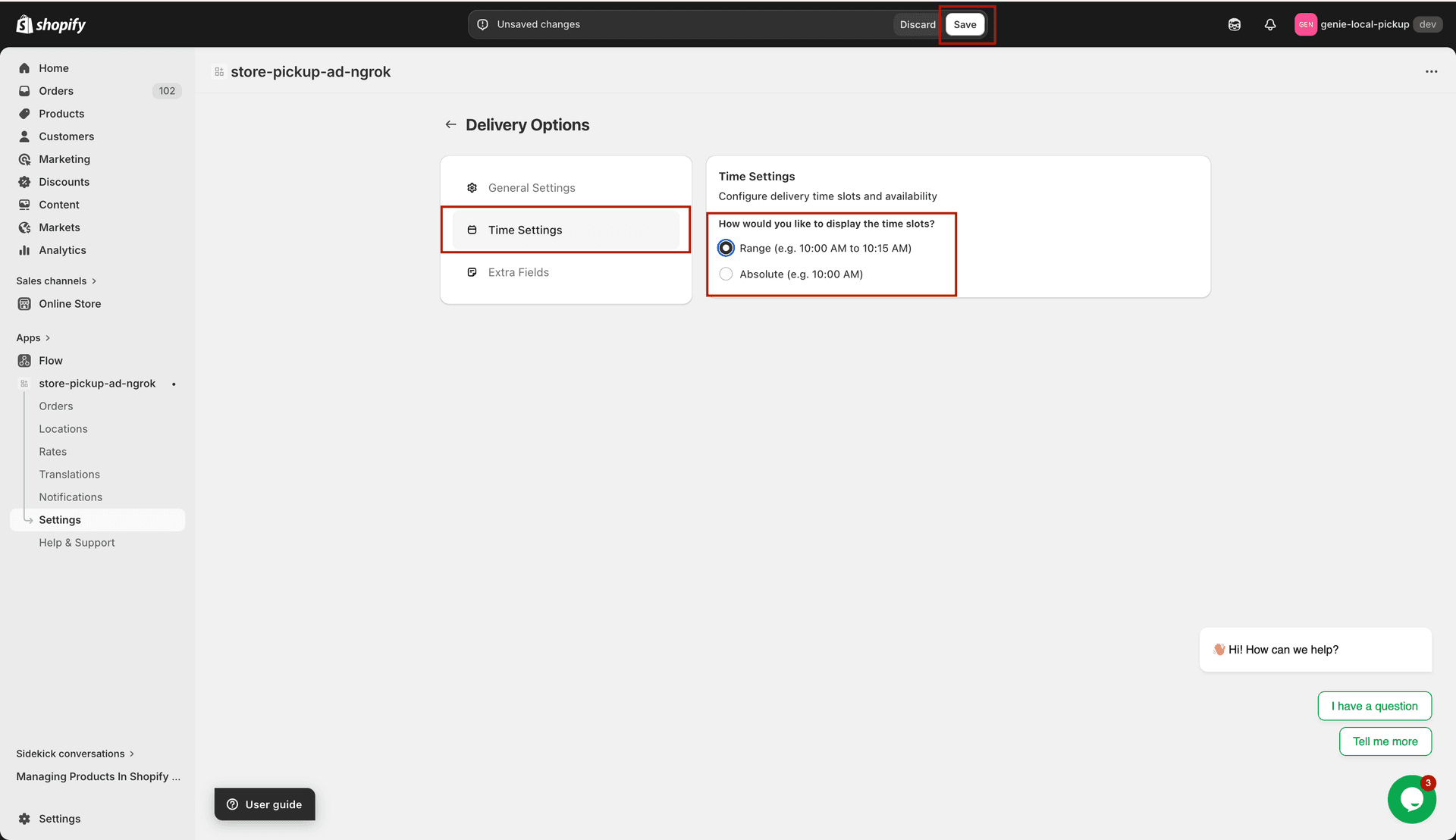
Choose how delivery time slots are displayed in the widget
Extra Fields tab
Enter labels for up to three optional custom fields (e.g. delivery instructions or apartment number).
Leave a field blank to hide it from the checkout form.
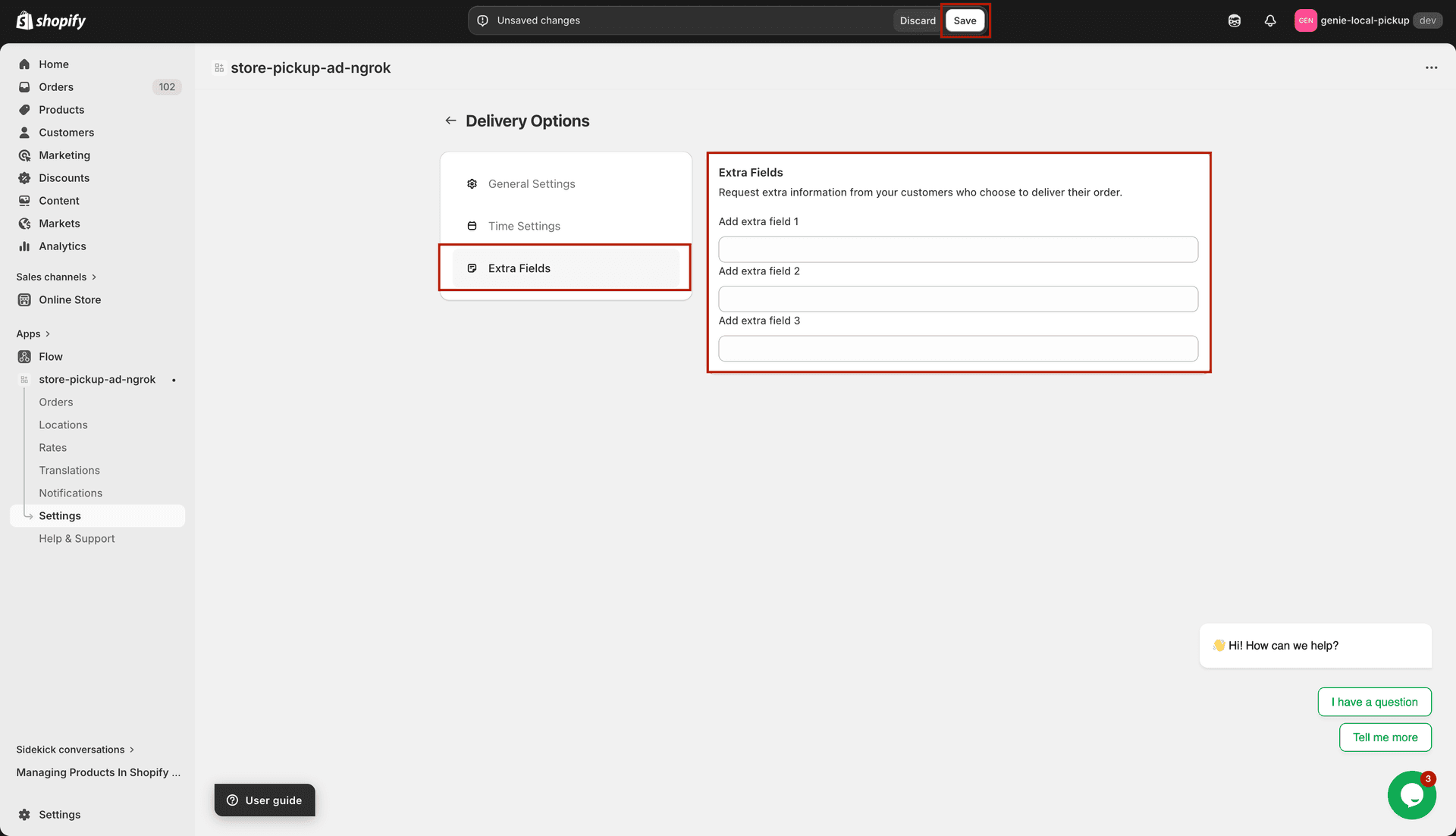
Add up to 3 custom fields to collect extra information from delivery customers
Click Save in the save bar to apply changes.
Extra fields are optional for customers. Use the General Settings checkboxes for required fields.
What's Next