
Connect Google Calendar and Google Maps for scheduling and distance-based delivery.
Integrations connects the app with Google services for calendar events and map-based delivery validation.
Open Integrations
From the app sidebar, click "Settings".
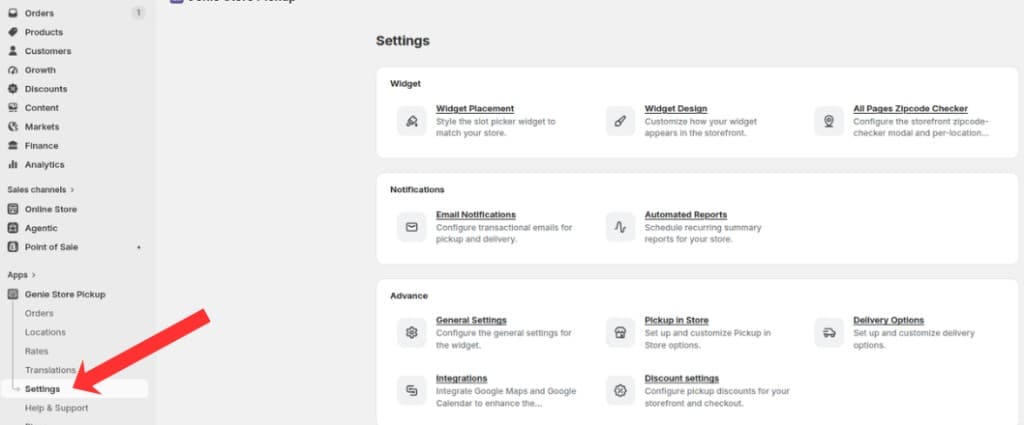
Open Settings from the app sidebar
On the Settings overview, open the Advanced group and click "Integrations".
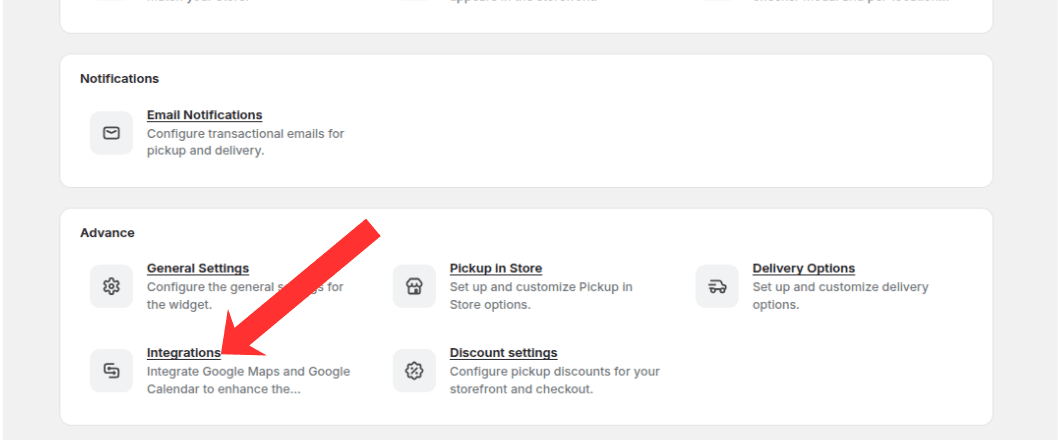
Open the Advanced group and click Integrations
Google Calendar
Select the Google Calendar tab.
Click Connect Google Calendar and authorize access in the Google popup.
Set your store timezone for calendar events.
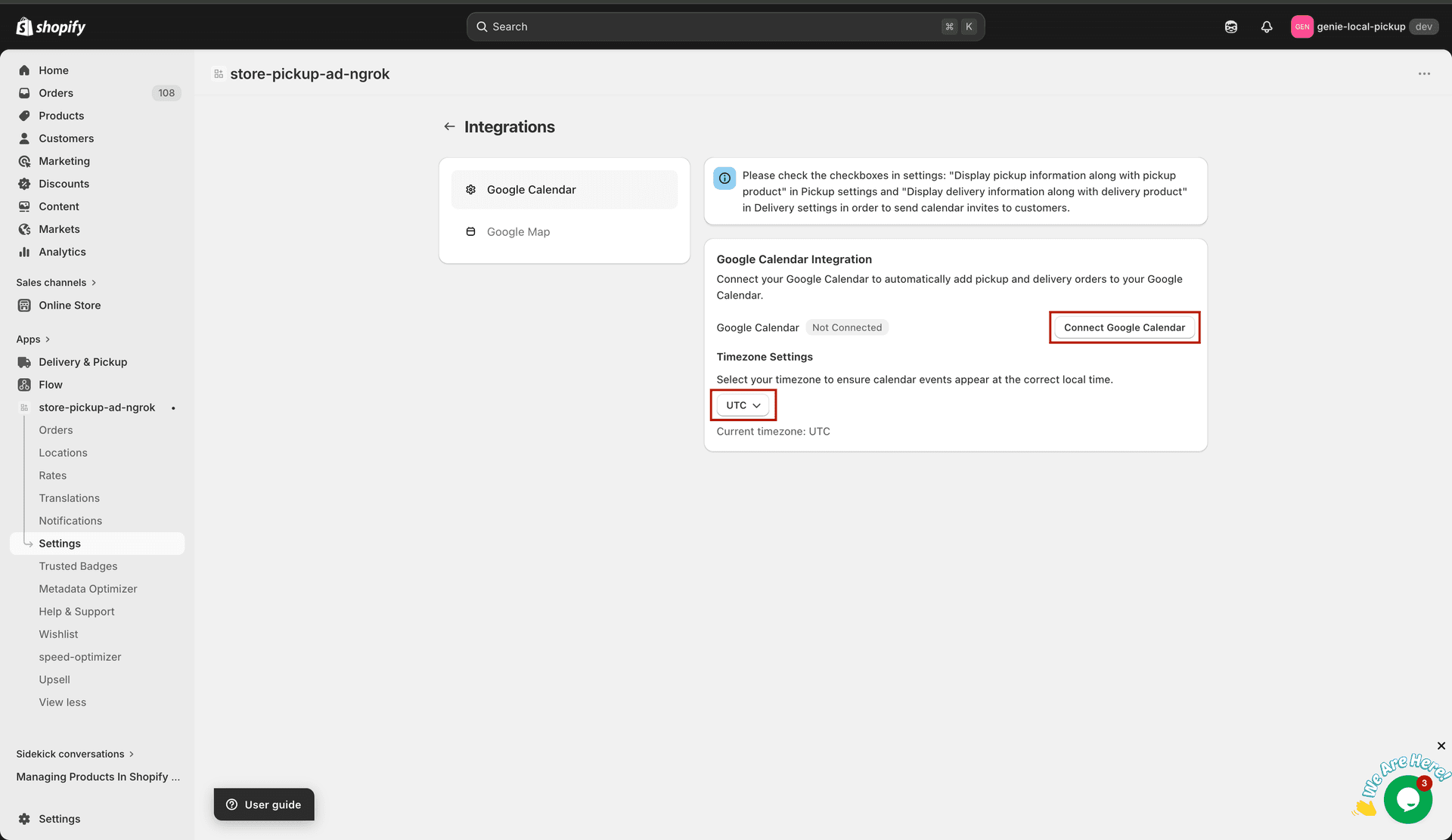
Connect via OAuth and confirm the Connected status
After connection, pickup and delivery orders can create calendar events and send invites to customers.
Google Maps
Select the Google Maps tab.
Enable Google Maps and enter your Google Maps API key.
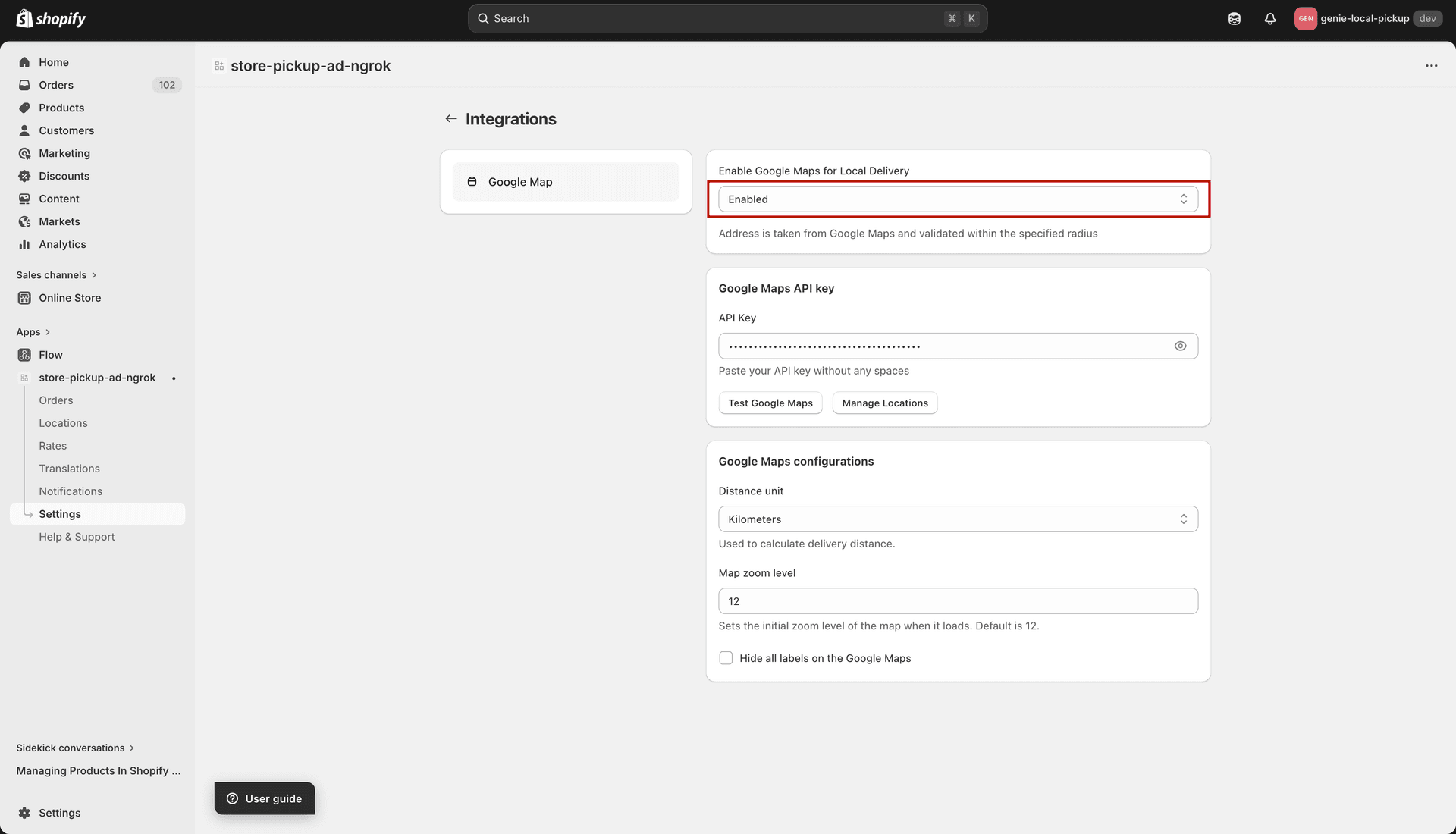
Enable Google Maps for the local delivery widget
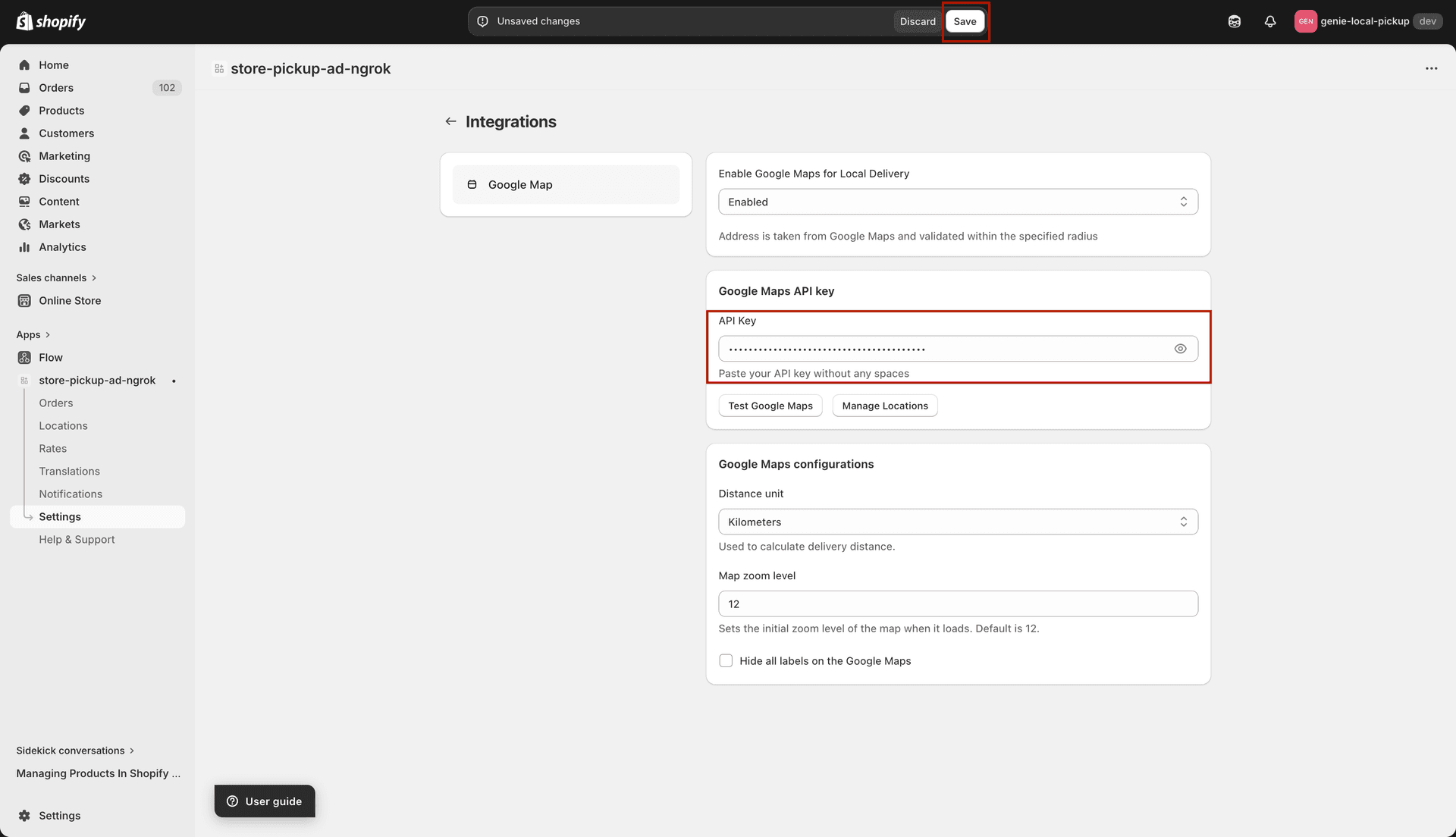
Paste your Google Maps API key — no spaces allowed
Configure distance unit, map zoom level, and label visibility.
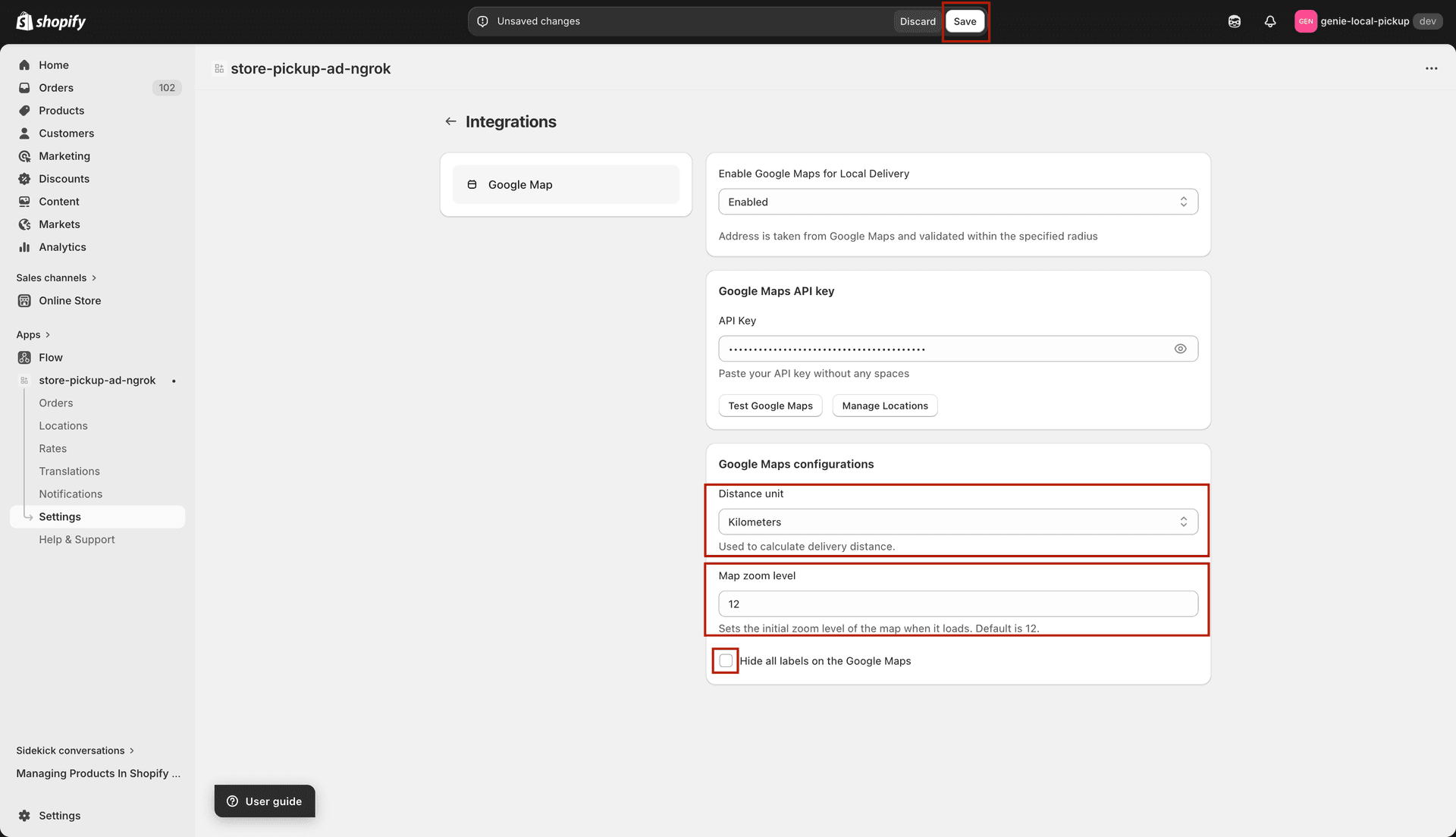
Configure how the map looks in the delivery widget
Click Save in the save bar to apply changes.
Google Maps is required for distance-based delivery validation in your location settings.
What's Next