
Hide the widget for specific products such as gift cards, workshops, and non-physical products.
Hide widget lets you suppress the pickup and delivery widget when certain products are in the cart — useful for gift cards, digital products, or items that do not need fulfillment scheduling.
Open Hide widget
Go to Settings → General Settings.
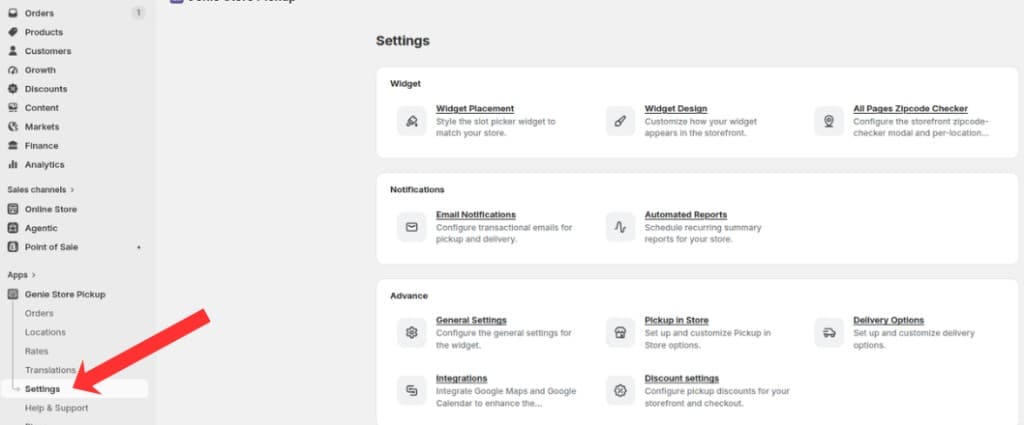
Open Settings from the app sidebar
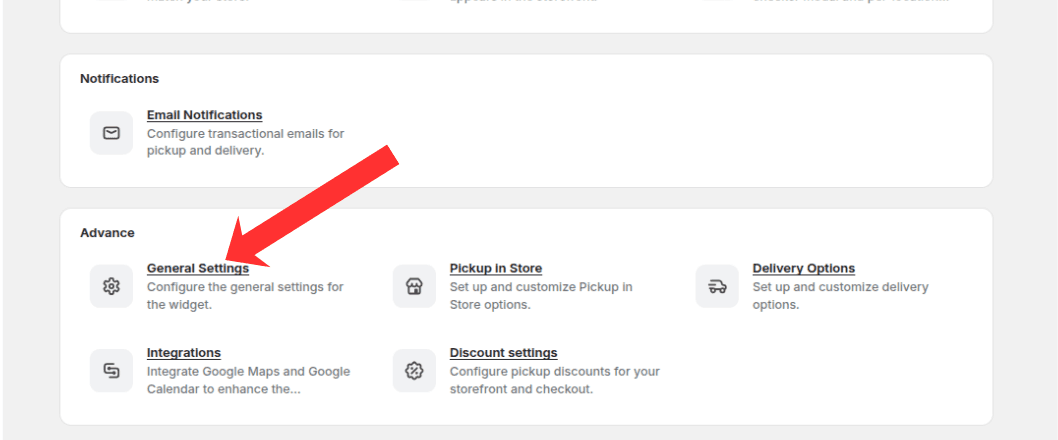
Open the Advanced group and click General Settings
In the left sidebar, click "Hide widget".
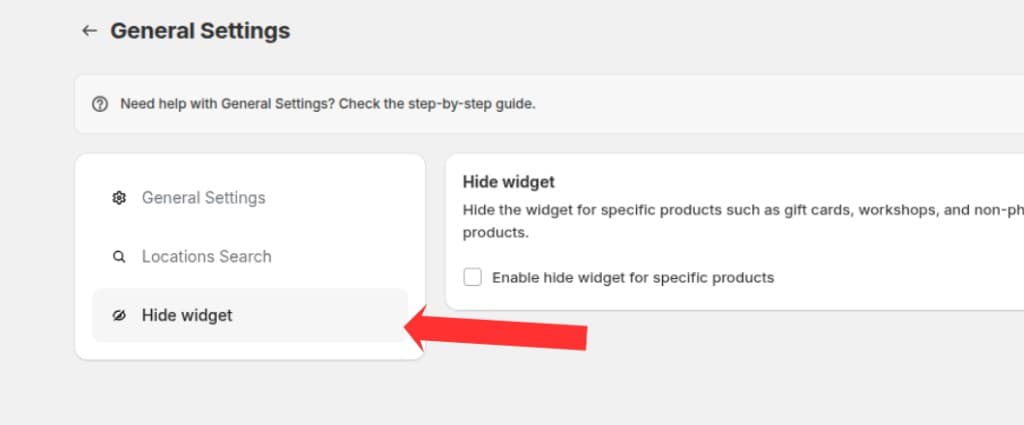
Click Hide widget in the left sidebar
Configure hide rules
Check "Enable hide widget for specific products".
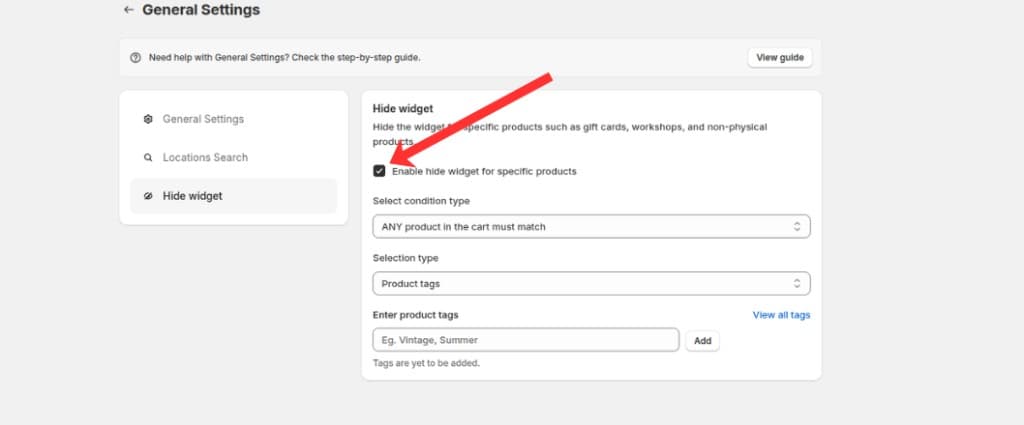
Check Enable hide widget for specific products
Choose whether ANY product or ALL products in the cart must match your rule.
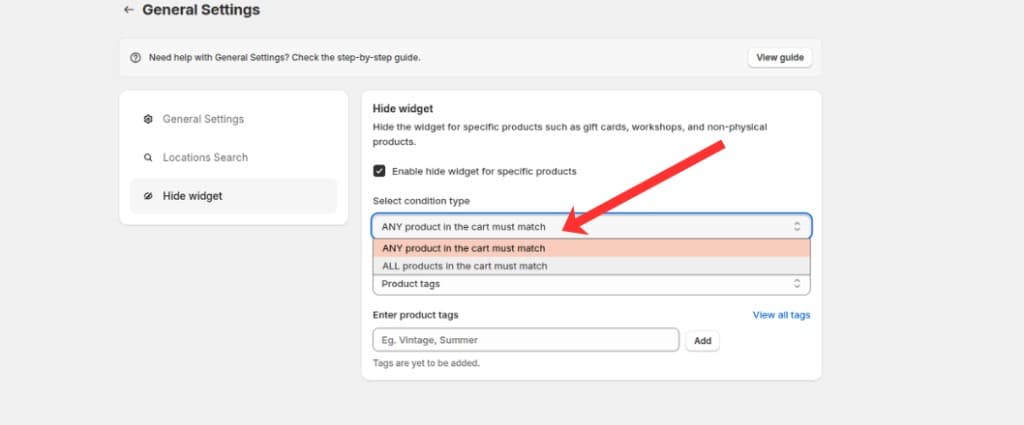
Choose ANY product or ALL products in the cart must match
Choose selection type: product tags or SKU codes.
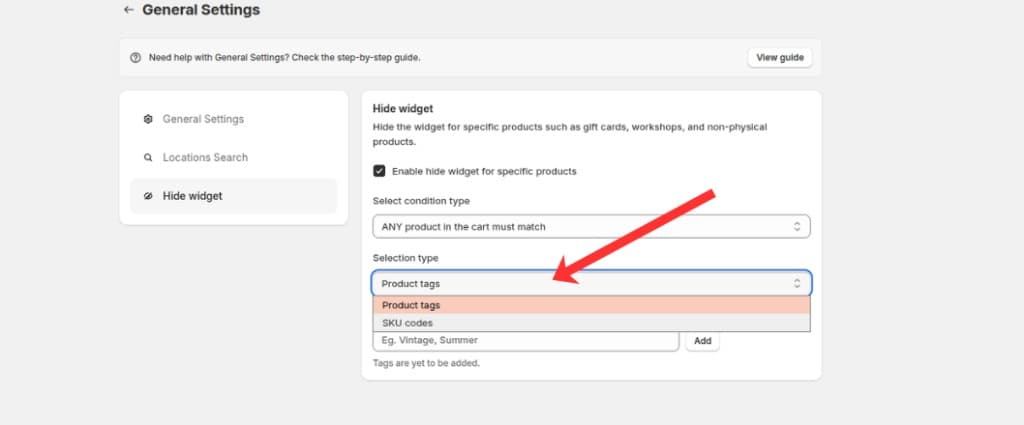
Choose Product tags or SKU codes as the selection type
Add product tags
Type a product tag in the field and click Add.
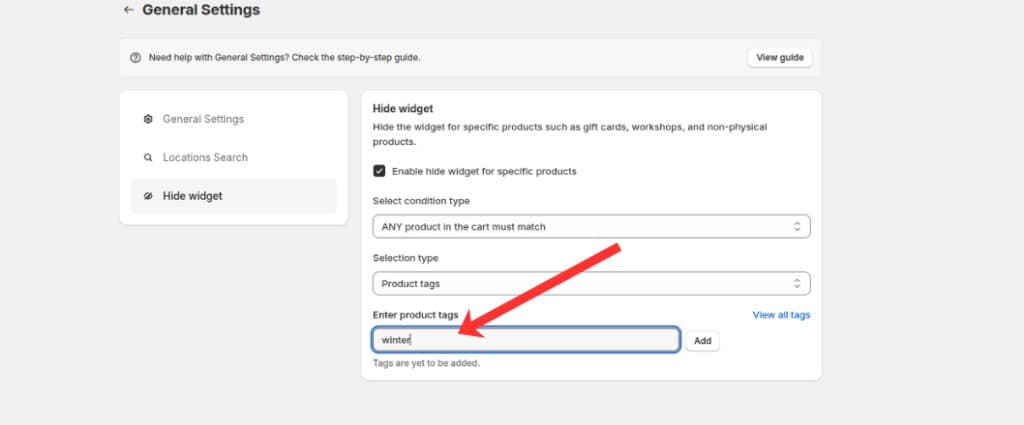
Type a product tag in the Enter product tags field
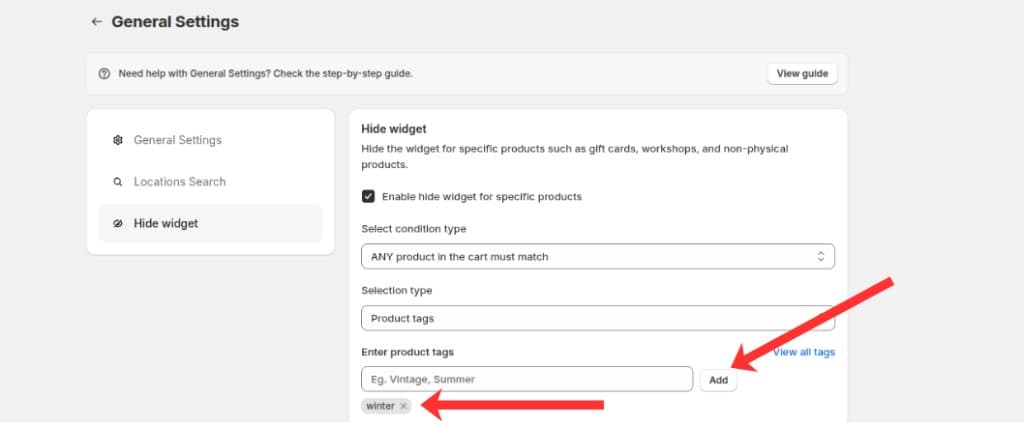
Click Add to add the tag to your hide rules
Alternatively, click View all tags to search and select from your store's existing tags.
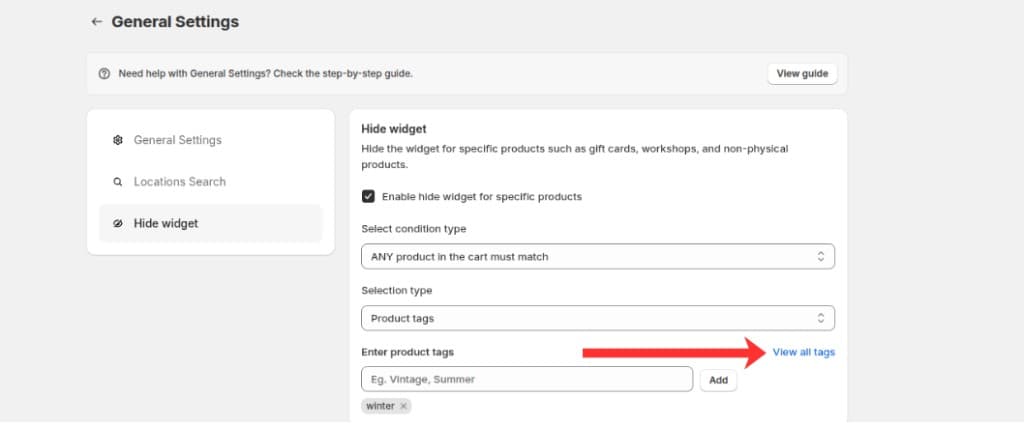
Click View all tags to open the tag picker
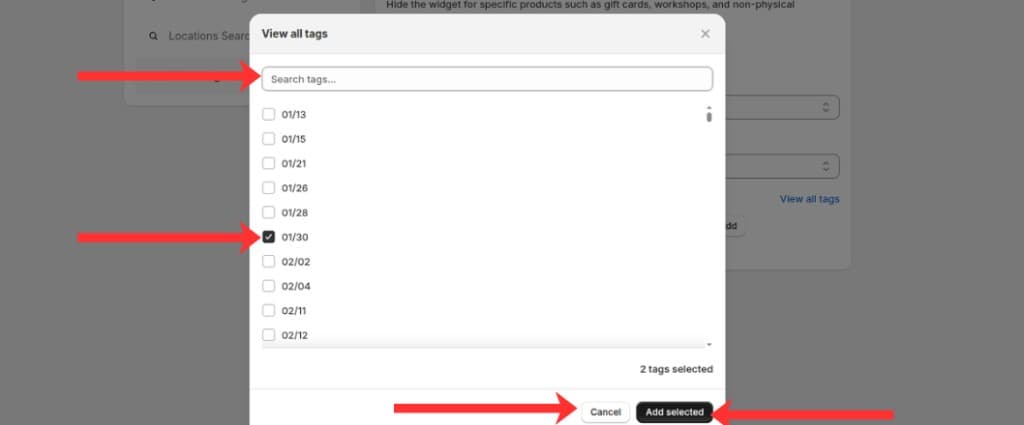
Search tags, select the ones you want, then click Add selected
Add SKU codes
If you chose SKU codes, enter comma-separated SKU values in the field (e.g. WAL_BLK_25, WAL_RED_25).
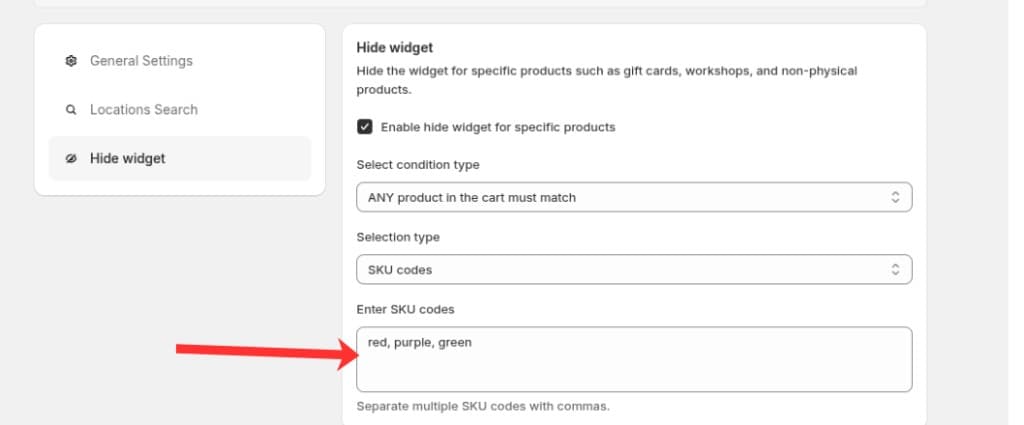
Enter SKU codes separated by commas when using SKU codes as the selection type
Click Save in the save bar to apply changes.
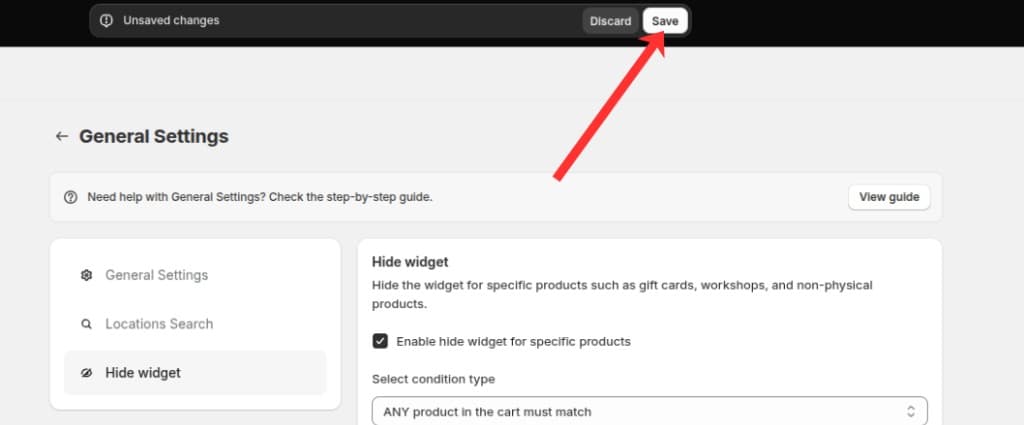
Click Save in the save bar to apply your changes
What's Next