
Display a search bar in the pickup widget when your store has more than 2 locations.
Locations Search adds a search box to the pickup widget so customers can find a location by name instead of scrolling through a long list.
Open Locations Search
1
Go to Settings → General Settings.
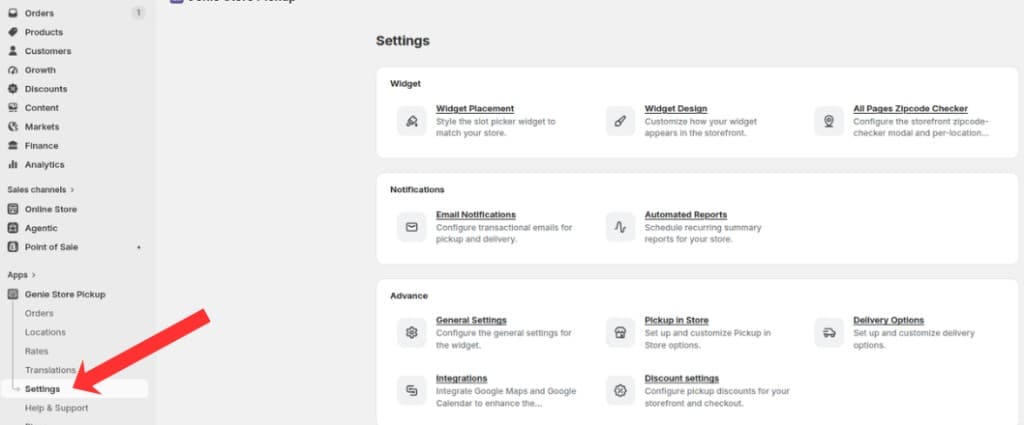
Open Settings from the app sidebar
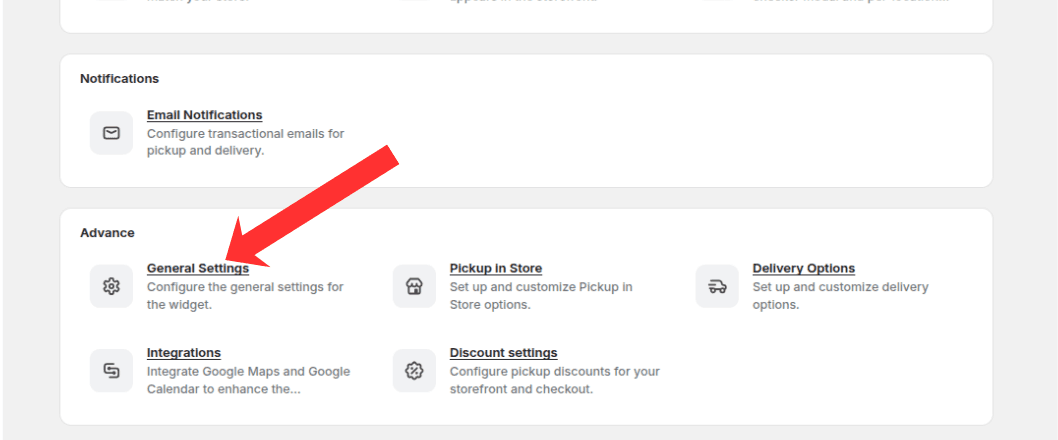
Open the Advanced group and click General Settings
2
In the left sidebar, click "Locations Search".
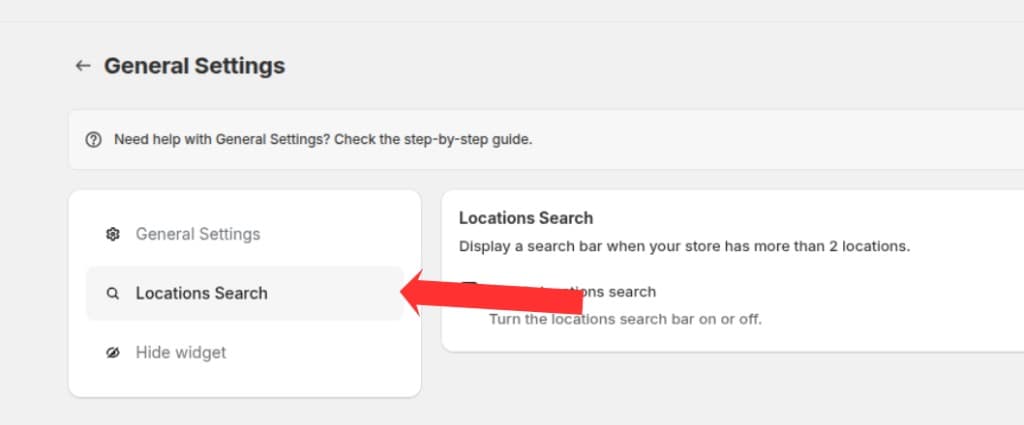
Click Locations Search in the left sidebar
Enable location search
3
Check "Enable locations search" to show a search bar when your store has more than 2 pickup locations.
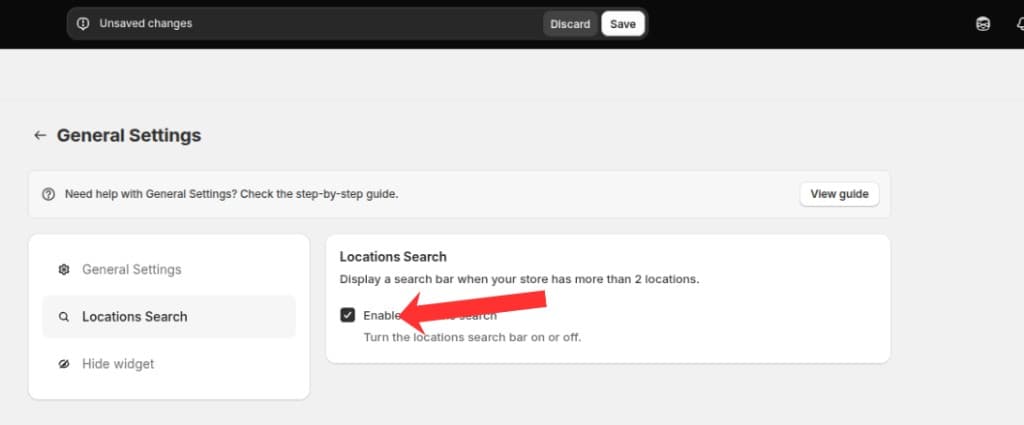
Check Enable locations search to turn the search bar on or off
4
Click Save in the save bar to apply changes.
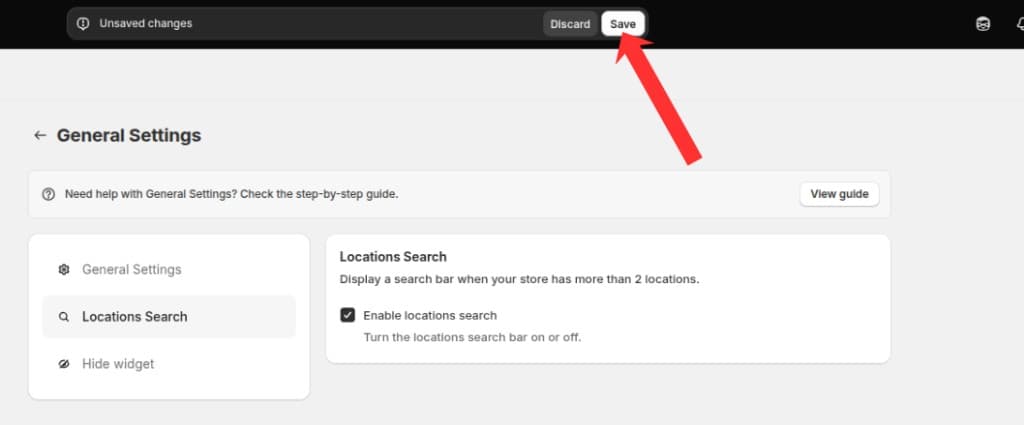
Click Save in the save bar to apply your changes
What's Next