
Ready for Delivery Email
Last updated: June 16, 2026
Customize the email sent when a local delivery order is out for delivery.
The Ready for Delivery email notifies customers that their local delivery order is on its way or ready for delivery.
Open the template
Go to Settings → Email Notifications.
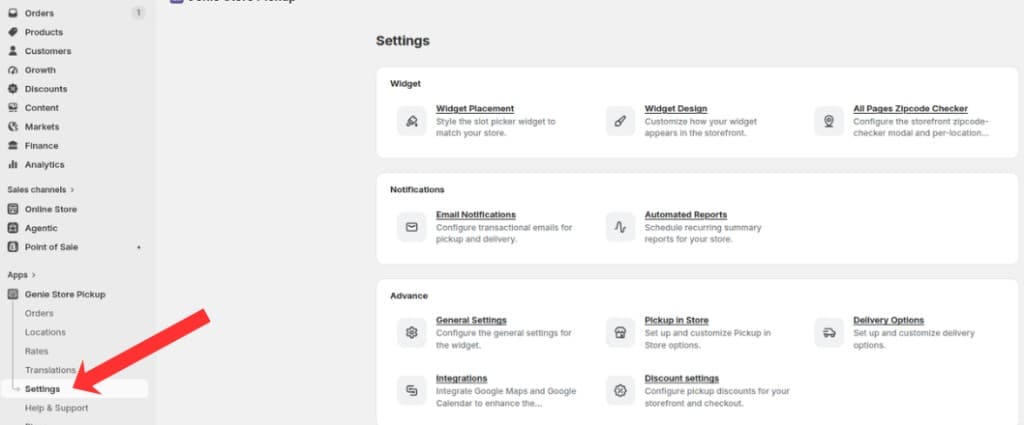
Open Settings from the app sidebar
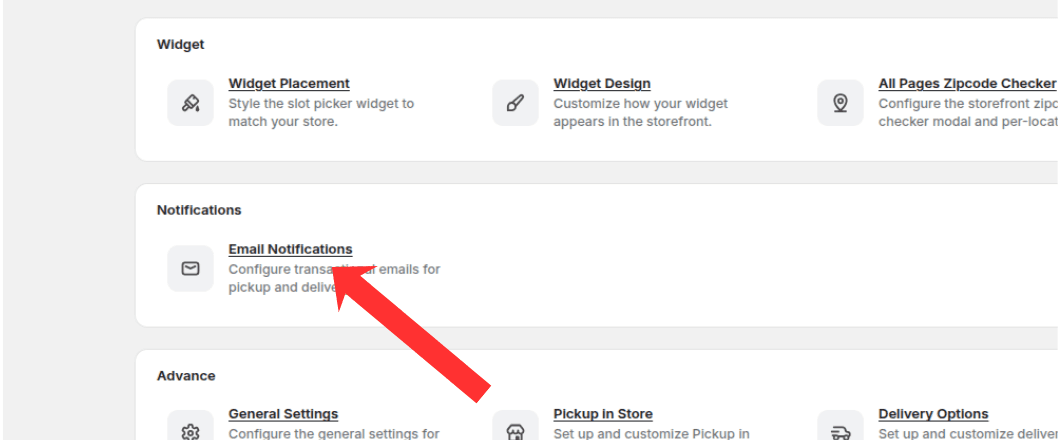
Open the Notifications group and click Email Notifications
Click "Ready for Delivery Email".
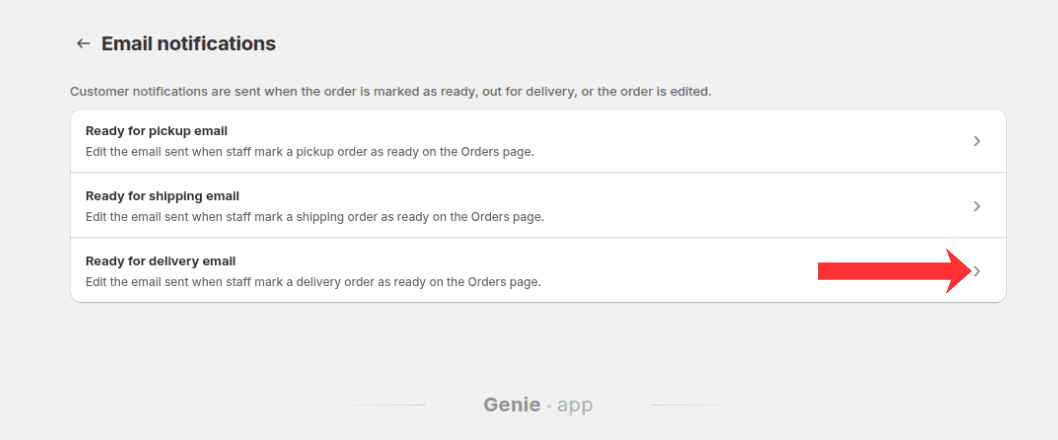
Click Ready for delivery email to open the template editor
Edit the template
Edit the email subject line.
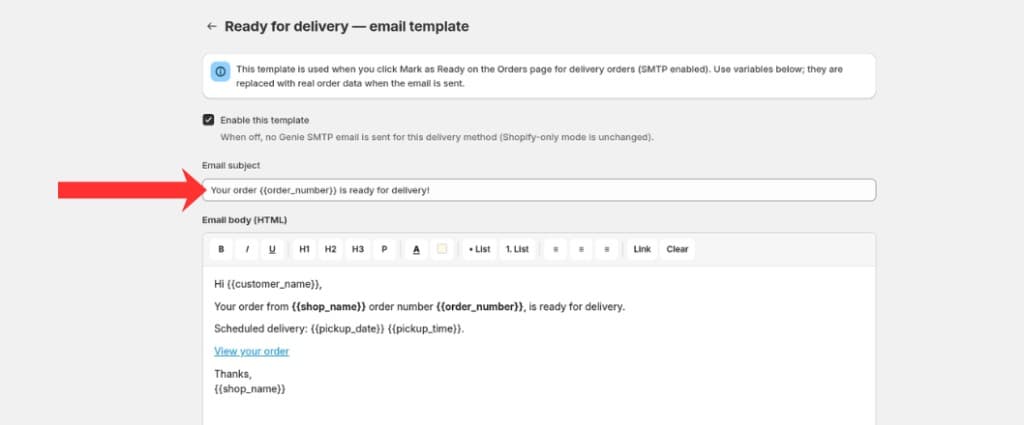
Edit the email subject and body using the template editor
Edit the email body using the template editor.
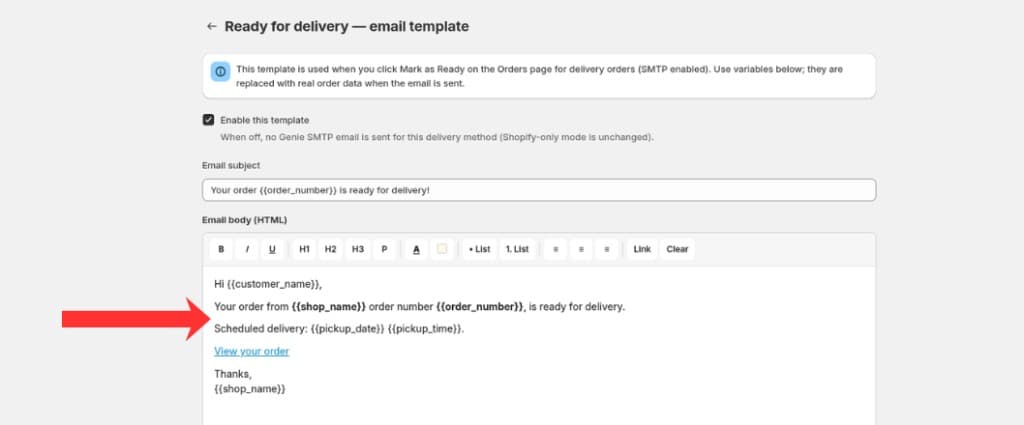
Customize the email body and use variables like scheduled delivery date and time
Preview the email to confirm formatting and content.
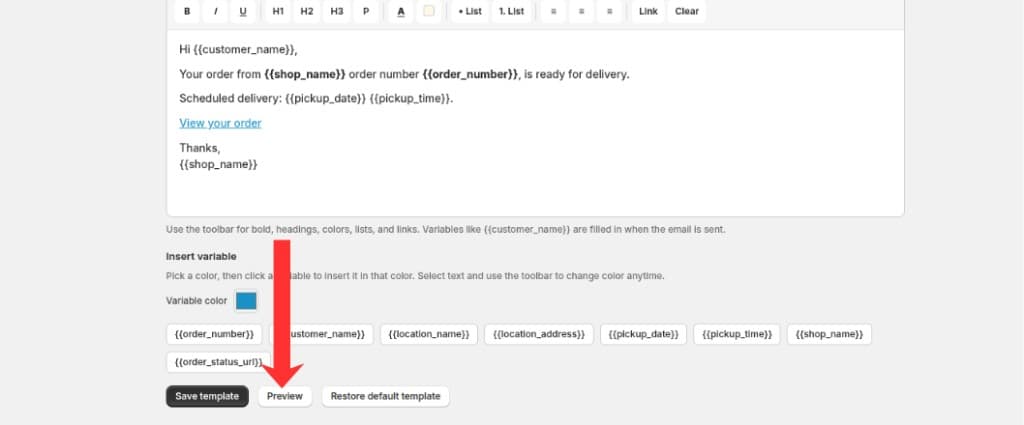
Click Preview to see how the email will look before saving
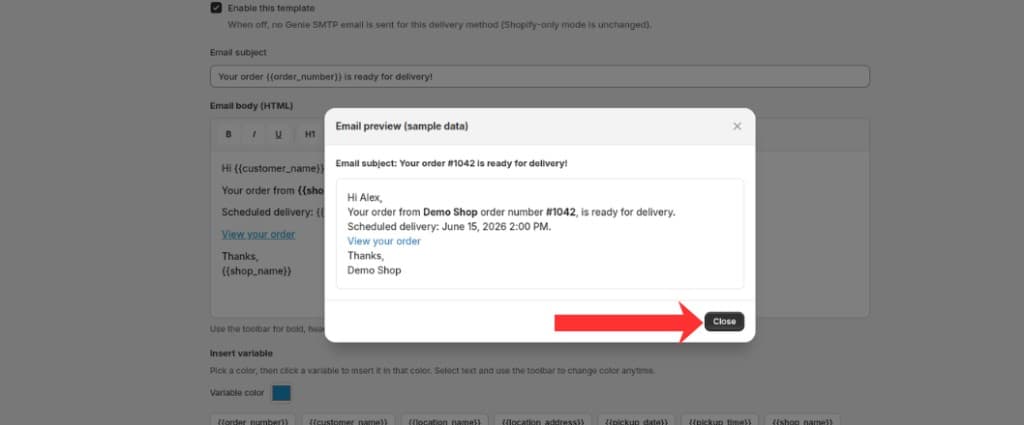
You will see the email preview with sample data — click Close when you are done reviewing
Click Save to apply your changes.
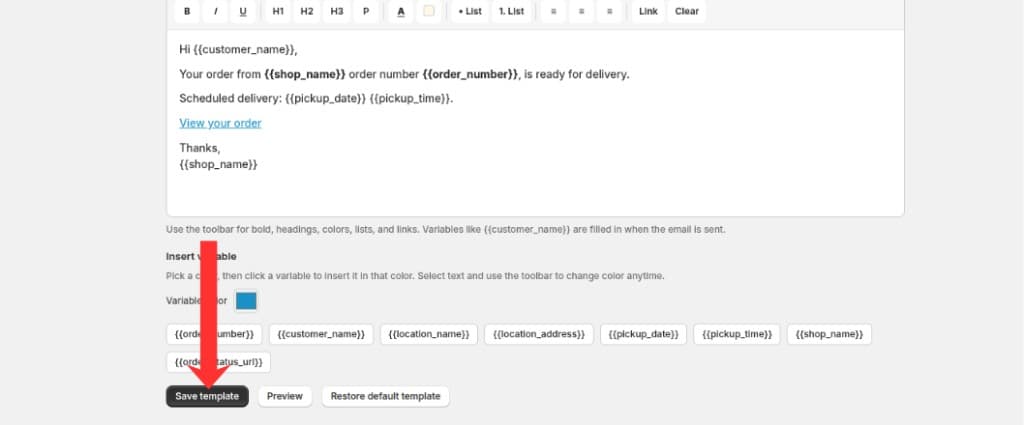
Click Save template to apply your email changes
What's Next