
Control desktop and mobile widget positioning, CSS selector placement, and calendar display settings.
Widget Placement controls where the pickup and delivery widget appears on your storefront and how dates and times are formatted in the calendar.
Open Widget Placement
From the app sidebar, click "Settings".
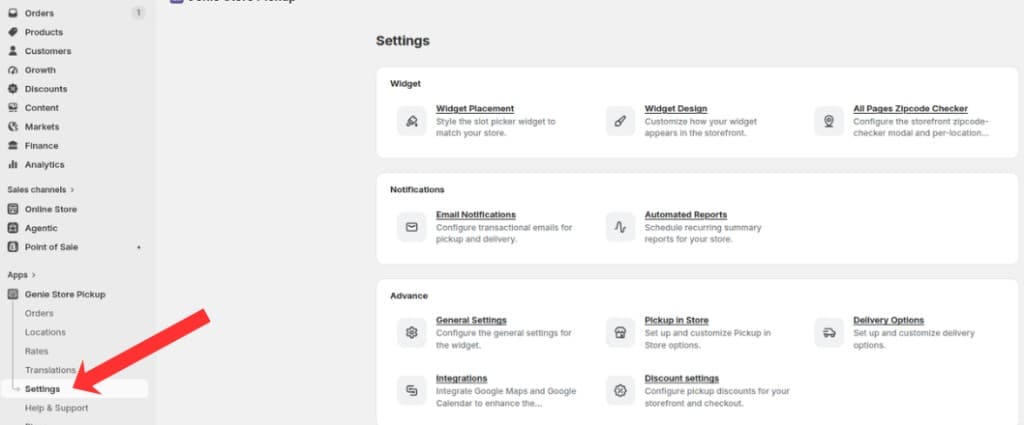
Open Settings from the app sidebar
On the Settings overview, open the Widget group and click "Widget Placement".
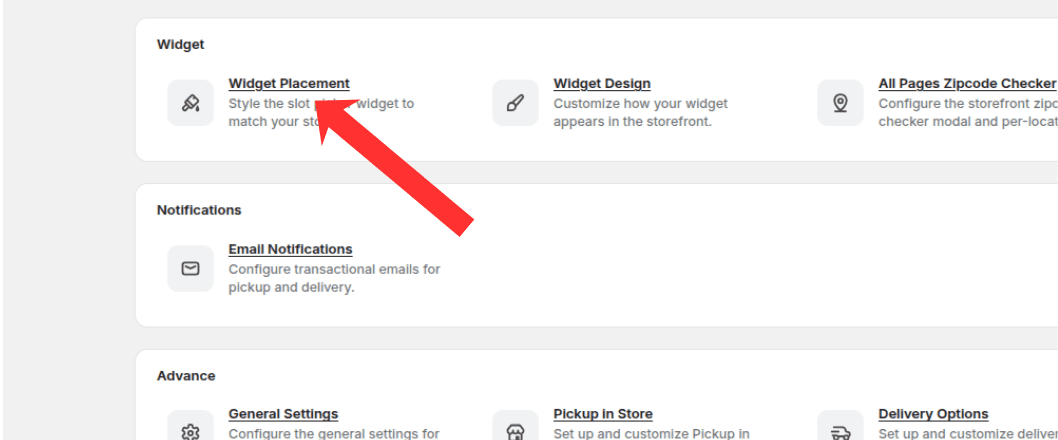
Open the Widget group and click Widget Placement
Desktop positioning
Click the desktop device toggle at the top of the page.
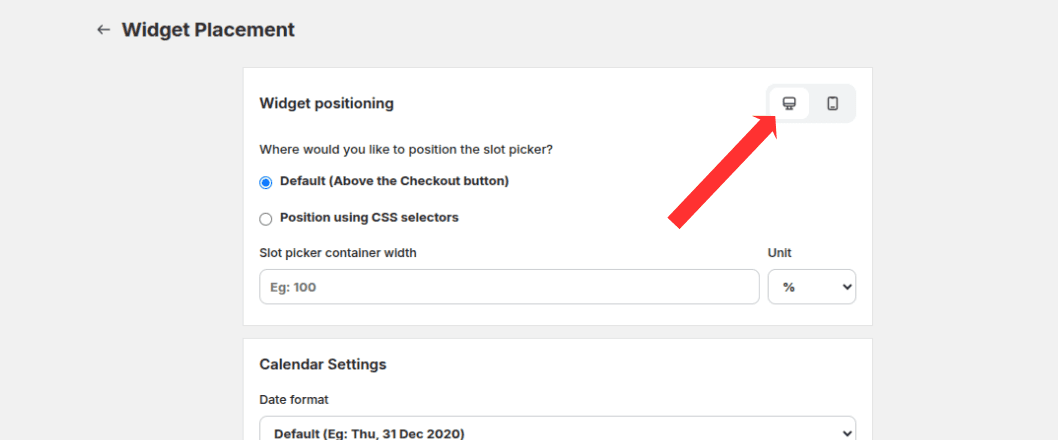
Switch to desktop view to configure desktop widget placement
Choose a positioning mode for where the widget is inserted on cart or checkout pages.
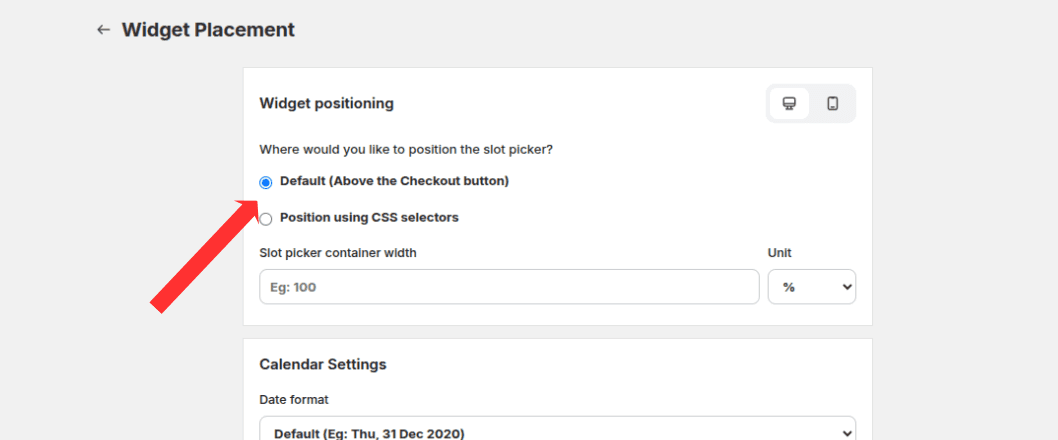
Choose Default placement or Position using CSS selectors
Set the widget width value and unit if needed.
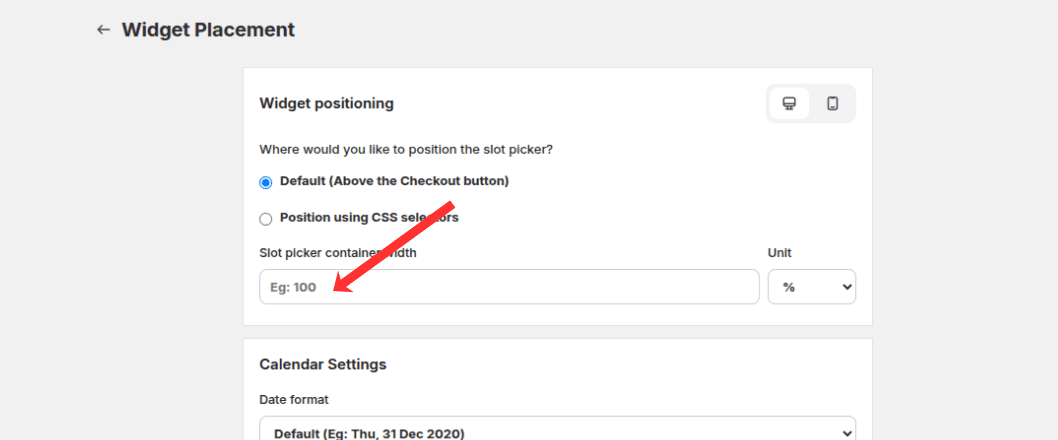
Set the slot picker container width and choose px or %
CSS selector positioning
When using CSS selector mode, enter the selector for the element where the widget should be placed.
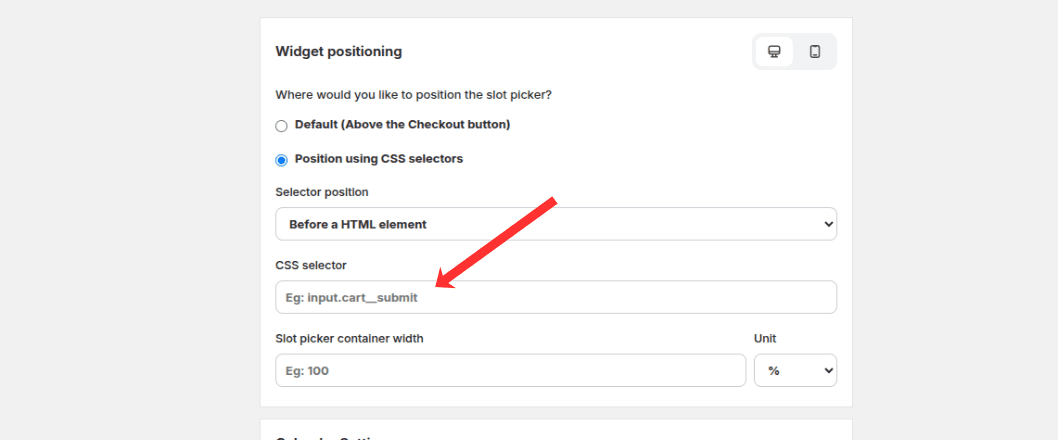
Enter the CSS selector for the element where the widget should be placed
Choose whether the widget is inserted before or after the selected element.
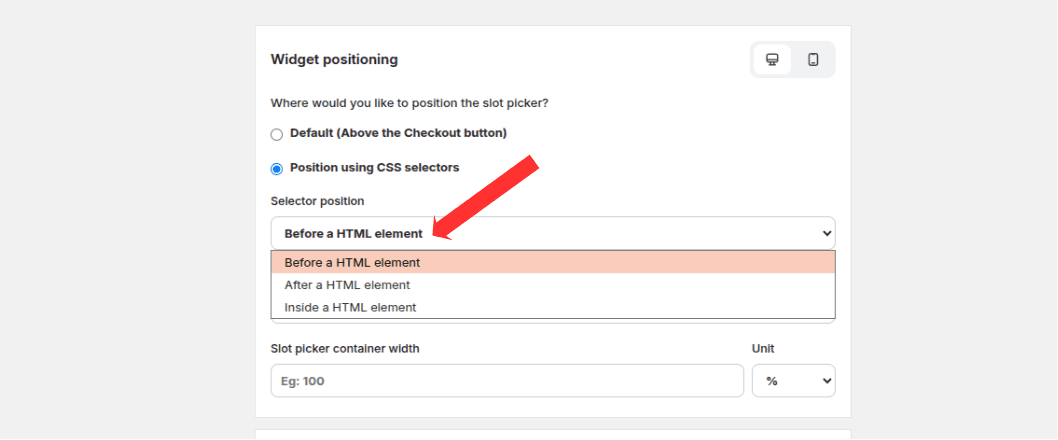
Choose whether the widget is inserted before or after the selected element
Mobile positioning
Click the mobile device toggle.
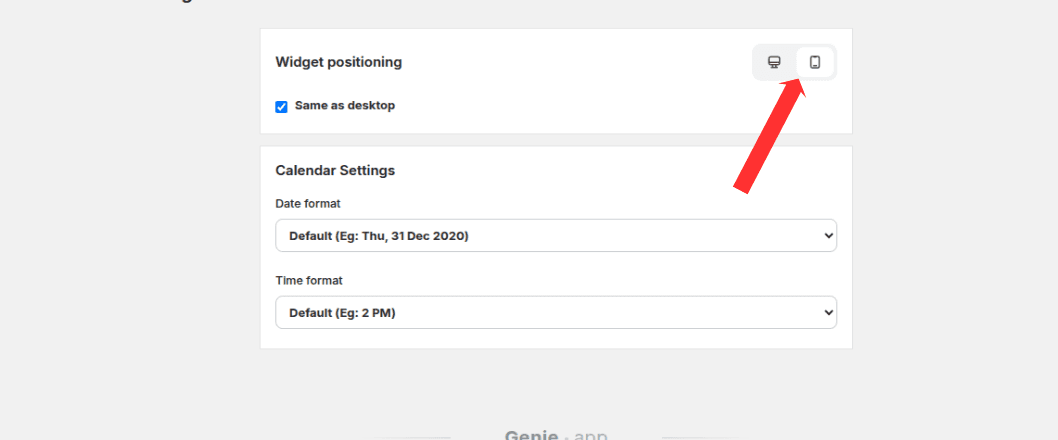
Switch to mobile view to configure mobile widget placement
Enable "Same as desktop" to reuse desktop placement, or configure separate mobile positioning and CSS selector settings.
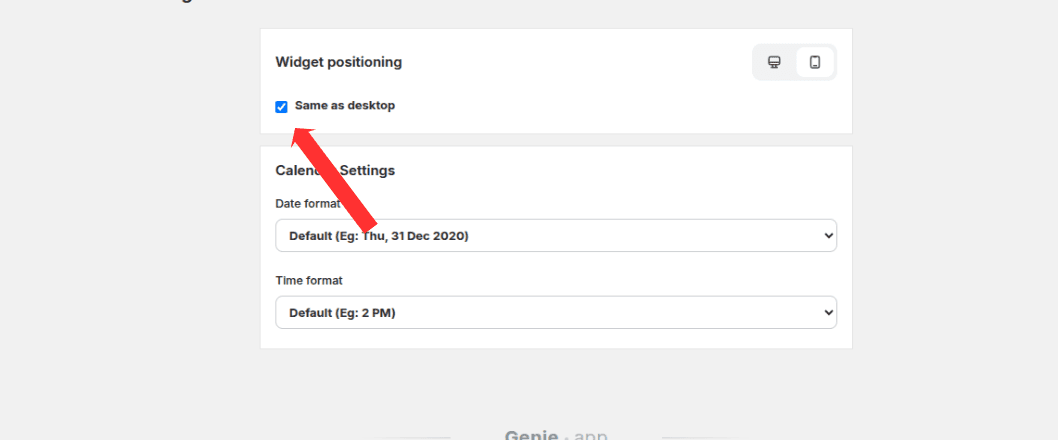
Enable Same as desktop to reuse your desktop placement settings on mobile
Calendar settings
Set the date format shown in the widget calendar (default, MM-DD-YYYY, or DD-MM-YYYY).
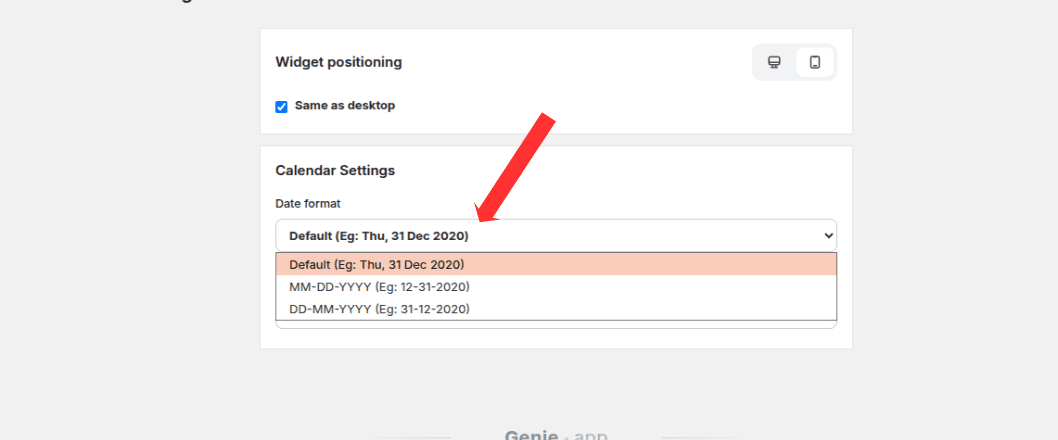
Choose how dates appear in the widget calendar
Set the time format to 12-hour or 24-hour clock.
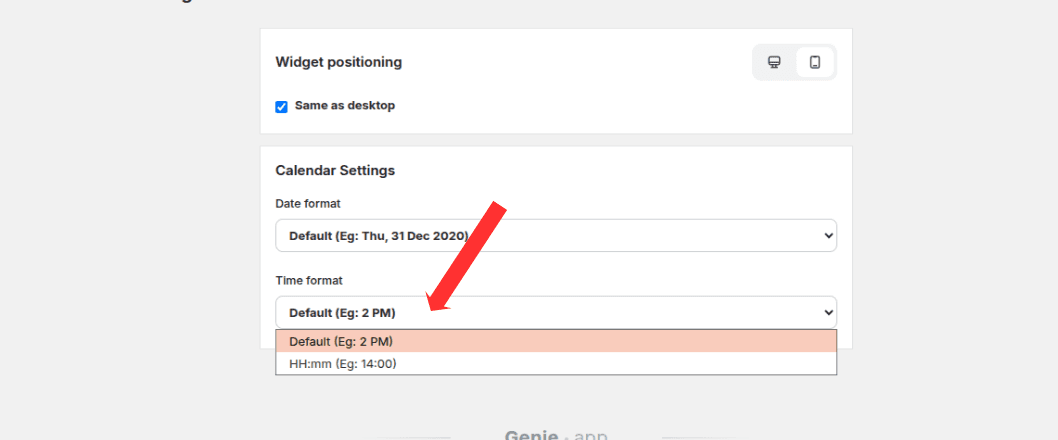
Choose 12-hour or 24-hour time format for the widget
Click Save in the save bar to apply changes.
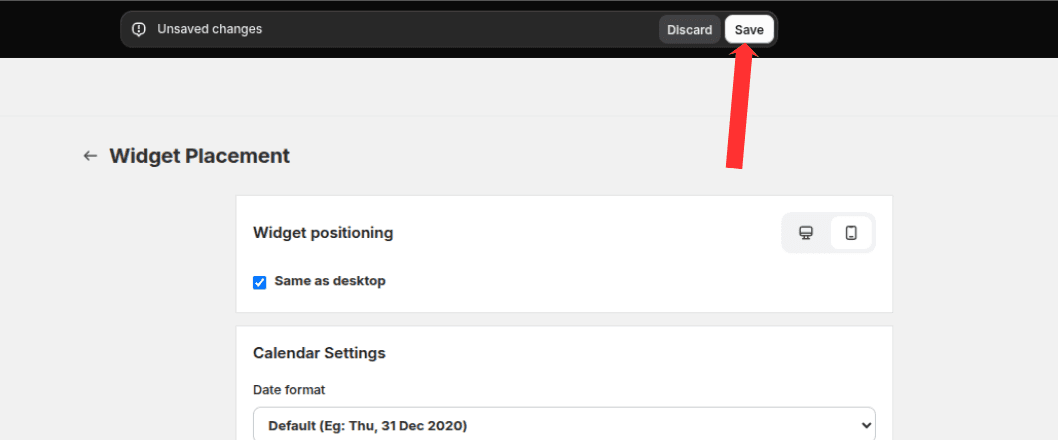
Click Save in the save bar to apply your placement changes
If the widget does not appear on your storefront, enable the app embed from the warning banner on the Settings overview.
What's Next