
How to view and manage bookings
Last updated: September 15, 2026
Find appointments on the Bookings page, filter them, and open a booking for details.
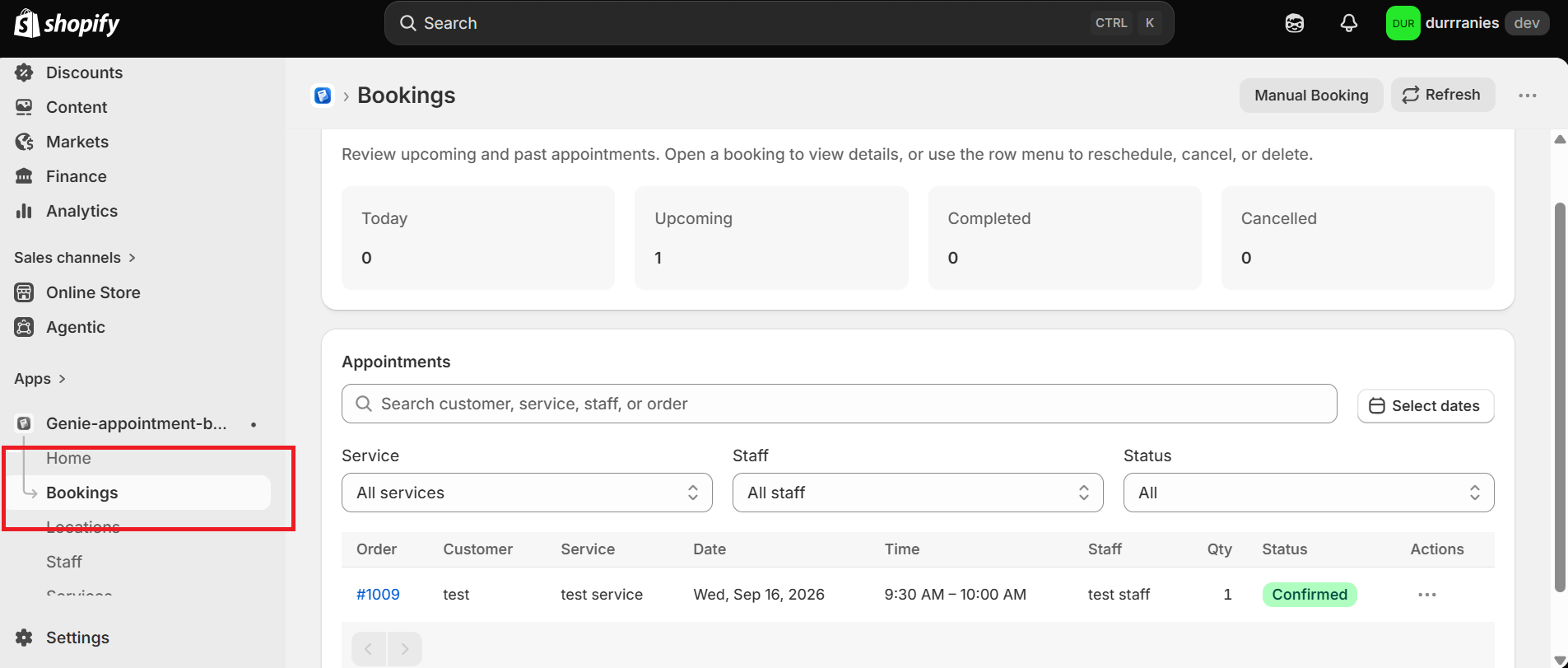
After you finish setup, Bookings in the sidebar is the full list of appointments. Home only shows upcoming confirmed bookings; Bookings shows every status.
From the app sidebar, click "Bookings".
Overview cards
Four cards at the top show counts for Today, Upcoming, Completed, and Cancelled.
Search and filters
Search by customer, service, staff, or order name.
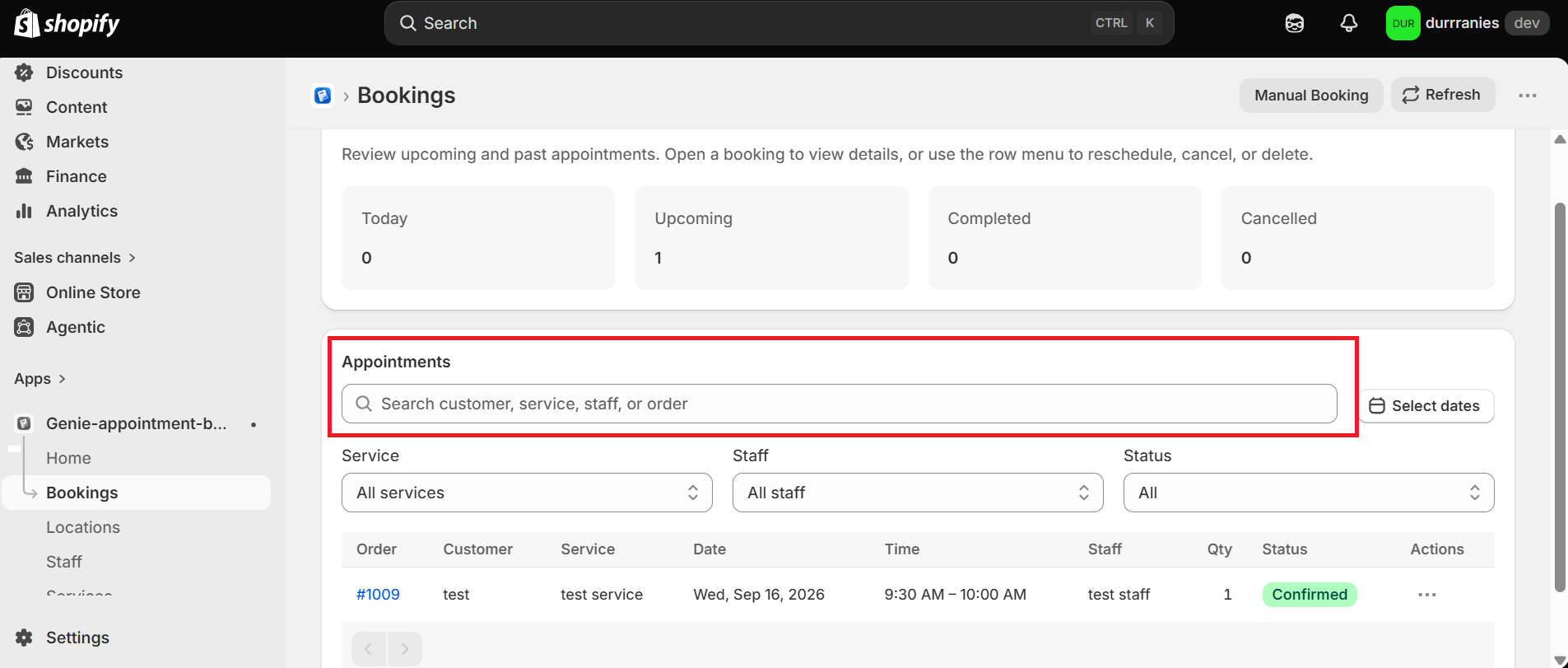
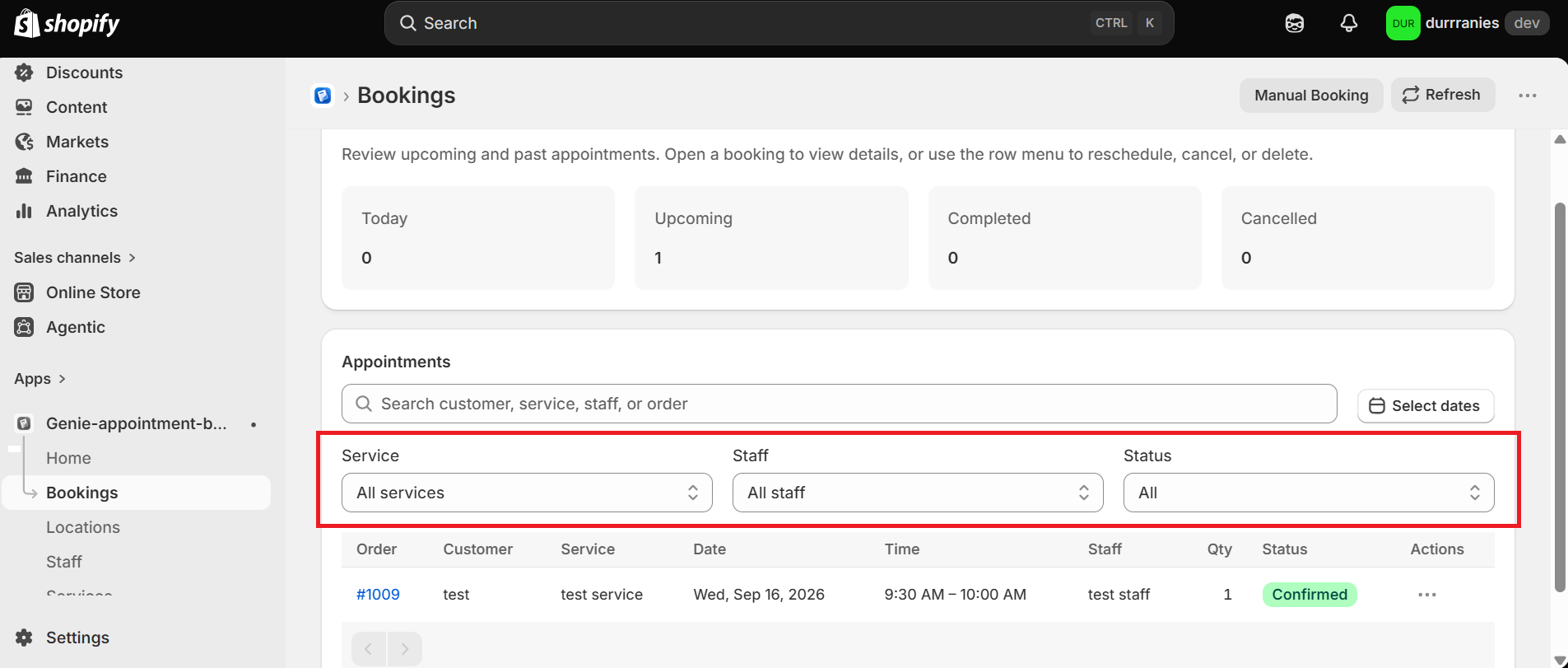
Filter by date range, service, staff, and status: Pending payment, Confirmed, Completed, or Cancelled.
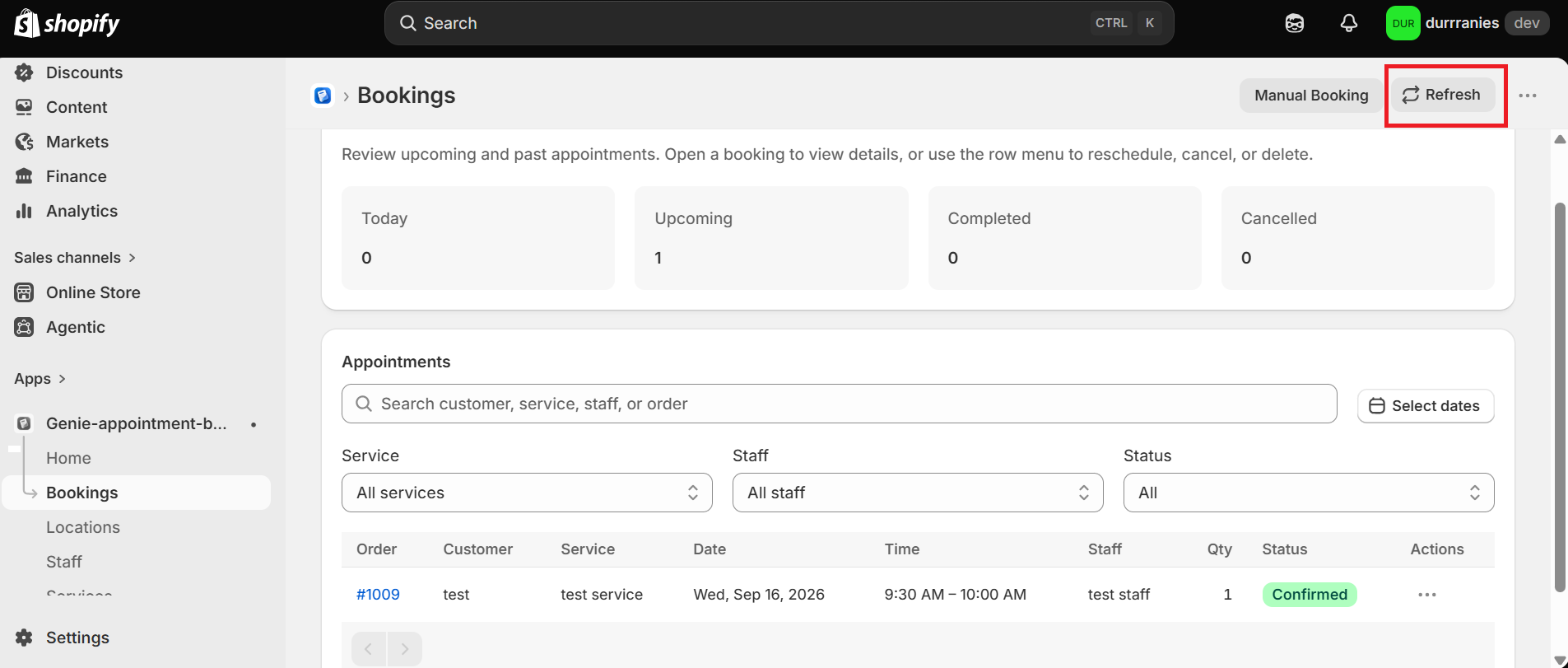
Click Refresh if you just received a new storefront booking and it is not in the list yet.
Open a booking
Open the row actions menu and click "View", or click the order name. The detail page shows date, time, location, staff, service, customer, payment, and any extra questions the customer answered.
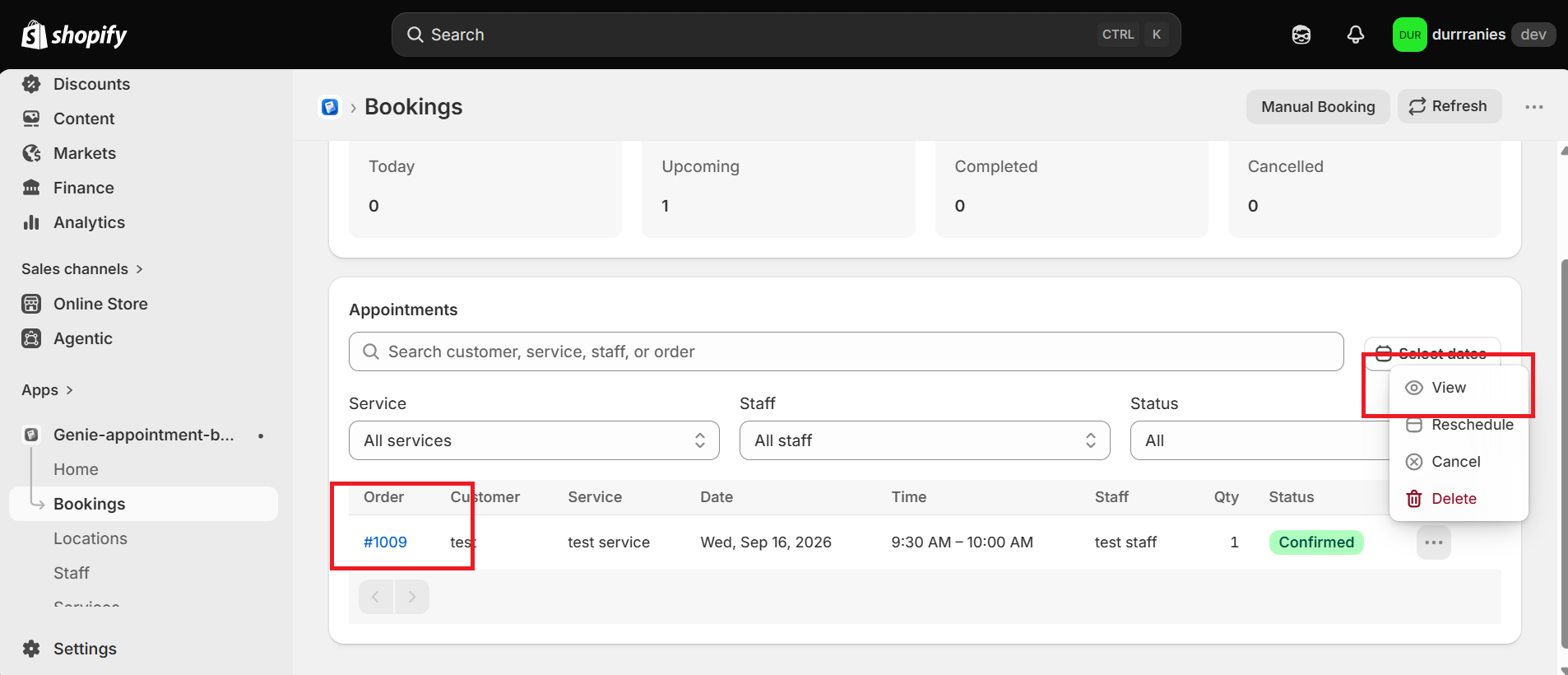
Statuses: Confirmed (paid or completed checkout), Pending payment (manual booking waiting on the Shopify invoice), Completed (past), Cancelled.