
Understanding the Dashboard
Last updated: September 17, 2026
Learn what the Home Dashboard shows after you finish the setup guide.
After you click Finish setup, Home is titled Dashboard. It is the first page you see when you open the app, and it gives a live view of your appointments.
Sidebar
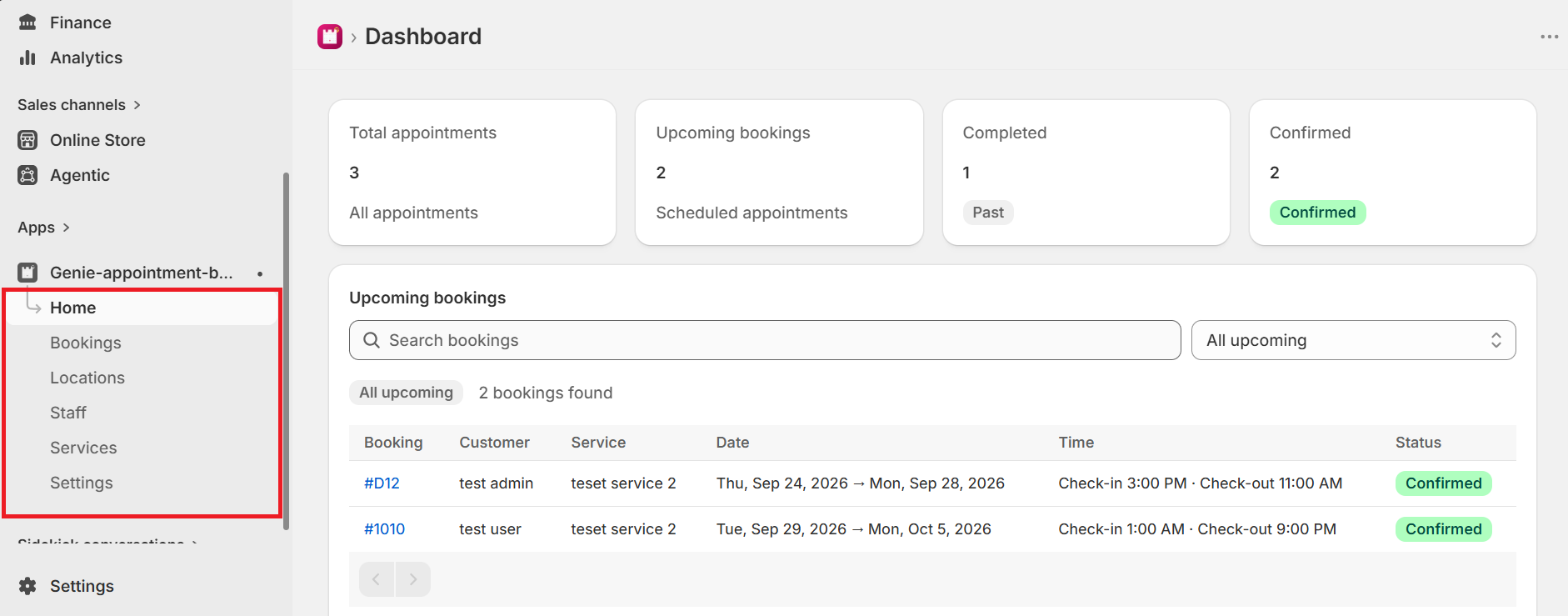
Once setup is complete, the app sidebar includes:
Home — this Dashboard.
Bookings — full booking list and booking details.
Locations — add and edit booking locations.
Staff — add and edit team members.
Services — add and edit bookable services (Shopify products).
Settings — general, widget design, email/SMS, email templates, and translations.
Summary cards
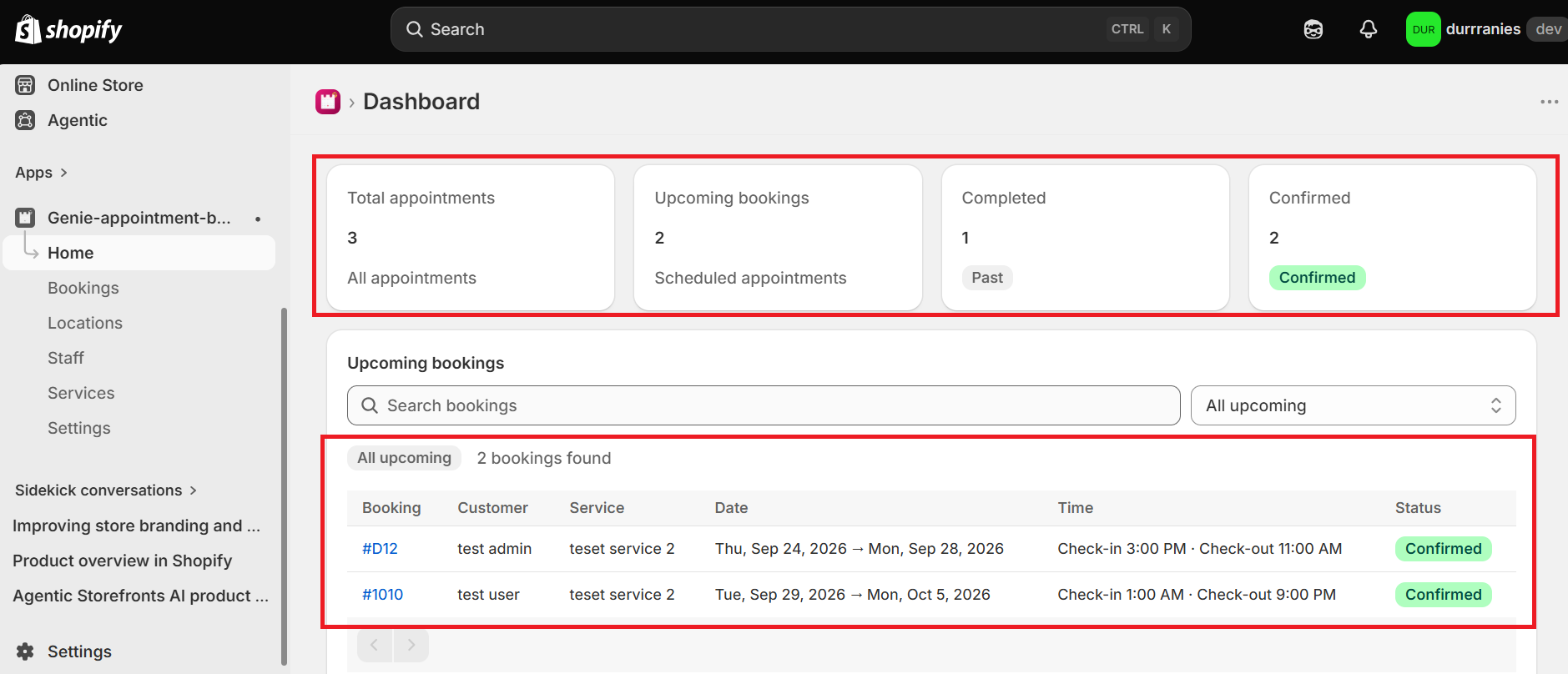
Four cards at the top of the Dashboard show:
Total appointments — every booking in the app.
Upcoming bookings — confirmed appointments from today onward.
Completed — past completed bookings.
Confirmed — confirmed upcoming bookings (same set as Upcoming).
Upcoming bookings table
Below the cards is a table of upcoming confirmed bookings. Each row shows the Shopify order name, customer, service, date, time, and status. Click the order name to open that booking.
You can search the table and filter by date:
All upcoming
Today
Tomorrow
Next 7 days
Next month, 3 months, 6 months, 9 months, or 1 year
If no bookings match the filter, the table shows "No bookings found" for that range. Use Bookings in the sidebar to see cancelled and past bookings as well.