
How to add a pickup location
Last updated: March 1, 2026
Create your first store pickup location with address, hours, and time slots.
Pickup locations are the physical stores or collection points your customers see and choose from at checkout. You can add as many locations as needed.
Create a new location
From the app sidebar, click "Locations".
Click the "Create New Location" button in the top right.
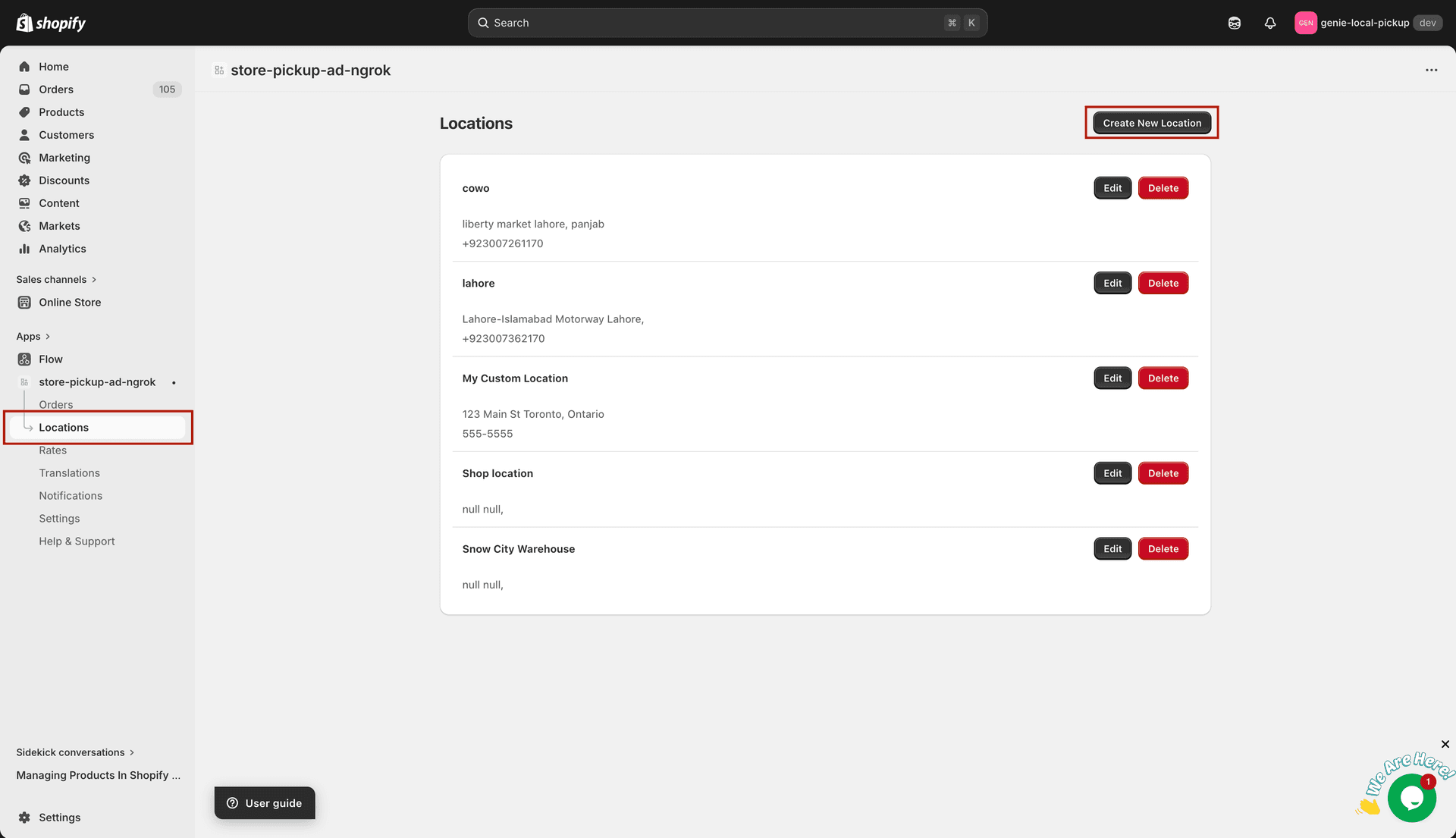
Click "Create New Location" to add a new pickup point
Enter the location name (this is shown to customers, e.g. "Main Street Store").
Enter the full address of the location.
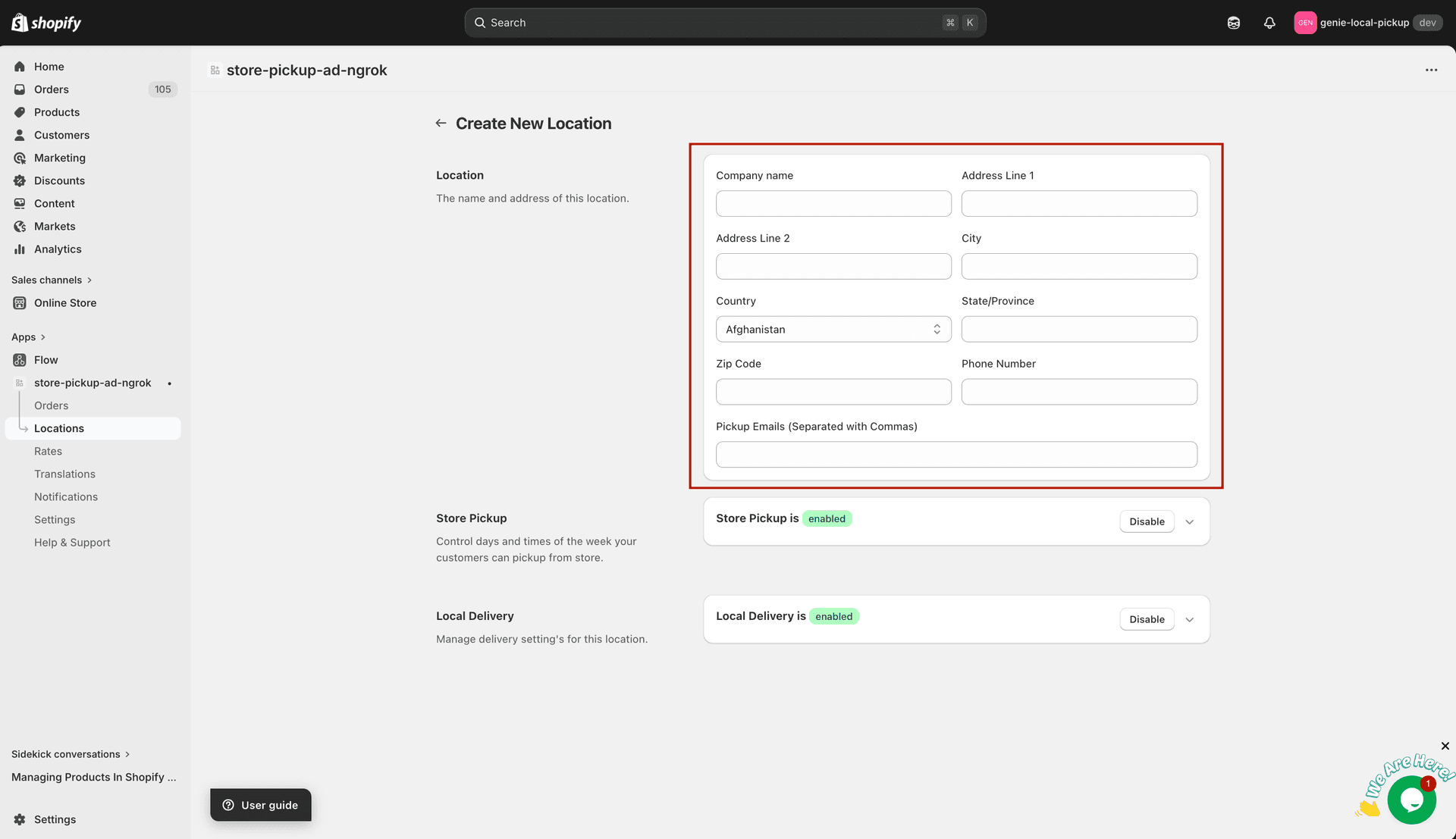
Fill in the name and address for the pickup location
Set pickup days & time slots
Click on the "Pickup" tab inside the location form.
Toggle on the days when pickup is available (e.g. Monday to Saturday).
For each active day, add time slots (e.g. 10:00 AM – 12:00 PM, 12:00 PM – 3:00 PM).
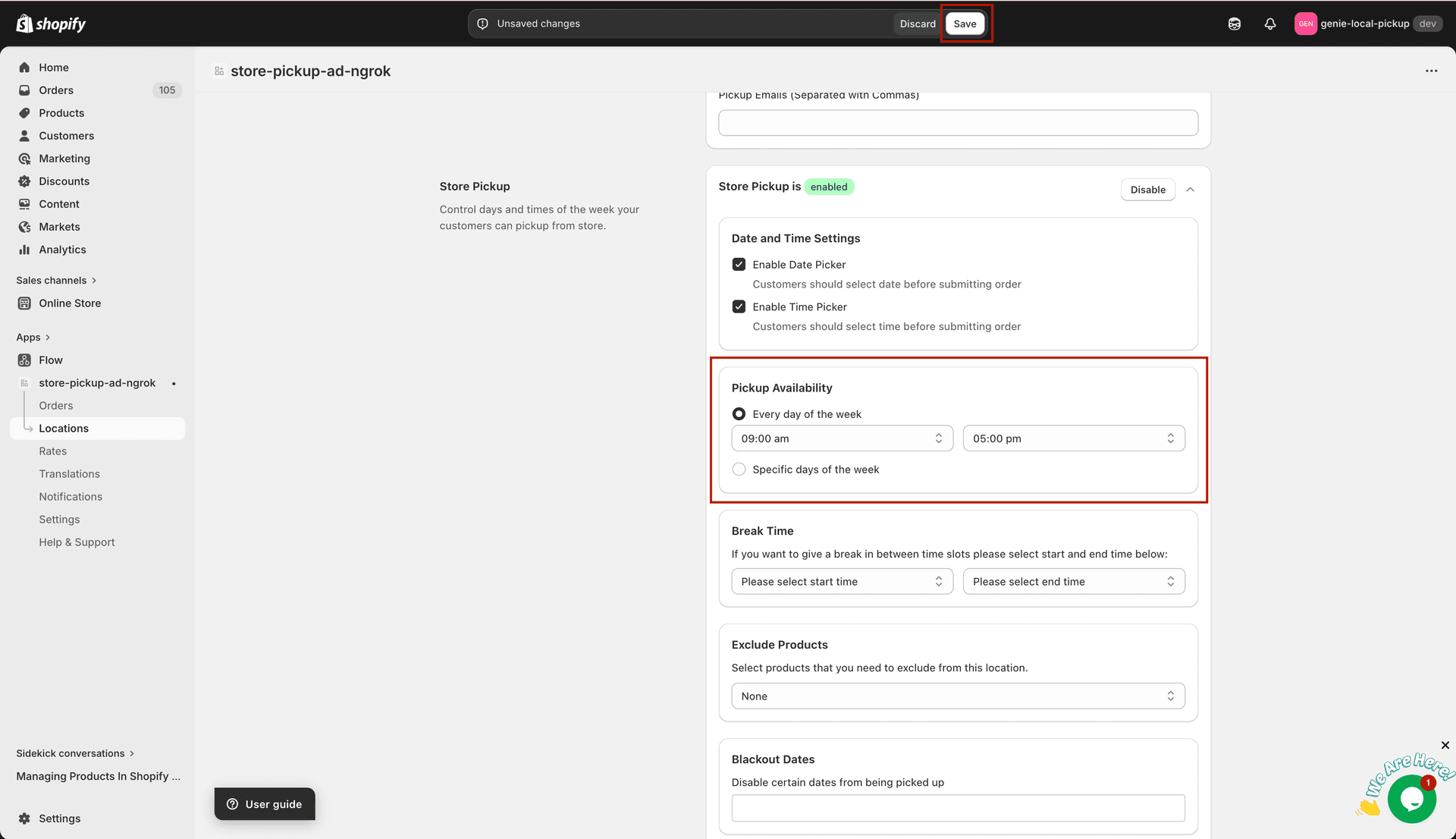
Enable days and add time windows for each day
Set the minimum lead time if you need preparation time before the earliest pickup slot.
Click "Save".
You can add multiple time slots per day. Customers will see all available slots and choose one at checkout.