
Setting up time slots
Last updated: March 1, 2026
Create pickup and delivery time windows so customers can choose a convenient time at checkout.
Time slots are the pickup or delivery windows your customers choose from. For example: "10:00 AM – 12:00 PM" or "3:00 PM – 5:00 PM". Each day can have multiple slots.
Adding time slots to a day
Go to Locations and open a location.
Under the Pickup or Delivery tab, toggle on a day (e.g. Monday).
Click "Add Slot" next to that day.
Set the start time and end time for the slot.
Repeat to add more slots for the same day.
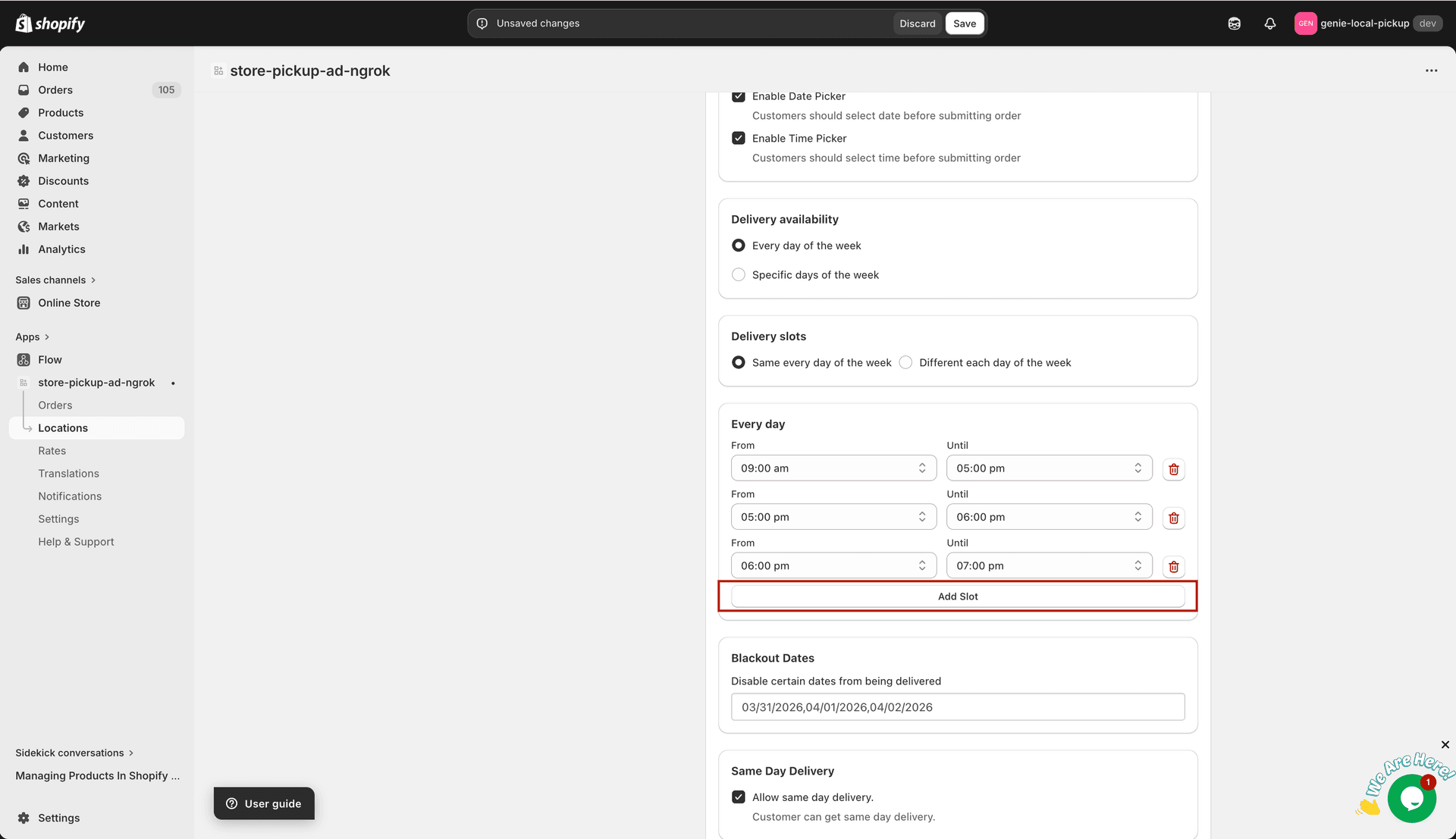
A day with multiple time slots configured
How customers see time slots
On the cart page, after choosing a date, customers see a dropdown or list of the available time slots for that day. They pick one before checking out.
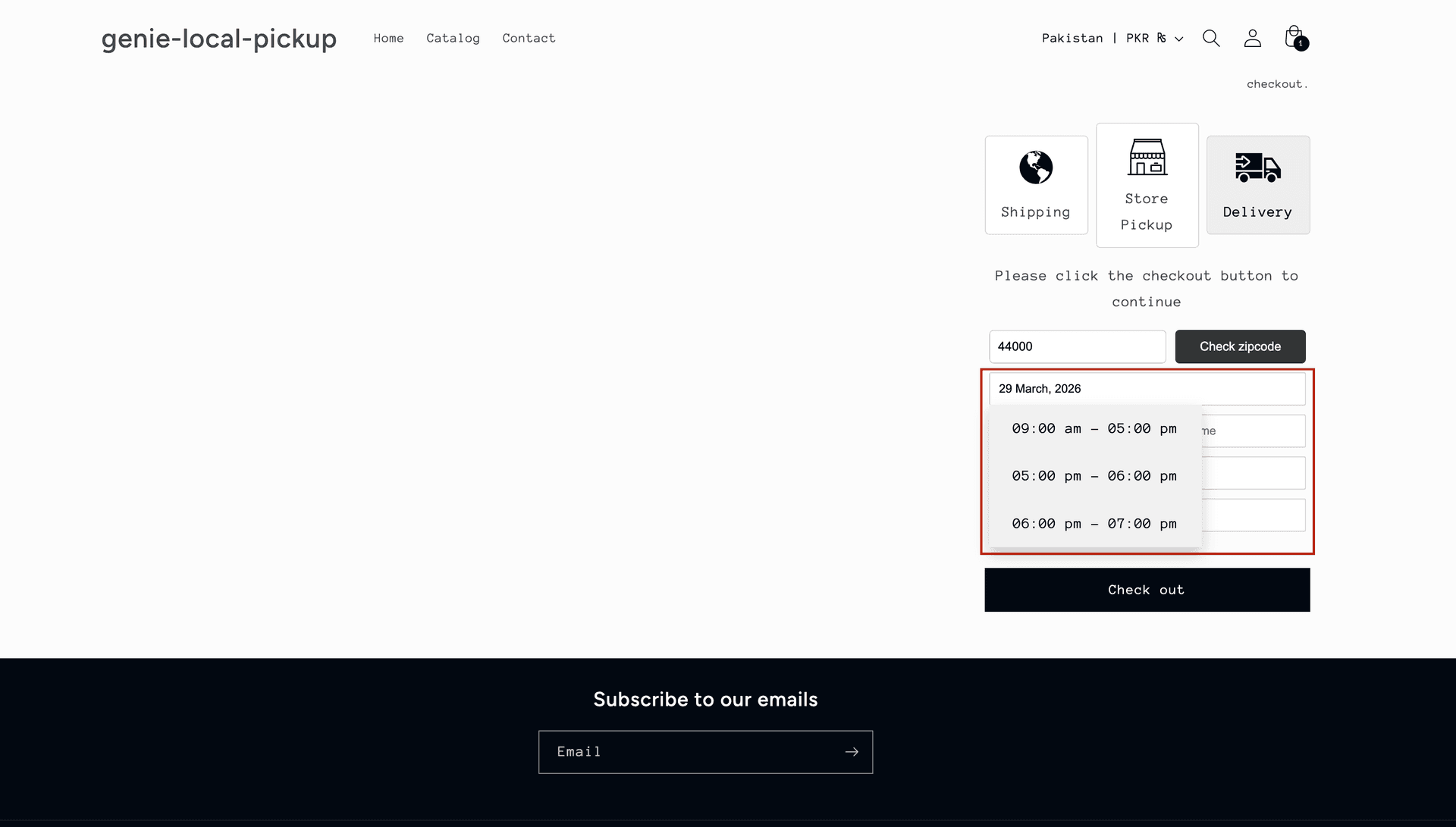
Customers see the available time slots for their chosen date
If you do not want customers to pick a specific time, add a single all-day slot like "09:00 AM – 06:00 PM".