
Understanding the Dashboard
Last updated: March 1, 2026
Learn what every section of the app Dashboard shows and how to use it.
The Dashboard is the first page you see when you open the app. It gives you a live overview of your store's pickup and delivery orders, and quick access to everything you need.
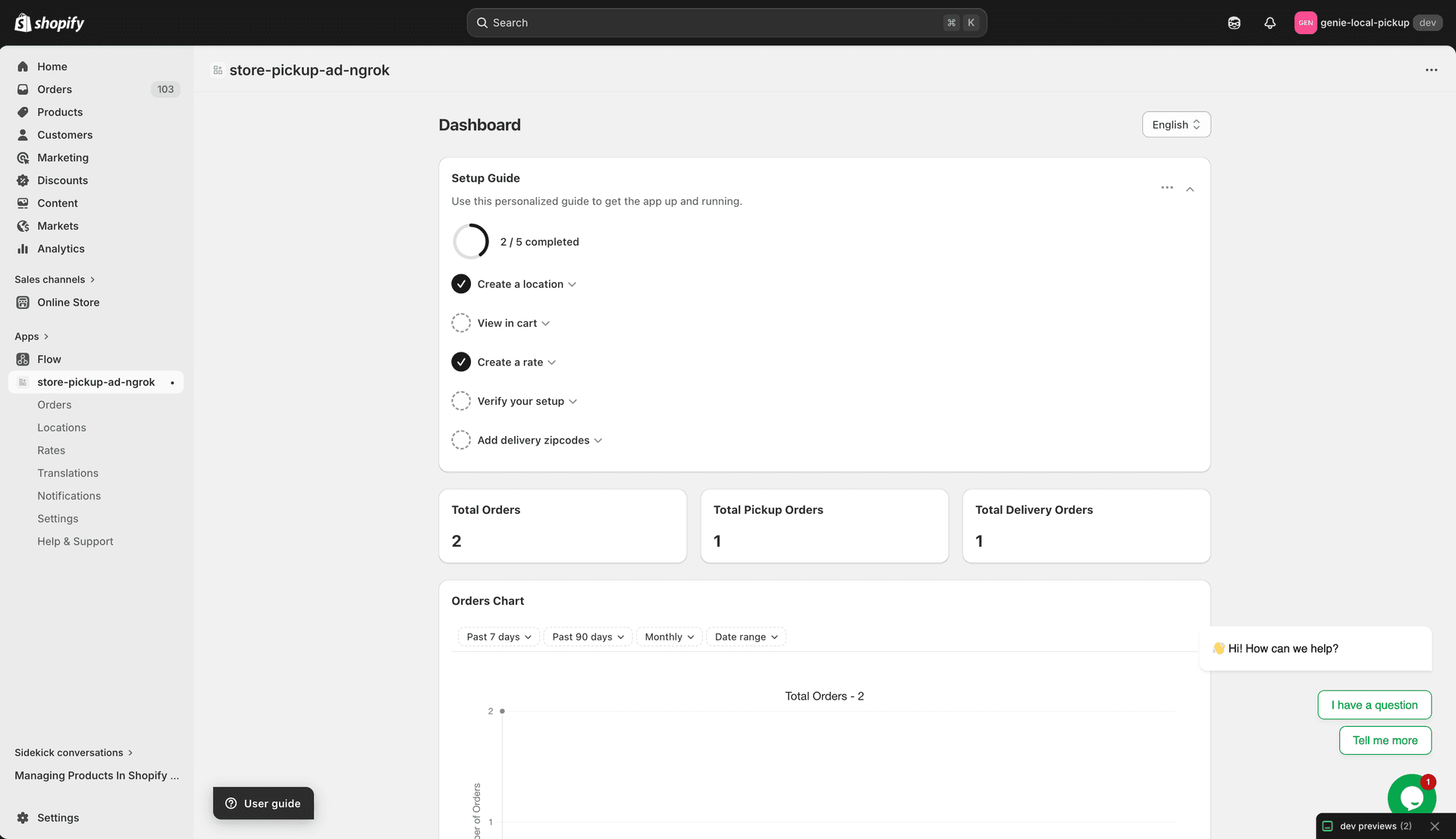
The Dashboard — your central hub for orders and app status
Widget status banner
If the pickup/delivery widget is not yet enabled on your storefront, a yellow warning banner appears at the top of the Dashboard. It shows a button to open your Shopify Theme Editor directly so you can enable the widget.
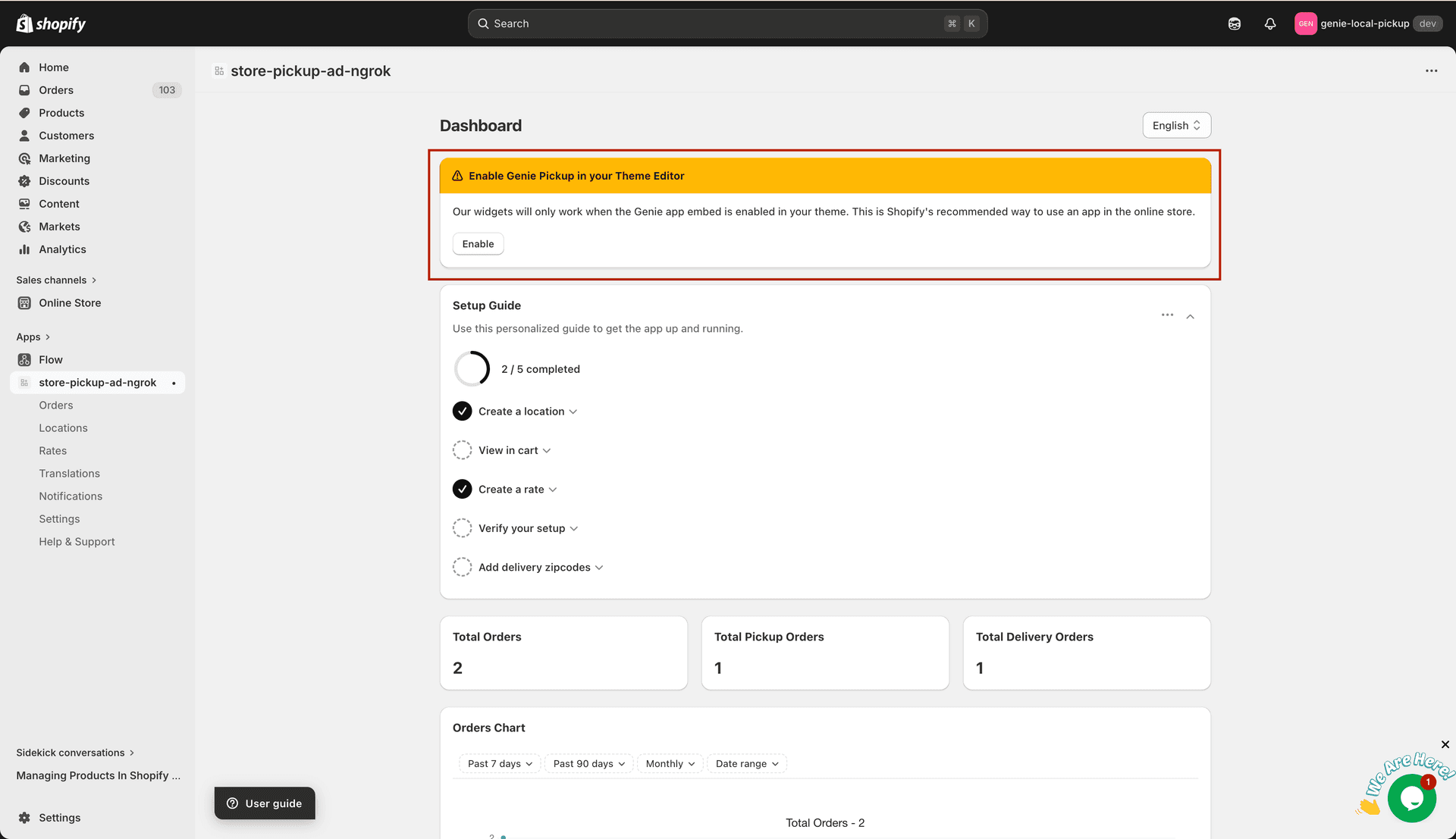
This banner disappears once you enable the widget in your theme
Once the widget is enabled in your theme, this banner disappears automatically.
Setup Guide Card
Below the banner you will see the Setup Guide Card — a checklist that tracks your progress through the key setup steps. It helps you make sure nothing is missed before going live.
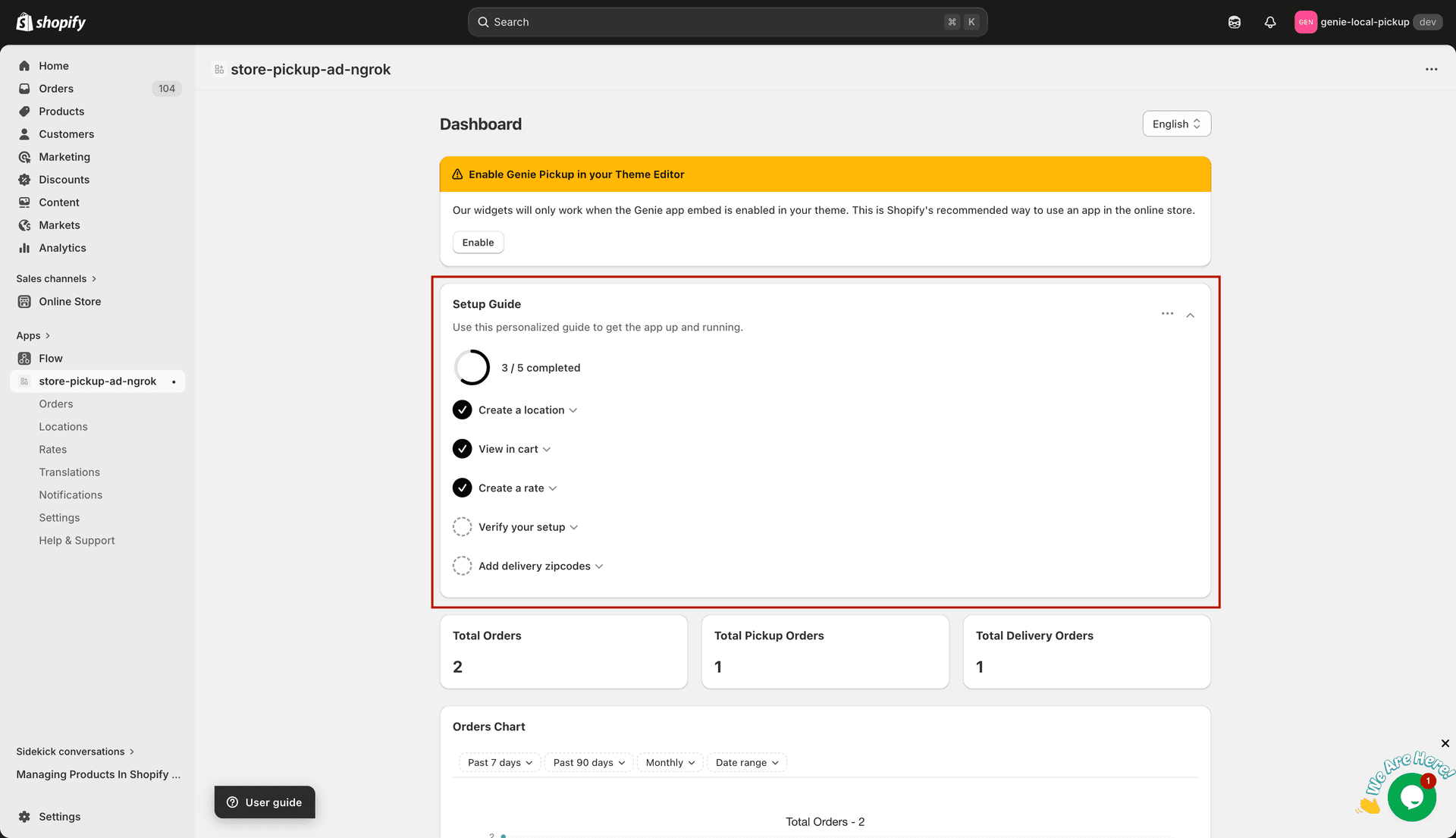
The Setup Guide Card tracks your onboarding progress
Order stats
Three summary cards show your all-time order counts at a glance:
Total Orders — the total number of orders placed through the app.
Total Pickup Orders — orders where the customer chose store pickup.
Total Delivery Orders — orders where the customer chose local delivery.
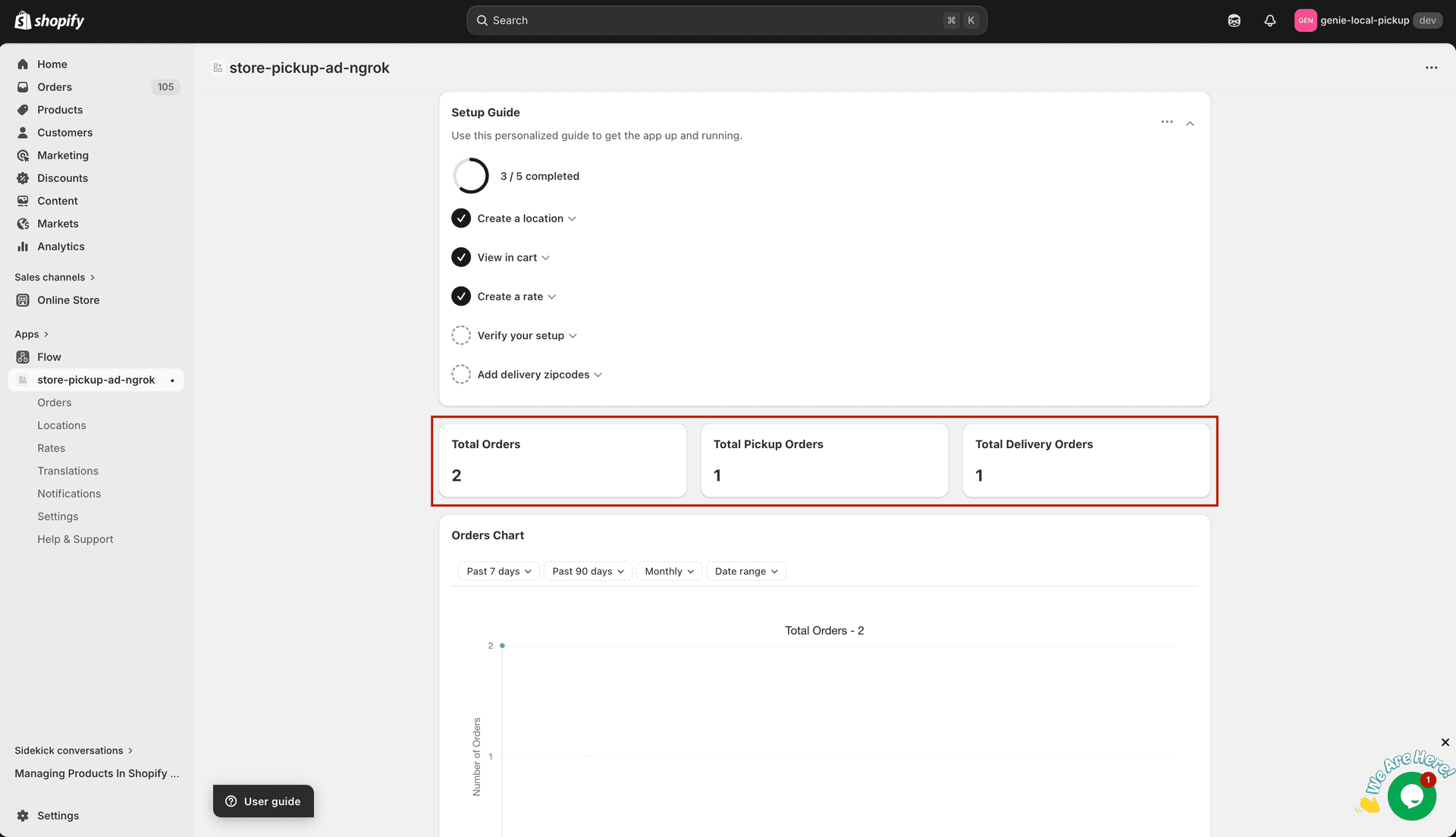
Total, Pickup, and Delivery order counts
Orders chart
The chart below the stats shows order volume over time. You can filter the chart by:
Today — shows orders for the current day only.
Last 7 days — shows order trends for the past week.
Last 90 days — shows the past 3 months of orders.
Monthly — pick any specific month from the last 12 months.
Custom date range — enter a start and end date to view any specific period.
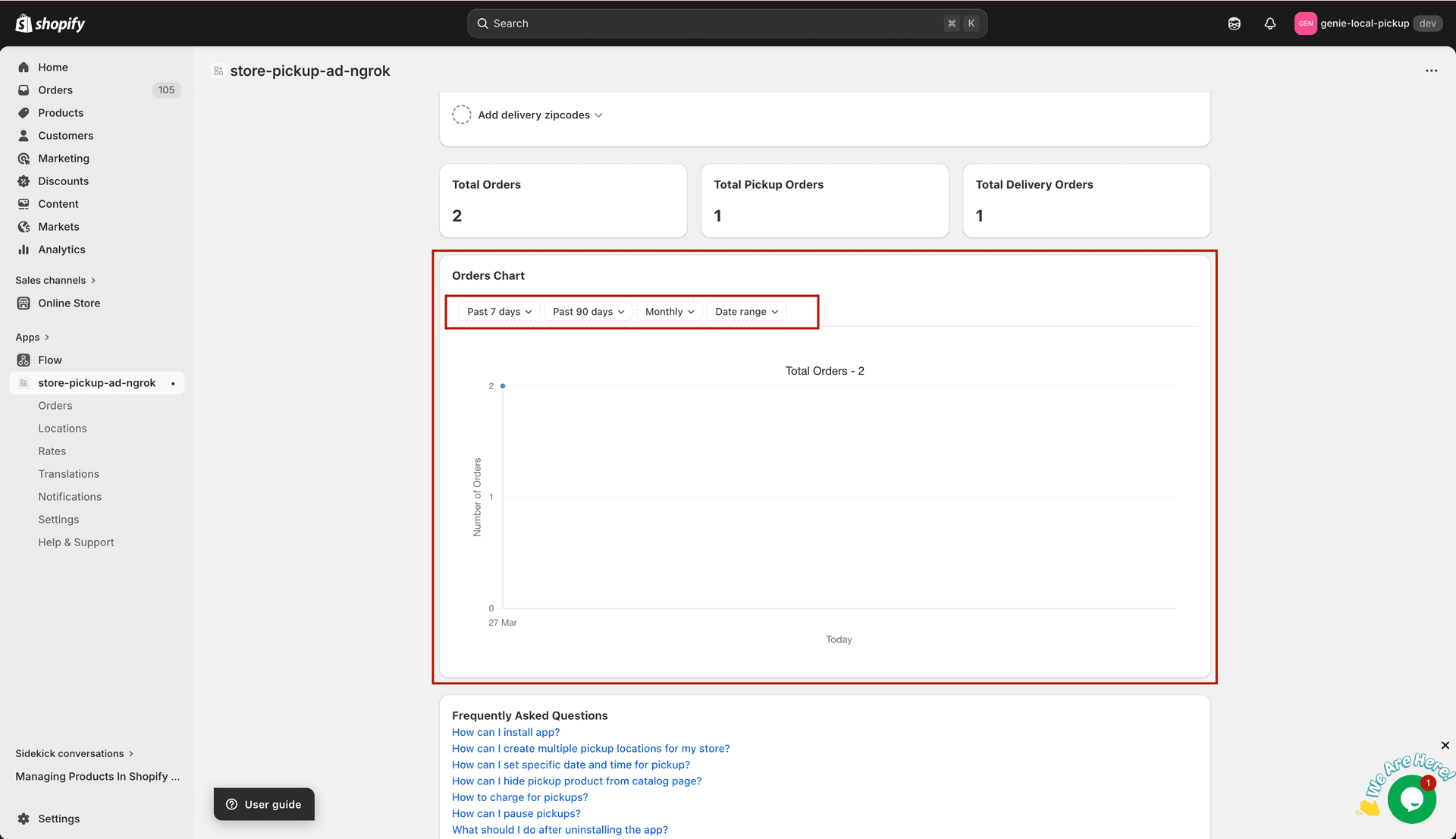
Filter the chart by Today, Last 7 days, Last 90 days, Monthly, or Custom date range
Admin language selector
In the top-right corner of the Dashboard you will find the Admin Language Selector — a dropdown that changes the language of the app's admin interface. This does not affect your storefront; it only changes the labels and text you see inside the app.
The app admin supports 7 languages:
English (default)
French (Français)
Portuguese (Português)
German (Deutsch)
Afrikaans
Chinese Simplified (简体中文)
Chinese Traditional (繁體中文)
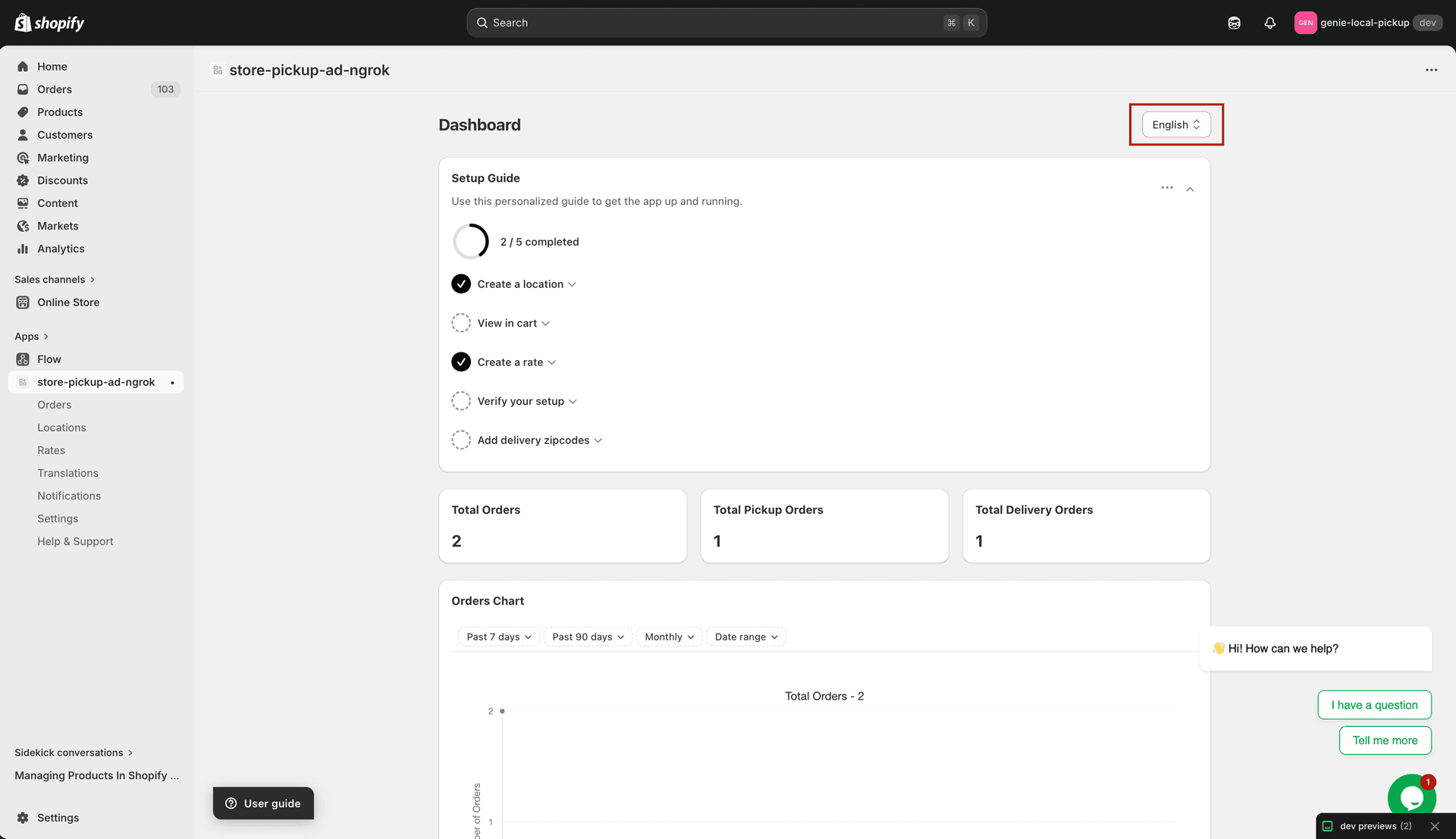
Change the admin UI language from the top-right of the Dashboard
To translate the pickup/delivery widget text that your customers see on the storefront, go to the Translations page — not the language selector here.
FAQ section
At the bottom of the Dashboard is an FAQ section with quick links to the most common setup questions — such as how to create locations, set time slots, pause pickup, and more.
The FAQ links open in a new tab pointing to the Genie Apps help website for detailed instructions.