
Complete the setup guide
Last updated: March 1, 2026
Walk through the 3-step setup guide that appears after installing the app to choose your fulfillment options and enable the widget on your storefront.
When you open the app for the first time after installing it, you are taken through a 3-step setup guide. It walks you through choosing which fulfillment types to offer and activating the widget on your store. The whole process takes under a minute.
The pickup/delivery widget will not appear to customers until you complete Step 3 of the setup guide and enable the widget in your theme.
Step 1 — Welcome screen
The first screen greets you with a welcome message. From here you can:
Click "Book a Call" to schedule a free 30-minute setup call with the Genie Apps team via Calendly.
Click "Next" to continue with the setup.
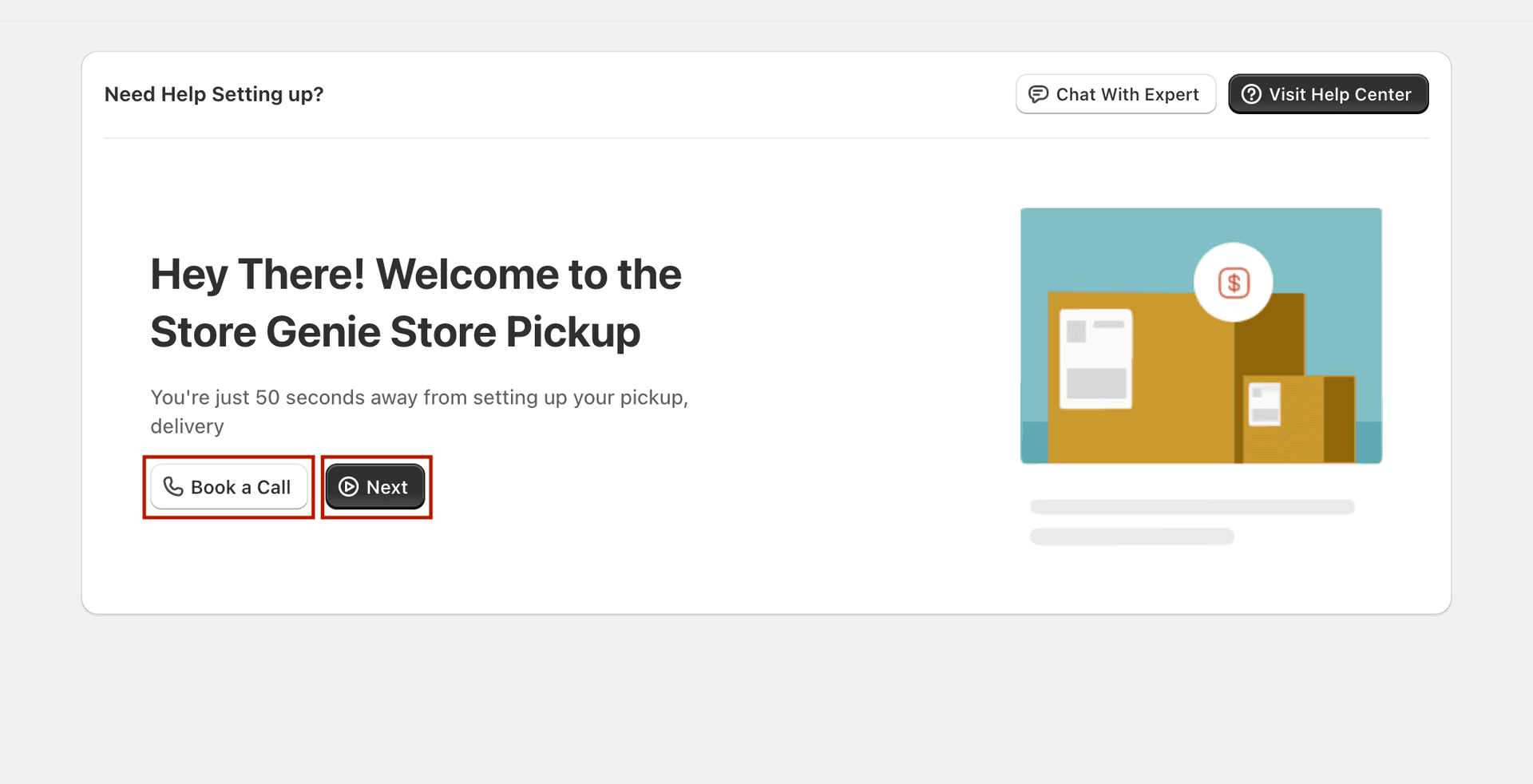
Step 1 — Welcome screen with Book a Call and Next options
Step 2 — Choose your fulfillment options
On the second screen you decide which order fulfillment types to enable for your store. You will see three options:
Store Pickup — enabled by default. Allows customers to collect their order from one of your locations.
Local Delivery — disabled by default. Allows customers within your delivery zipcode to schedule a delivery.
Shipping — enabled by default. Keeps normal Shopify shipping available alongside pickup/delivery.
Toggle each option on or off using the Enable / Disable buttons. You can always change these later from the Settings page.
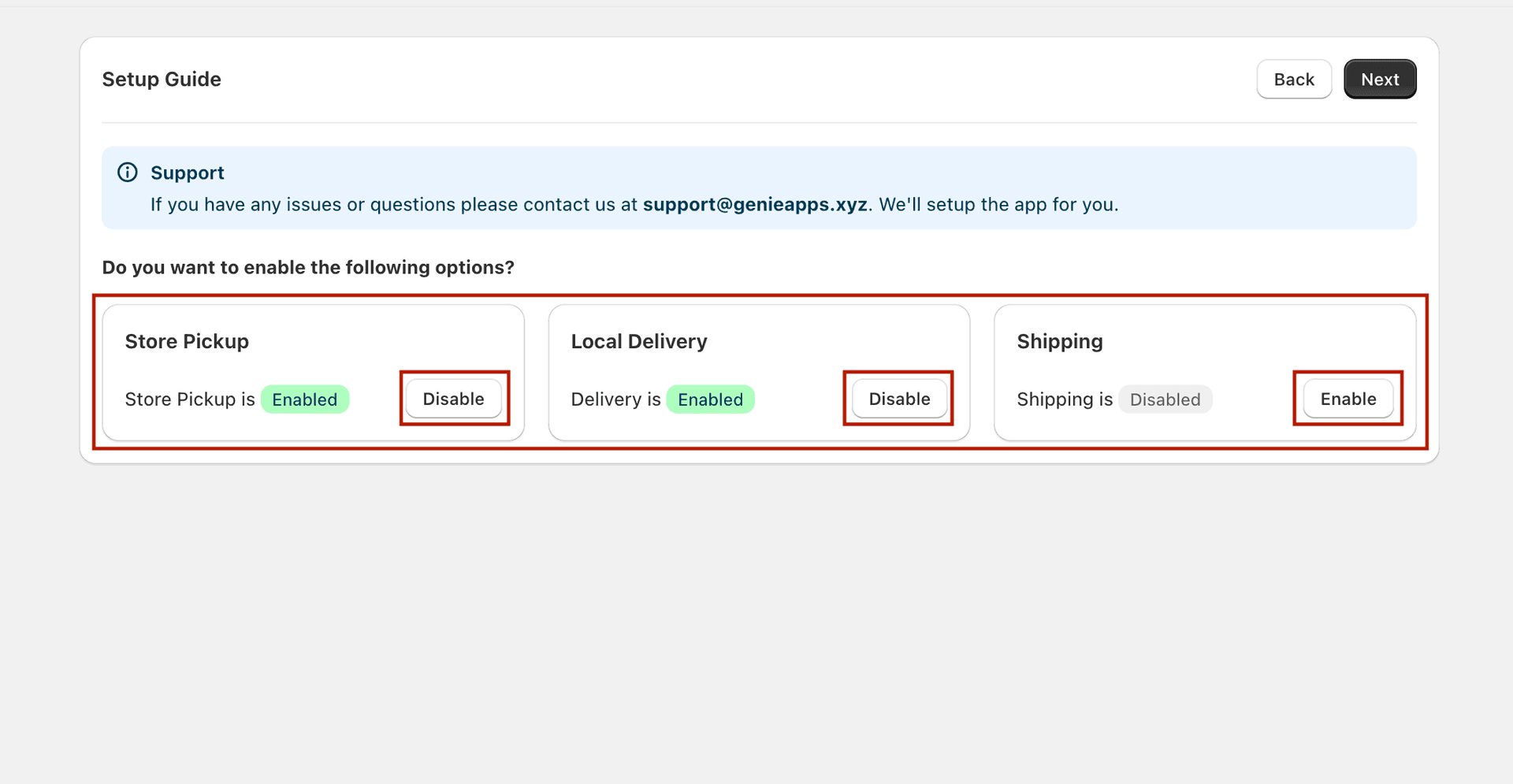
Step 2 — Enable or disable Store Pickup, Local Delivery, and Shipping
Click "Next" once you have chosen your options.
Step 3 — Enable the widget on your theme
This is the most important step. The widget is added as a Shopify App Embed and must be activated in your theme editor.
Select your live theme from the dropdown.
Click "Preview in theme". Your Shopify Theme Editor opens with the app embed already highlighted.
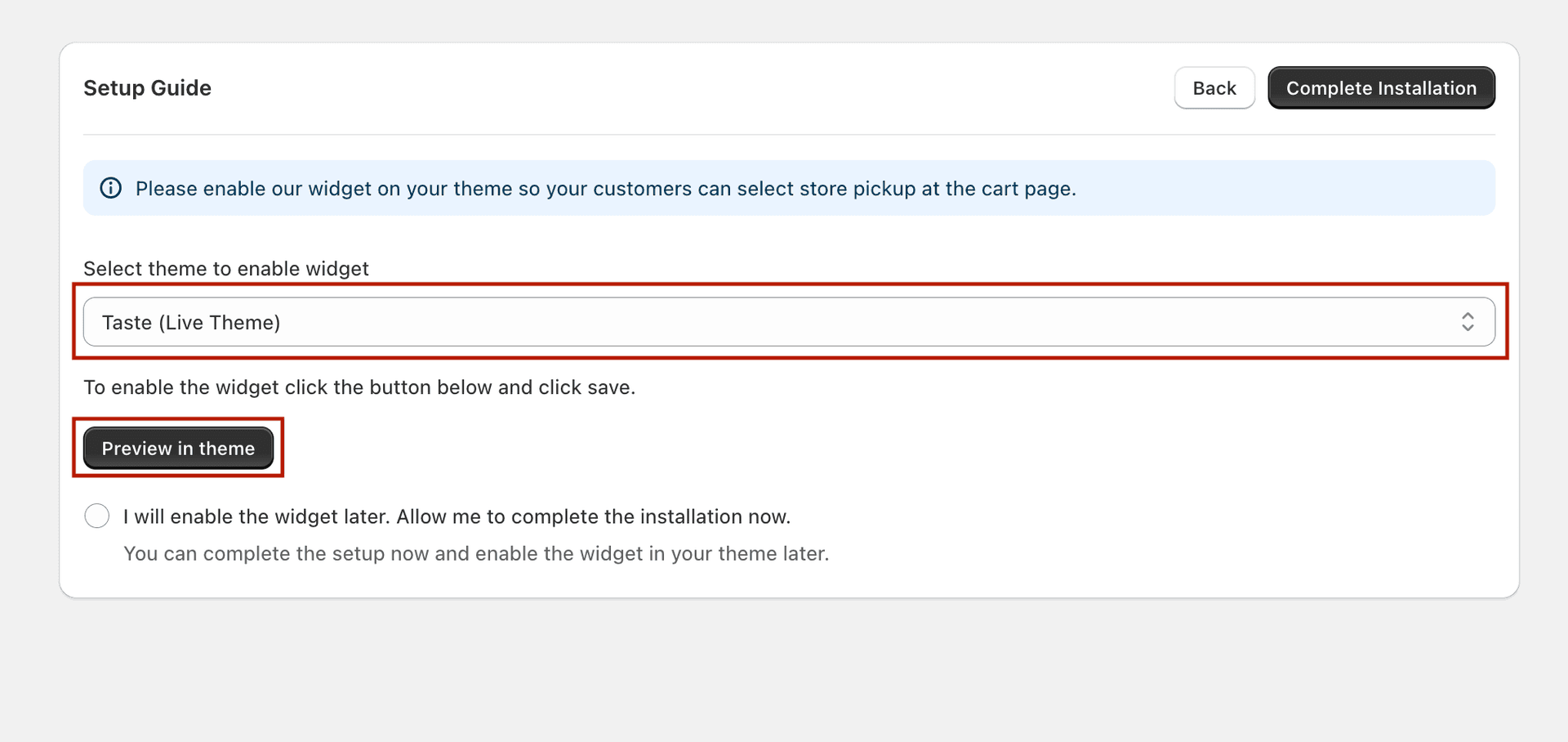
Step 3 — Select your theme and click Preview in theme
In the Theme Editor, toggle the app embed switch to ON.
Click "Save" in the top right of the Theme Editor.
Return to the app and click "Complete Installation".
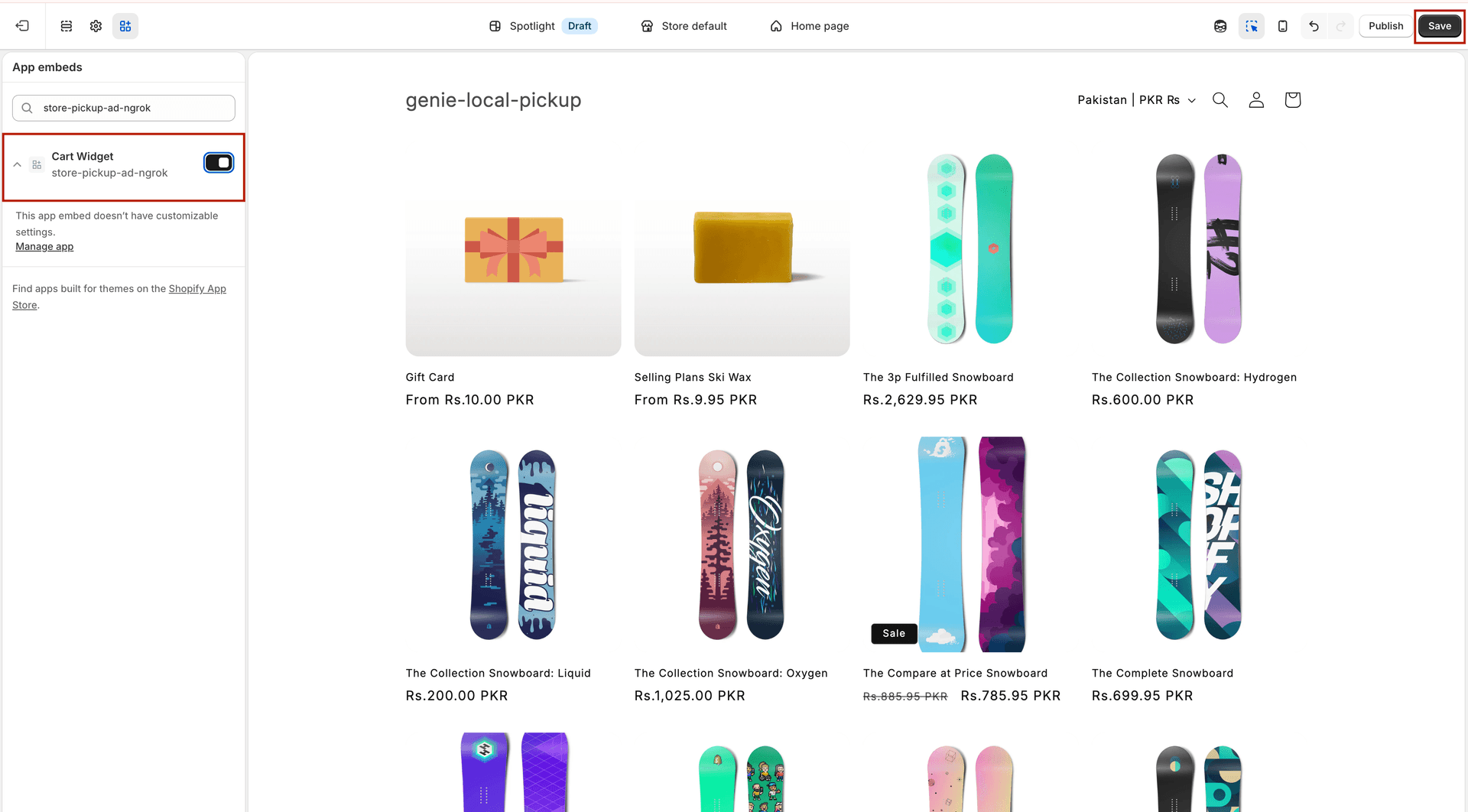
Toggle the embed switch ON and click Save in the Theme Editor
Want to skip enabling the widget for now?
If you are not ready to enable the widget in your theme yet, you can skip this step and complete the installation anyway.
On Step 3, select the radio button: "I will enable the widget later. Allow me to complete the installation now."
Click "Complete Installation". The setup guide will close and you will land on the app dashboard.
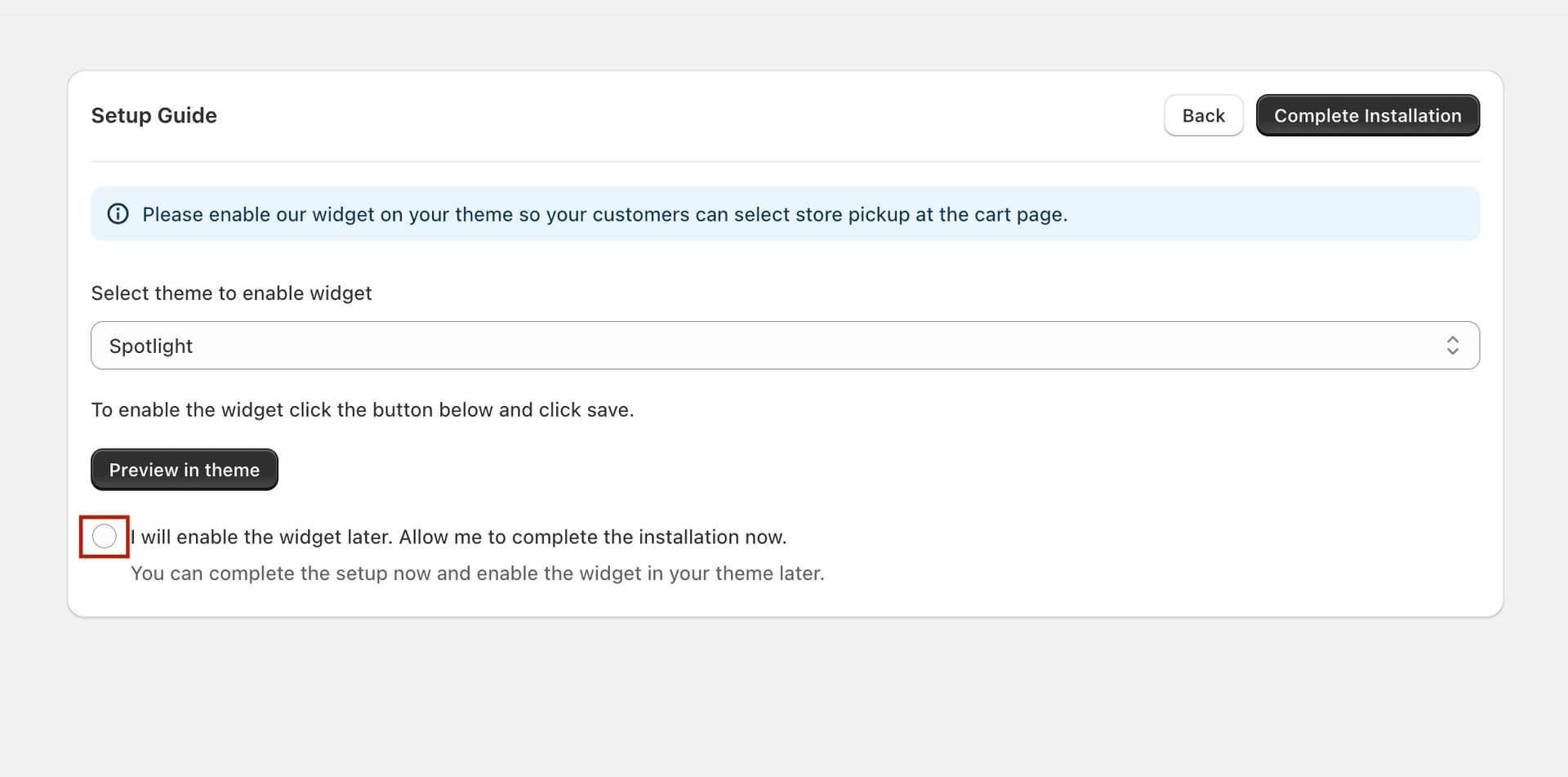
Select this option to skip enabling the widget and finish setup now
You can enable the widget later at any time from: Shopify Admin → Online Store → Themes → Customize → App Embeds → toggle the app ON → Save.