
Block specific dates from being available for delivery.
Delivery blackout dates work the same way as pickup blackout dates — you select calendar dates that should be unavailable for delivery. Customers will not be able to book a delivery on any blocked date.
Add delivery blackout dates
From the app sidebar, click "Locations".
Click the location you want to configure.
Scroll to the "Local Delivery" section and expand it.
Find the "Blackout Dates" card under "Disable dates from delivery".
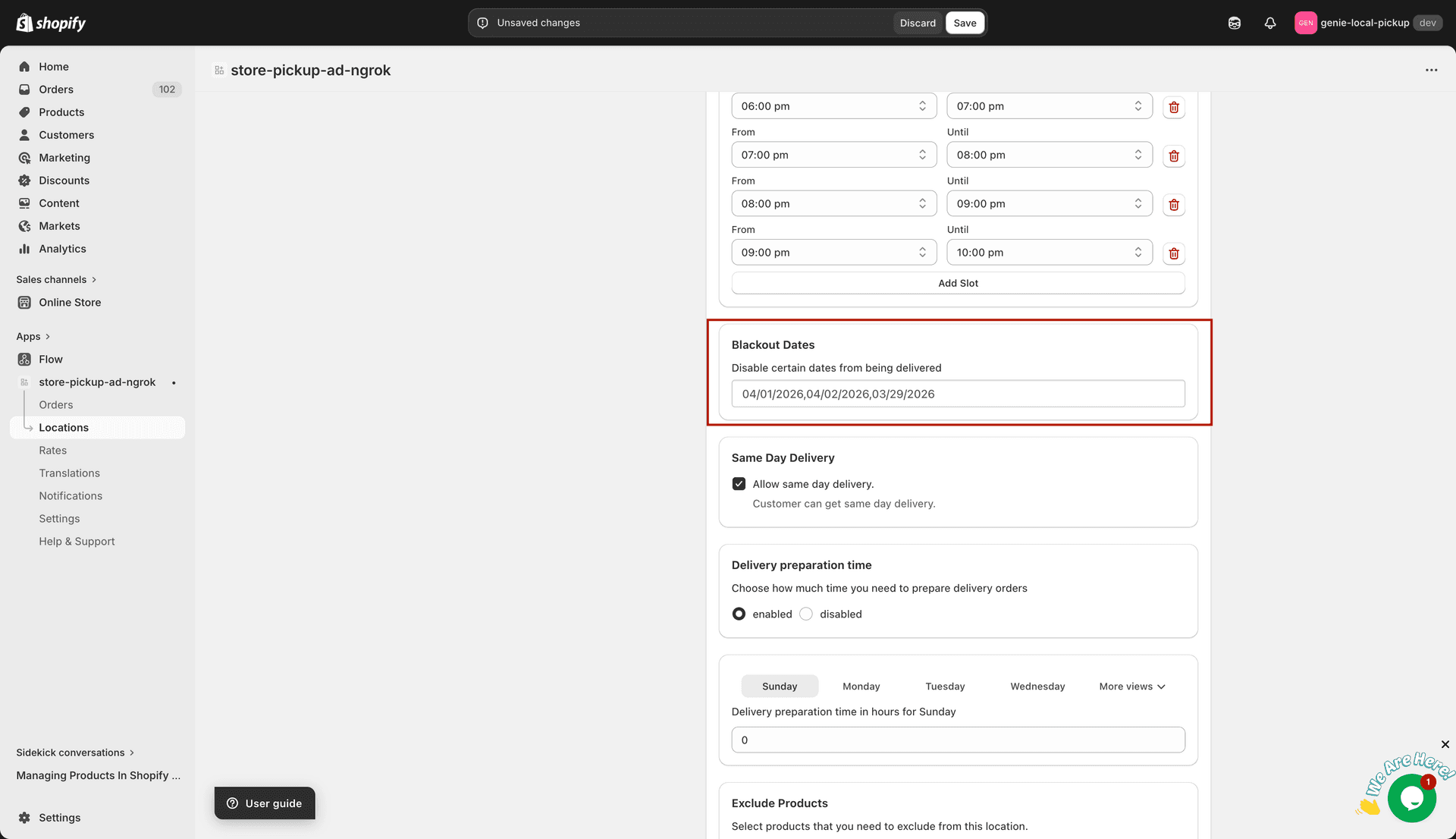
Click future dates on the calendar to block them from delivery
Click a date on the calendar to mark it as a blackout date. Selected dates are highlighted.
Click a selected date again to remove it from the blackout list.
Repeat for all dates you want to block, then click "Save".
Only future dates can be selected. Past dates are not shown as selectable in the calendar.
Blackout dates are per-location. If you operate multiple locations, you must set blackout dates on each location separately.