
Disabling specific pickup dates
Last updated: March 28, 2026
Block individual dates from being selectable for pickup.
Blackout dates let you block specific calendar dates from appearing as available for pickup — useful for public holidays, store closures, or any one-off day when your location will not be open.
Add blackout dates
From the app sidebar, click "Locations".
Click the location you want to configure.
Scroll to the "Store Pickup" section and expand it.
Find the "Blackout Dates" card under "Disable dates from pickup".
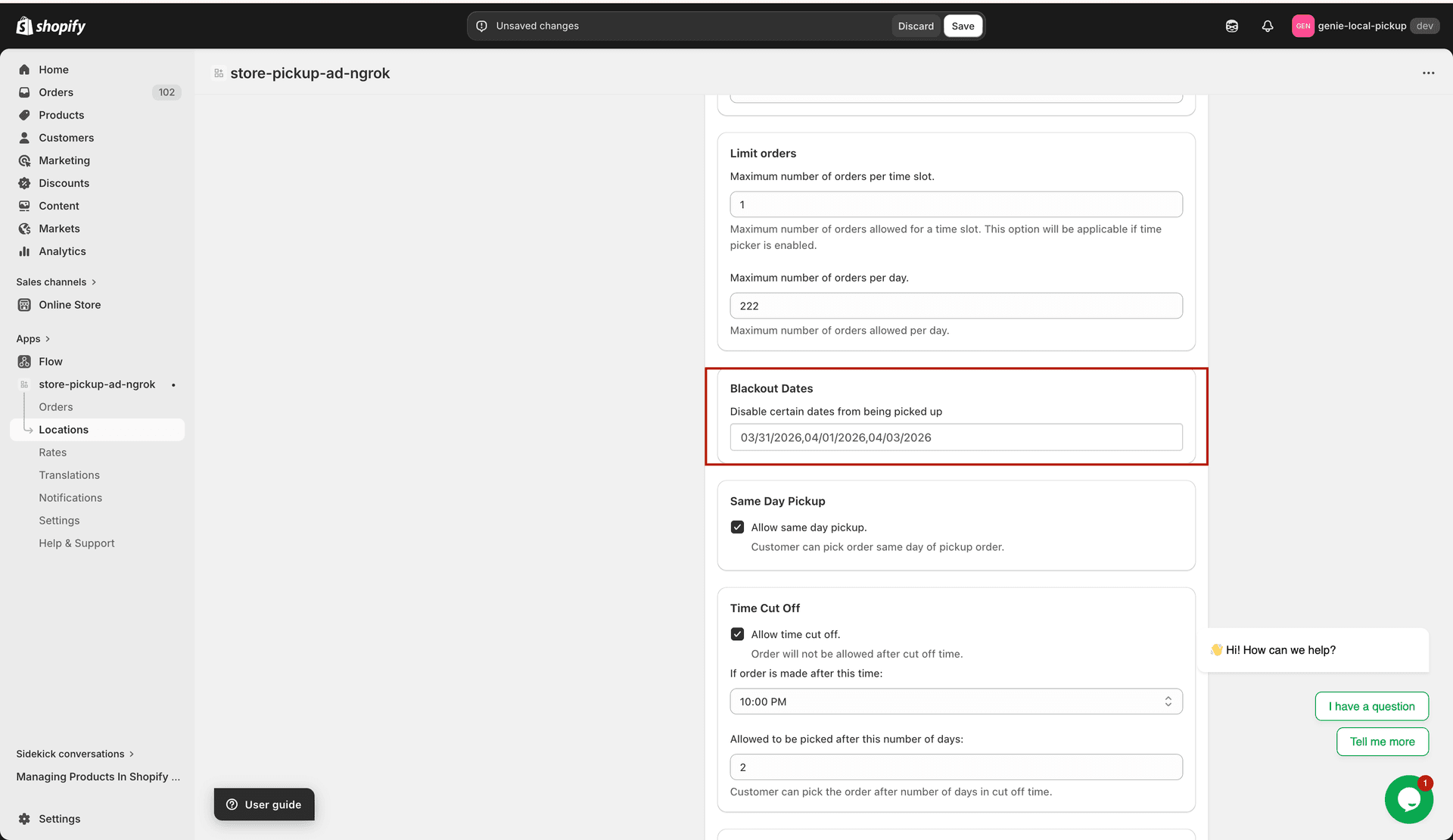
Click any future date on the calendar to block it from pickup
Click a date on the calendar to select it as a blackout date. Selected dates are highlighted.
Click an already-selected date again to remove it from the blackout list.
Repeat for all dates you want to block, then click "Save".
Only future dates (today and later) can be selected. Past dates are automatically disabled in the calendar.
Blackout dates affect only this location. If you have multiple locations, repeat this process for each one that will be closed on those dates.