
Pausing pickup for a location
Last updated: March 28, 2026
Temporarily disable pickup at a specific location.
If you need to stop accepting pickup orders at a location — for a renovation, seasonal closure, or any other reason — you can disable Store Pickup with a single toggle. All existing settings are preserved and can be re-enabled at any time.
Disable pickup at a location
From the app sidebar, click "Locations".
Click the location you want to pause.
Scroll to the "Store Pickup" section.
Check the status badge next to the section header. It shows "Store Pickup is Enabled" (green) or "Store Pickup is Disabled".
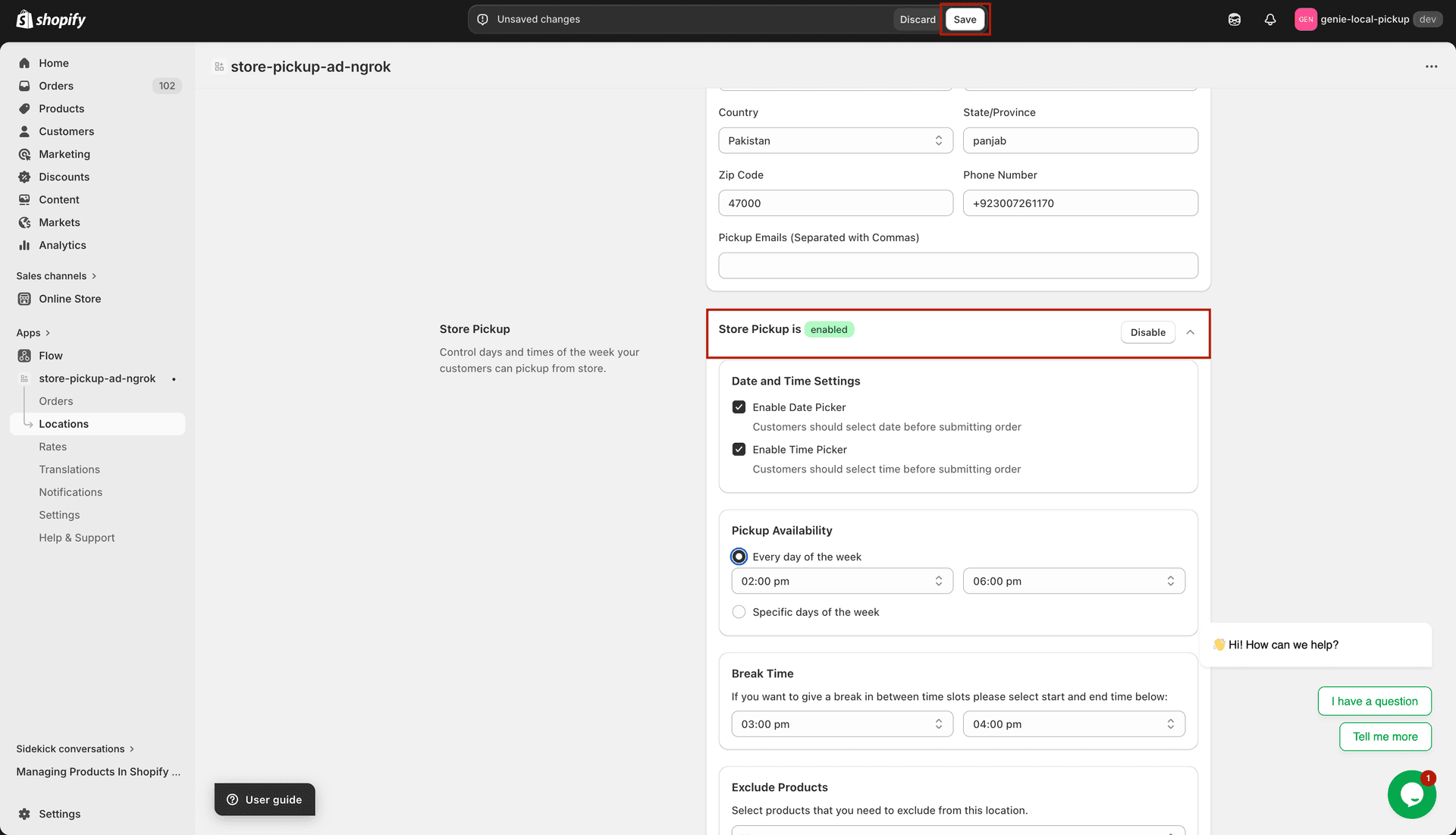
The badge and button let you quickly see and change the pickup status
Click the "Disable" button. The section collapses and the badge changes to "Store Pickup is Disabled". Customers will no longer see this location as a pickup option at checkout.
Click "Save" to persist the change.
Re-enable pickup
Return to the same location form and click "Enable" in the Store Pickup section header.
The section expands, restoring all your previous settings. Click "Save".
Disabling pickup does not affect your delivery settings. Local Delivery can remain active for the same location independently.