
Setting pickup days & time slots
Last updated: March 28, 2026
Configure which days and times are available for store pickup.
The Pickup Availability settings let you define exactly when customers can schedule a pickup — either with a single schedule that applies every day, or with a different schedule for each day of the week.
Open the pickup availability settings
From the app sidebar, click "Locations".
Click the location you want to configure.
Scroll to the "Store Pickup" section and expand it.
Find the "Pickup Availability" card.
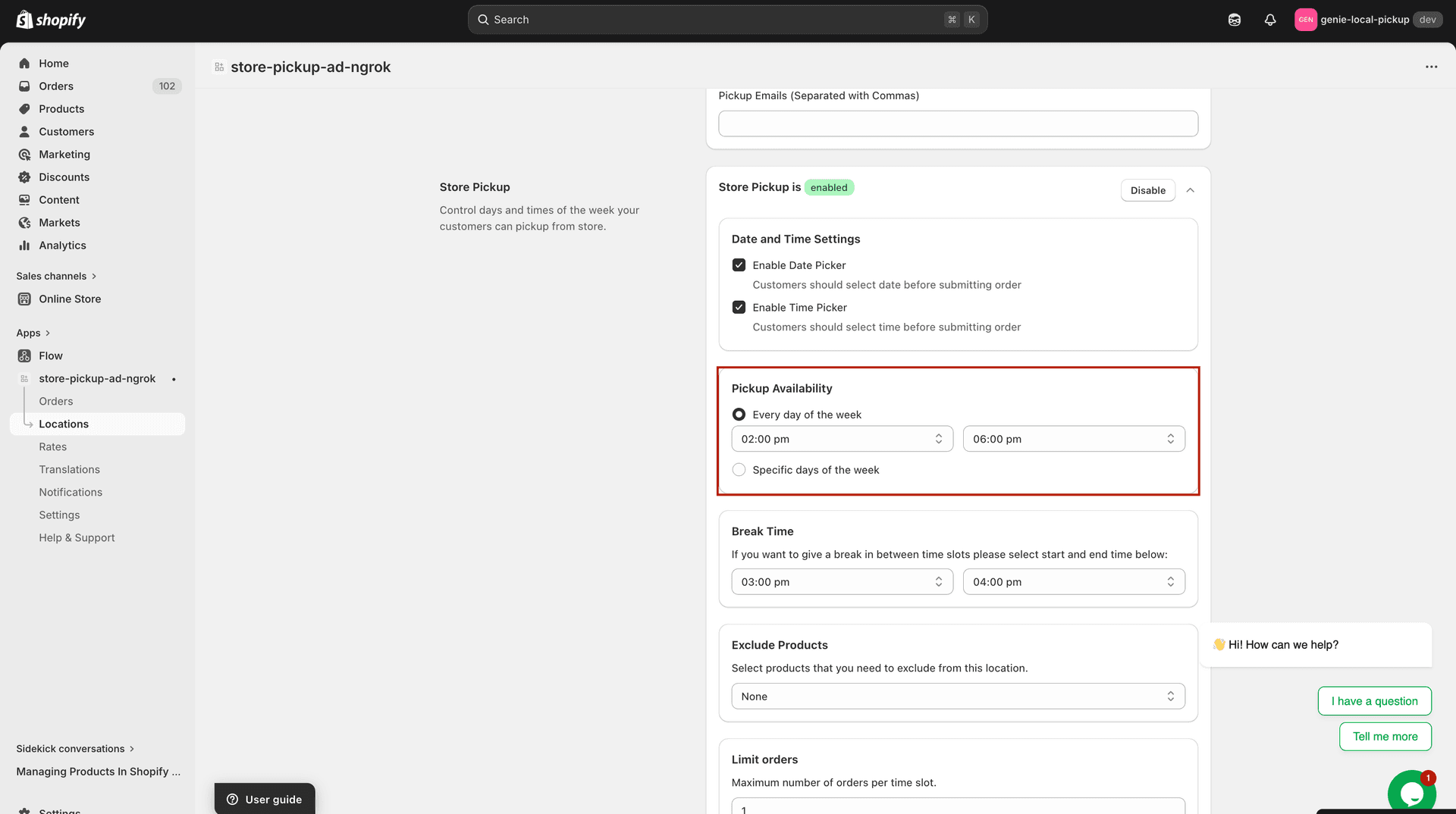
Choose between a single daily schedule or per-day configuration
Option A: Every day of the week
Select the "Every day of the week" radio button.
Use the "Opening time" and "Closing time" dropdowns to set a single window that applies to all 7 days.
Option B: Specific days of the week
Select the "Specific days of the week" radio button.
Check each day you want to enable for pickup (Monday through Sunday). Unchecked days are automatically unavailable.
For each enabled day, set an "Opening time" and a "Closing time" using the dropdowns. Times are shown in 15-minute intervals from 12:00 AM to 11:45 PM.
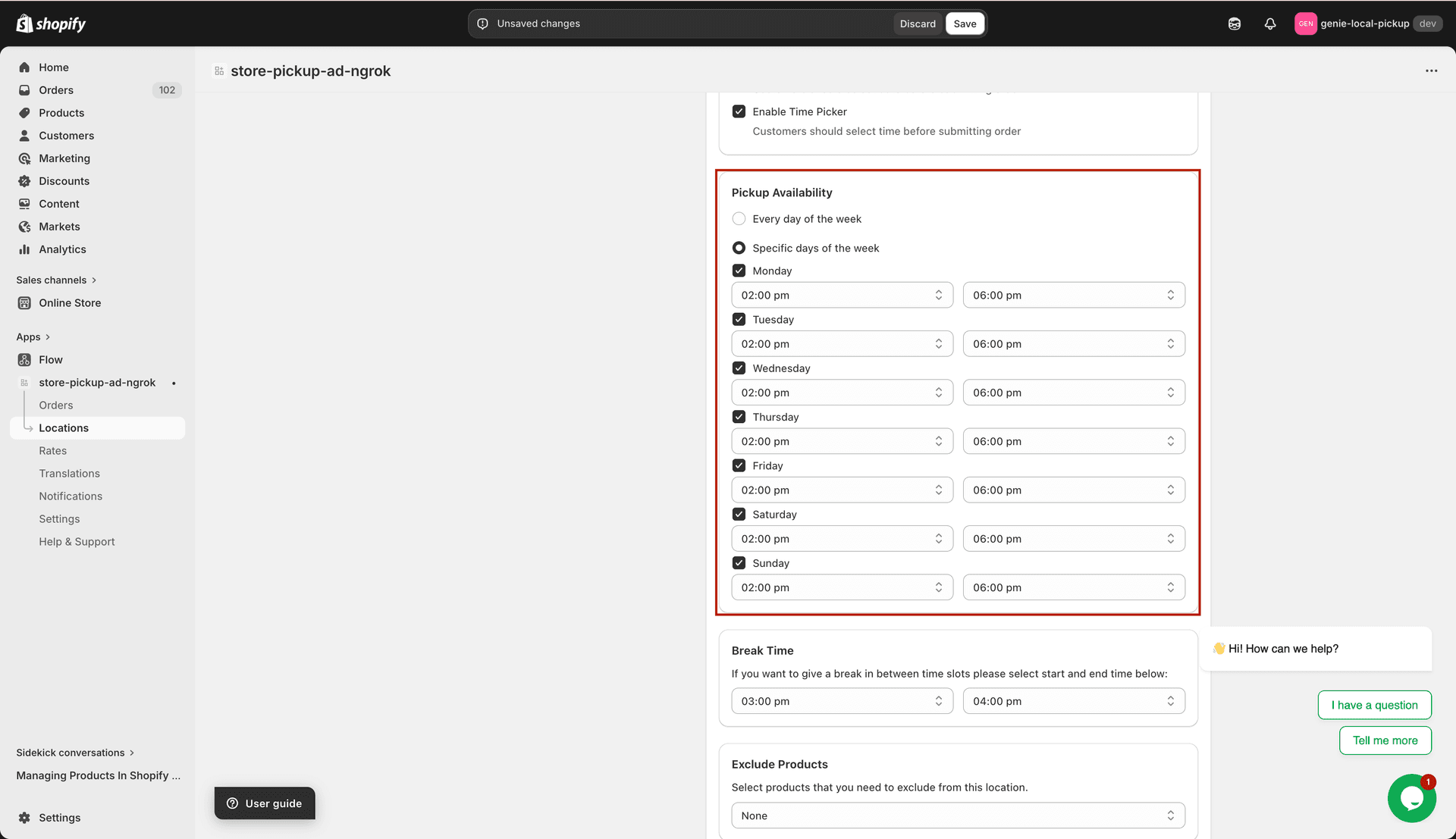
Each enabled day gets its own opening and closing time
Set a break time (optional)
Use the "Break Time" card to block a window within the day when pickup is unavailable (e.g. a lunch break).
In the "Break Time" card, select a "Start time" from the dropdown.
Select an "End time". Only times after the start time are shown.
Set the time slot interval
The "Time Settings" card controls how the available pickup window is divided into slots that customers choose from.
Enter a value (in minutes) in the "Time interval (minutes)" field. For example, entering 60 creates one-hour slots across your pickup window.
The maximum interval is 1440 minutes (24 hours). Use a smaller value like 30 or 60 for a typical retail schedule.
Click "Save" to apply your changes.