
Same-day pickup cutoff time
Last updated: March 28, 2026
Set a cutoff time after which same-day pickup is no longer available.
By default, customers may not be able to select today's date for pickup. The Same Day Pickup setting lets you explicitly allow it — and optionally set a cutoff time so orders placed late in the day are pushed to a future date.
Enable same-day pickup
From the app sidebar, click "Locations".
Click the location you want to configure.
Scroll to the "Store Pickup" section and expand it.
Find the "Same Day Pickup" card.
Check the "Allow same day pickup" checkbox. Customers will now be able to select today as their pickup date.
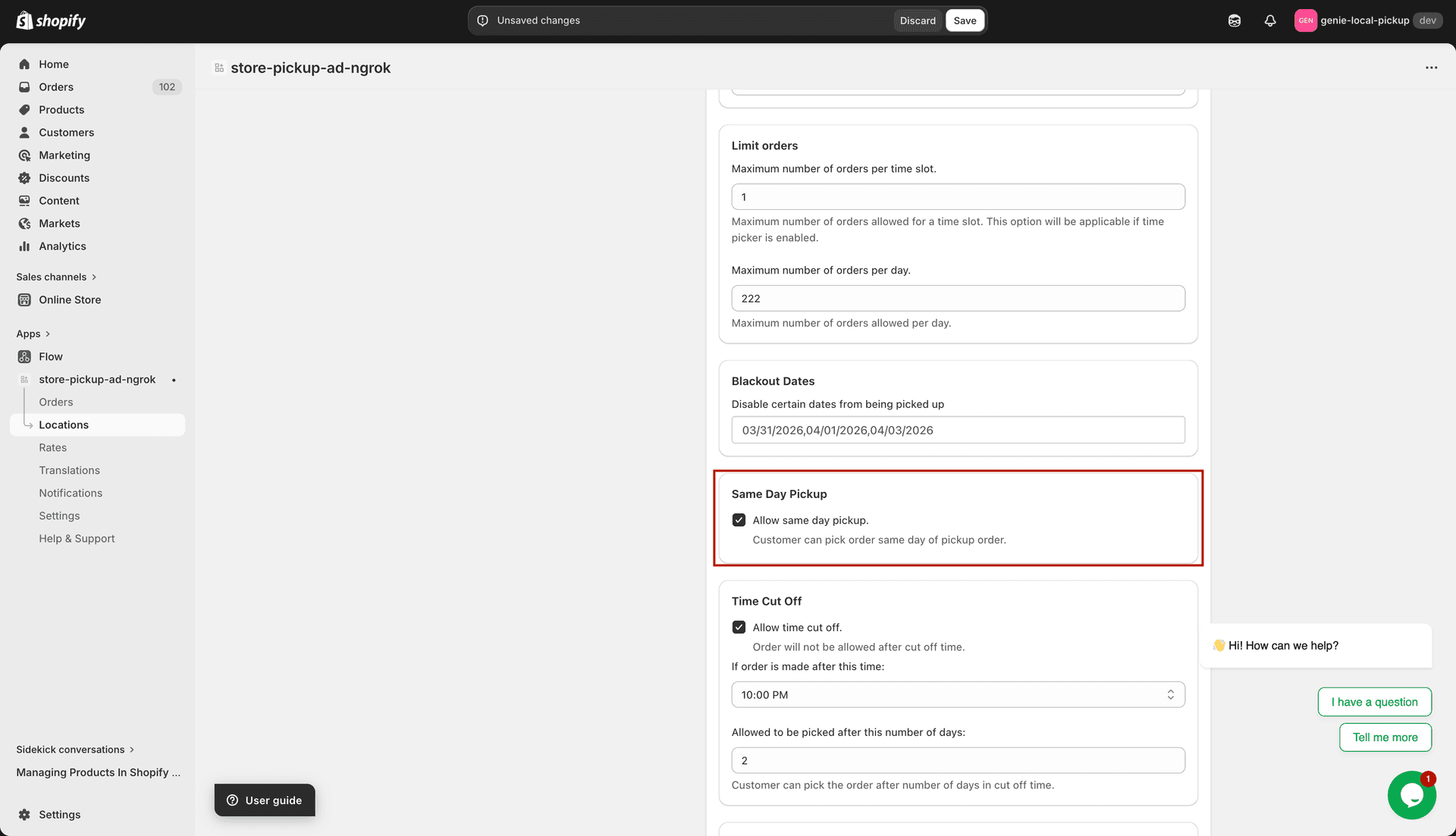
Checking "Allow same day pickup" makes today selectable at checkout
Set a cutoff time
The "Time Cut Off" card lets you block same-day pickup for orders placed after a certain time, and push them to a future date instead.
In the "Time Cut Off" card, check "Allow time cut off".
Use the "If order made after this time" dropdown to select the cutoff time (15-minute intervals from 12:00 AM to 11:45 PM).
Enter a value in the "Allowed to be picked after (days)" field. This is the number of days added when an order is placed after the cutoff time.
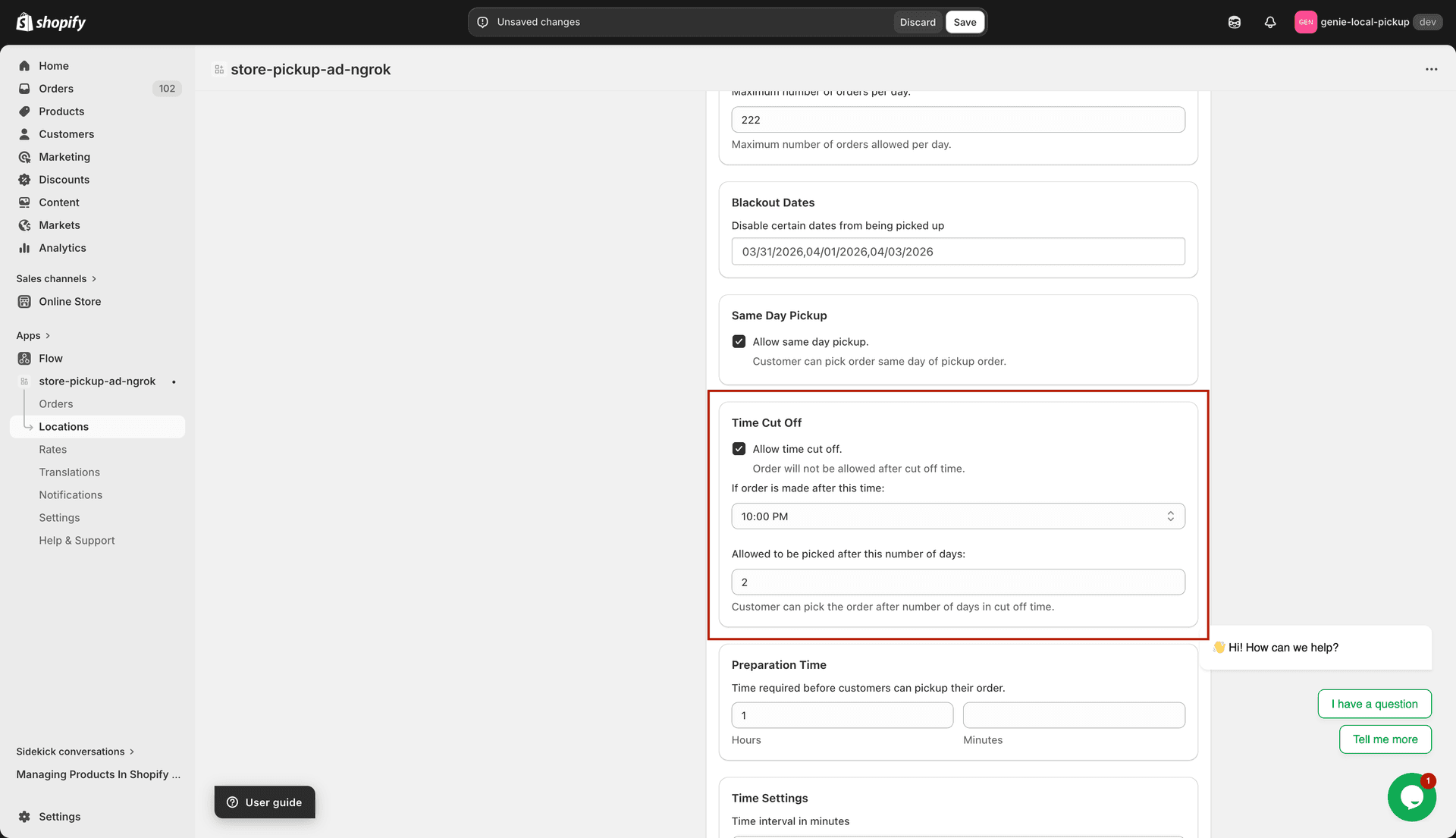
Orders placed after the cutoff time are scheduled at least X days out
For example: if the cutoff is 2:00 PM and the days value is 1, a customer ordering at 3:00 PM cannot pick up today — the earliest available date becomes tomorrow.
Click "Save" to apply your changes.
The "Time Cut Off" card is only shown when the exclude products option is enabled on the location. If you do not see it, check that setting first.