
Switch to calendar mode to see orders by date and open order details from the sidebar.
The Calendar View shows your pickup and delivery orders laid out on a monthly or weekly calendar. Each date with orders shows a count badge. Clicking a date opens a sidebar listing all orders for that day.
Switching to Calendar View
On the Orders page, look at the top-right of the page header.
Click the "Calendar View" button in the segmented button group.
The page switches to a calendar grid.
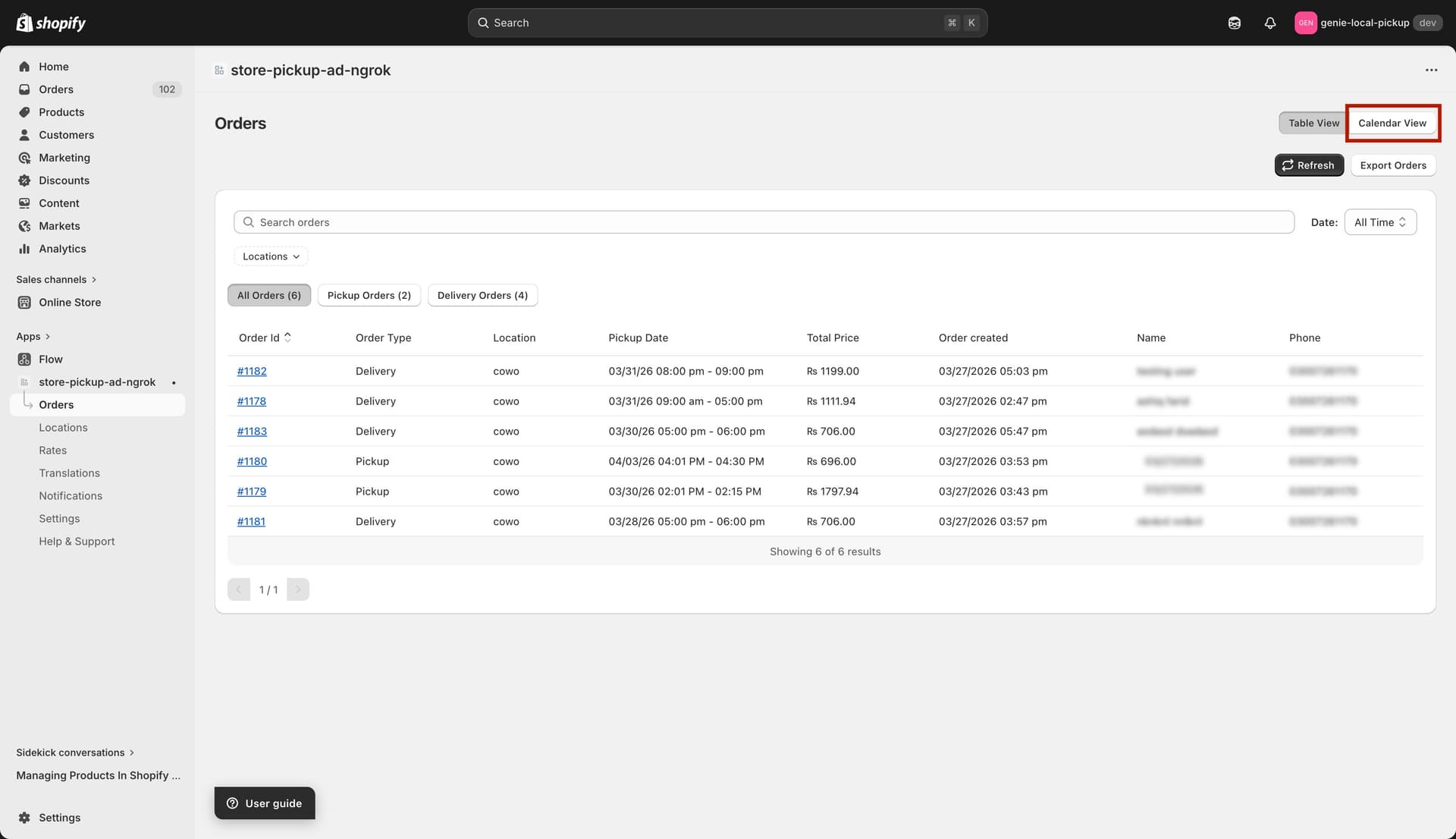
Toggle between Table View and Calendar View using this segmented button
Month view vs week view
Inside the calendar, you can switch between two layouts:
Month — shows the full month grid. Each day with orders displays a green "X orders" badge at the bottom.
Week — shows a 7-day row with taller cells. Each day shows up to 3 order previews (order number + pickup time), plus a "+N more" label if there are additional orders.
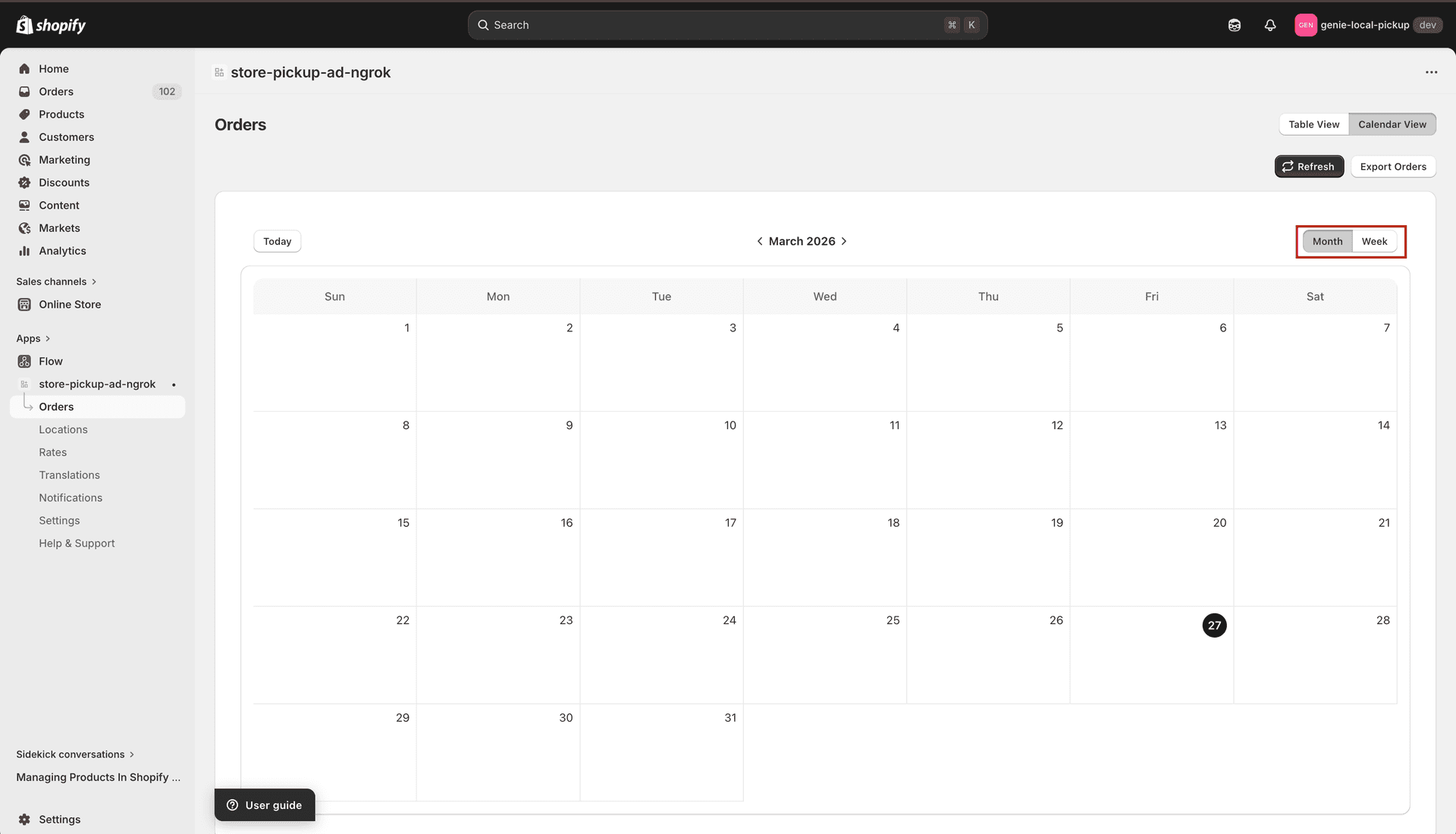
Week View — see order number and pickup time directly on the calendar
Navigating the calendar
Use the left (‹) and right (›) chevron arrows to move backward or forward one month (in month view) or one week (in week view).
Click "Today" to jump back to the current date immediately.
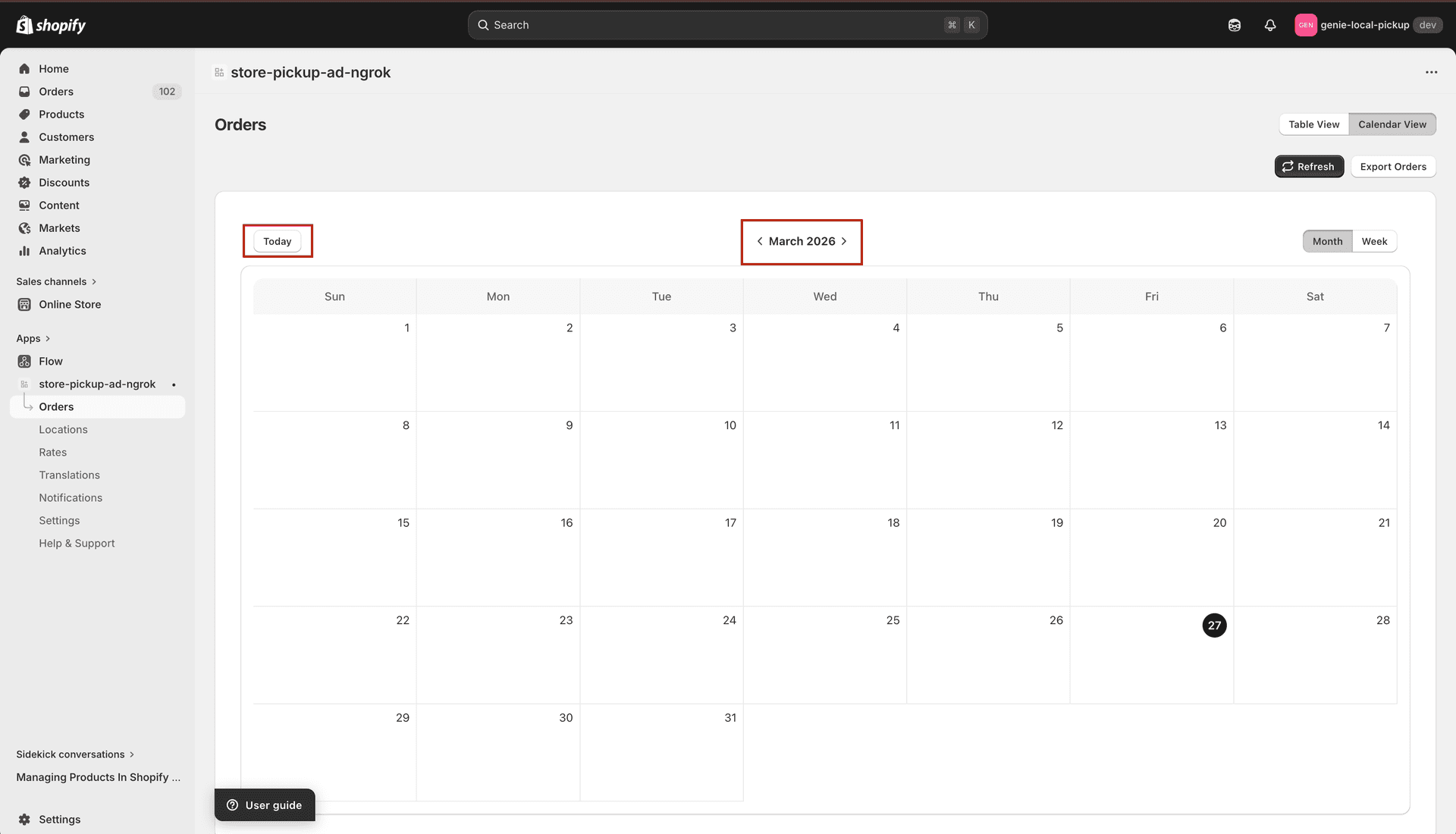
Navigate months or weeks with arrows, or jump to today
Viewing orders for a specific date
Click on any date in the calendar.
A sidebar panel opens on the right, showing a list of all orders for that date.
Each order in the sidebar shows: order number, pickup time and date, total price, customer name, and phone number.
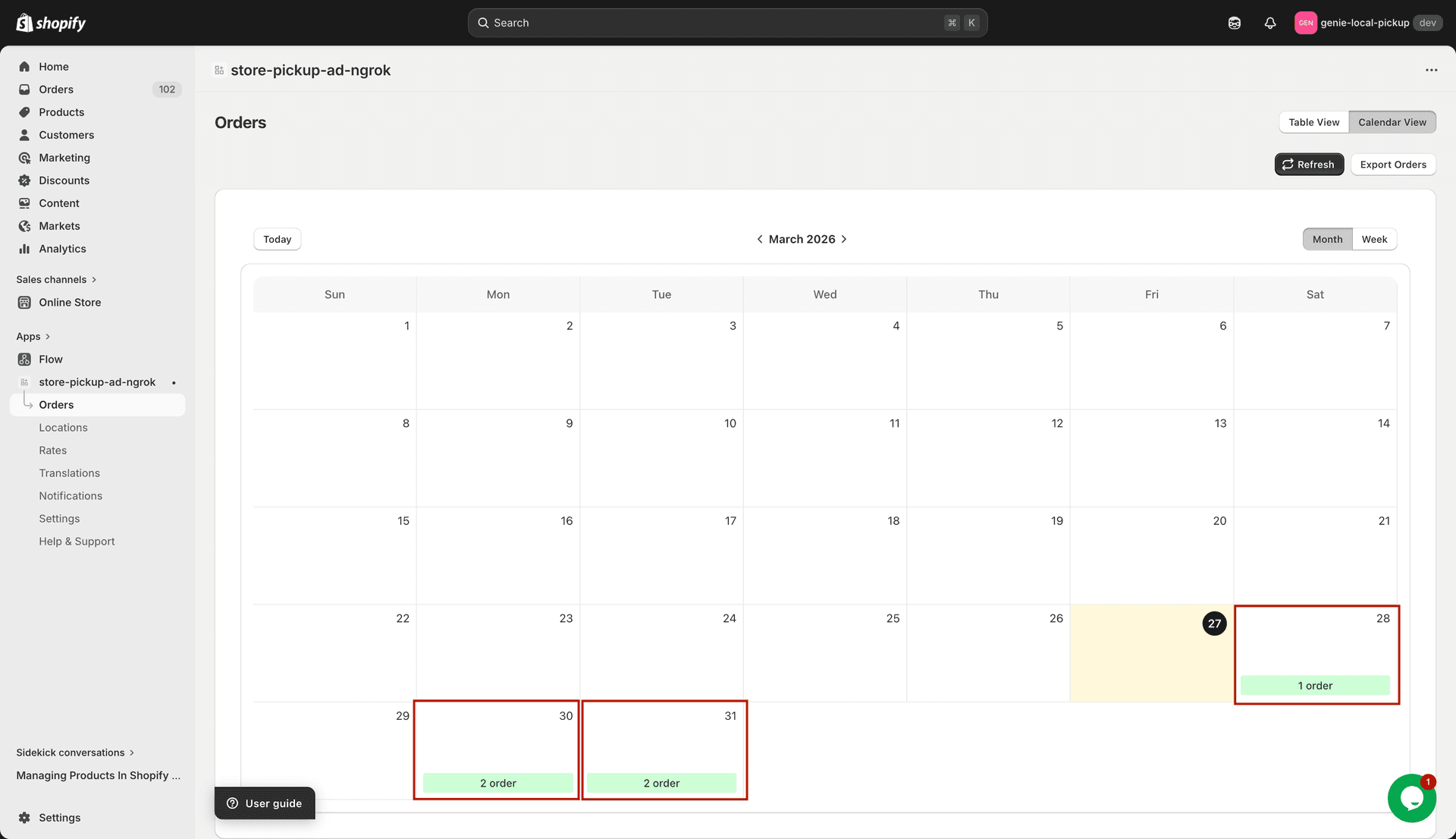
Click any date to see its orders in the sidebar
Opening an order from the calendar
In the sidebar, click any order row.
The Shopify order page for that order opens in a new tab.
To close the sidebar without opening an order, click the › button in the top-right corner of the sidebar.
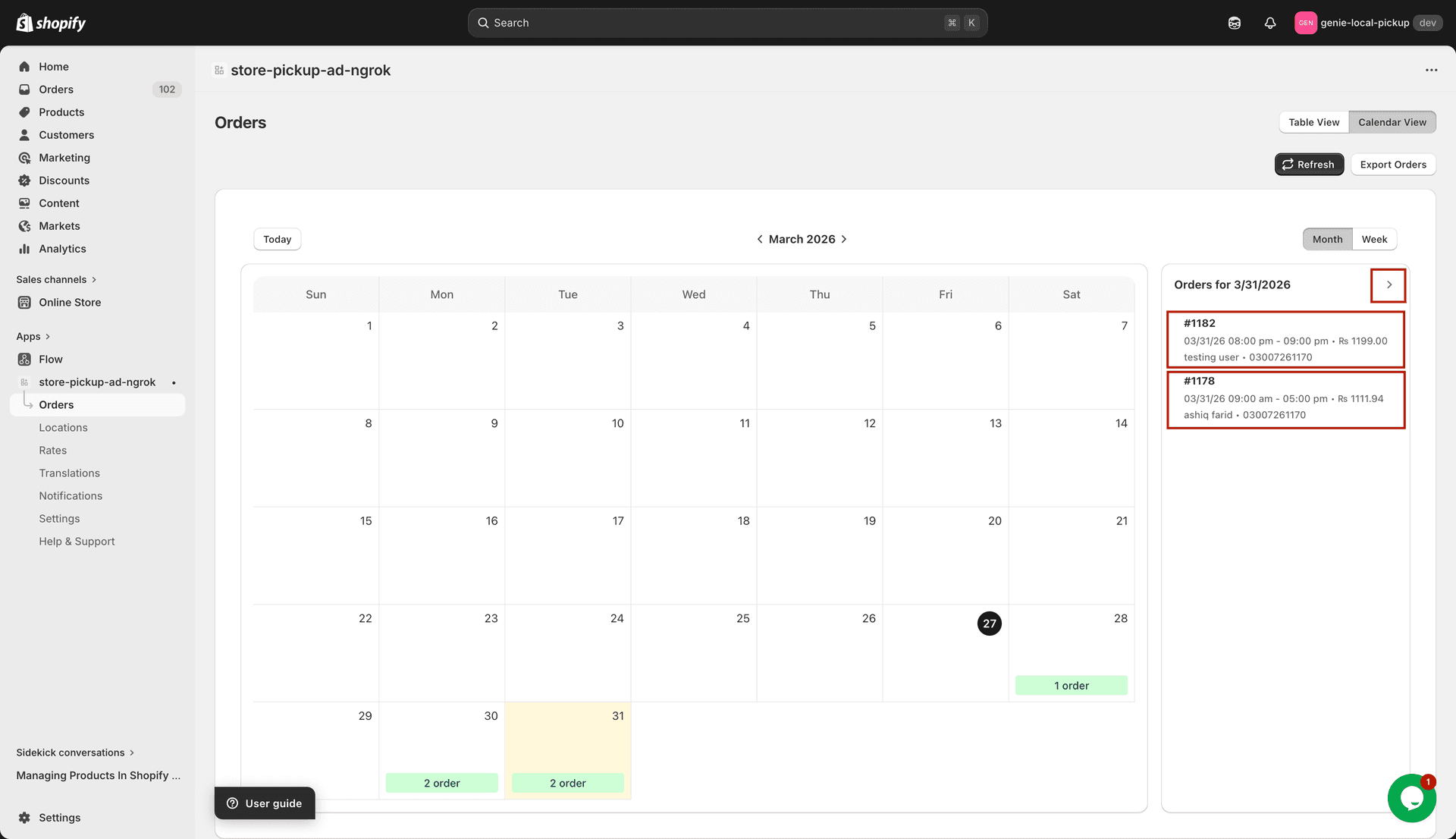
Click any order in the sidebar to go directly to its Shopify order page
The calendar respects the Location filter. If you filter by a specific location before switching to Calendar View, only orders from that location appear on the calendar.