
Download your current filtered orders as a CSV file for reporting or record-keeping.
You can export your pickup and delivery orders to a CSV (spreadsheet) file at any time. The export always includes only the orders matching your currently active filters — so you can export a specific date range, location, or order type.
How to export orders
Go to the Orders page.
(Optional) Apply any filters — date range, location, order type, or search — to select exactly which orders you want to export.
Click the "Export Orders" button in the top-right area of the page.
A CSV file downloads automatically to your computer. The filename includes the export date, e.g. orders_export_2026-03-01.csv.
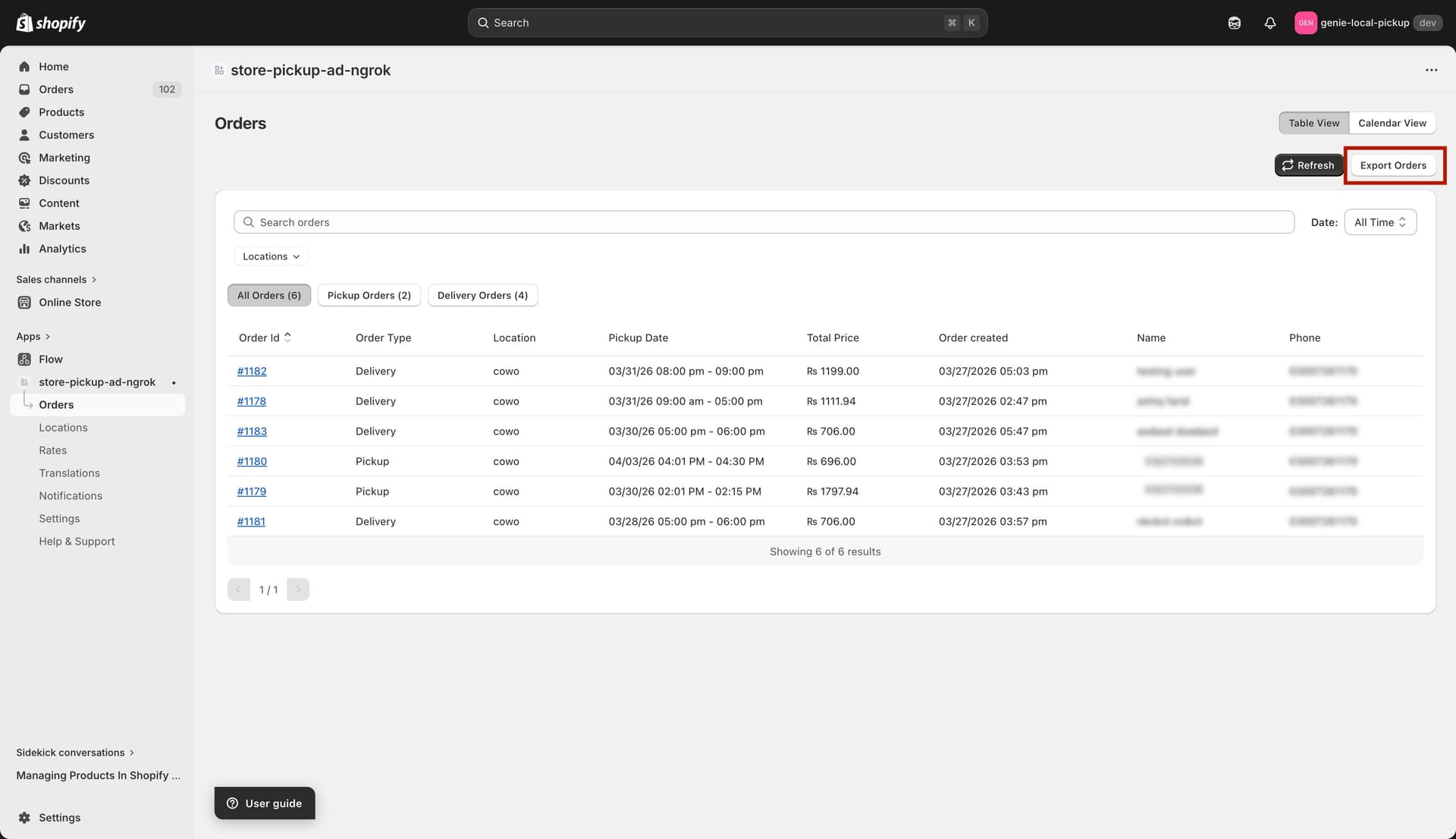
The CSV file downloads automatically with a date-stamped filename
What is included in the export?
The CSV file contains the same columns shown in the orders table:
Order ID
Order Type (Pickup or Delivery)
Location
Pickup / Delivery Date & Time
Total Price
Order Created Date
Customer Name
Phone
To export all orders with no filter, make sure no filters are applied before clicking Export Orders. This exports every order the app has recorded.