
Viewing all pickup & delivery orders
Last updated: March 1, 2026
See every pickup and delivery order in one place from the Orders page.
How to open the Orders page
In your Shopify admin, open the Store Pickup by Genie Apps.
Click "Orders" in the left navigation menu.
The page loads in Table View by default, showing all orders.
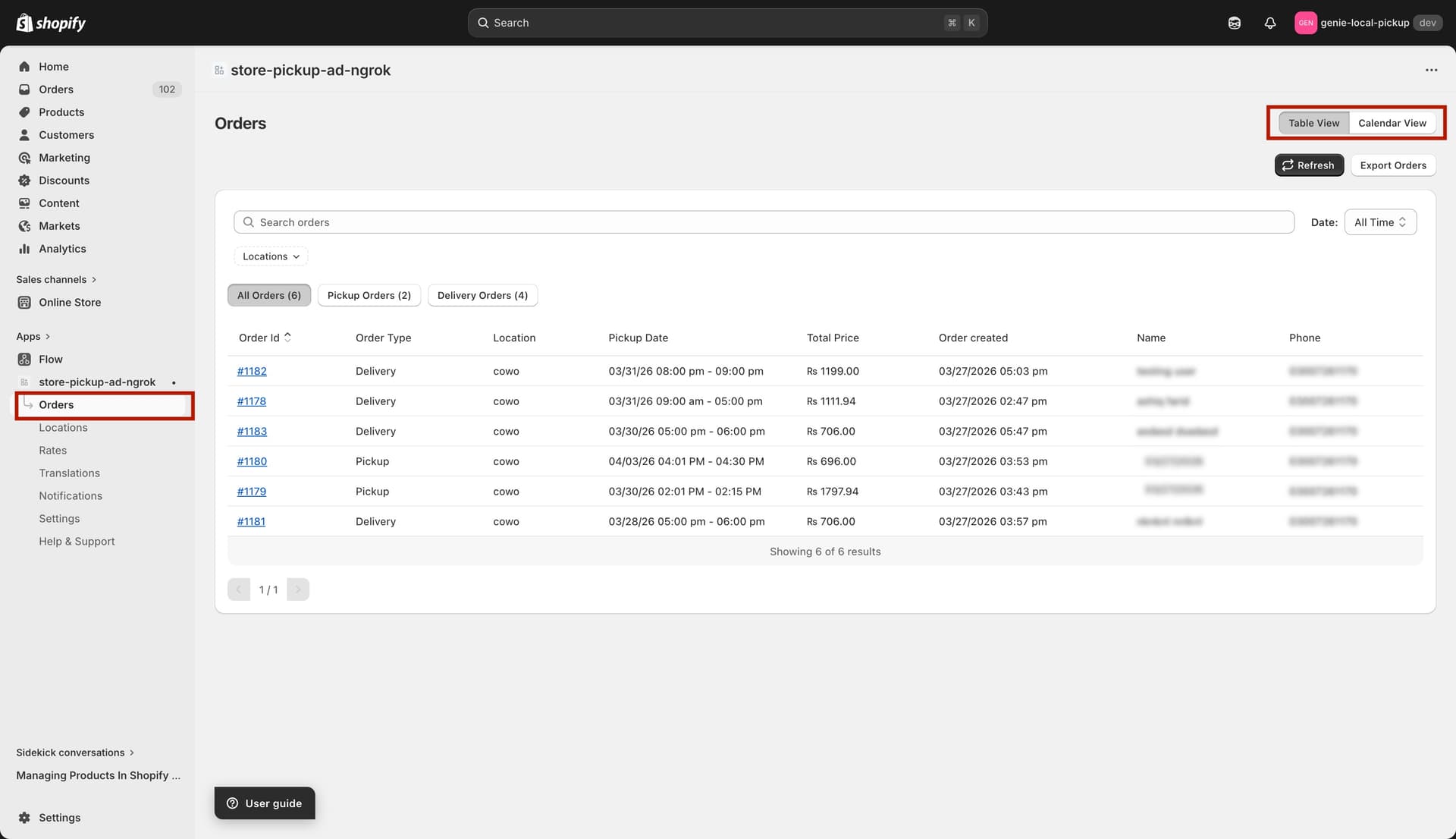
The Orders page — table view showing all pickup and delivery orders
Order table columns
Each row in the table shows the following details for an order:
Order ID — a clickable link that opens the order directly in your Shopify admin.
Order Type — whether the order is Pickup or Delivery.
Location — the pickup/delivery location name associated with the order.
Pickup/Delivery Date — the date and time slot the customer selected.
Total Price — the order value.
Order Created — when the order was placed.
Customer Name — the name entered at checkout.
Phone — the customer's contact number.
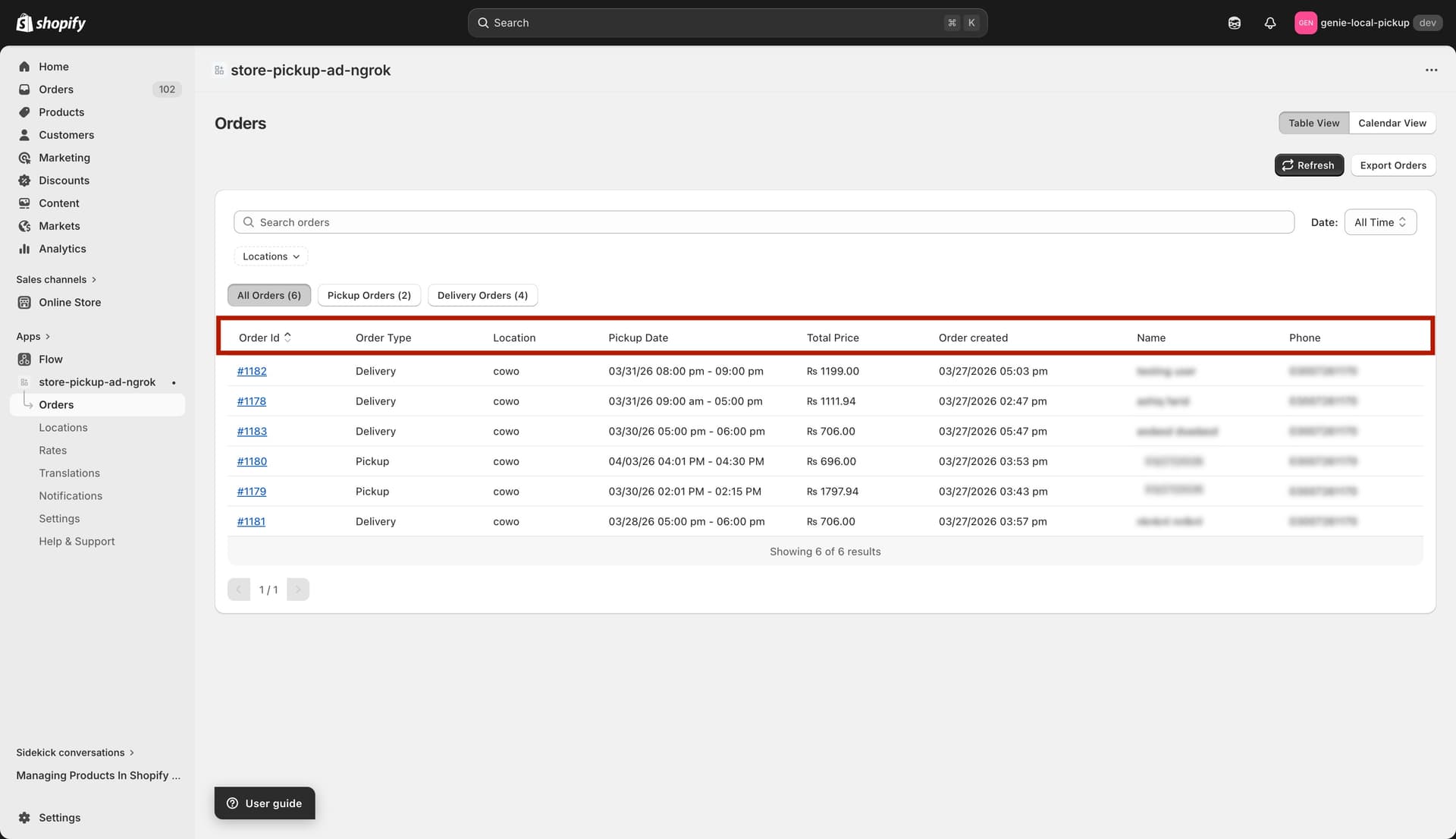
All 8 columns in the orders table
Opening an order in Shopify
Click any Order ID link in the first column. The Shopify order page opens in a new tab, where you can fulfil, edit, or refund the order.
The Orders page only shows orders where a pickup/delivery date was selected through the app widget. Standard orders without a date selection will not appear here.