
Delivery options settings
Last updated: March 1, 2026
Configure delivery information display, required customer fields, time slot format, and extra checkout fields for delivery orders.
Delivery Options has three sub-tabs: General Settings, Time Settings, and Extra Fields. Together they control what information is collected from customers during local delivery checkout.
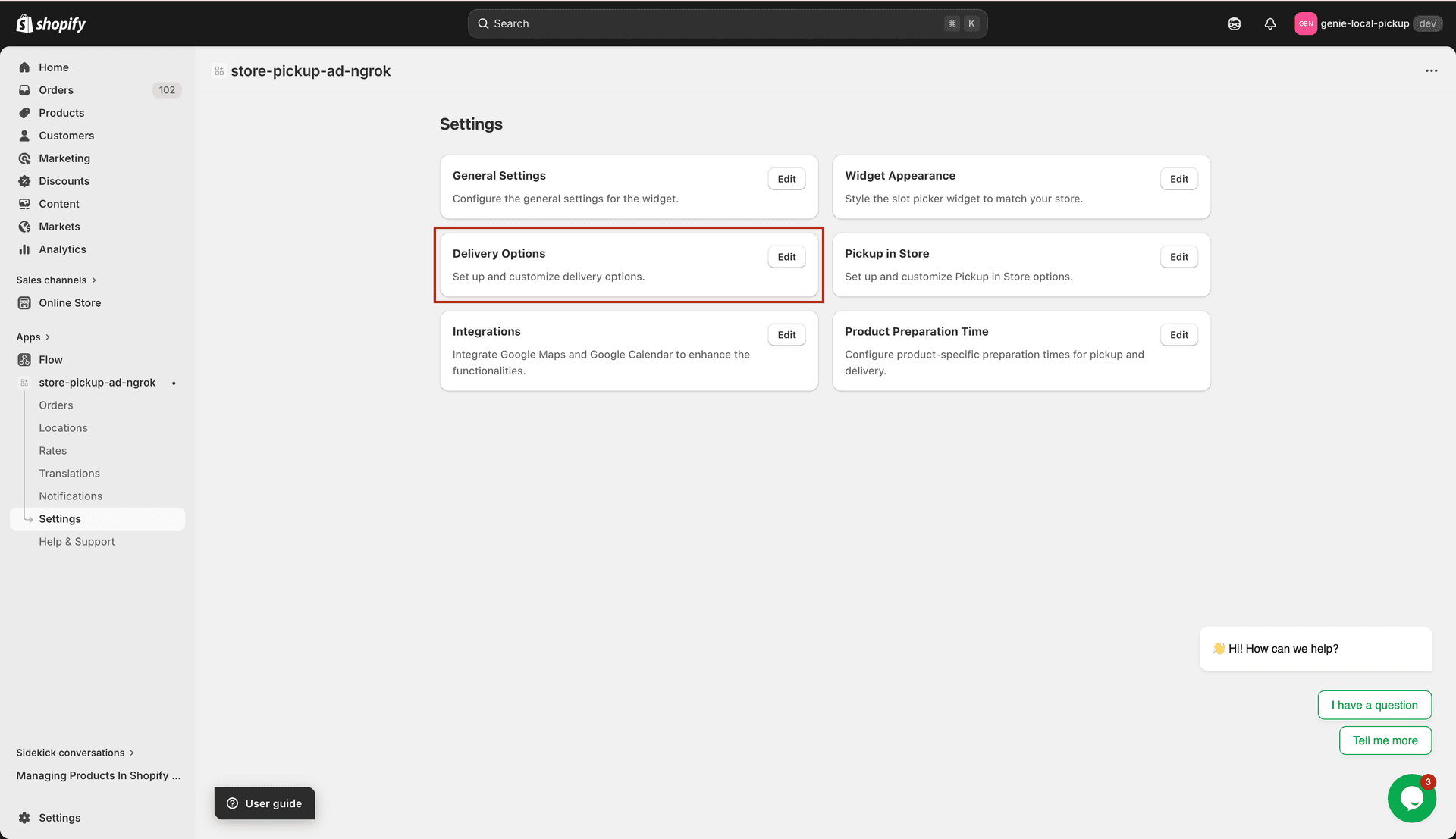
Delivery Options — 3 sub-tabs in the left navigation panel
General Settings tab
Display Delivery Information — when enabled, the selected delivery date and time slot are shown on the order confirmation page and in the order line items. Customers and merchants can both see the delivery details in the order summary.
Email Required for Delivery — when checked, customers must enter their email address to complete a delivery order.
Name Required for Delivery — when checked, customers must enter their name.
Phone Required for Delivery — when checked, customers must enter a phone number.
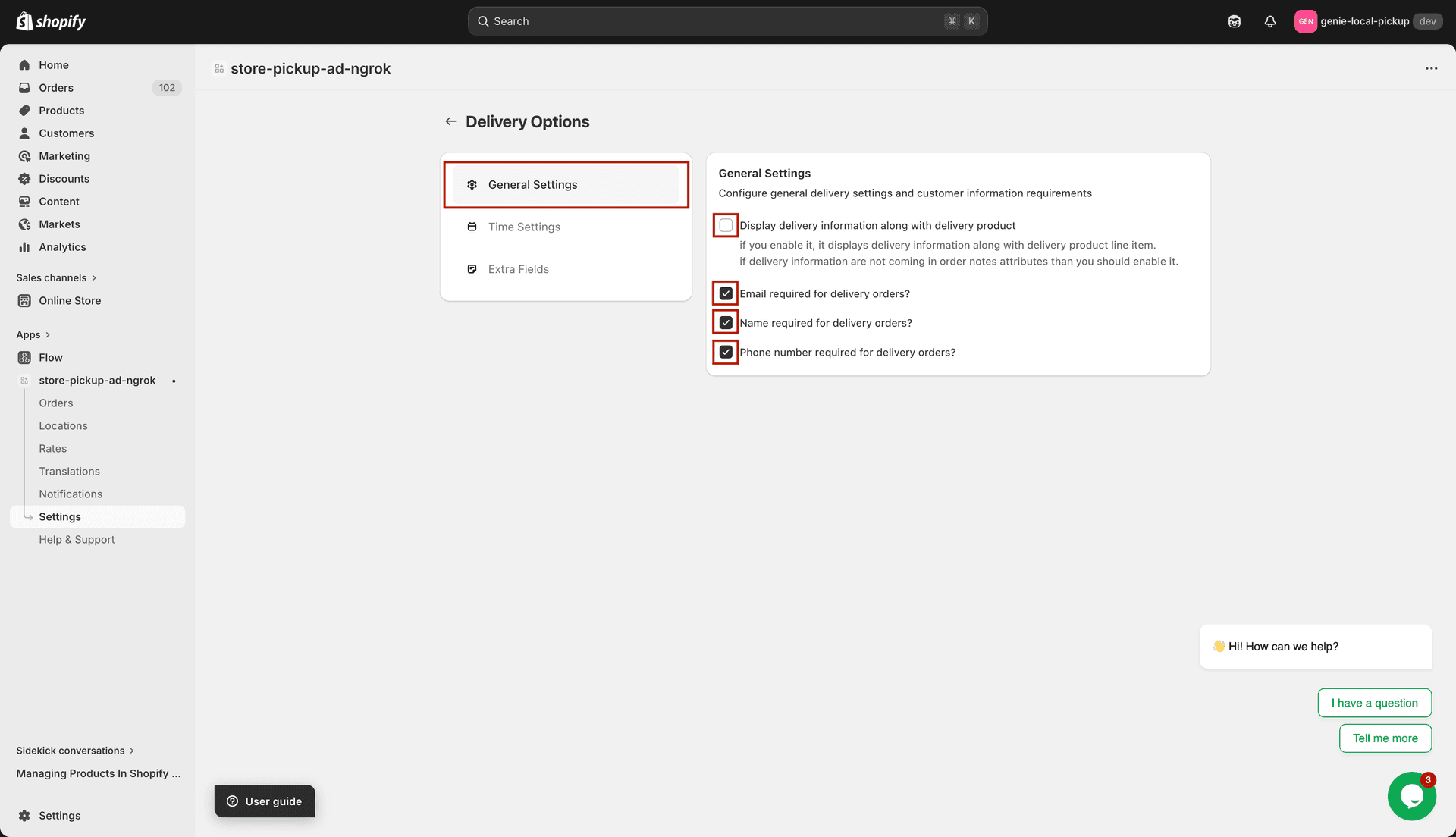
Control what information is displayed and required for delivery orders
Time Settings tab
The Time Settings tab controls how delivery time slots are formatted and displayed in the widget.
Time Slots Format — choose whether delivery time slots are shown as a range (e.g. 10:00 AM – 12:00 PM) or as individual time points. This affects how the time slot selector looks in the widget.
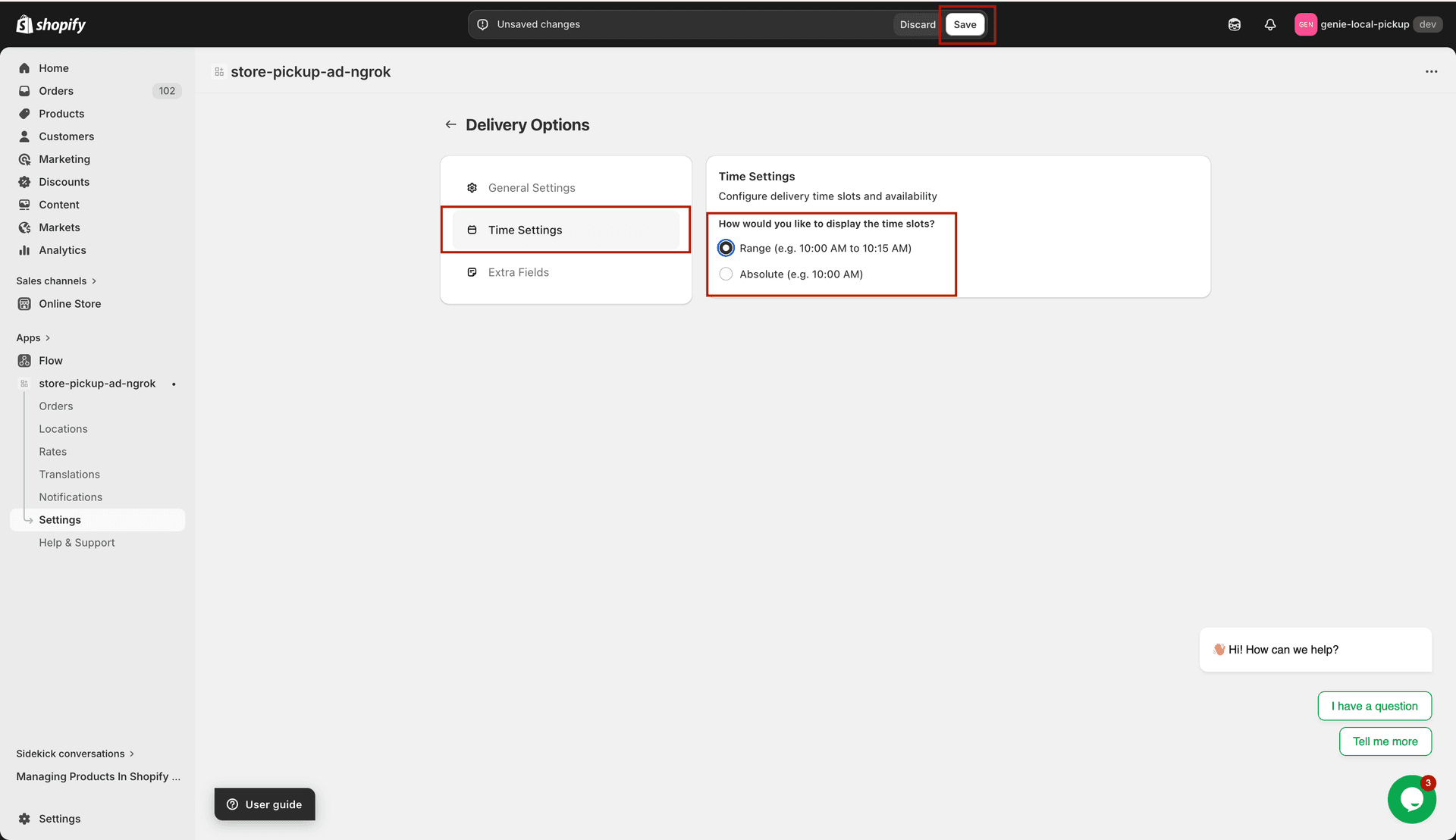
Choose how delivery time slots are displayed in the widget
Extra Fields tab
Extra Fields lets you add up to 3 custom text fields to the delivery checkout form. Use these to collect additional information from customers at delivery checkout.
Extra Field 1, 2, 3 — enter a label for each extra field (e.g. "Delivery Instructions" or "Apartment Number"). Leave blank to hide that field.
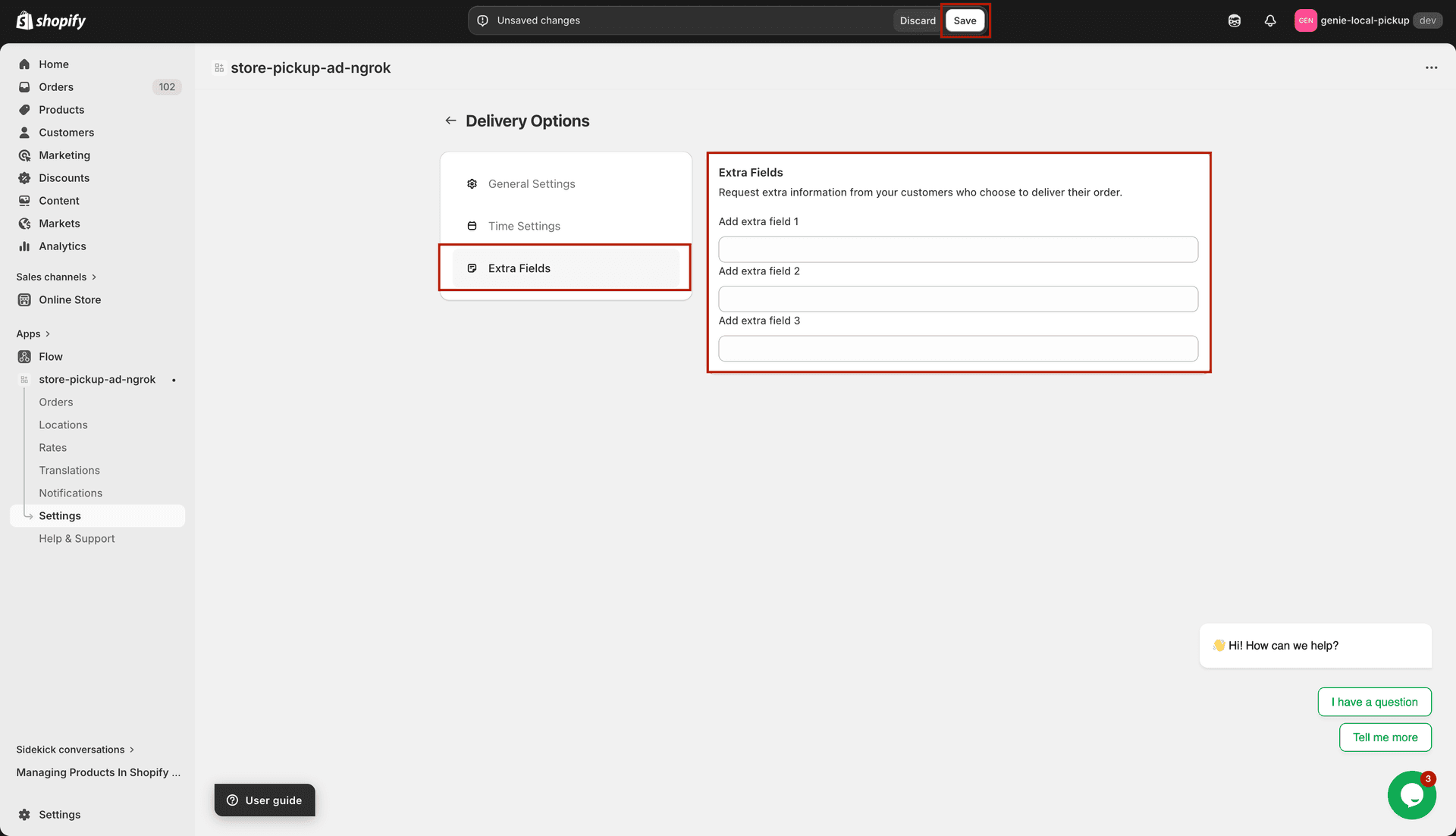
Add up to 3 custom fields to collect extra information from delivery customers
Extra fields are optional — customers are not required to fill them in. If you need required fields, use the Email/Name/Phone checkboxes in the General Settings tab.
What's Next