
Control mandatory pickup rules, display of pickup info on orders, time slot format, security codes, discount codes, and required customer fields.
Pickup In Store has three sub-tabs: General Settings, Time Settings, and Customer Info. These control the behavior of the store pickup widget and what information customers must provide when choosing pickup.
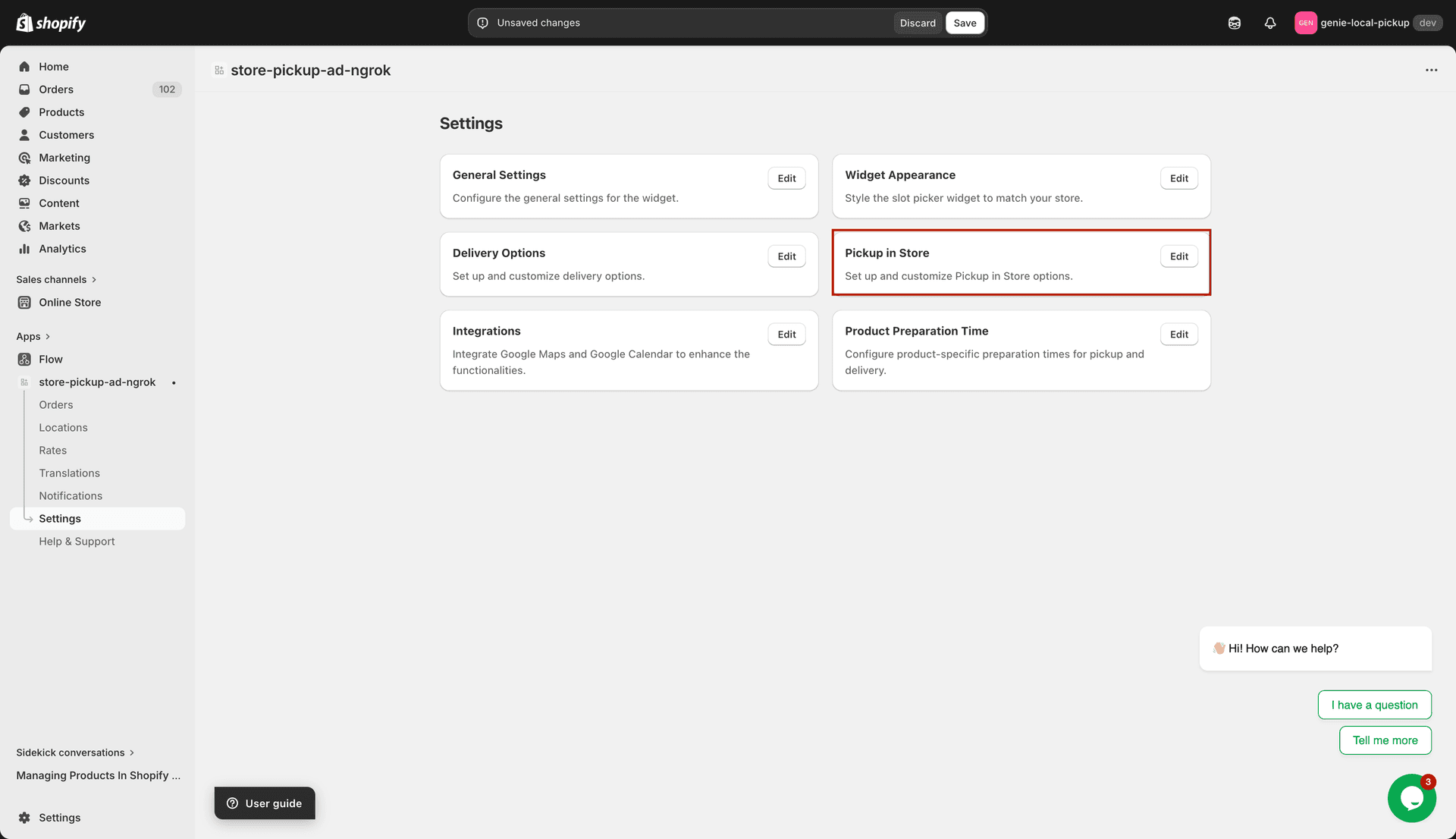
Pickup In Store — 3 sub-tabs: General Settings, Time Settings, Customer Info
General Settings tab
Make Pickup Mandatory — when enabled, customers cannot proceed to checkout without selecting a pickup date and time slot. They cannot skip the pickup widget.
Make Pickup Mandatory Based on Tags — when enabled, pickup is only mandatory for orders that contain products with specific tags. You define the tags in the field below.
Mandatory Pickup Tags — enter the product tags (comma-separated) that trigger mandatory pickup. Only orders with these tagged products will require a pickup date.
Display Pickup Information — when enabled, the selected pickup date and time slot are shown on the order confirmation page and in order line items, so both the customer and merchant can see the pickup details.
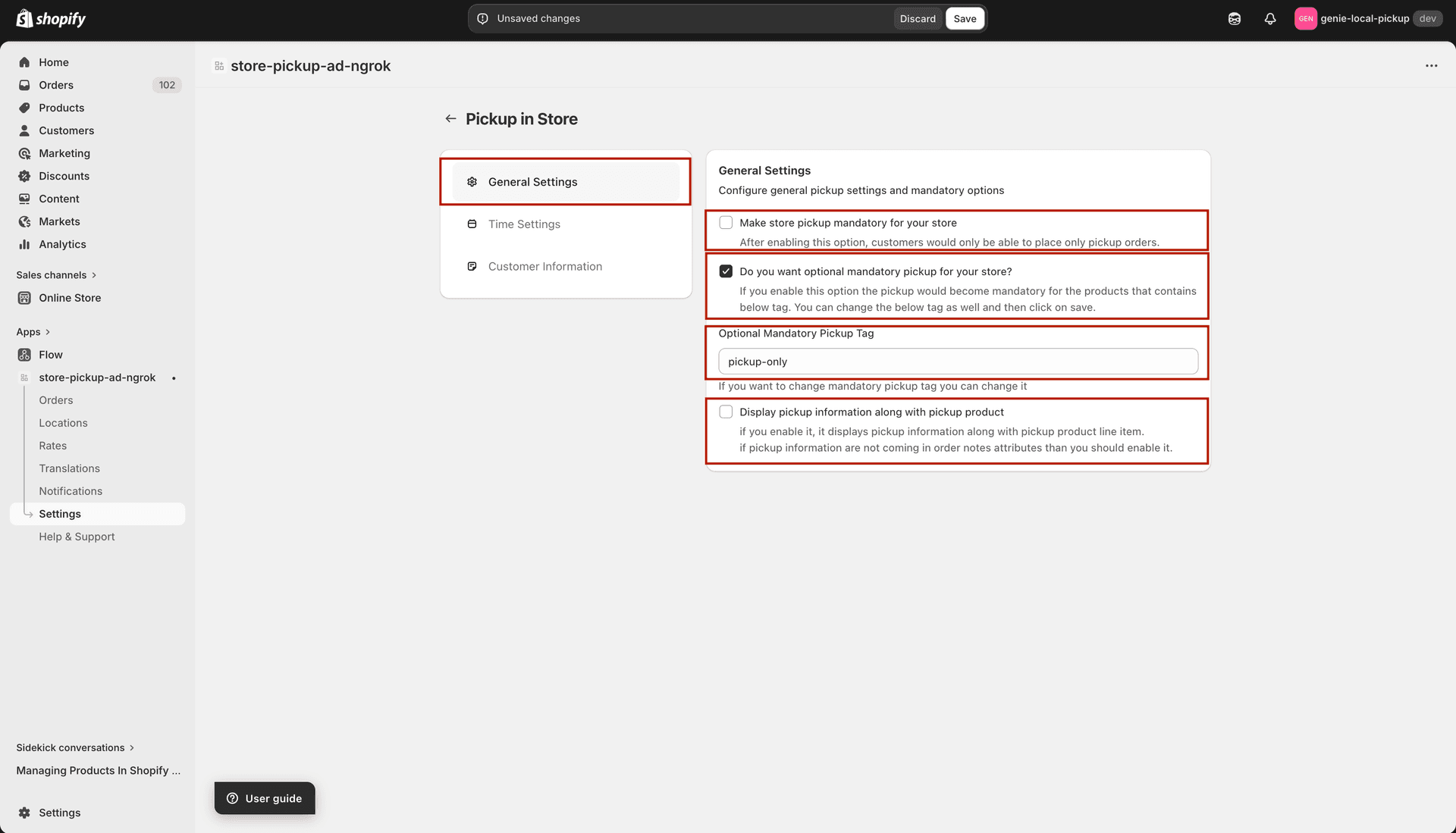
Control when pickup is mandatory and whether pickup details appear on orders
Time Settings tab
Time Slots Format — choose how pickup time slots appear in the widget (as a range or individual times).
Pickup Security Code — enable a security/verification code that staff can use to confirm a customer's pickup. When enabled, a unique code is shown on the order that customers can present at the counter.
Discount Code — enable an automatic discount code to be applied when a customer chooses store pickup. Useful for offering a pickup incentive.
Time Interval (Minutes) — set the interval between time slots in the time picker (e.g. 15 or 30 minutes).
Time Format — choose between 12-hour clock (e.g. 2:00 PM) or 24-hour clock (e.g. 14:00) for displaying time slots.
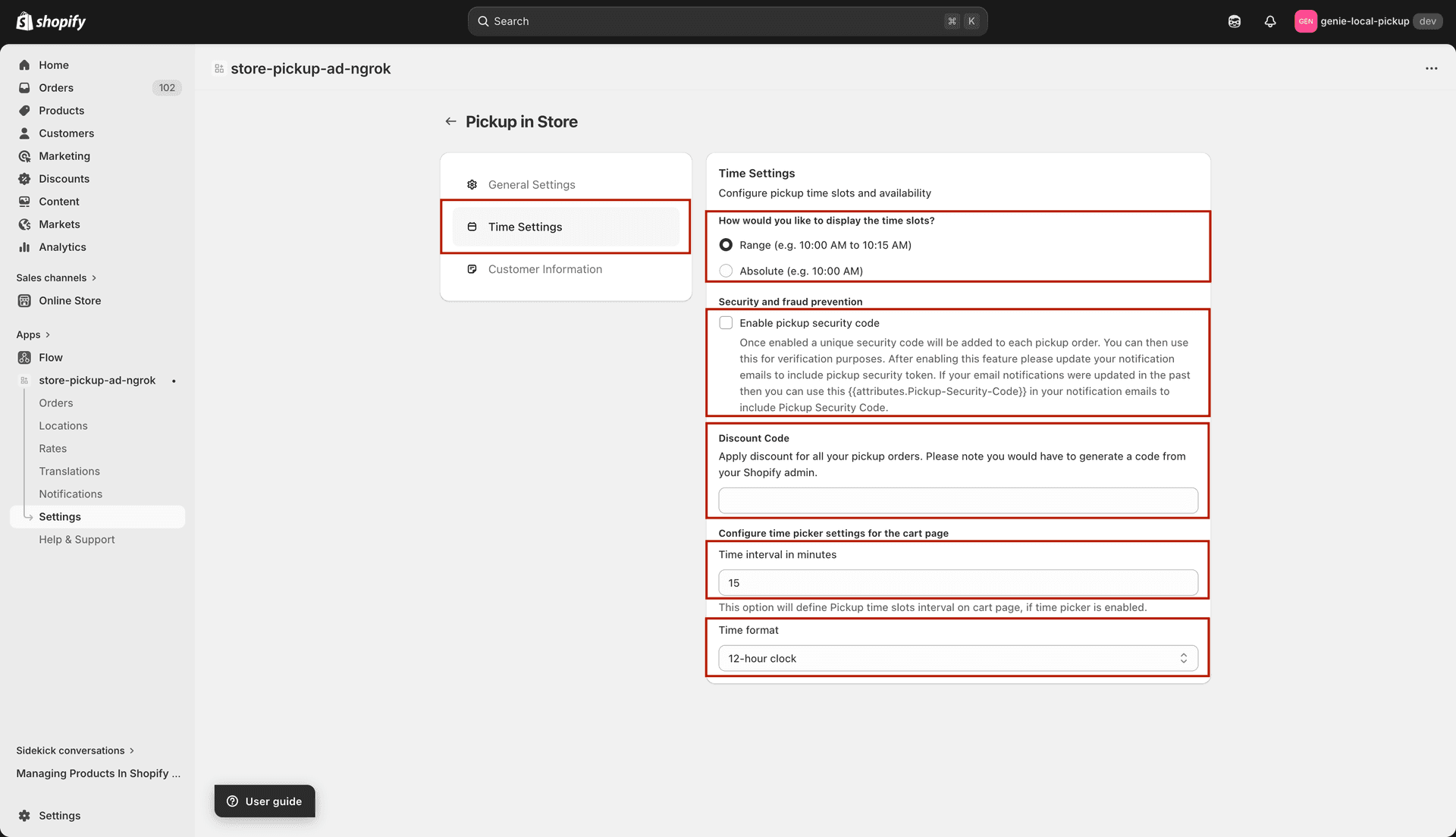
Configure time slot display, security codes, and discount codes for pickup
Customer Info tab
Email Required for Pickup — when checked, customers must enter their email address at pickup checkout.
Name Required for Pickup — when checked, customers must enter their name.
Phone Required for Pickup — when checked, customers must provide a phone number.
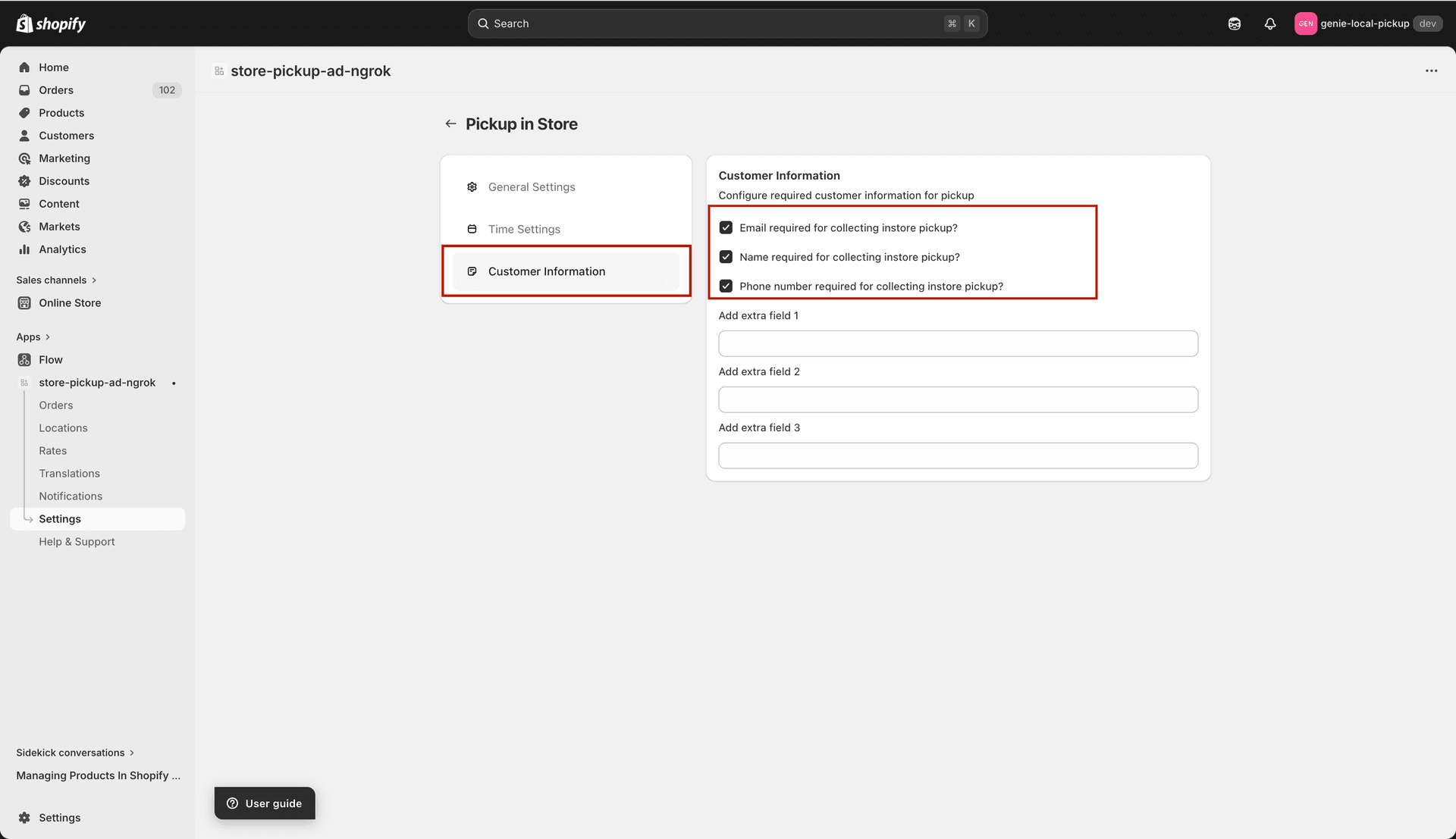
Choose which customer contact details are required for pickup orders
What's Next