
Integrations — Google Maps
Last updated: March 1, 2026
Connect Google Maps to enable distance-based delivery validation and a visual map in the delivery widget.
The Integrations page currently provides a Google Maps integration. When connected, Google Maps is used to validate delivery addresses by distance and can display a map in the local delivery widget so customers can confirm their delivery area.
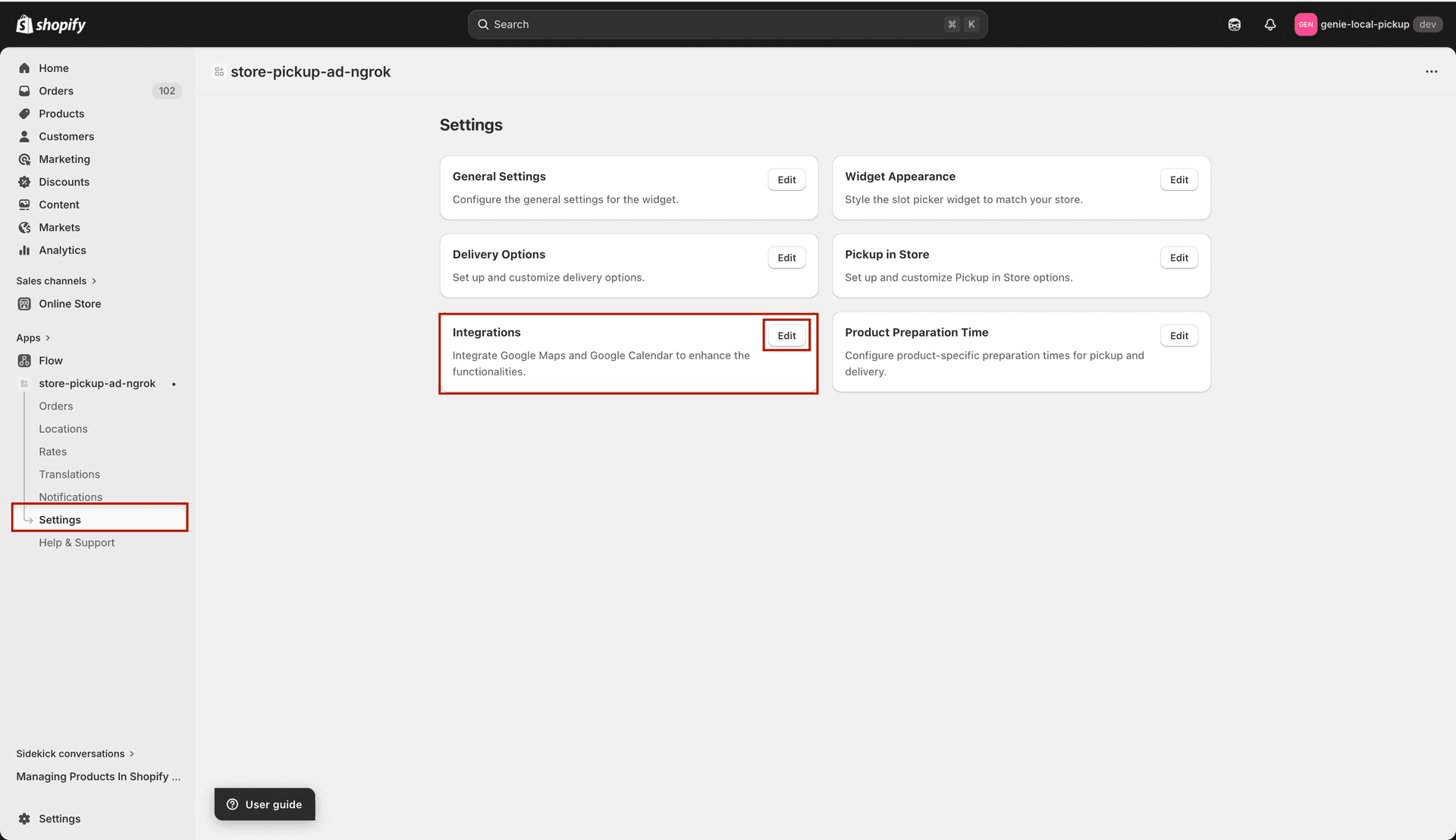
Google Maps integration — add your API key and configure map display settings
Enable Google Maps for local delivery
Go to Settings → Integrations.
In the "Enable Google Maps" dropdown, select "Enabled" to turn on the Google Maps integration for local delivery.
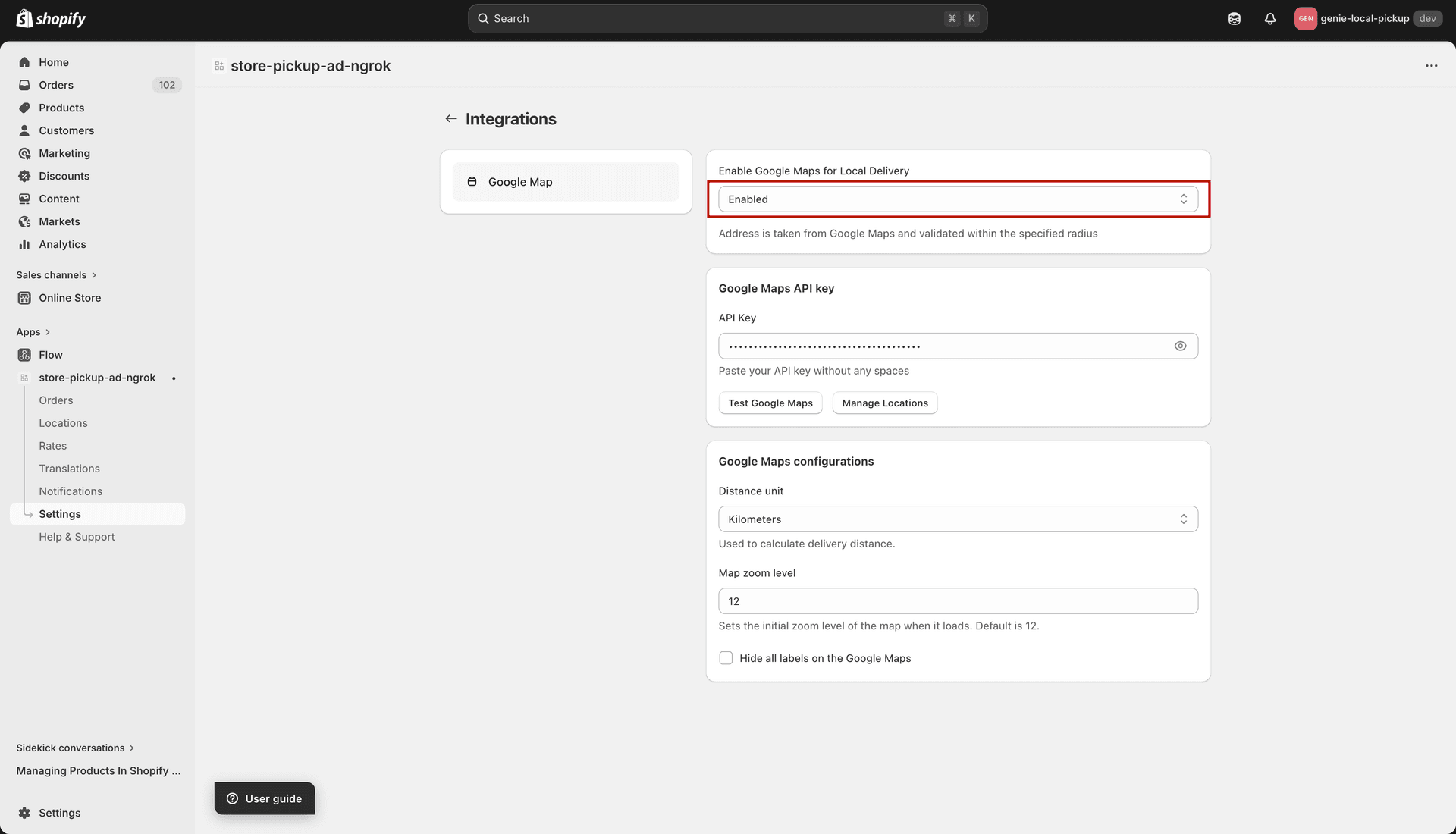
Enable Google Maps for the local delivery widget
Adding your Google Maps API key
Go to the Google Cloud Console (console.cloud.google.com) and create or select a project.
Enable the Maps JavaScript API and the Geocoding API for your project.
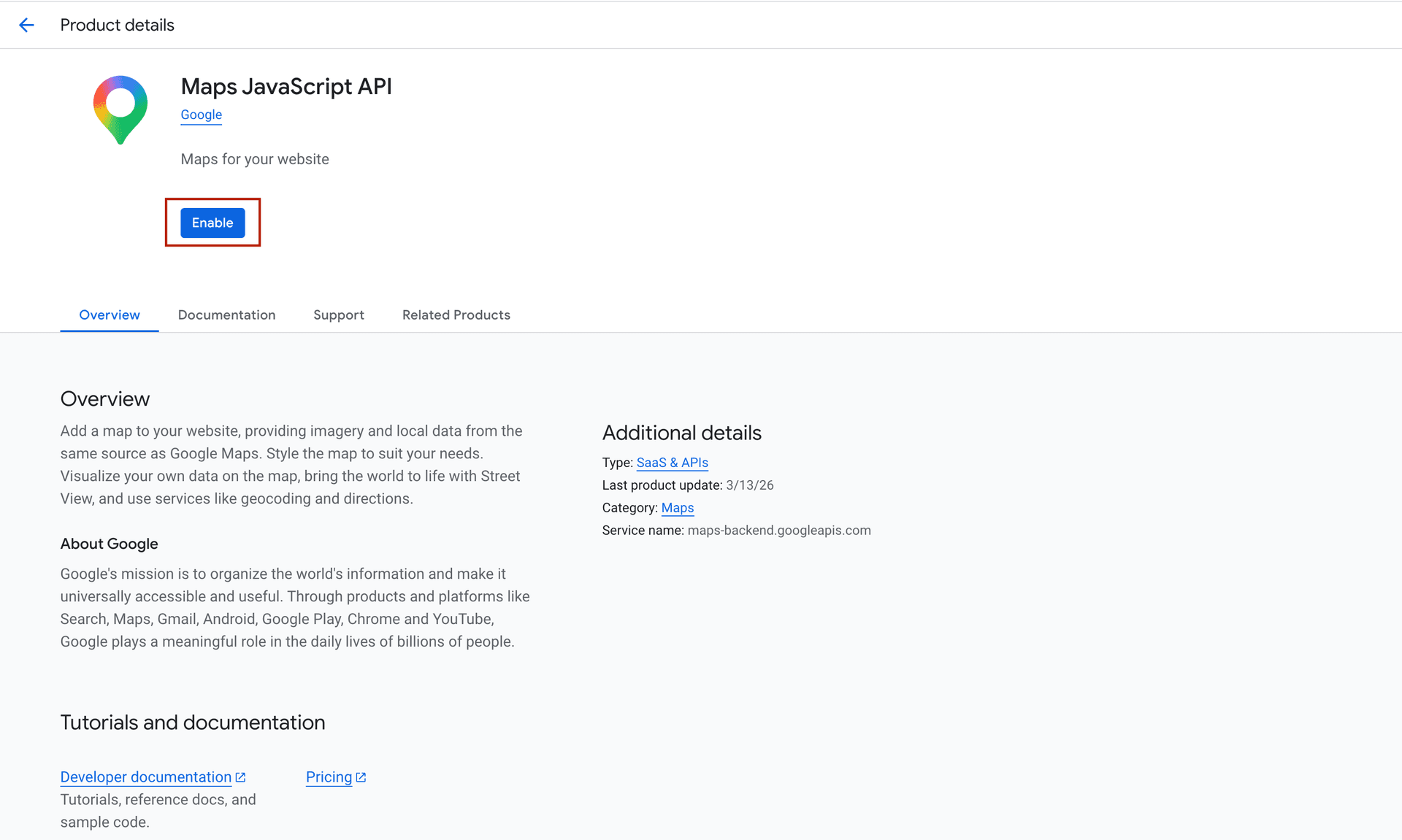
Enable Maps JavaScript and Geocoding APIs in your project
Create an API key under Credentials.
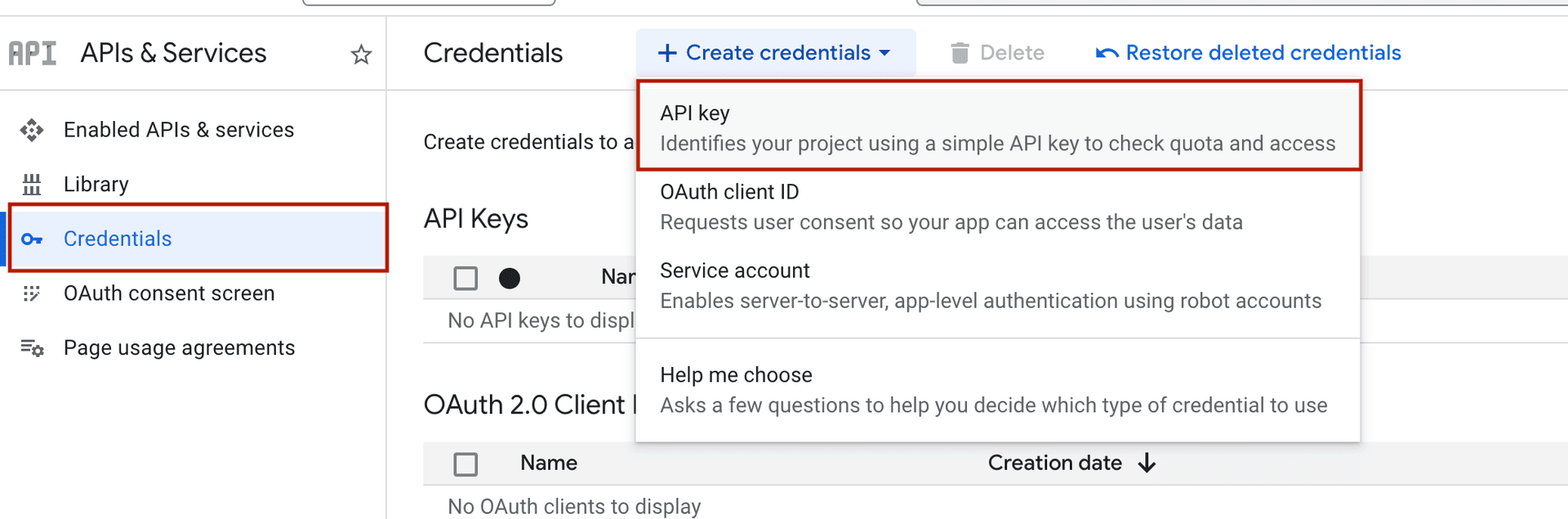
Enable the APIs and create your Google Maps key in Google Cloud Console
Copy the API key and paste it into the "API Key" field in the app. Make sure there are no extra spaces.
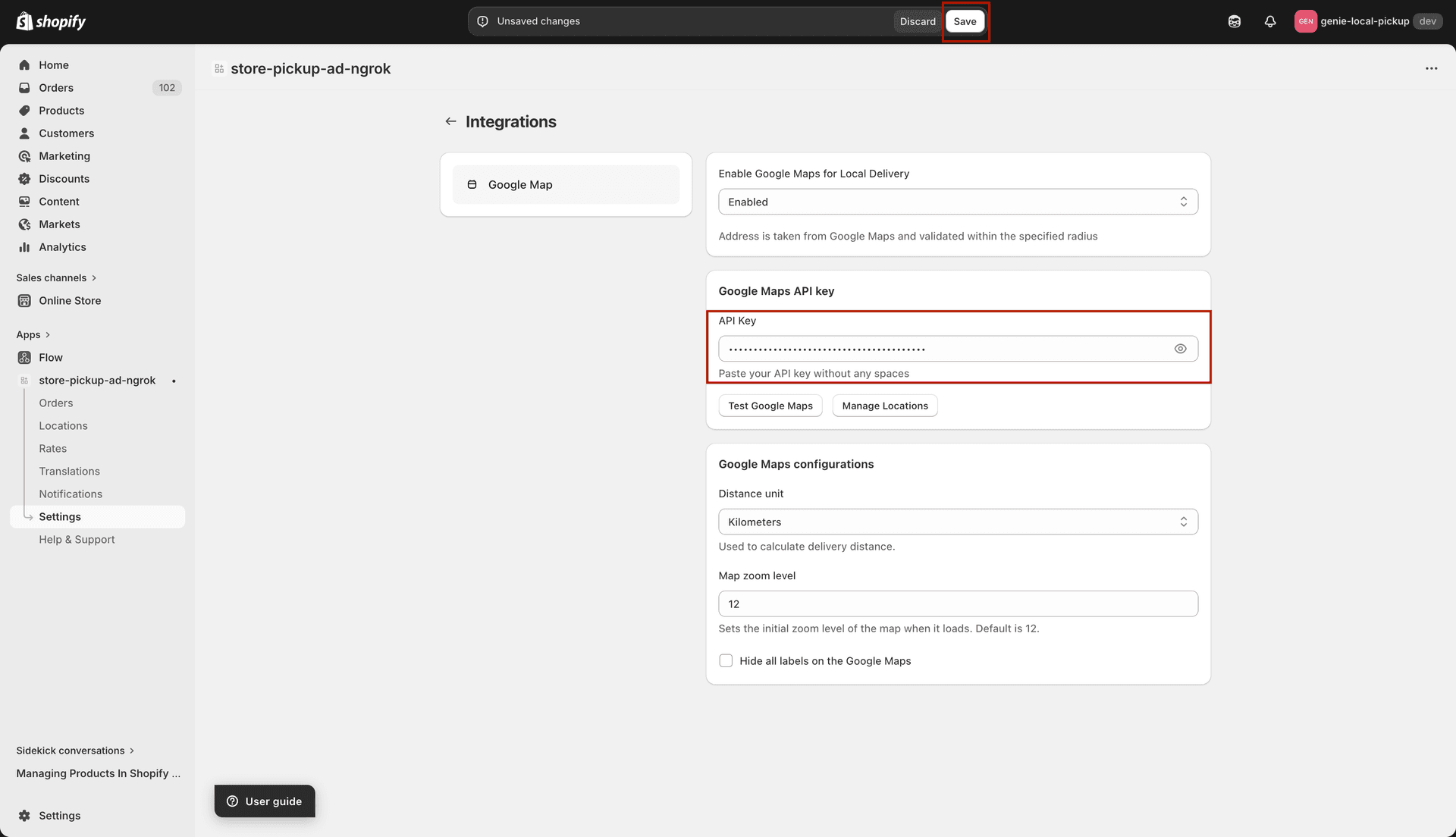
Paste your Google Maps API key — no spaces allowed
Map display settings
Distance Unit — choose whether delivery distances are shown in Kilometers (km) or Miles (mi).
Map Zoom Level — set the default zoom level when the map loads in the widget (e.g. 12 for city level, 10 for wider area). A higher number means more zoomed in.
Hide All Labels — when checked, map labels (street names, place names) are hidden on the map for a cleaner look.
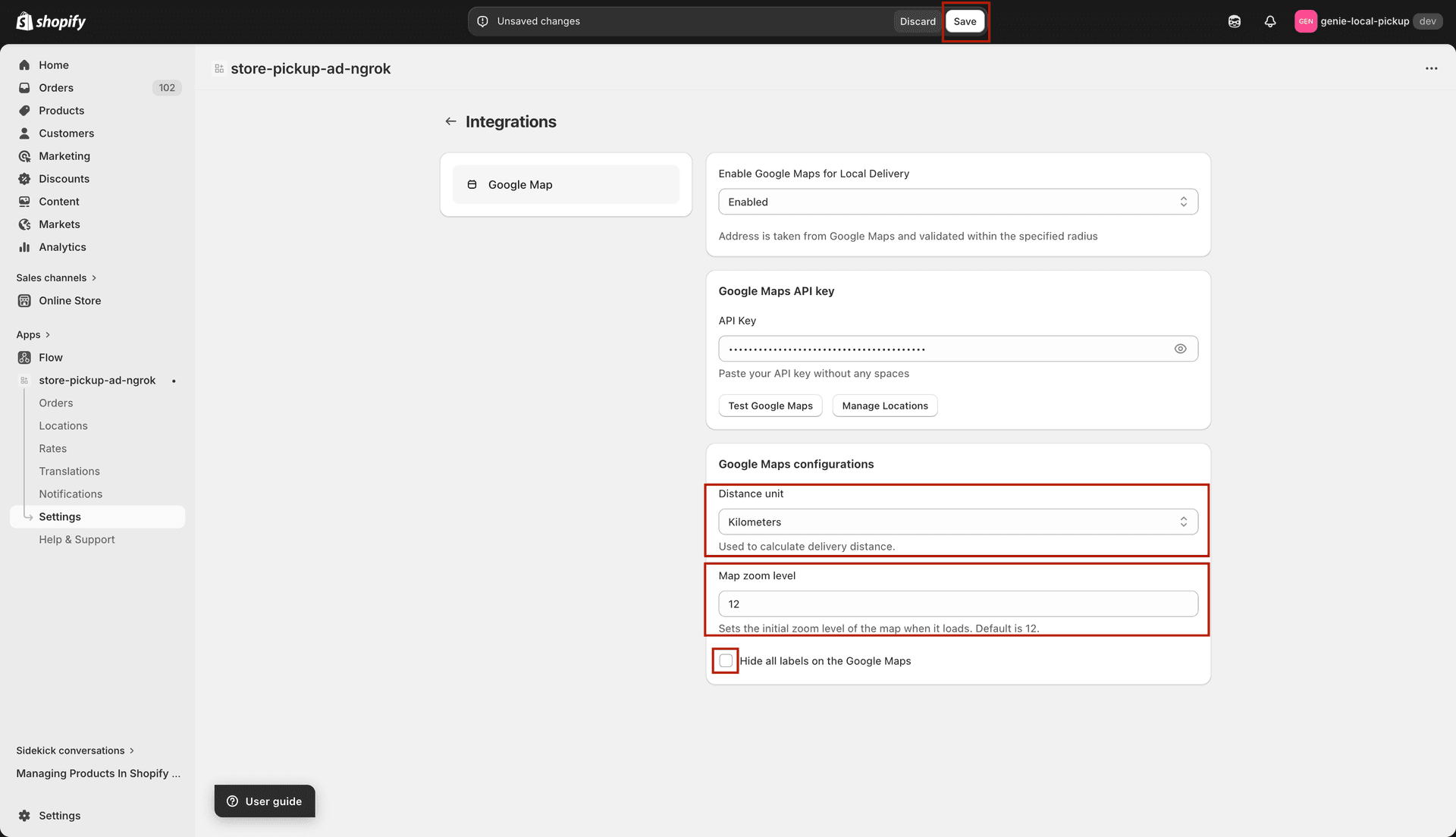
Configure how the map looks in the delivery widget
Google Maps is required if you are using distance-based delivery zone validation in the Rates section. Without an API key, distance validation will not work.