
Set preparation time rules for specific products or product tags, apply them to pickup or delivery, and optionally add a daily cut-off time.
Product Preparation Time lets you configure how much preparation time is needed for specific products or product groups. When a customer adds these products to their cart, the earliest available pickup or delivery date is pushed forward by the preparation time you set.
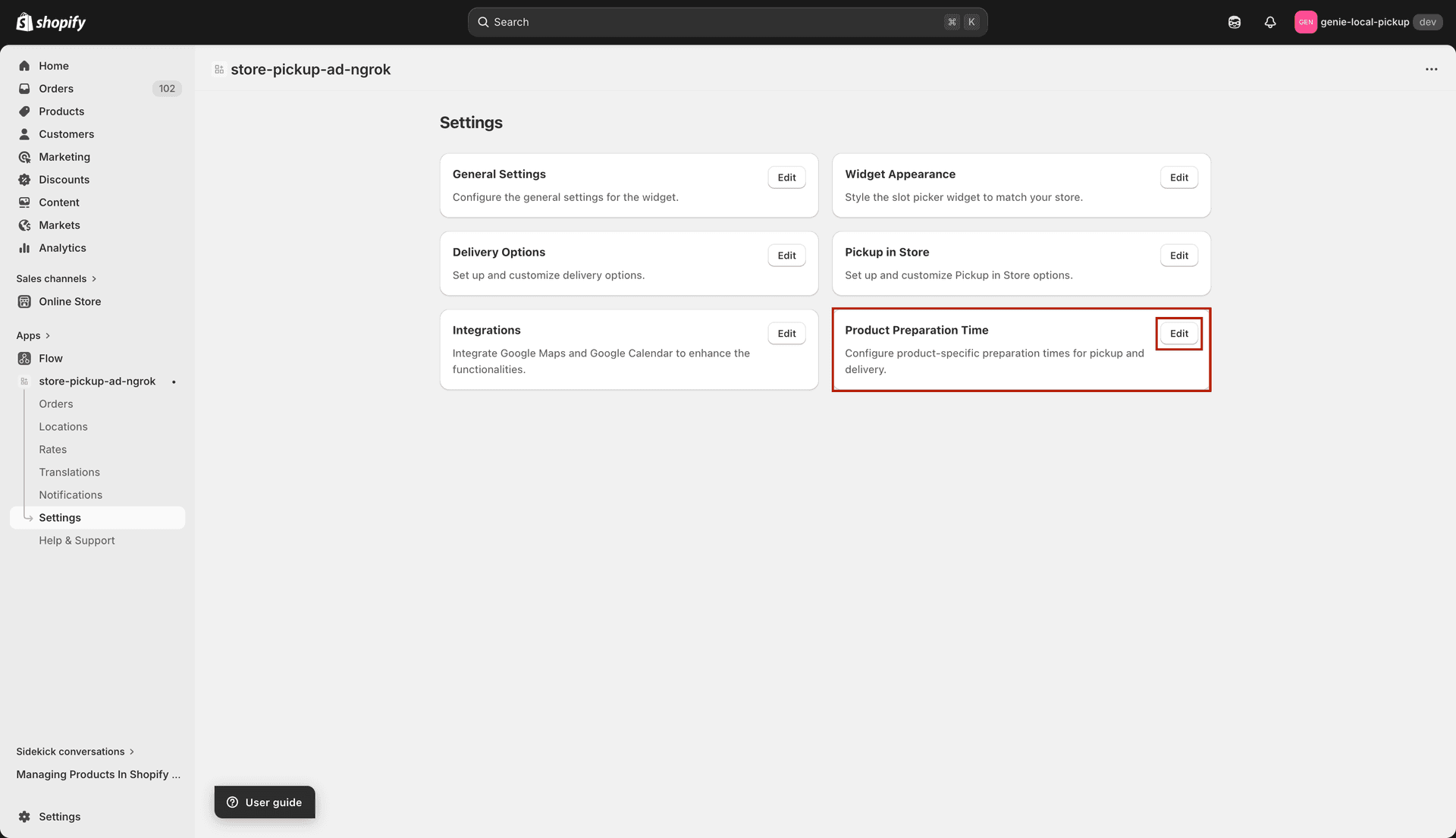
Product Preparation Time — apply prep time rules to specific products or tags
Step 1 — Choose selection type
Selection Type — choose how you want to identify which products this rule applies to:
Products — click "Select Products" to open a product picker and choose specific products.
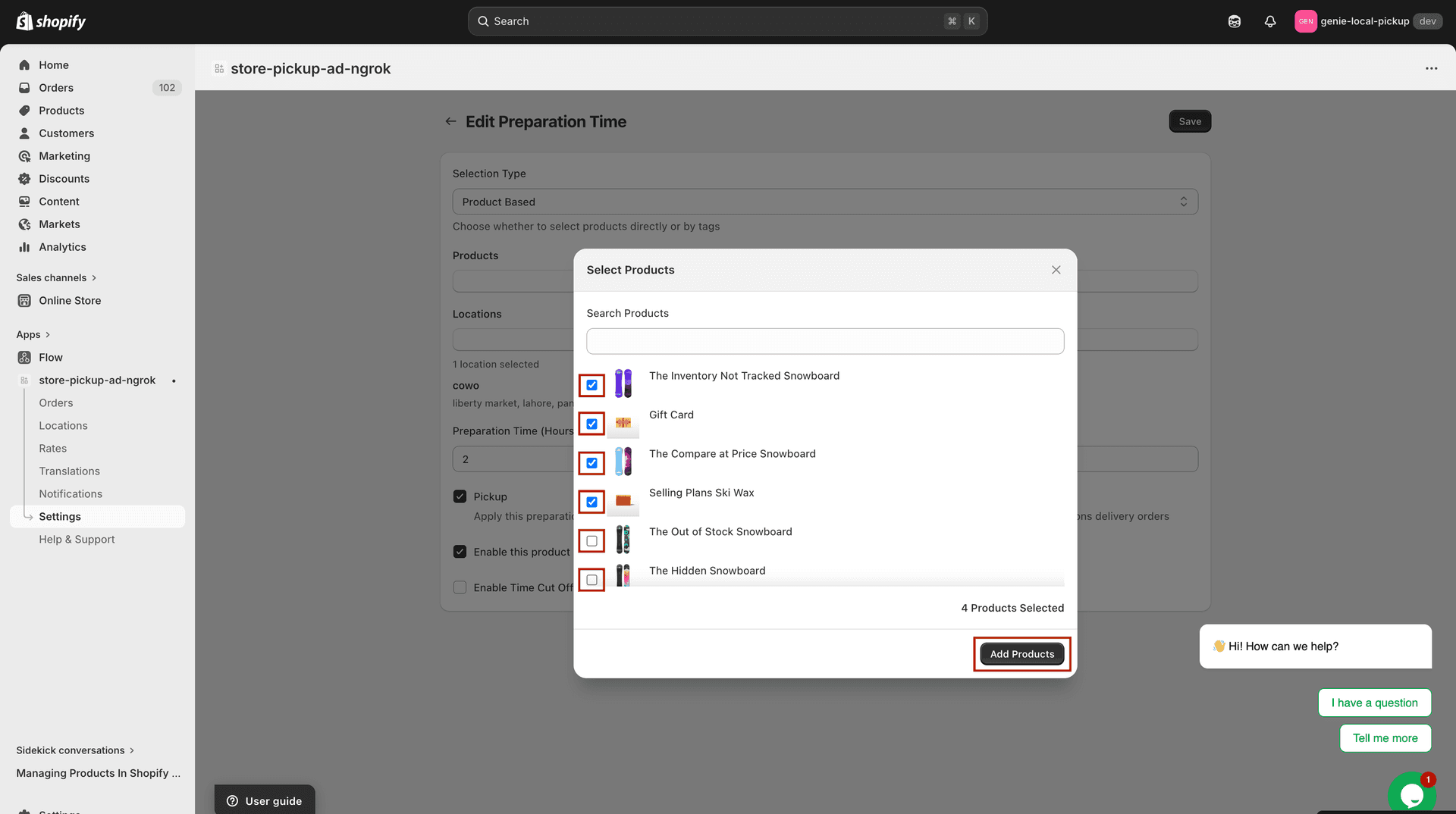
Select the products this prep time rule applies to
Tags — enter one or more product tags. Any product in the cart with a matching tag will trigger this preparation time rule.
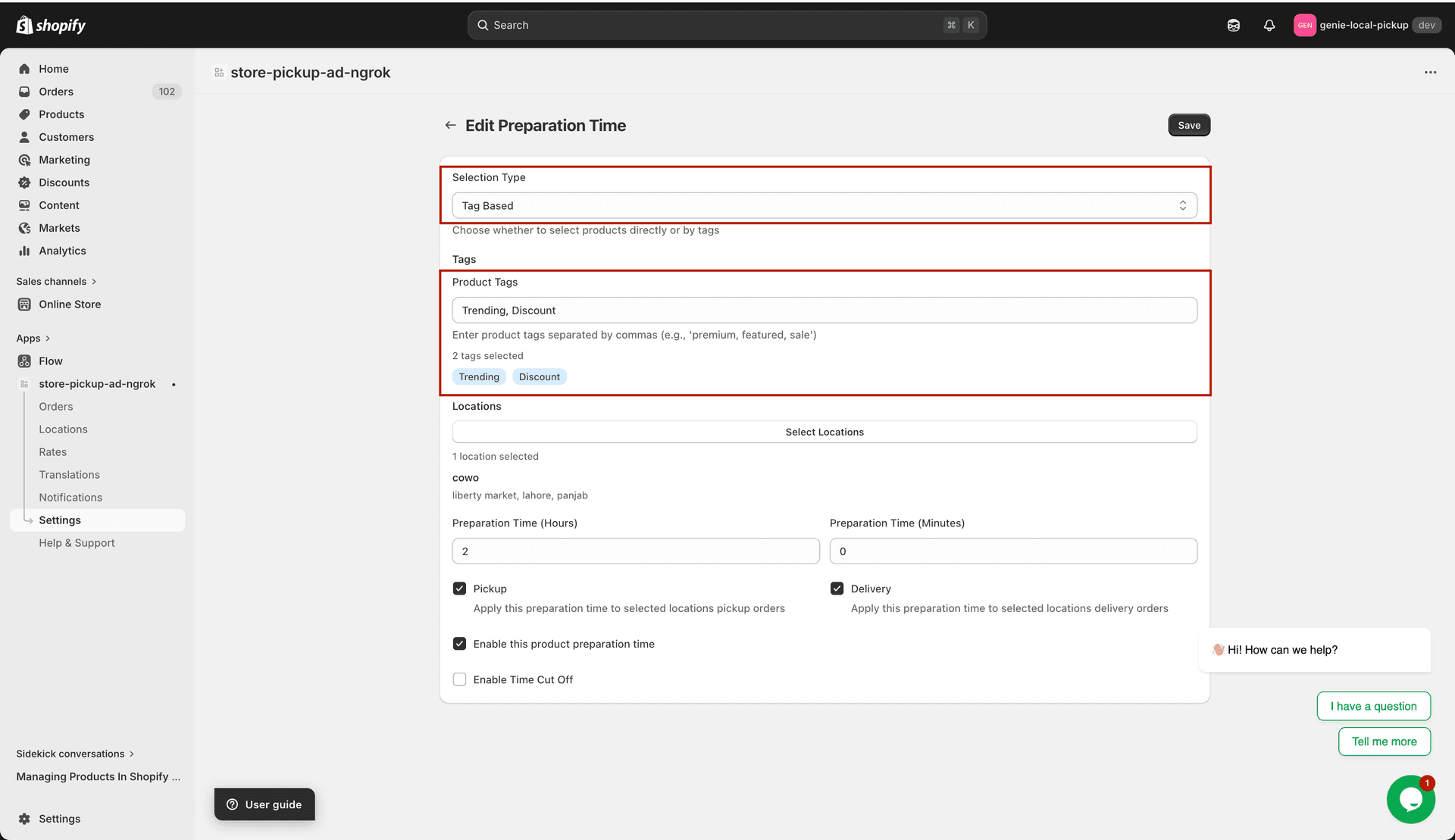
Select specific products or use tags to target products for this rule
Step 2 — Select locations
Click "Select Locations" to choose which pickup/delivery locations this preparation time applies to. If you leave all locations selected, the rule applies everywhere.
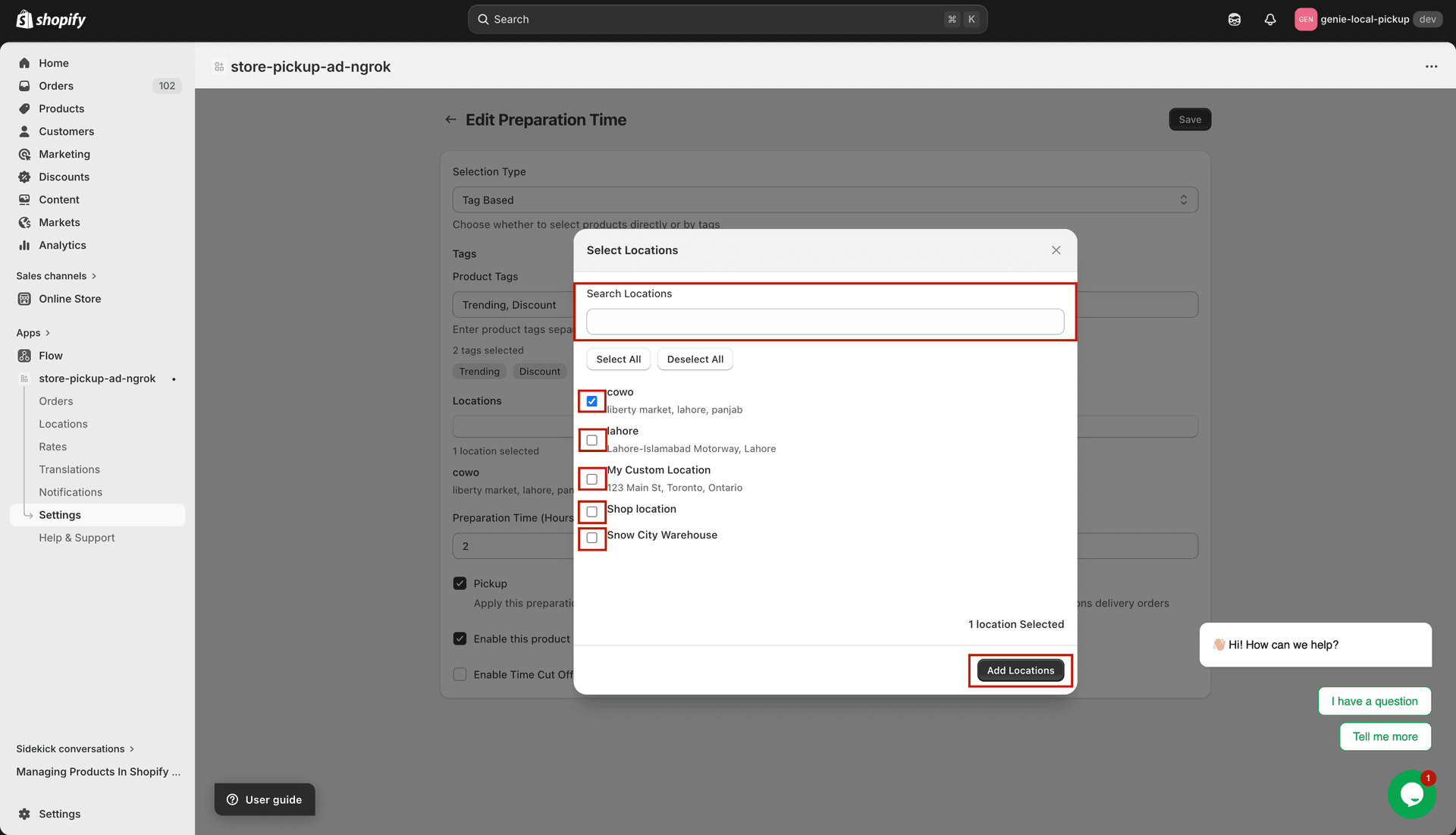
Choose which locations this rule applies to
Step 3 — Set preparation time
Preparation Time (Hours) — enter the number of hours needed to prepare the product.
Preparation Time (Minutes) — enter additional minutes on top of the hours (e.g. 1 hour 30 minutes = 1 hour + 30 minutes).
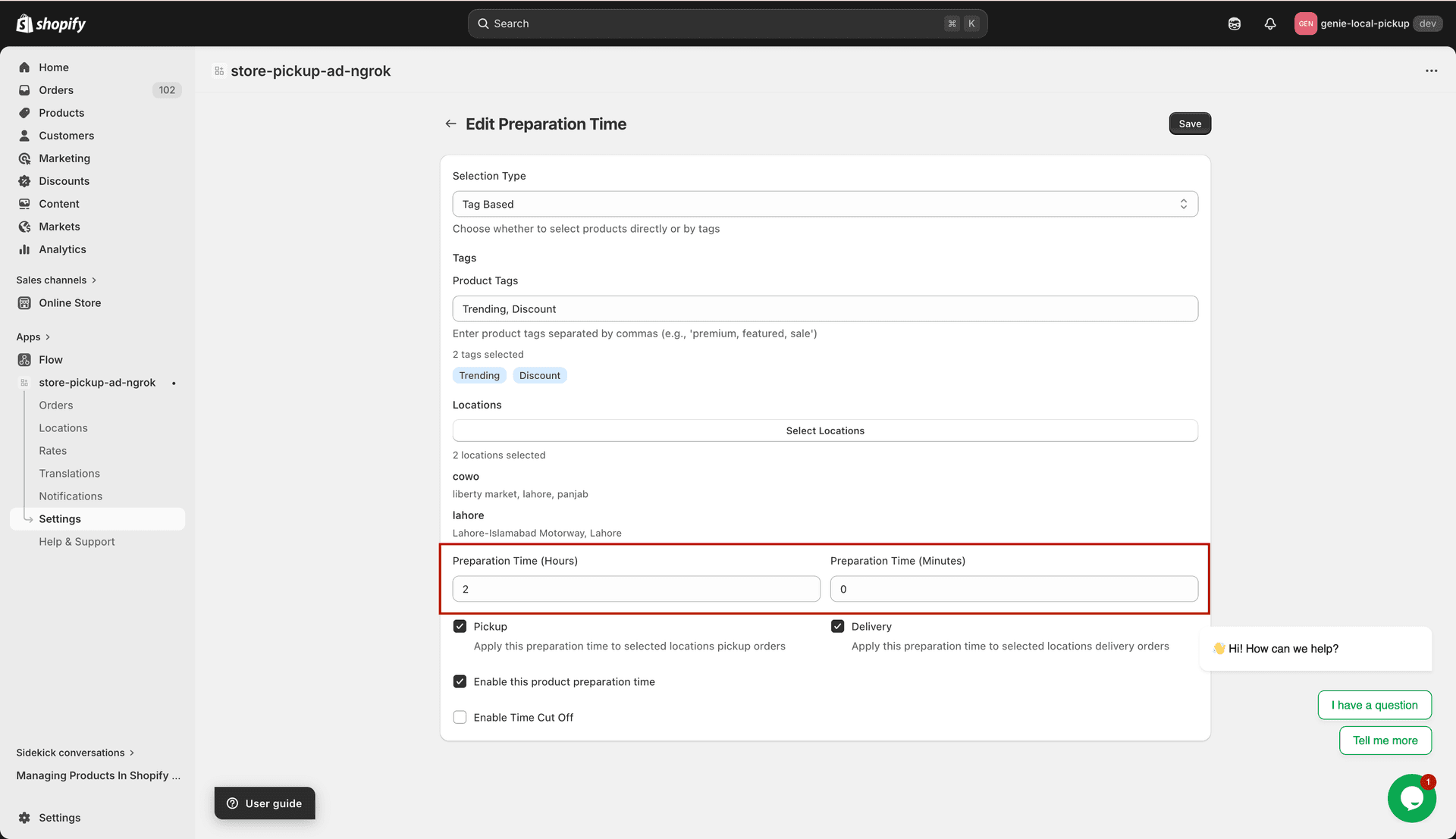
Set the preparation time in hours and minutes
Step 4 — Apply to Pickup, Delivery, or both
Pickup — check this box to apply the preparation time to store pickup orders.
Delivery — check this box to apply the preparation time to local delivery orders.
Step 5 — Enable the rule and set cut-off time
Enable this product preparation time — check this to activate the rule. Uncheck to temporarily disable it without deleting it.
Enable Time Cut Off — when checked, you can set a daily cut-off time. If a customer orders after the cut-off, one extra day is added to the preparation time.
Cut Off Time — select the time of day after which same-day preparation is no longer possible.
Disable Days — enter specific days of the week when preparation does not happen (e.g. "Saturday,Sunday" to skip weekends).
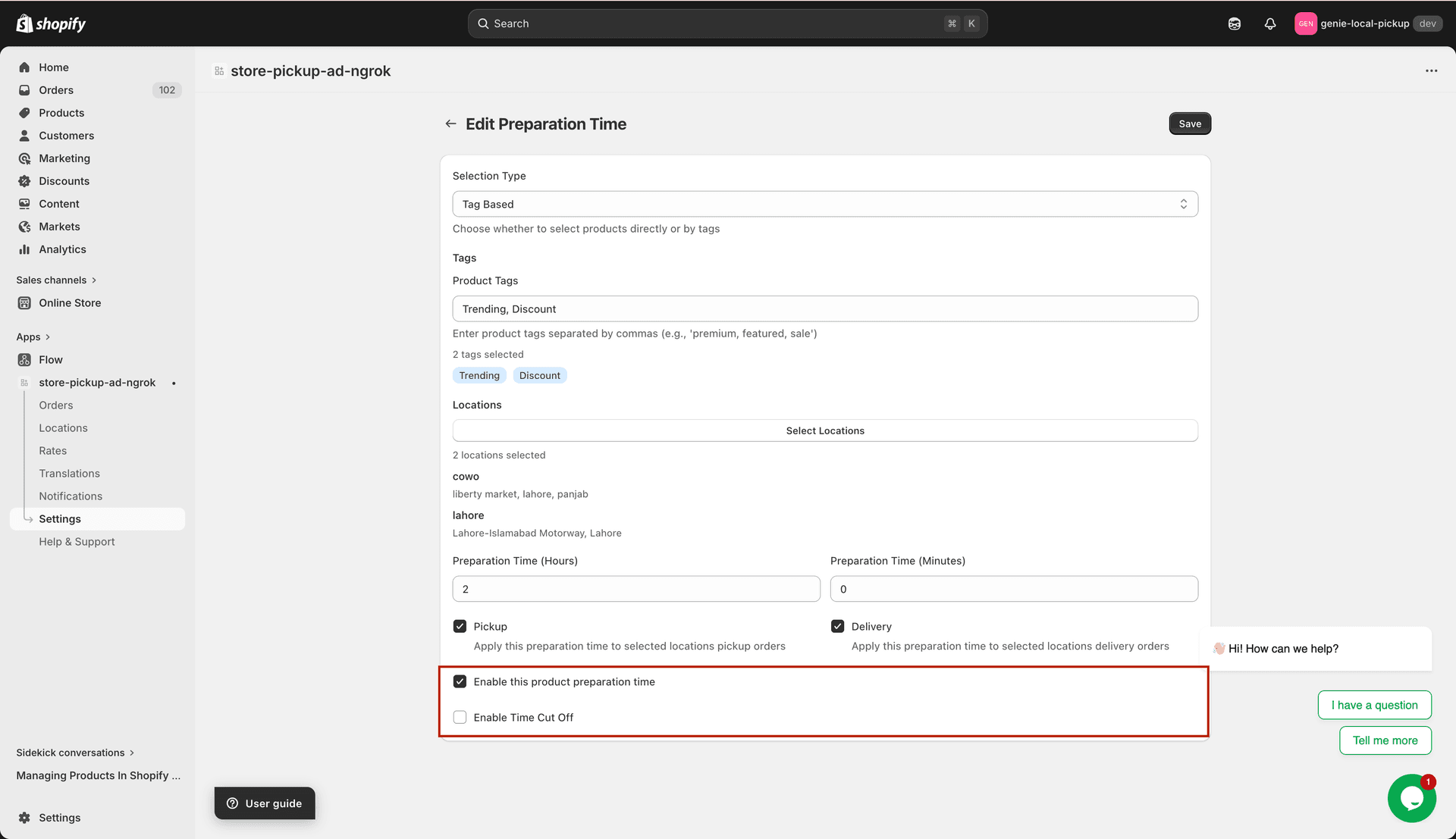
Set a daily cut-off time and specify days when preparation does not occur
You can create multiple product preparation time rules — for example, one rule for fragile products needing 2 days and another for custom-made items needing 5 days.
What's Next