
Integrations — Google Calendar
Last updated: April 14, 2026
Connect Google Calendar to automatically create pickup/delivery events and send calendar invites to customers.
Google Calendar integration helps merchants and customers keep pickup and delivery appointments organized. Once connected, the app can create events in your Google Calendar and send calendar invites to customers after orders are placed.
How to connect Google Calendar
Go to Settings → Integrations.
In the Google Calendar section, click "Connect Google Calendar".
A Google authorization popup opens. Choose your Google account and allow calendar access.
After successful authorization, the status changes to "Connected".
Set your store timezone in the same section. This timezone is used when creating calendar events.
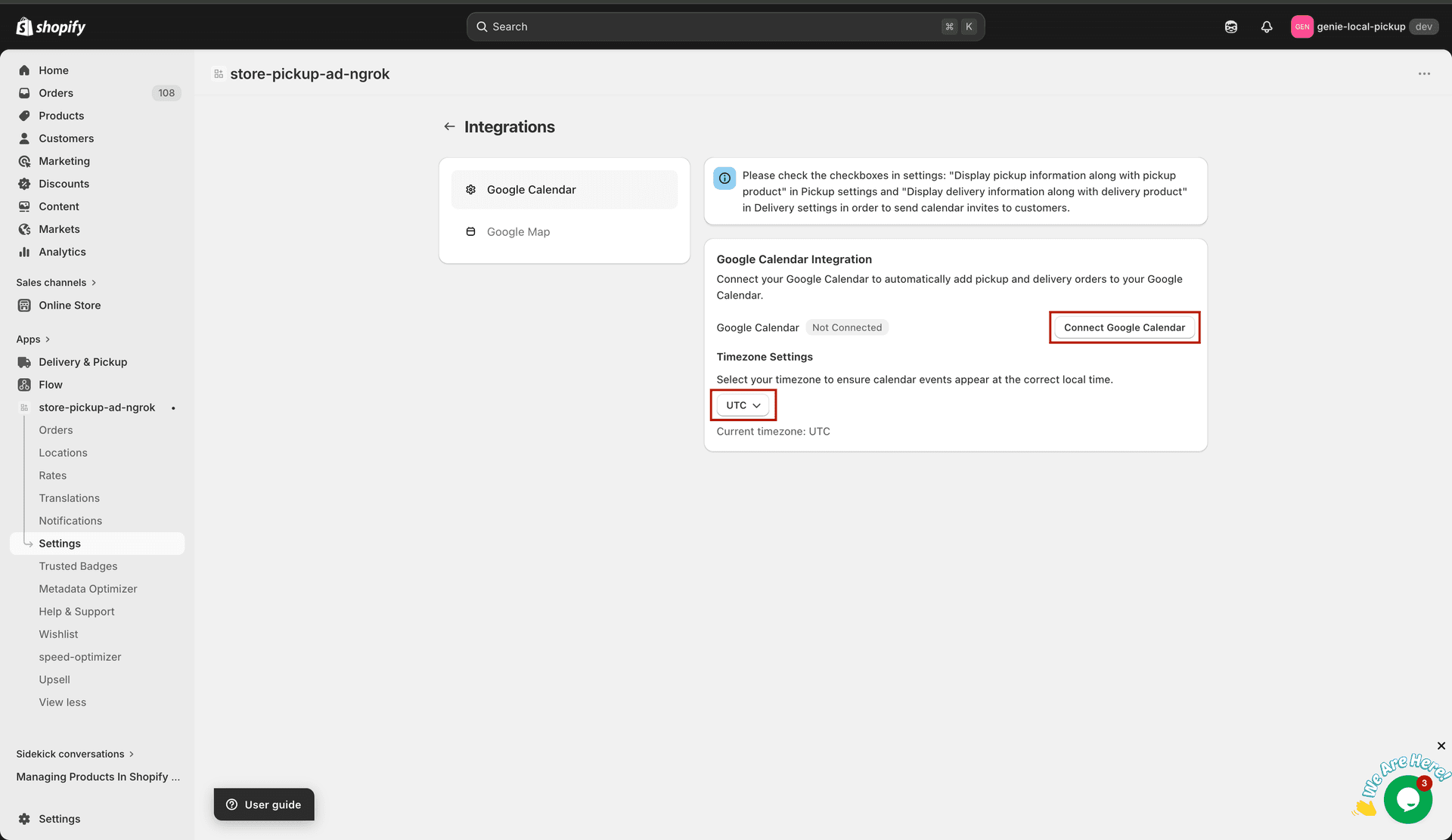
Connect via OAuth and confirm the Connected status
Prerequisite for customer invites
To send useful calendar invites to customers, enable order info display checkboxes in Pickup and Delivery settings:
Pickup settings → enable "Display pickup information along with pickup product".
Delivery settings → enable "Display delivery information along with delivery product".
If these are disabled, customers may not receive complete pickup/delivery date-time details in their invite flow.
What happens after connection
When a pickup or delivery order is created, the app reads the selected date, time slot, customer, and location details from order attributes.
The app creates an event in the connected Google Calendar (merchant side) with order details and address/location.
The customer receives an email invite containing an .ics attachment and an "Add to Google Calendar" link.
If the Google access token expires, the app refreshes it automatically and retries event creation.
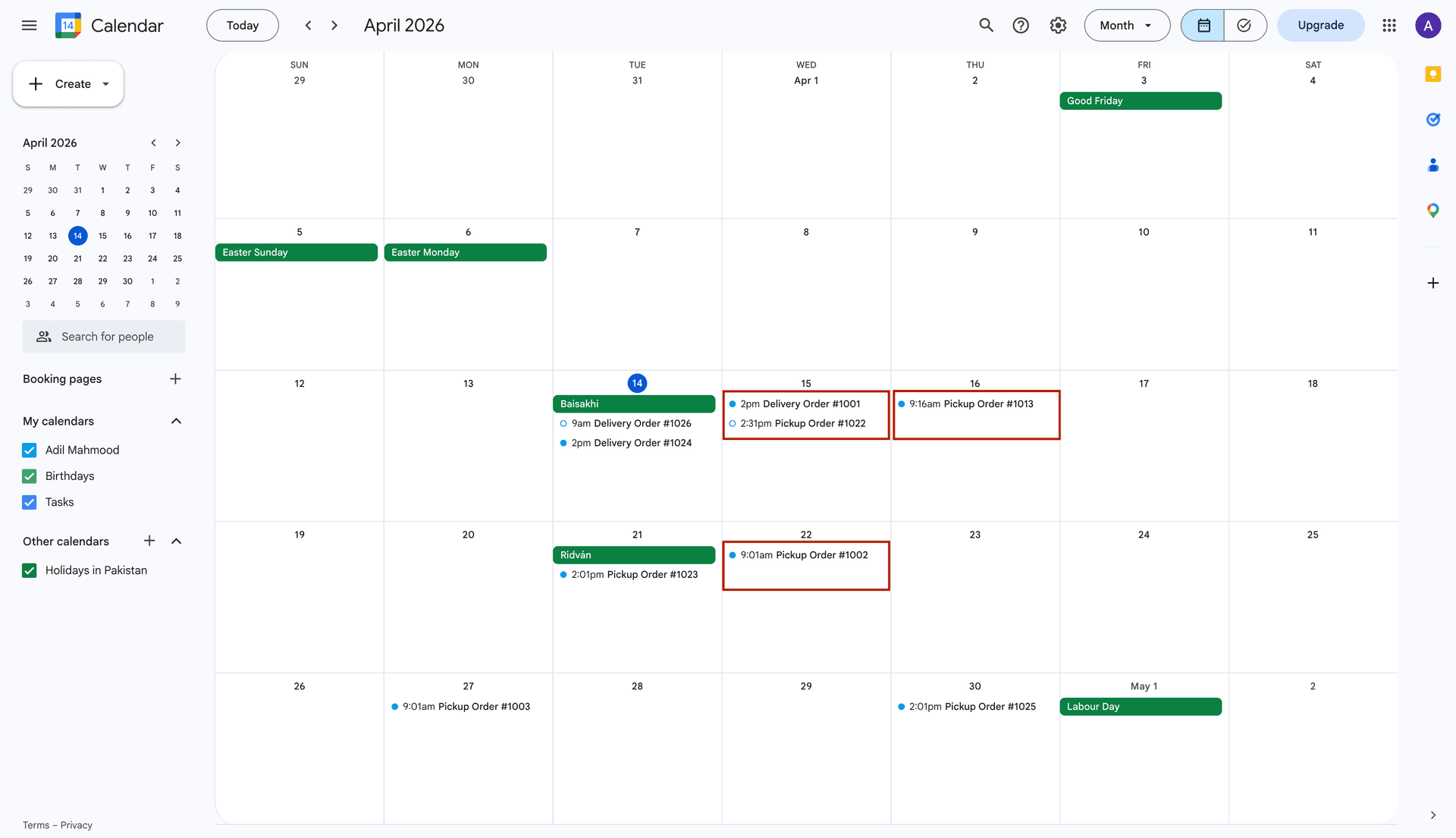
Customers can add the appointment via Google link or ICS file
Storefront impact
The storefront widget behavior does not change visually just by connecting Google Calendar. Customers still choose Pickup/Delivery date and time the same way. Calendar integration acts after order placement to schedule appointments and reduce missed pickups/deliveries.
Use Google Calendar if your team needs automatic scheduling and customer reminders; disconnect anytime from the same settings section.
Manage or delete Google Calendar data
Disconnect Google Calendar in Settings → Integrations to stop new event creation and delete the Google OAuth tokens we store. Uninstalling Store Pickup also deletes those credentials. You can revoke access from your Google Account permissions at any time. To request deletion of data we store, email genieexperts@gmail.com. Events already created in your Google Calendar stay in your Google account until you delete them there. Full details are in our Privacy Policy at https://www.genieapps.io/privacy-policy