
Customize the button text, description, and colors of the pickup and delivery widget to match your store branding.
Widget Appearance lets you change the text labels and colors shown on the pickup/delivery selector at checkout. A live preview on the right side of the page updates as you make changes.
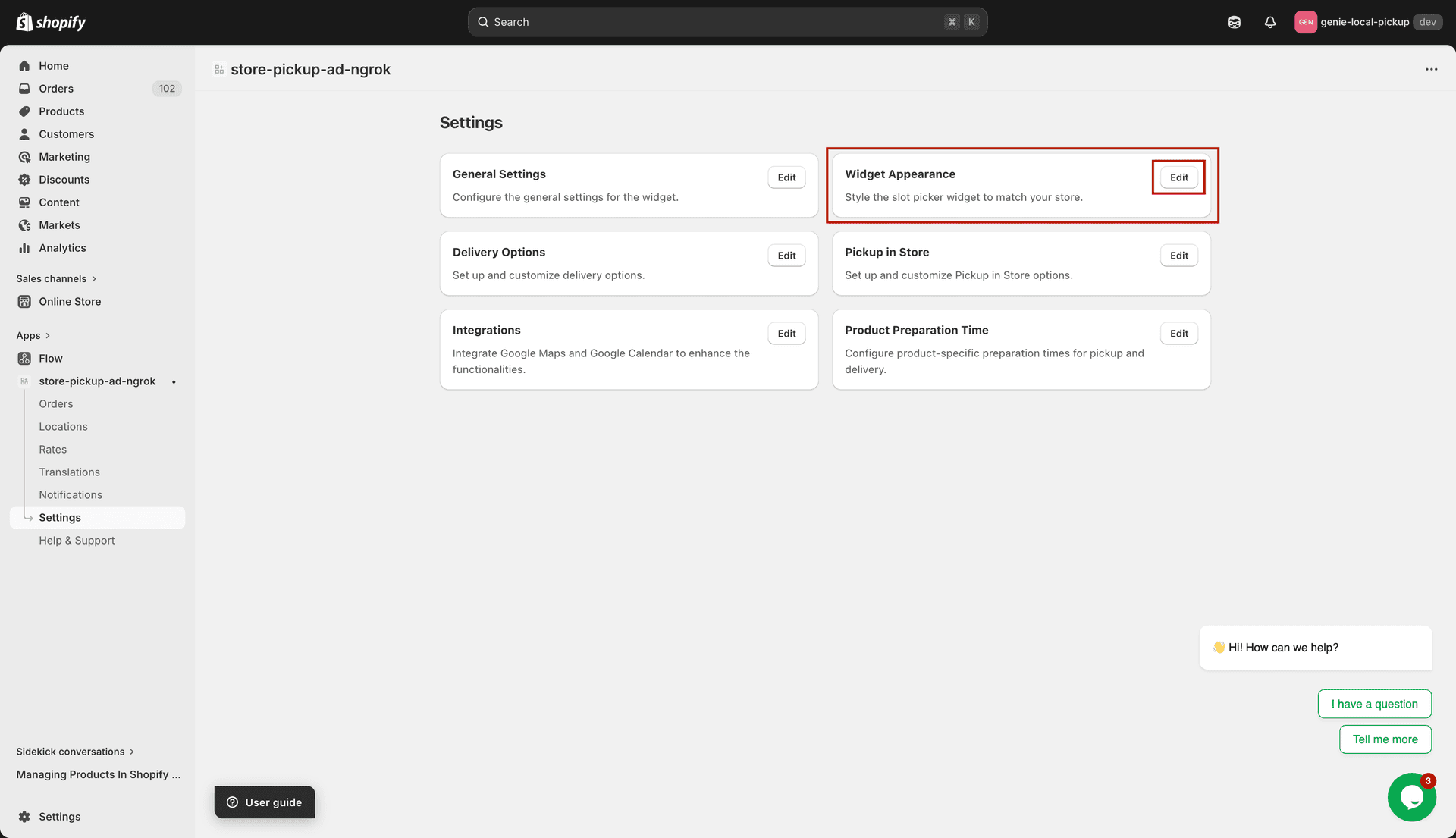
Widget Appearance — edit text and colors on the left, preview on the right
Button text settings
Pickup Button Text — the label shown on the store pickup button in the widget (e.g. "Store Pickup" or "Collect in Store").
Delivery Button Text — the label shown on the local delivery button (e.g. "Local Delivery" or "Home Delivery").
Text Under Button — a short description displayed below the pickup/delivery buttons. Use this to add a note like "Free pickup available" or leave it blank.
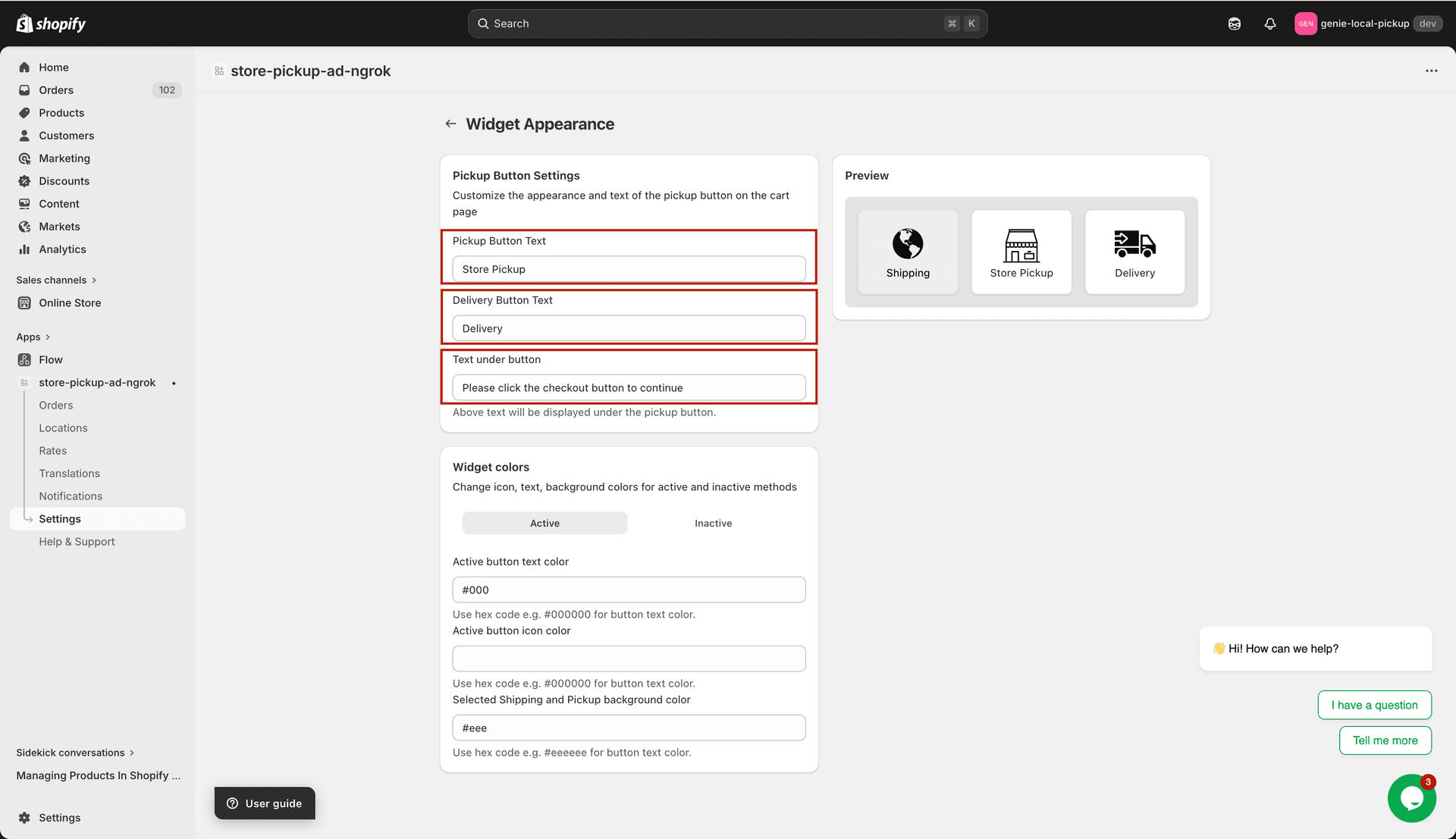
Customize the button labels and the description text shown under them
Color settings
The color settings section lets you customize the colors of the widget buttons:
Active button colors
Active Button Text Color — the color of the label text on the active (selected) button.
Active Button Background Color — the background color of the currently selected button.
Active Icon Color — the icon color when a button is selected.
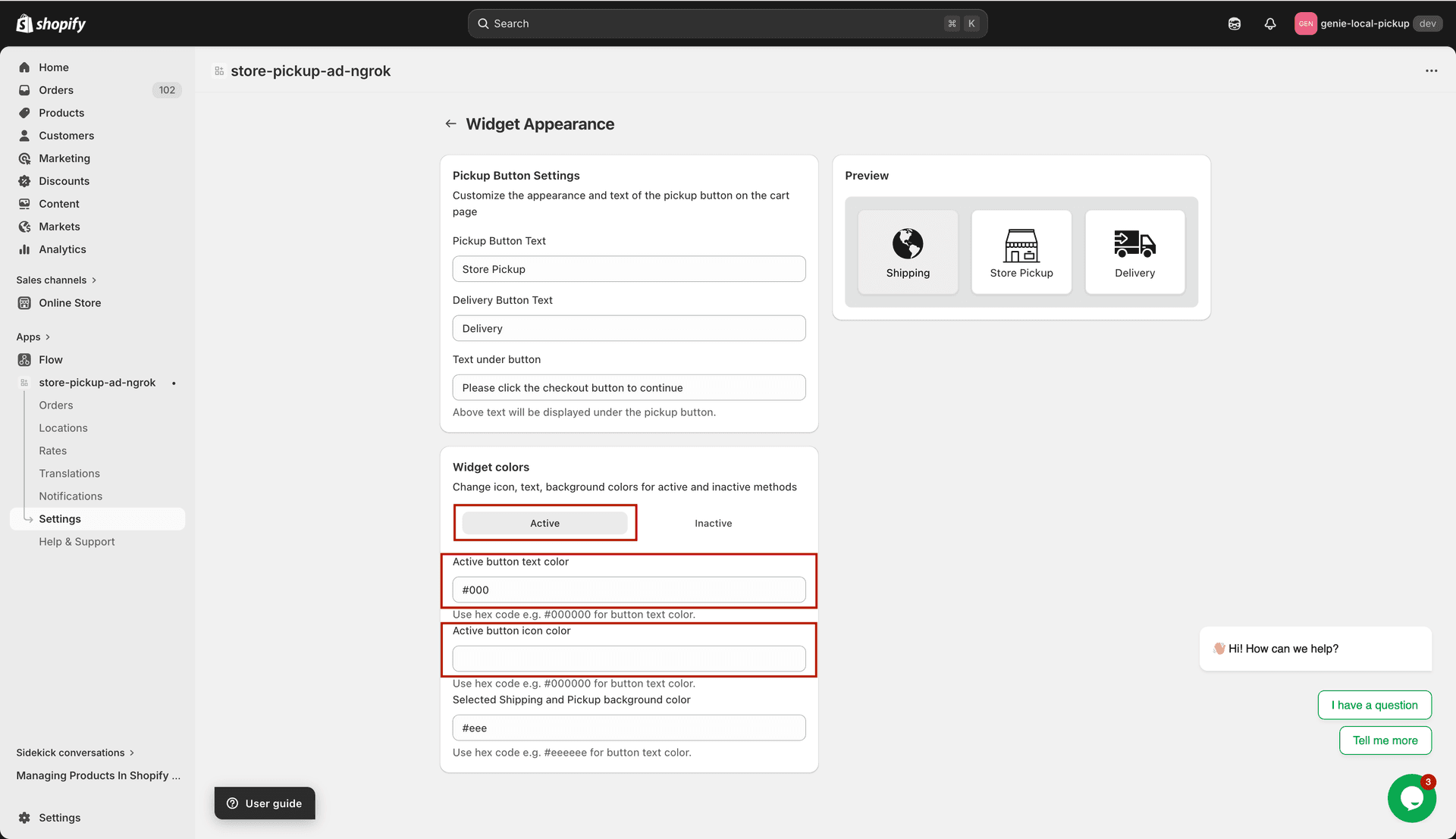
Active button colors in the widget preview
Inactive button colors
Inactive Button Background Color — the background color of inactive (unselected) buttons.
Inactive Button Text Color — the text color for unselected buttons.
Inactive Icon Color — the icon color when a button is not selected.
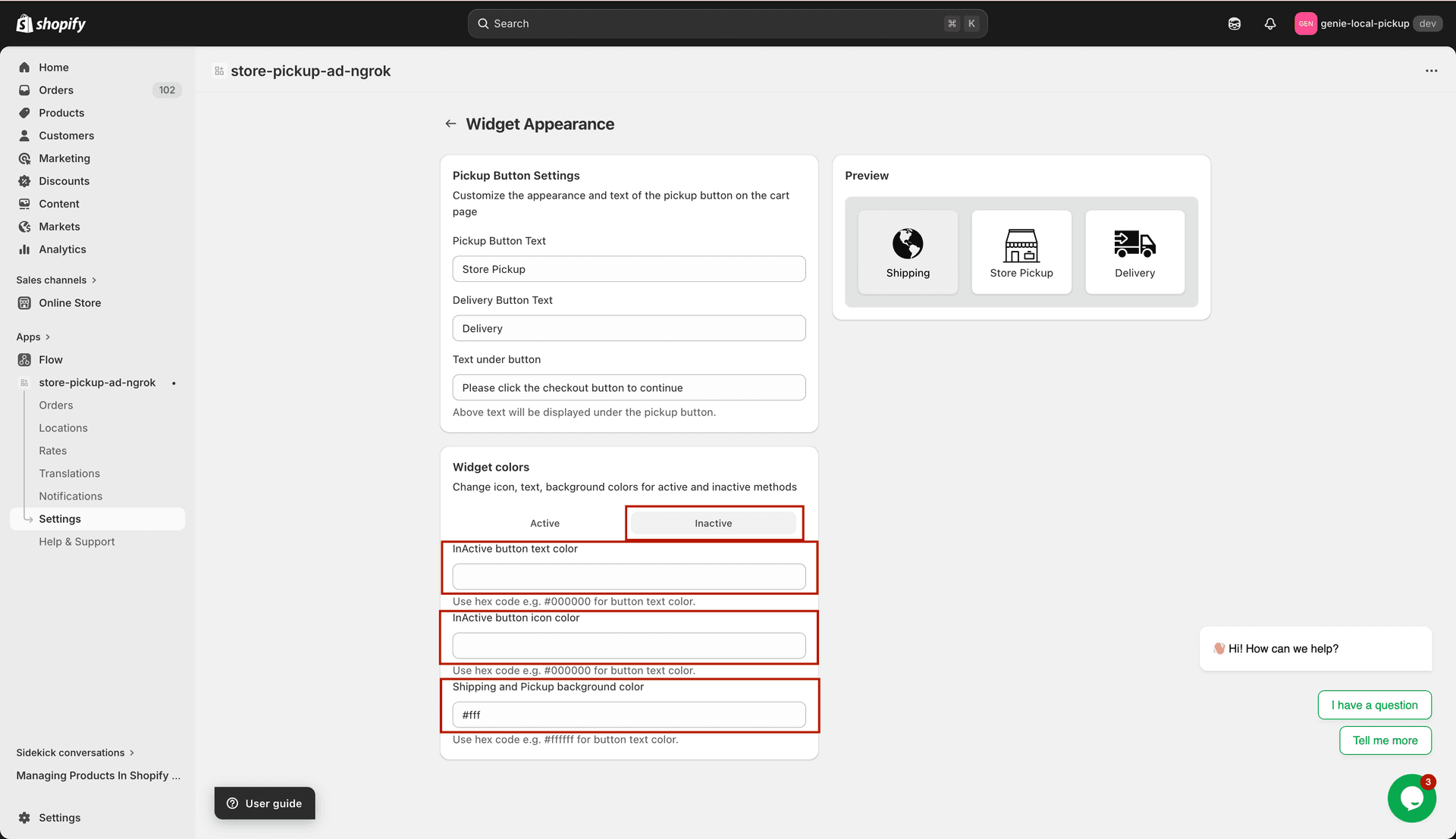
Inactive button colors in the widget preview
Live preview
The right side of the page shows a live preview of the widget with your current settings. Click any of the three preview cards (Shipping, Pickup, Delivery) to see how the active/inactive states look.
Click "Save" in the save bar after making changes. The widget on your live storefront updates immediately.