
Add a new language, set it as default, or remove a language from the translations panel.
Before you can translate labels for a language, you need to add it to your languages list. The app supports a wide range of languages — from English, French, German, and Spanish to Swahili, Urdu, Nepali, and many more.
Adding a new language
Go to the Translations page.
In the Languages panel on the left, click the "+ Add Languages" button.
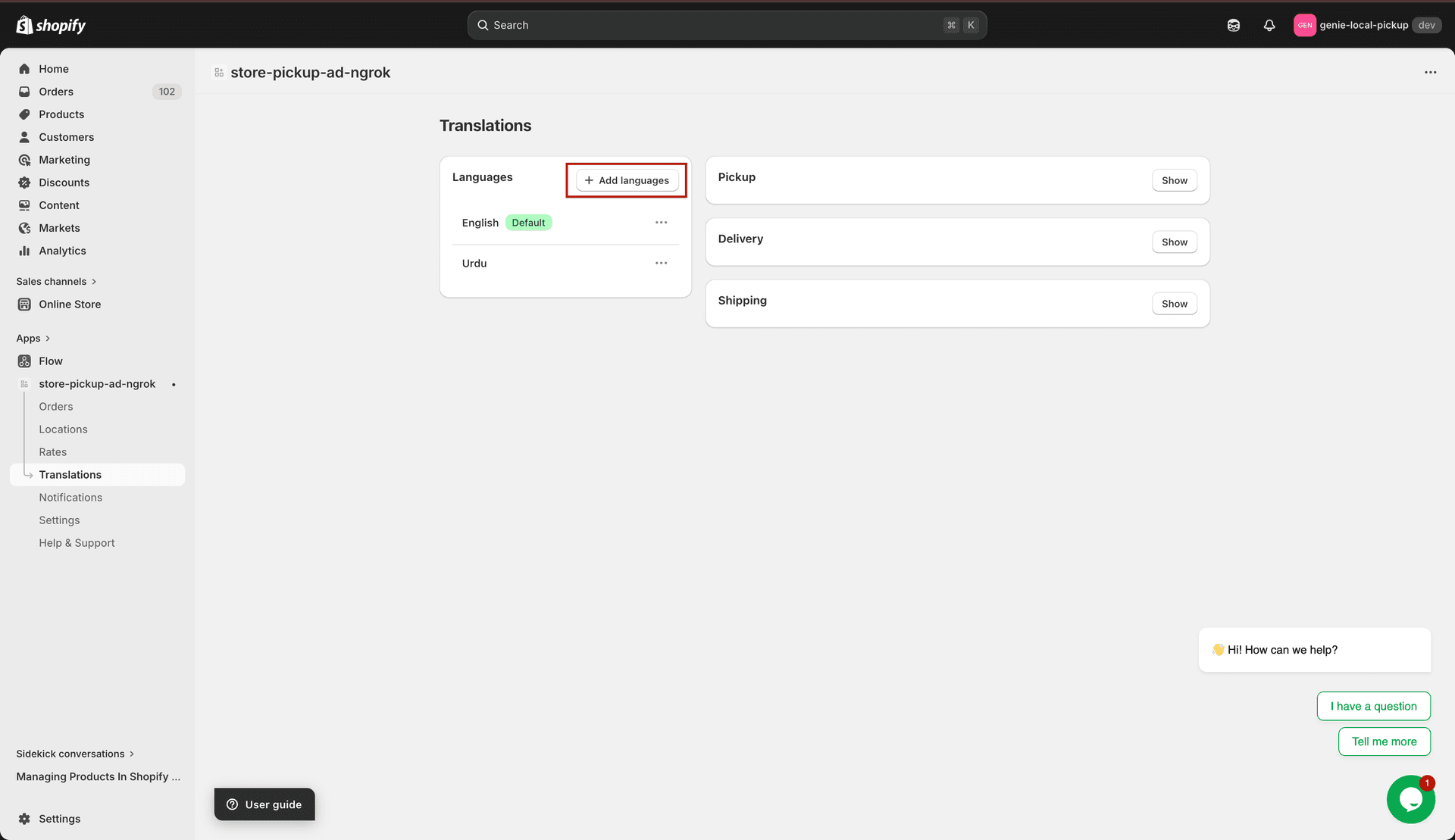
Click + Add Languages to open the language picker
A modal opens with a searchable list of all available languages.
Search for the language you want (e.g. type "French") or scroll through the list.
Check the box next to one or more languages you want to add.
Click "Add" to confirm. The language(s) appear in your languages list.
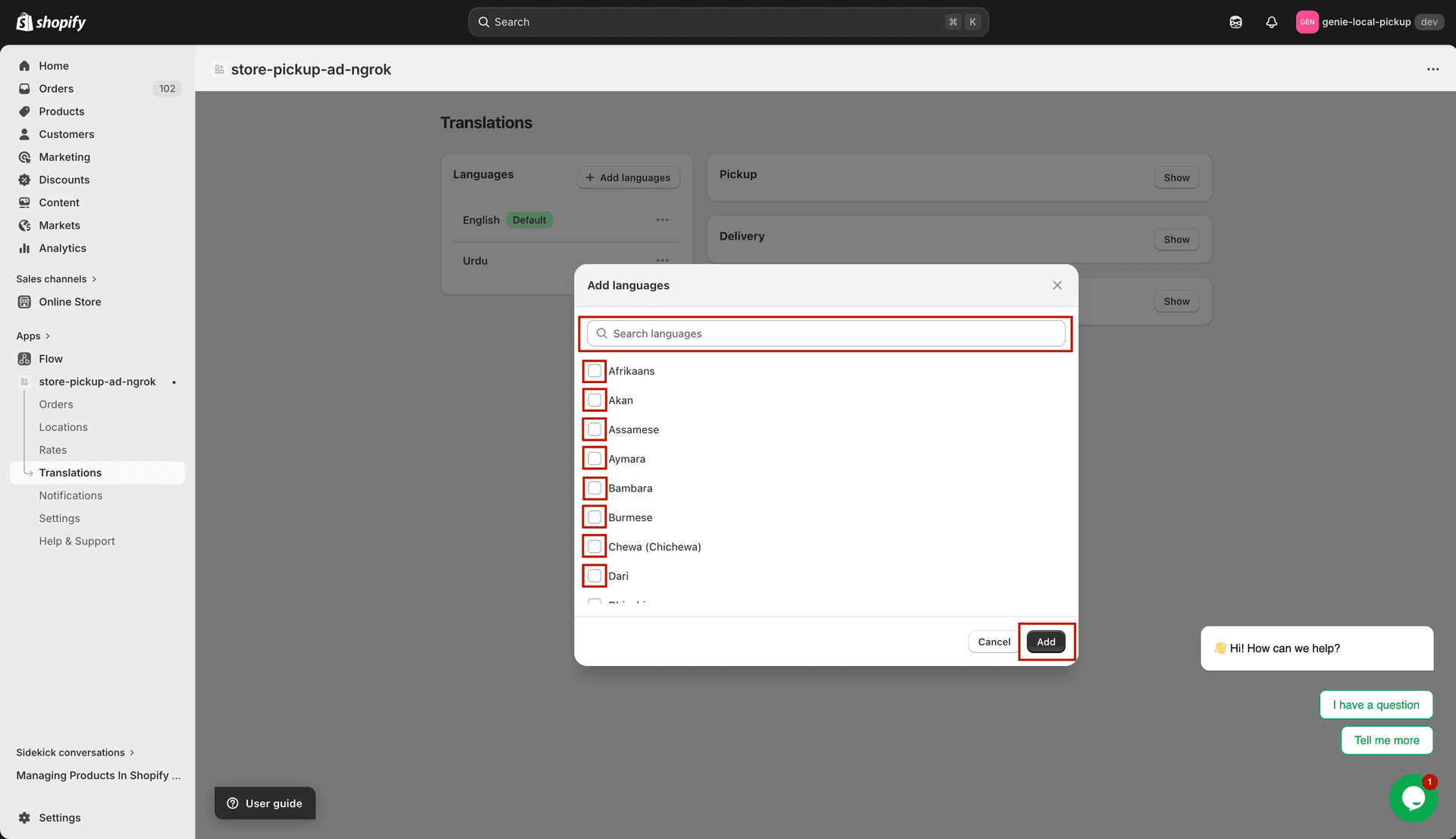
Search and select the languages you want to add
Setting a default language
The default language is the one shown to customers who are not in any other configured language. English is the default when you first open the app.
In the Languages panel, find the language you want to set as default.
Click the ⋯ (three dots) menu button next to that language.
Click "Set as Default". A green "Default" badge appears next to that language.
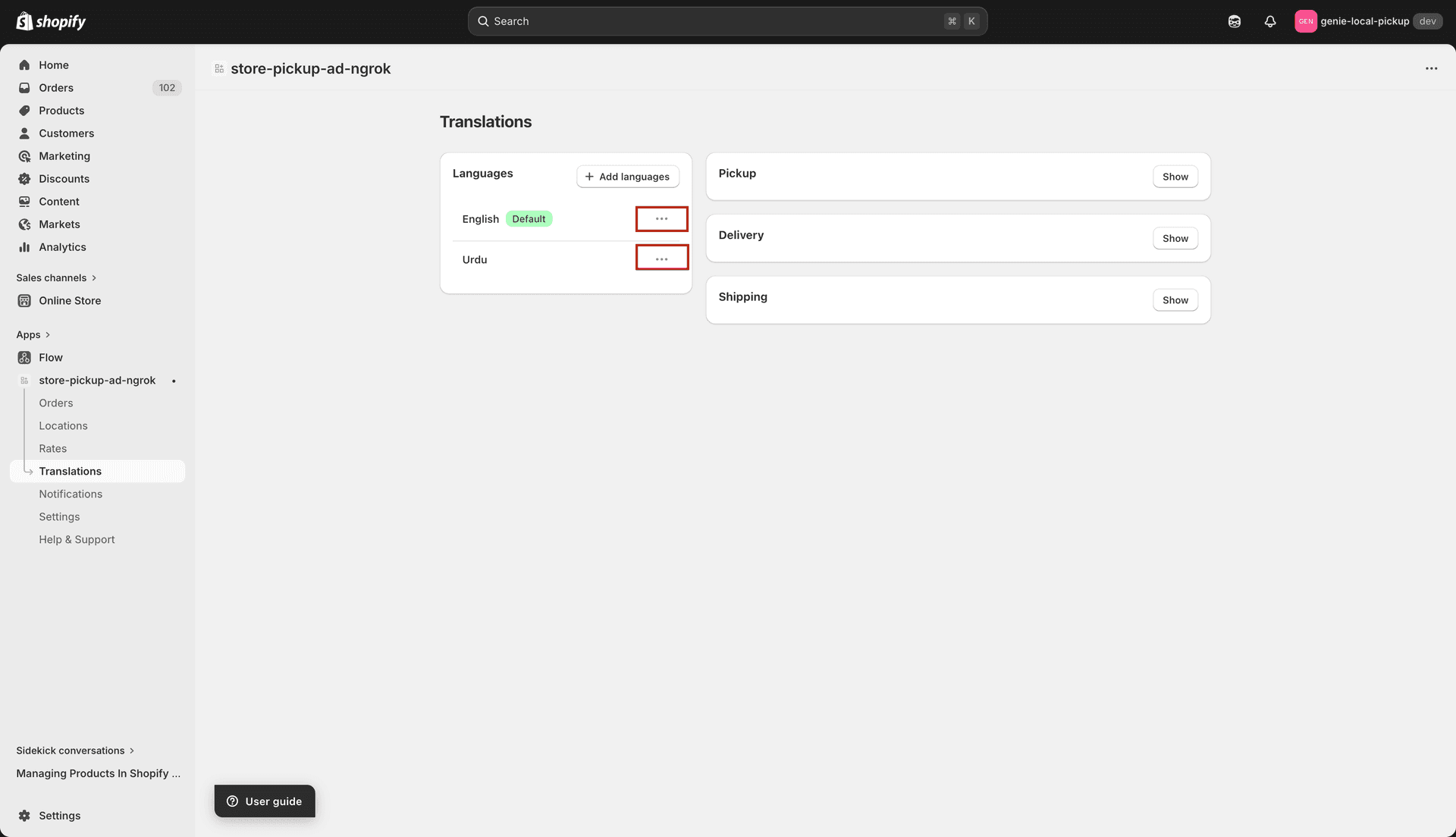
Click the ⋯ menu to set a language as default or remove it
Removing a language
Click the ⋯ menu next to the language you want to remove.
Click "Remove Language". The language is removed from your list.
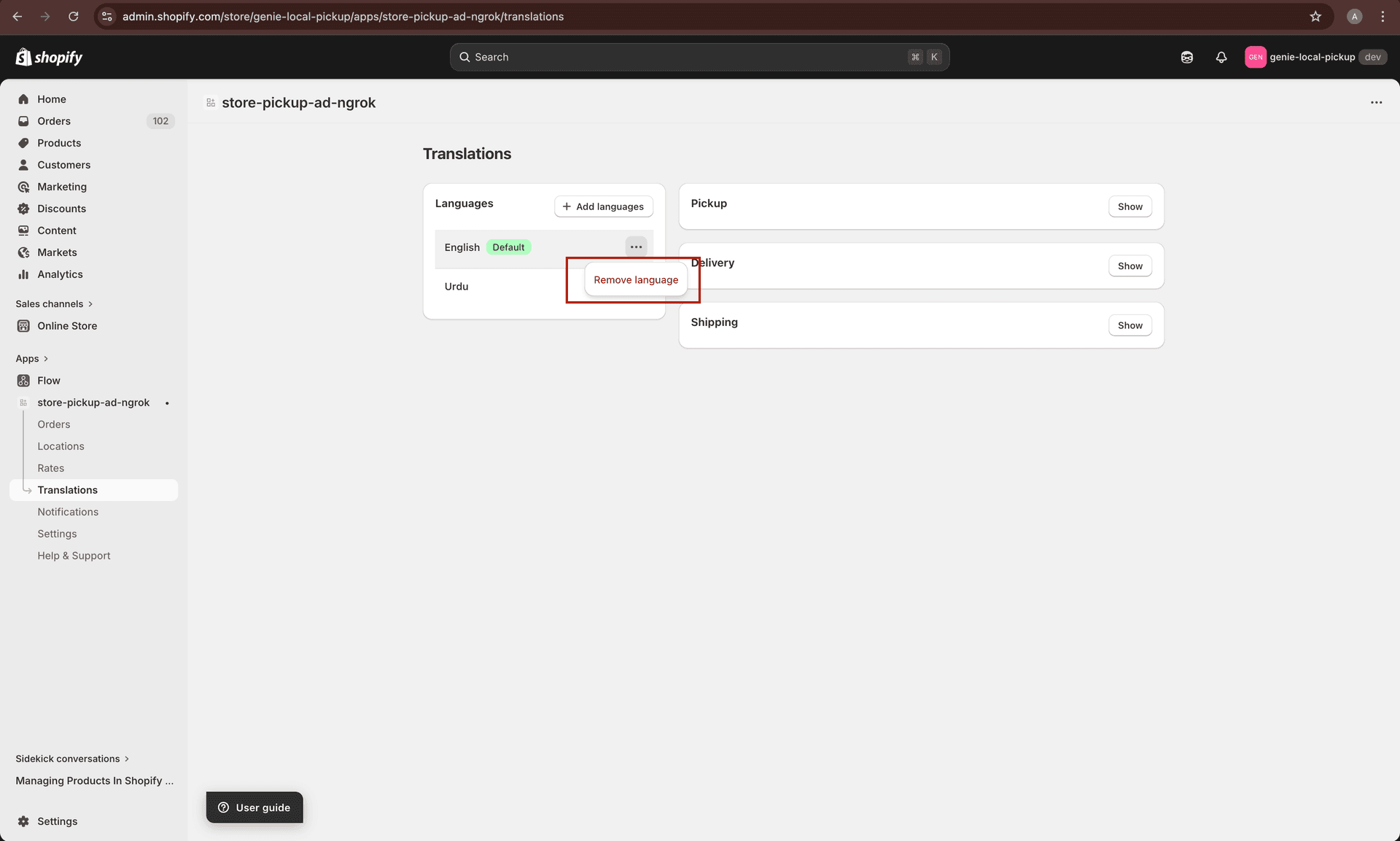
Use the ⋯ menu to remove a language from the list
Save your changes using the save bar at the top of the page. Language changes (adding, removing, setting default) are saved separately from translation text edits.